
Find Sager Button
Current Workflow
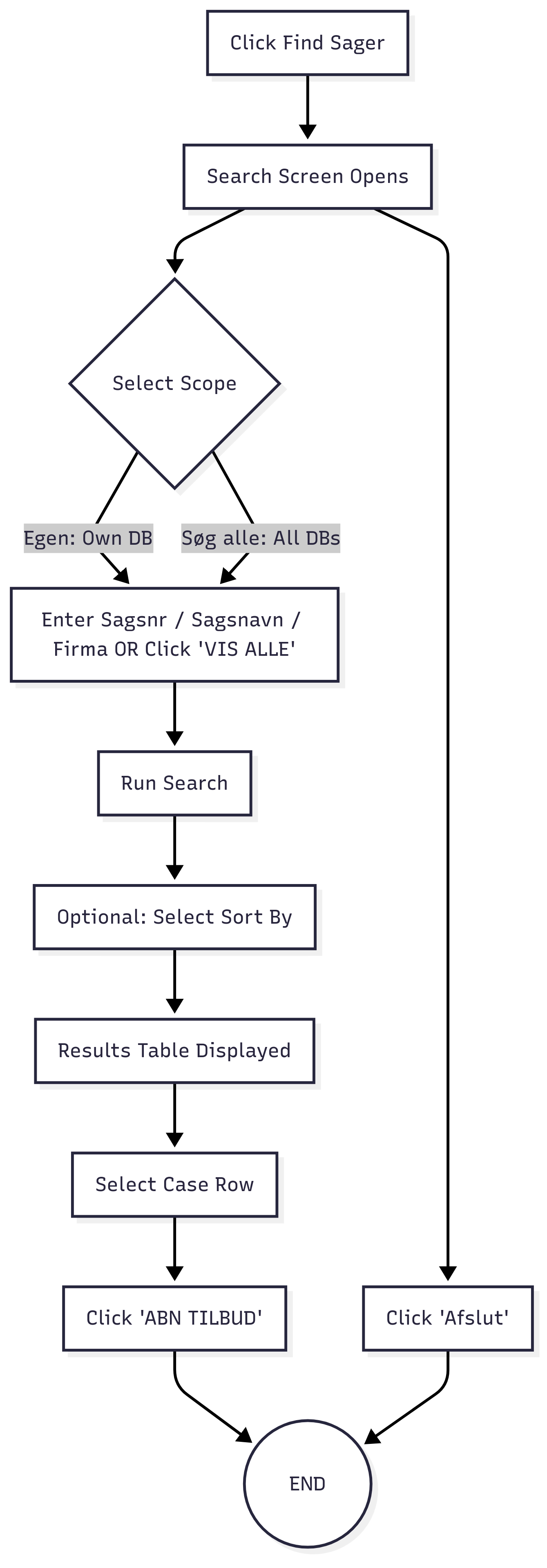
When the user clicks the Find Sager button:
The Find Sager screen opens.
The user can either:
Enter Sagsnr / Sagsnavn / Firma in the search bar, or
Click VIS ALLE to view all cases.
After triggering search, two separate result tables are displayed:
List of Cases Returned (unsorted).
List of Sorted Cases (fixed criteria sorting).
The user then selects a row from the results table.
Clicking ÅBN TILBUD opens the selected case.
Optionally, the user can exit via Afslut.
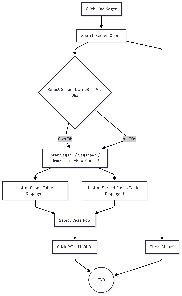
Current Workflow
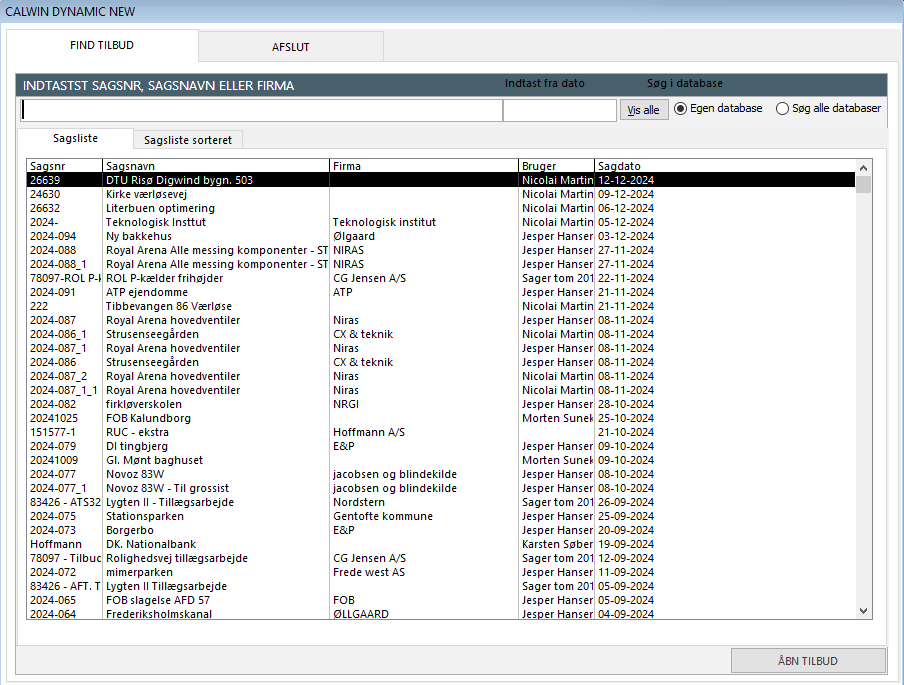
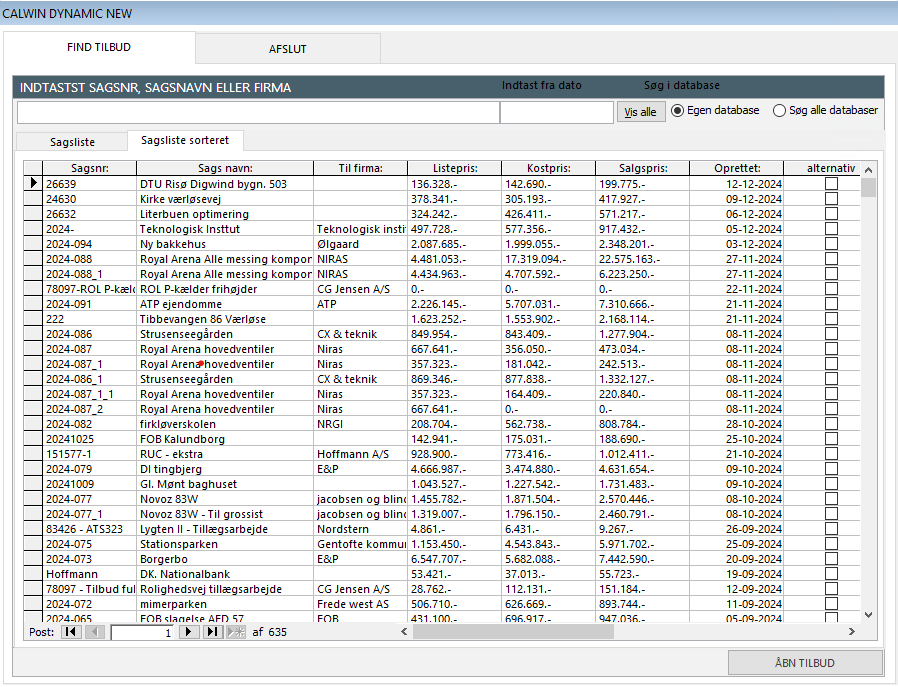
UI in CalWin Dynamic after clicking Find Sager button
Alternate Workflow (Proposed)
The alternate workflow simplifies case searching and sorting:
Clicking Find Sager opens a unified results page.
The search bar accepts Sagsnr / Sagsnavn / Firma, or the user can view all.
A single table displays results with all required columns.
Sorting is dynamic — the user can choose sorting criteria instead of being restricted to a fixed “sorted cases” view.
The user selects a case from the unified table.
Clicking ÅBN TILBUD opens the case.
Key Improvement: Instead of two different tables, the workflow is streamlined into one page with configurable sorting options.
Below is the proposed wireframe of an alternative workflow for the above case
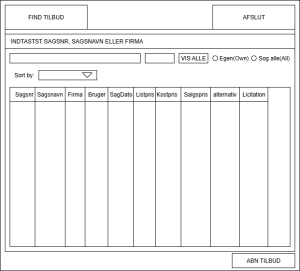
Find Sager Proposed Functional Flow
Opret Sag Button
Current Workflow
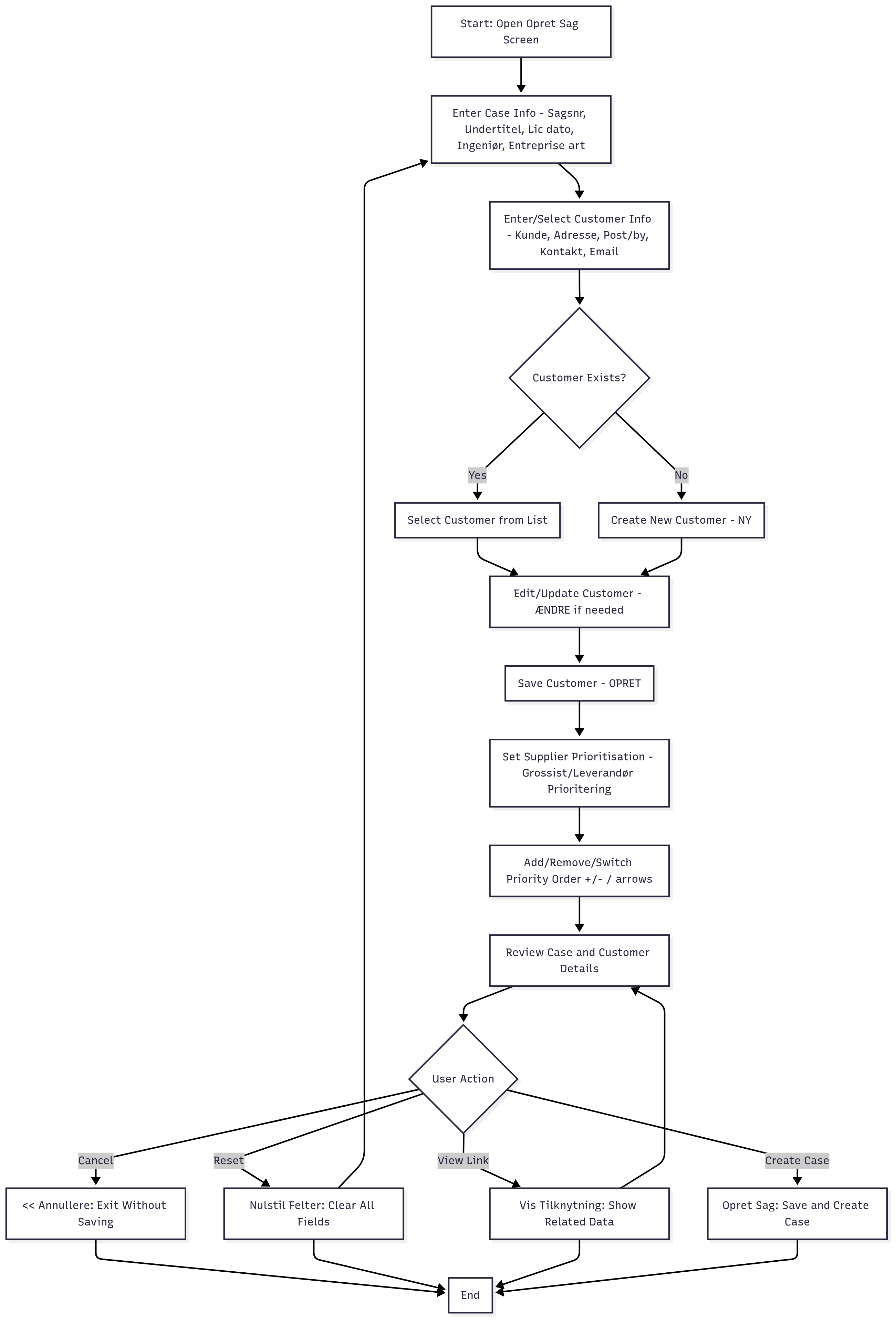
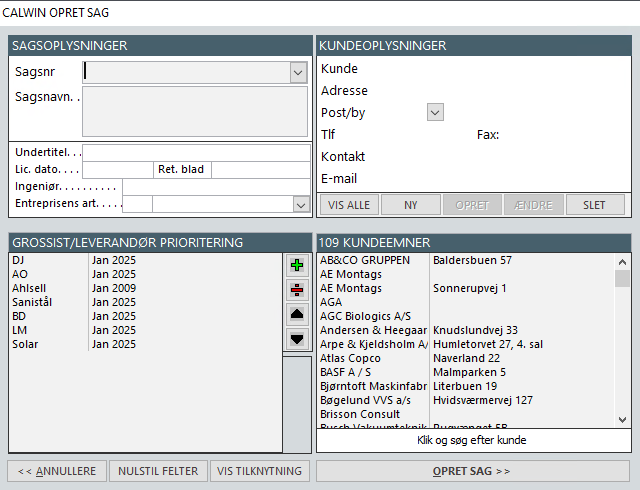
When the user clicks the Opret Sag button:
The Opret Sag screen opens.
The user enters case details (e.g., Sagsnr, Lic. dato, Undertitel, etc.).
The user prioritises suppliers in the Grossist/Leverandør Prioritering section (add, remove, reorder).
The customer information panel has:
Customer search / list (existing customers).
Options to create a new customer or update existing.
Once details are entered, the user can:
Click Opret Sag to create the case.
Use Annuller, Nulstil Felter, Vis Tilknytning as supporting actions.
Current Workflow
UI in CalWin Dynamic after clicking Opret Sag
Alternate Workflow (Proposed)
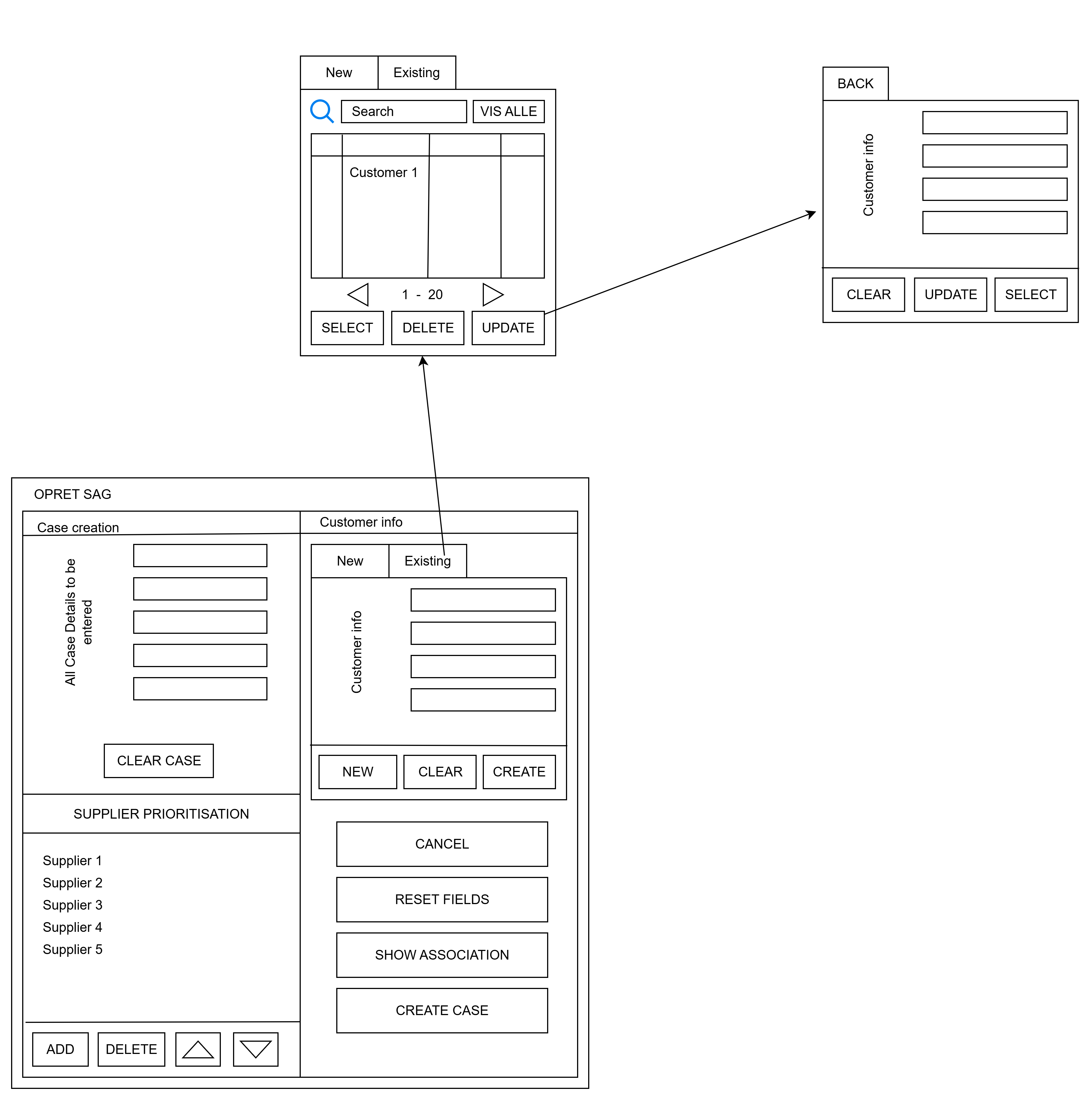
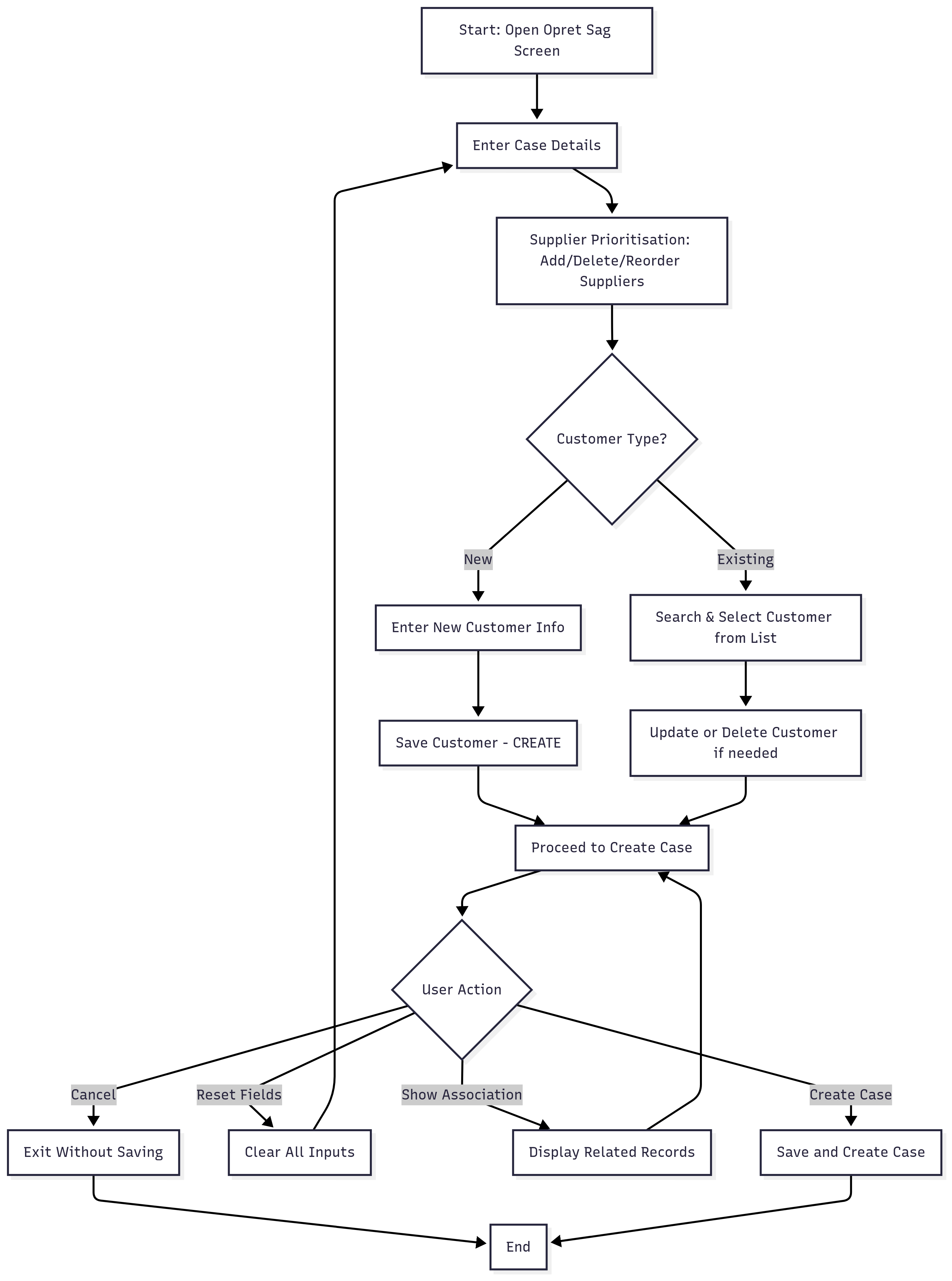
The alternate UI separates the workflow into two clearer paths:
Case Details Section: User fills in all required fields.
Supplier Prioritisation Section: User adds/deletes/reorders suppliers.
Customer Info Section:
New Customer Tab → Enter new customer details, then Create.
Existing Customer Tab → Search and select a customer, then optionally Update/Delete.
After customer selection:
The user can Create Case, or
Use supporting actions (Cancel, Reset Fields, Show Association).
Key Improvement: The alternate workflow introduces a tab-based customer section (New vs Existing), making it more intuitive, and separates responsibilities more clearly.
Below is the proposed wireframe of an alternative workflow for the above case
Opret Sag Proposed Functional workflow
5 Comments
Roshan Kalidas Devadiga
Sep 16, 2025Hi Krithi U K
I have a few queries regarding the approach. Please find them below:
What is the purpose of the "Show Association" and also there is AMEND button , where it is used and its use case?
In the current application, when a customer clicks the existing button under Customer Info, they get all the details. Additionally, if the search field is empty, the user has an option to view all customers using the "View All" button(Considering old customer module). In the new customer module, should the user click the search button to display all customers again, or should clearing the search text automatically refresh the tab and display the full customer list? Please clarify the expected behavior.
Also, considering scenarios where there are a large number of customers, would implementing pagination be a better approach instead of loading all customers at once?
Krithi U K
Sep 16, 2025To reply to your 1st question, I am not fully sure about the purpose of "Show Association" but as of what I know, we are searching the db's in Own items, Favourite items, Rabat etc. As for the AMEND button, I have implemented that for existing customer(since new customer doesnt need updation) in the form of update button. TO make it clearer, I will add a separate tab for update button and will update the documentation.
To reply to your 2nd question, clicking vis alle can show all customers. Clearing the search text to refresh the tab automatically could also be implemented.
To reply to your 3rd question, pagination is indeed a good option for handling large information efficiently. I will update this above.
To reply to your 4th question, I should have worded the buttons better. I will update it accordingly. The delete button in New customer tab means Clearing the data and the delete button in Existing customer means deleting the data of the existing customer.
Thank you for your insightful inputs!
Roshan Kalidas Devadiga
Sep 17, 2025Hi Krithi U K ,
If the Delete action clears the data, what exactly does Reset Fields do?
Does it clear all fields, including those in the Customer Module, Case Creation, and Supplier Prioritization Reset ID?
or is it redundant button ?
Krithi U K
Sep 17, 2025Hi Roshan Kalidas Devadiga
Delete button deals with the Customer Module only.
Reset Fields clears all fields, all of which you mentioned except supplier prioritization.
Roshan Kalidas Devadiga
Sep 18, 2025Hi Krithi U K
It would be better to keep a clear option in the case details as well. This should allow the customer to either clear each module individually or perform an overall reset at once (since this option is already available).
Also, please update the flowchart to reflect the new additions you’ve made.
Everything else looks good to me.
Additionally, you can take suggestions regarding the UI from Abida Shama, since it will be developed in Angular.
Shashanka Somayaji -please review this.