Update
Below you will find the news and fixes in Y26H2 as well as a description of how the update process should be carried out.
New look in ASPECT4
One of the major news items in this release is that ASPECT4 has been given a significant facelift – a more modern and contemporary look, if you will.
Users will notice a big change as early as the sign-on screen.
Each industry has been given its own colour, its own icon (instead of the large A in the top left corner) and its own image.
When the client is opened, there will be clear changes. The colours, icons, tables and field screens have all been updated to follow new standards.
With this change we have streamlined the client. Among other things, this means that we have chosen to replace all icons with simpler standard icons that are easier to read.
If there is a need/wish for different groups/companies to have different colours, it has until now been possible to choose between 8 standard colours.
Going forward, it is possible to choose between 14 colours. If the colours are changed, this applies to all screens.
In the new look, each user can choose to view ASPECT4 in a light colour scheme, a dark colour scheme, or have the client follow the colour scheme in the Windows settings on the individual PC.
Activation:
In Y26H2, each user must actively opt in to the new look.
This is done under the large A in the top left corner. Select Files / Settings / Colour scheme
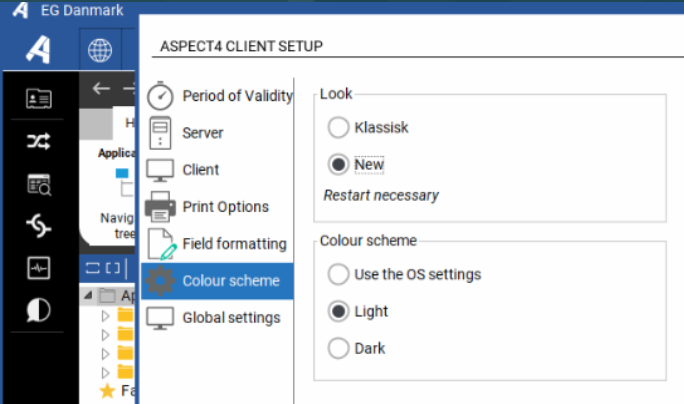
Once the user has selected the desired colour scheme, the client must be restarted before the change takes effect.
If the user does nothing, the user will not experience any change*
The plan is for EG to make the new look the default in an upcoming release.
*In section 0011 it has until now been possible to choose between 8 different colours. If a colour has been selected here, it may differ slightly from the colour previously shown. The reason is that – also in the "traditional" view of the client – it will now be possible to choose between 14 colours.
New functions
| Component(s) | Client Release Notes | Key |
|---|---|---|
| ABC | Response when calling a webhook This has been changed so that a response can now be sent back to the caller of the webhook. | A4-40929 |
| ABC | Embedded files on receipt Via setup it is now possible to unpack multiple embedded files on different keywords in the XML/json. | A4-41832 |
| ABC | Stylesheet version 2 (XSLT 2.0) is now supported Going forward, it is possible to use stylesheet version 2. Using stylesheet V2 gives access to more functions in the stylesheet. Among other things, V2 also makes it possible to split the in-house XML file into several outgoing XML files. The destinations rest service, FTP, IFS and mail currently support this option. | A4-41589 |
| ABC | OCR - find partner via SQL If AI can find multiple IBAN numbers, all IBAN numbers (in the relevant setup) can now be read. The definition has also been corrected so that you can write FINDCREDITOR* and thereby find all SQL with that name from o243- | A4-42091 |
| ABC | FTP test connection When using FTP via the batch server, it is now possible to test the connection in ABC via a button on both the document destination and the ABC profile. | A4-43320 |
| ABC | Version 2 stylesheet validation When using stylesheet version 2, validation has become stricter, and therefore "Stylesheet version" in the ABC system setup is set to V1. | A4-43401 |
| ABC | FTP send/receive via the batch server The batch server has grown into a central and important server in ASPECT4, used for many things in connection with ABC and elsewhere. | A4-41530 |
| ABC | Incoming json If the received json file does not contain data to be received, no document will be created going forward. | A4-40374 |
| Attachments | Explanatory text The table has been extended so that an explanatory text is shown for the key value. | A4-33315 |
| Attachments | Application 0365 Attachments - show system category In application 0365 it is possible to display selected/all manually archived Attachments. | A4-35080 |
| Attachments | Support for unicode in Attachments | A4-43339 |
| Attachments | Application 0365 Attachments In the list you can now choose the period for which Attachments should be shown (based on the creation date). | A4-39925 |
| Client | New DAWA address directory Previously, ASPECT4 used dataforsyningen.dk for automatic completion of addresses. | A4-40437 |
| Client | New and more secure login experience with OAuthWith Y26H2, ASPECT4 introduces support for OAuth, a modern and future-proof standard for authentication. This gives companies the opportunity to strengthen security around user login while creating a better foundation for future integration and identity solutions.
| A4-41310 |
| Client | Colour schemes in Windows | A4-29912 |
| Foundation | Audit In the audit list (application 0323), the timestamp of the audit being worked on is now shown. | A4-38392 |
| Foundation | Java 21 The portal has been changed so that it now uses Java 21 (instead of Java 17). | A4-40095 |
| Foundation | Deactivated users The application 'Whitelisting' (0323) has been changed so that only active users are shown going forward. | A4-33507 |
| Foundation | Table with stepping stone link per program/screen The use of AS4ALKT1 was replaced by the table AS4ALKT2 in release 6. | A4-26212 |
Reported errors and inconveniences
| Component(s) | Client Release Notes | Key |
|---|---|---|
| ABC | Special characters in ABC When data is received via e-mail in ABC, a file is automatically created on the IFS. | A4-41245 |
| ABC | Enrichment A check is now made that the enrichment program actually exists. | A4-38740 |
| Client | Date fields | A4-39780 |
| Foundation | Audit list/whitelist In the audit list (application 0323) and the white list (application 0324), the timestamp of the most recent audit is now shown. Previously, whitelist information from the previous audit timestamp was shown if all whitelists were deleted. | A4-38428 |
IMPORTANT information
| Component(s) | Client Release Notes | Key |
|---|---|---|
| Foundation | Java 21 Java 21 must be installed | A4-35408 |
Installation activities BEFORE loading | |
Console screen A console screen ('green screen') must be used for all the installation activities mentioned here (the ASPECT4 Client must not be used). | |
Receiving the software Sign on with your own user and run 'Install ASPECT4 software' (application 0590). Run with 'Receive' (option 1). | |
Loading | |
EGSERVER or VAP subsystem The EGSERVER subsystem must be ended. This is done with the command: ENDSBS SBS(EGSERVER) DELAY(30) ENDSBSOPT(*NOJOBLOG). (when loading into test it is not necessary to end EGSERVER, but make sure that everything is shut down in the test environment. Once EGSERVER has been restarted during the night, the test environment can be used again. Alternatively, everything can be restarted via appl. 0653) | |
Installation When EGSERVER has been stopped (check using WRKSBS), the update must be installed. This is done in application 0590 'Install ASPECT4 software'. Select option 2 'Install'. | |
Remember to sign off AFTER the update has been installed. | |
Installation activities AFTER loading | |
Conversion runs Sign on again with your own user. Select application 0690 'Conversion runs'. Select system 400. Start the conversion with F16. It is important that the conversion takes place in the environment that is to be updated. | |
Start EGSERVER (or VAP) The EGSERVER subsystem must be started. On a command line, use the command STRSBS SBSD(EGSERVER). Starting EGSERVER automatically starts all the servers listed in application 0653. NOTE! With this update it is important (in order to activate data history on general registers) that the STRSBS command is run in a slightly different way than usual. From the 5250 emulation, on the Sign on screen, after the user and password have been entered, fill in the field 'Program/procedure' with the text qcmd. Then press Enter, and on the command line that appears, run STRSBS. (If other updates need to be installed that require EGSERVER not to be started, wait with this step until later). | |
DocManager must be restarted on the machines where it is already installed. (This can only be done once EGSERVER (or the VAP) has been started) | |
Citrix/Terminal servers If the ASPECT4 client is installed on a Citrix/terminal server, it must be updated via an import command. On EG's deployment page (e.g. http://SERVER:1045/client/) there are 3 large buttons. Under 'read more' there is a guide on how to update the cache. Remember that when the import command is run, the server name etc. must be exactly as in the jnlp file. In application 0361 'System level', F16 'Client Information' shows the path from which the client can be imported (and thus also how to access EG's deployment page). | |
| |
Robots Note – when updating, there is no guarantee that applications used in the company's robots are unchanged. Robots that access changed applications may fail – and must therefore be re-recorded. It is in any case a general condition for Robotics products that after a software update it is important to test the robots that are used/critical. | |