
Create a project template
1. Go to the project module and click Register a new project.

2. Select a project type by clicking on it. To create a project without a type, click "Project without type".

3. Fill in the details for the project template, check the box Use as template, and click Save.
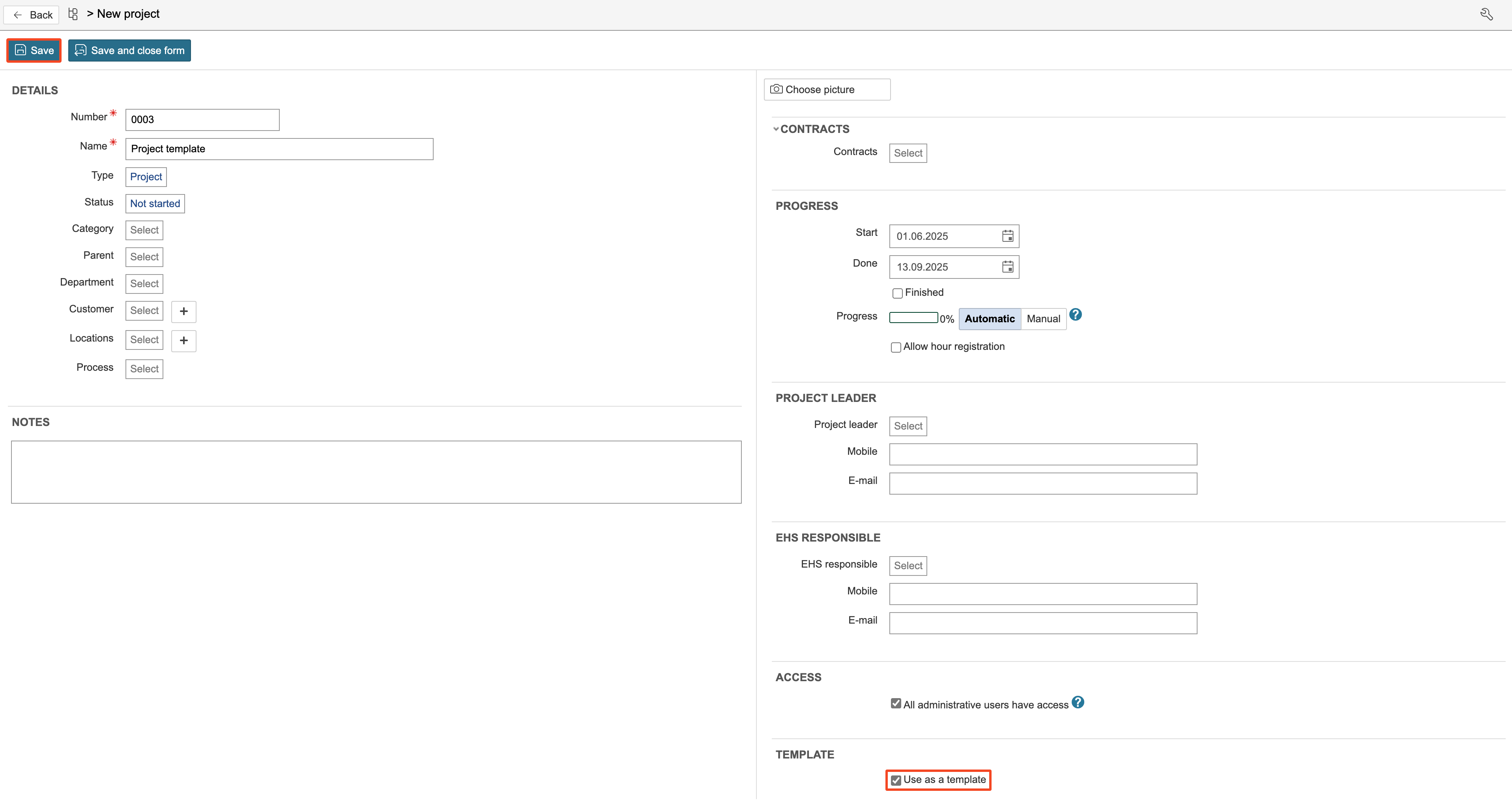
Info: Because this is a template, only selected fields are filled in — such as name, type, status, and dates. The project type determines the start page, the sections included in the project, and the layout of the project form. All new projects created from the template will automatically be assigned the same type and status as the template. The planned start and end dates define the project timeline. When a new project is created based on the template, the date of creation is automatically inserted as the planned start date, even if the template specifies a different one. The duration set in the template is used to calculate the planned end date.
4. To view the project's start page, click Go to the project portal for this project.
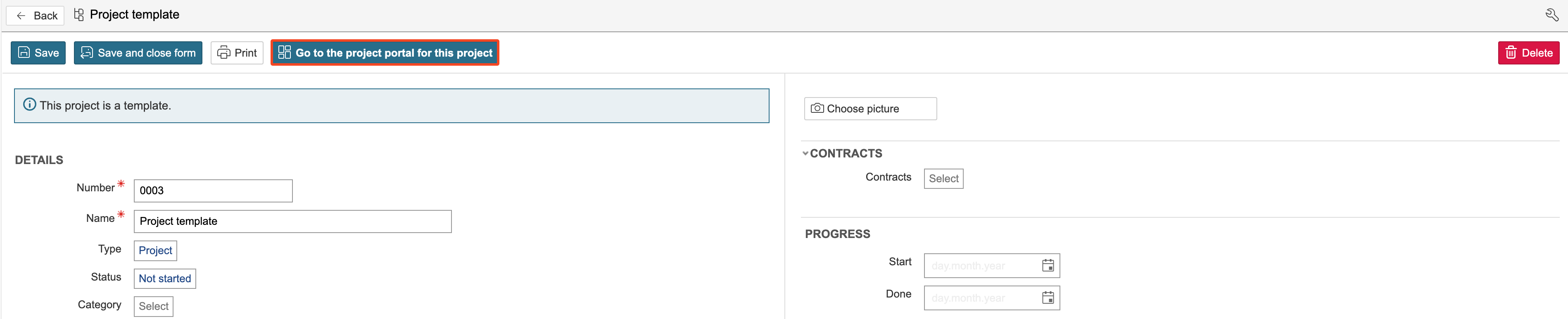
5. The project portal is the project's start page. The project start page may vary, as different projects can have different start pages. You can customise the dashboard to suit your preferences.
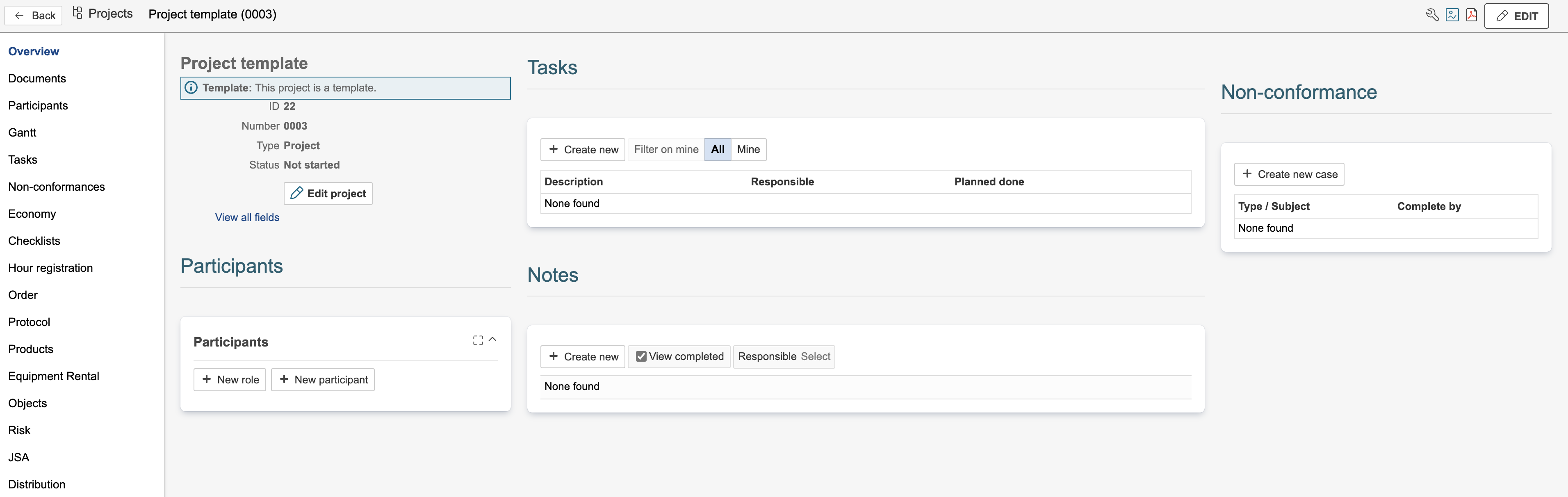
Info: The sections are listed on the left side of the page. Each section can be made visible only to selected project types or user groups. A section contains either a dashboard or a URL. Section dashboards are edited in the same way as the start page dashboard. "Overview" is set as the opening section, so when a project is opened, the dashboard for that section is displayed.