Find Sager Button
Current Workflow
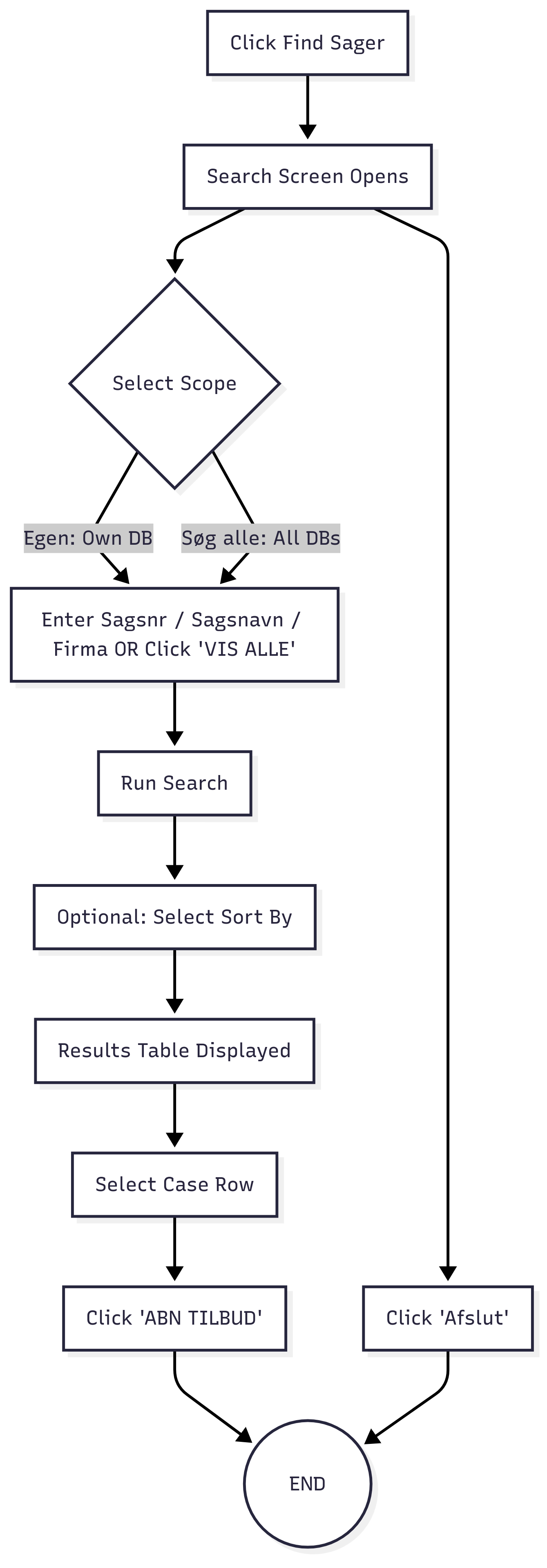
When the user clicks the Find Sager button:
The Find Sager screen opens.
The user can either:
Enter Sagsnr / Sagsnavn / Firma in the search bar, or
Click VIS ALLE to view all cases.
After triggering search, two separate result tables are displayed:
List of Cases Returned (unsorted).
List of Sorted Cases (fixed criteria sorting).
The user then selects a row from the results table.
Clicking ÅBN TILBUD opens the selected case.
Optionally, the user can exit via Afslut.
Current Workflow
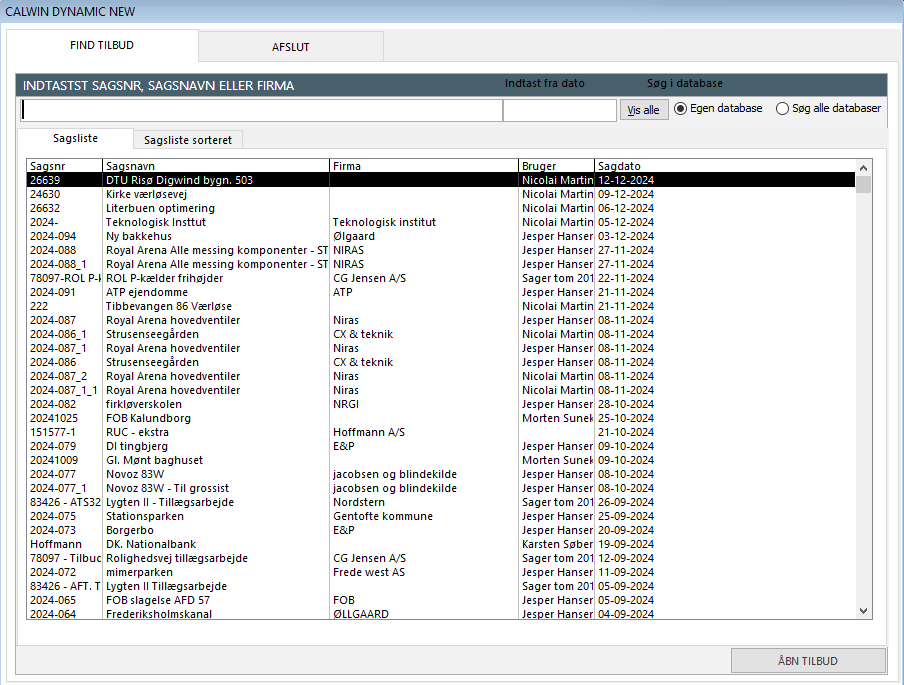
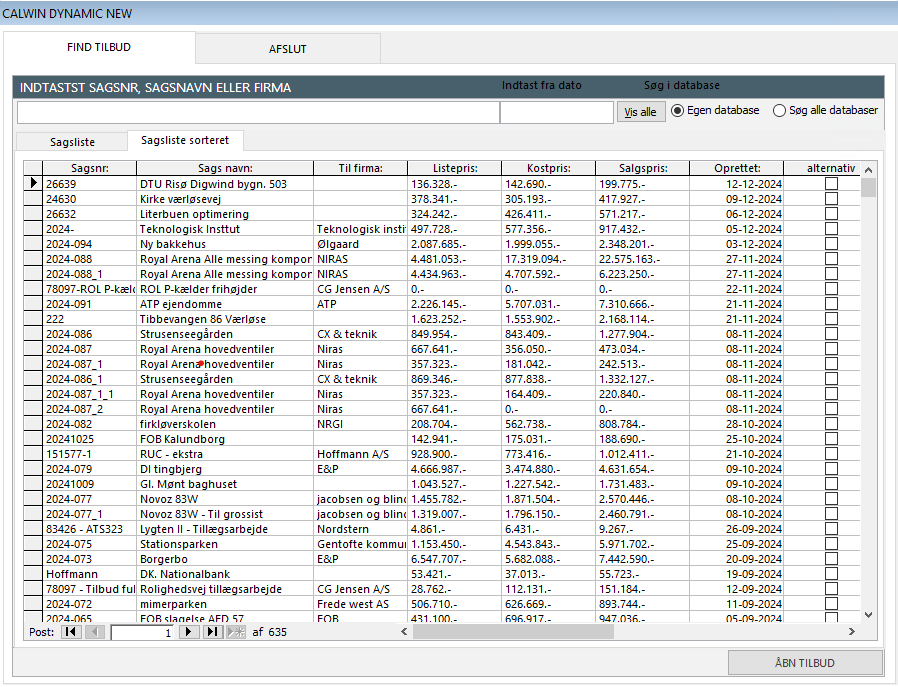
UI in CalWin Dynamic after clicking Find Sager button
Alternate Workflow (Proposed)
The alternate workflow simplifies case searching and sorting:
Clicking Find Sager opens a unified results page.
The search bar accepts Sagsnr / Sagsnavn / Firma, or the user can view all.
A single table displays results with all required columns.
Sorting is dynamic — the user can choose sorting criteria instead of being restricted to a fixed “sorted cases” view.
The user selects a case from the unified table.
Clicking ÅBN TILBUD opens the case.
Key Improvement: Instead of two different tables, the workflow is streamlined into one page with configurable sorting options.
Below is the proposed wireframe of an alternative workflow for the above case
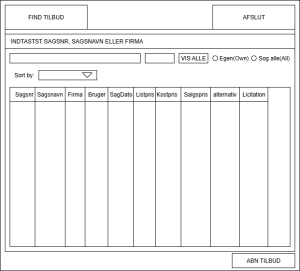
Find Sager Proposed Functional Flow
Opret Sag Button
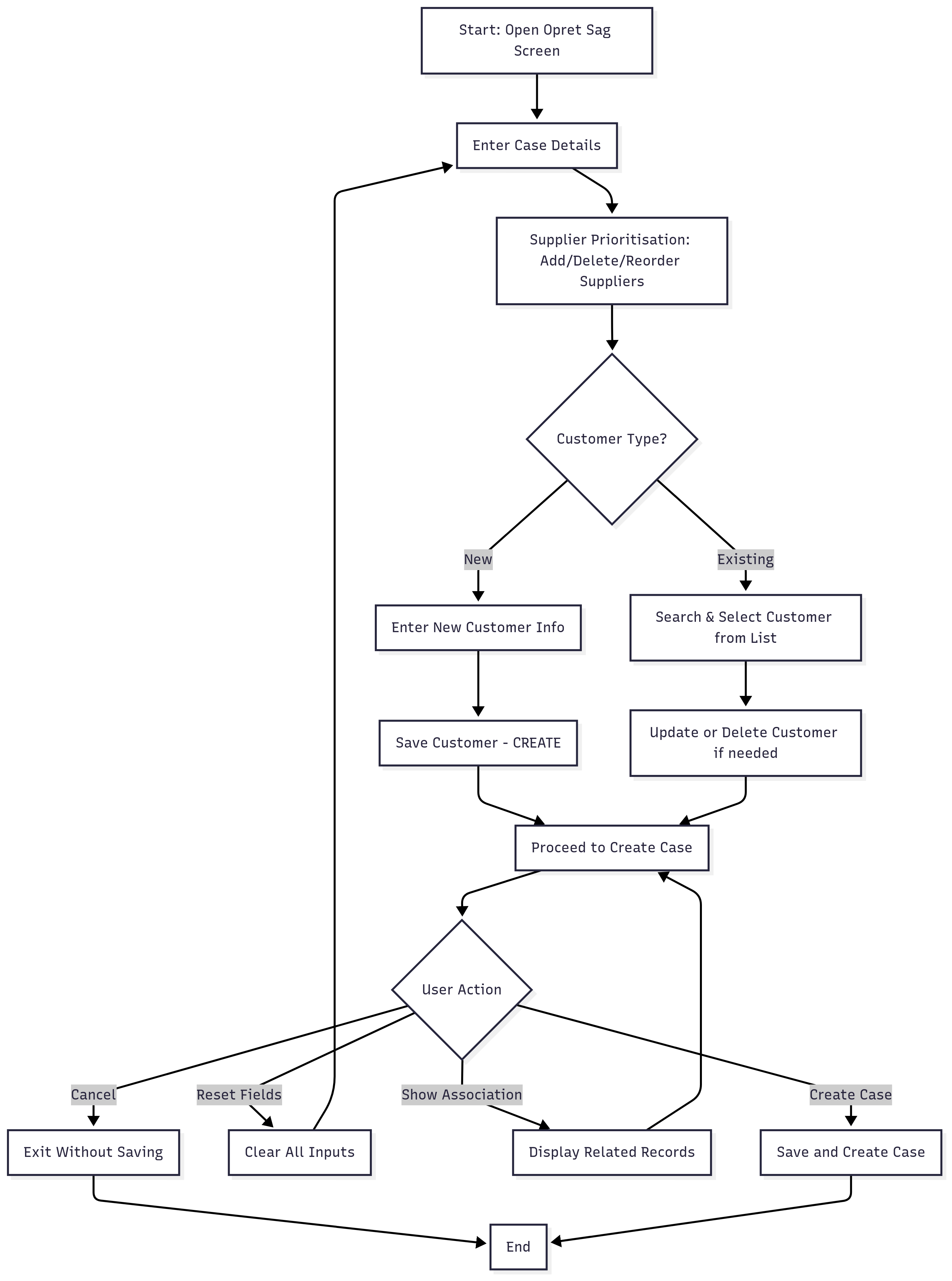
Current Workflow
When the user clicks the Opret Sag button:
The Opret Sag screen opens.
The user enters case details (e.g., Sagsnr, Lic. dato, Undertitel, etc.).
The user prioritises suppliers in the Grossist/Leverandør Prioritering section (add, remove, reorder).
The customer information panel has:
Customer search / list (existing customers).
Options to create a new customer or update existing.
Once details are entered, the user can:
Click Opret Sag to create the case.
Use Annuller, Nulstil Felter, Vis Tilknytning as supporting actions.
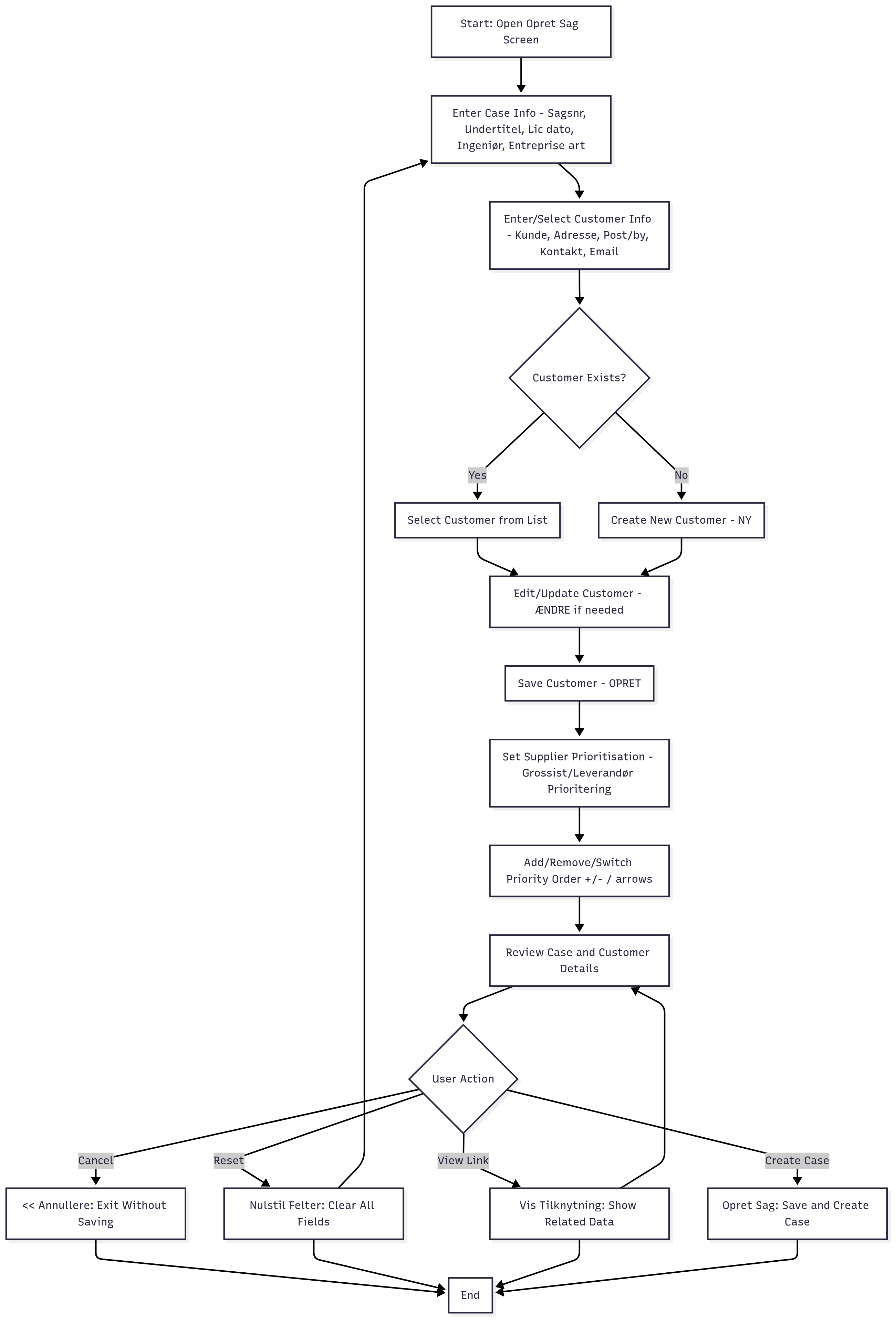
Current Workflow
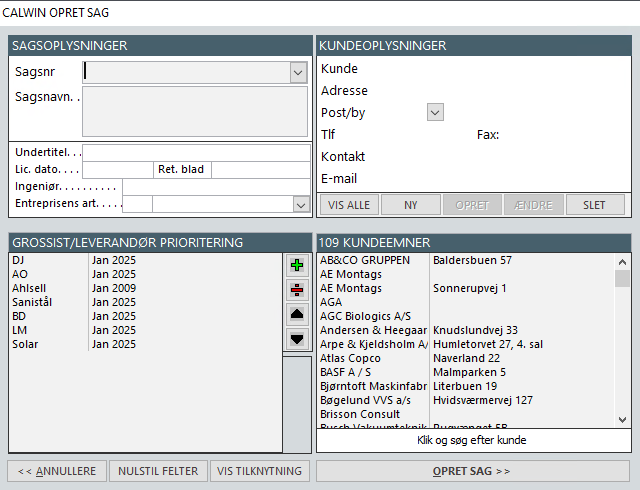
UI in CalWin Dynamic after clicking Opret Sag
Alternate Workflow (Proposed)
The alternate UI separates the workflow into two clearer paths:
Case Details Section: User fills in all required fields.
Supplier Prioritisation Section: User adds/deletes/reorders suppliers.
Customer Info Section:
New Customer Tab → Enter new customer details, then Create.
Existing Customer Tab → Search and select a customer, then optionally Update/Delete.
After customer selection:
The user can Create Case, or
Use supporting actions (Cancel, Reset Fields, Show Association).
Key Improvement: The alternate workflow introduces a tab-based customer section (New vs Existing), making it more intuitive, and separates responsibilities more clearly.
Below is the proposed wireframe of an alternative workflow for the above case
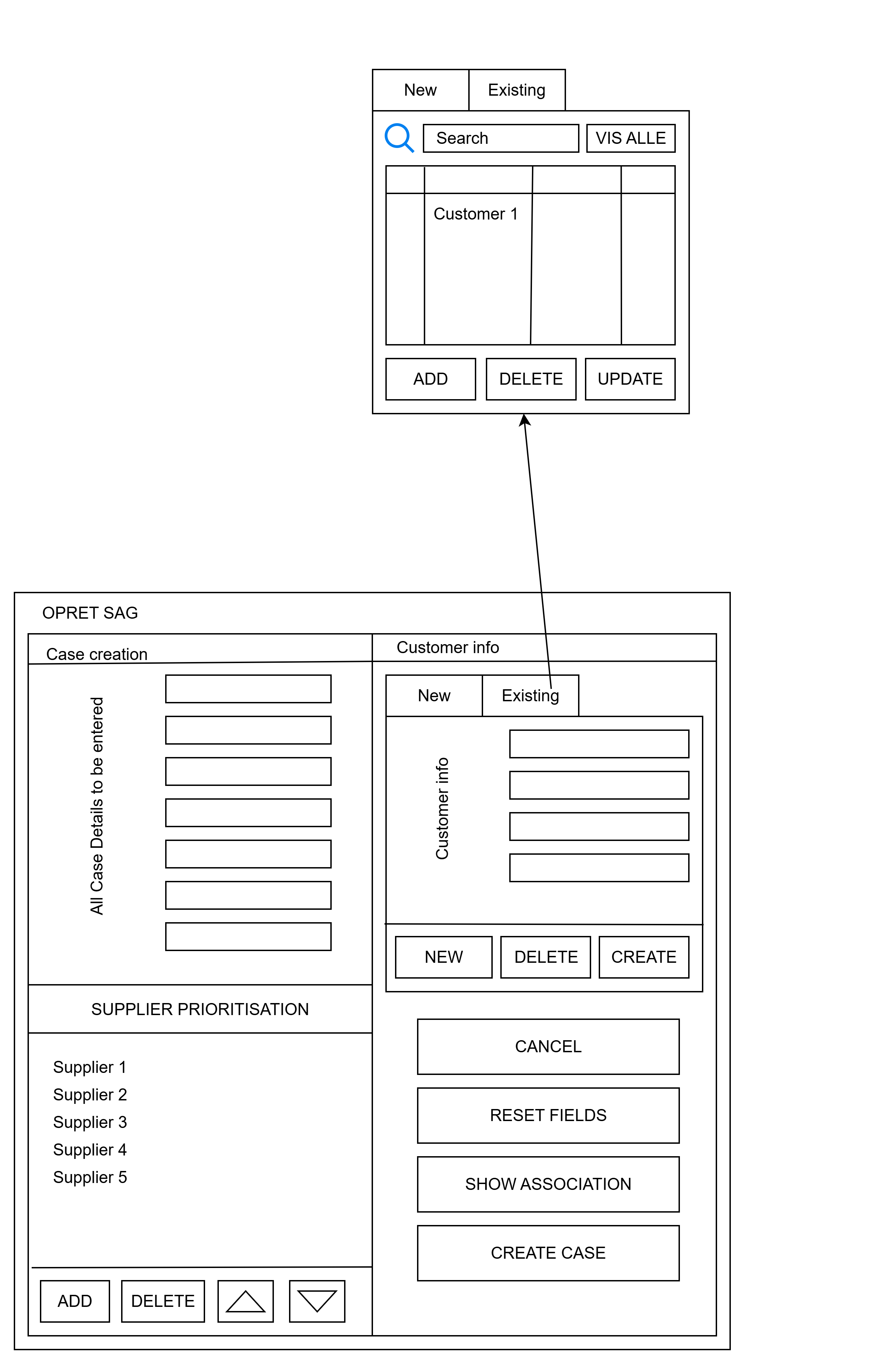
Opret Sag Proposed Functional workflow