
1. Go to the protocol module and click Create new.

2. Select the type for the protocol by clicking on it.

Info: Protocol types are indicated by  , while templates are represented by
3. Enter a name and fill in any other fields if applicable. Click Save to add participants and documents to the protocol.
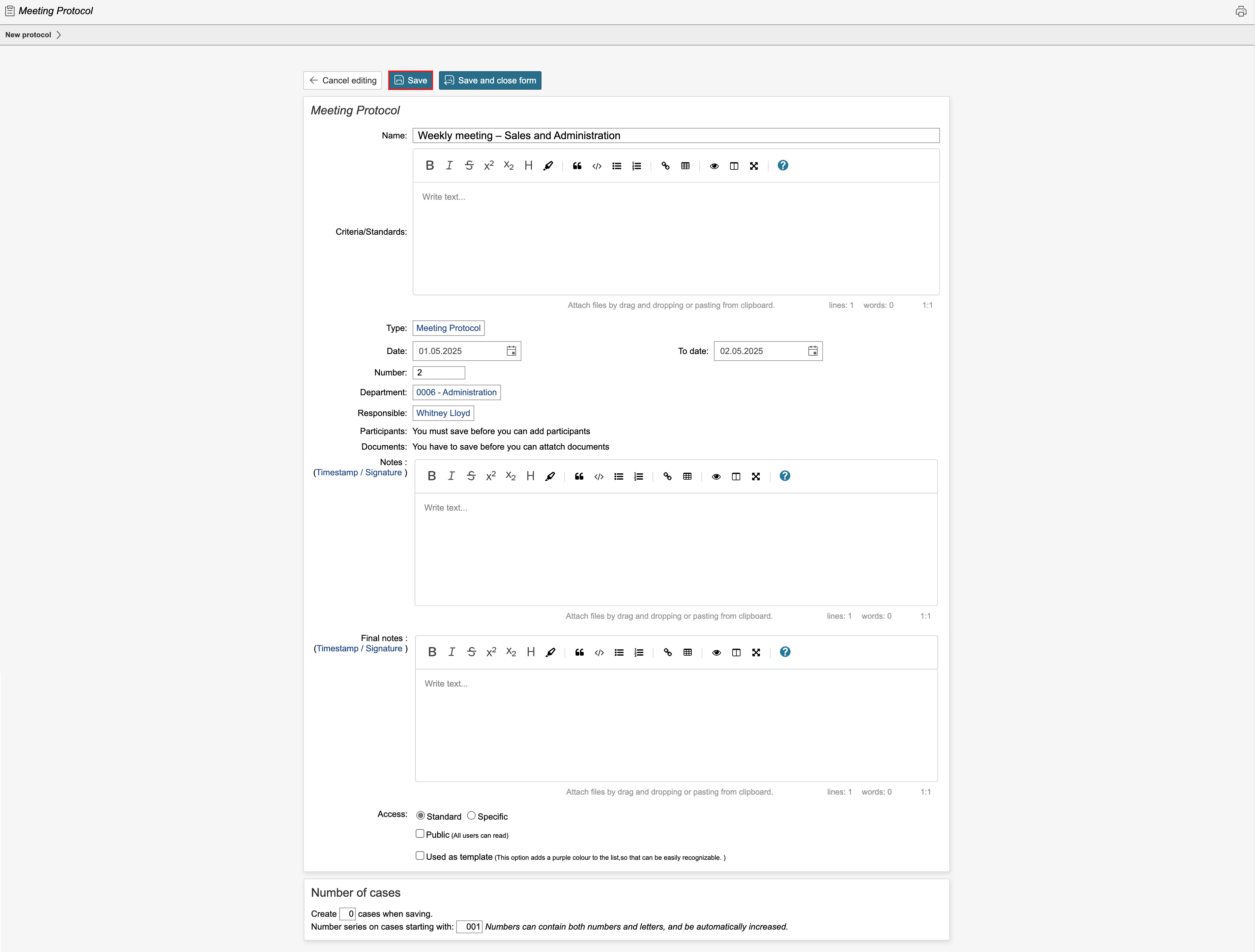
4. If applicable, add participants and documents and click Save. To view the protocol overview or create a case, click Save and close form.

Tip: If the protocol requires strict access control, tick the 'Specific' box in the Access field and select who should have access.
5. To create a new case, click Create new case.
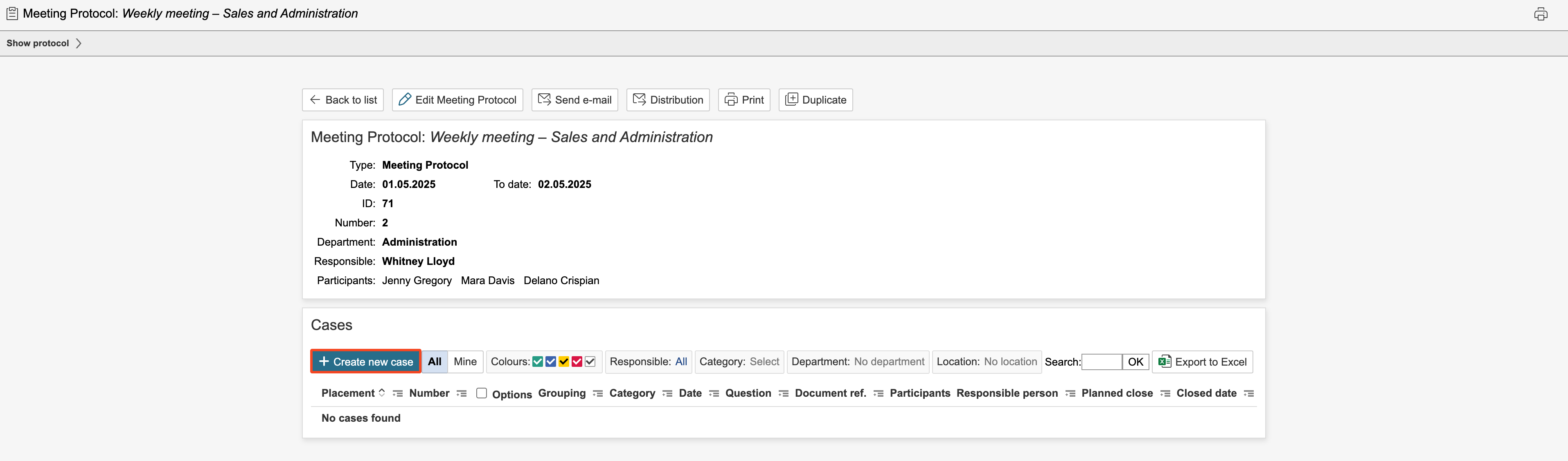
6. Complete the fields for the case and click Save. To save and create a new case, click New case.
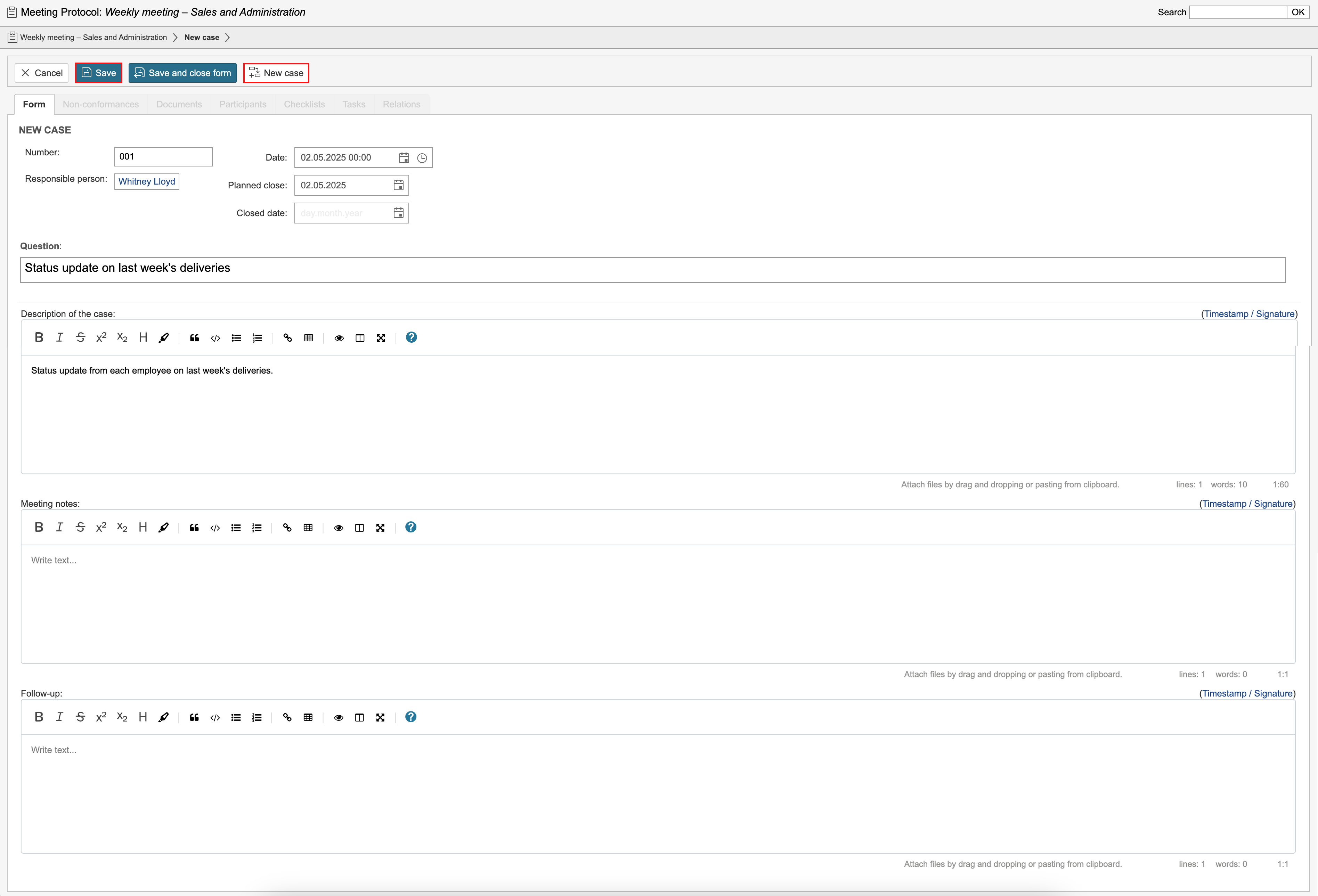
7. Once the information for a protocol case has been entered, you can continue registering additional cases by clicking New Case and filling in the relevant details for each one.

Info: All cases in the protocol are displayed on the left side of the page.
8. If a case has been answered and completed during the meeting, you can close it by ticking Case closed. To continue and a create new case, click New case.

8. When all cases have been created and reviewed, click Save and close form to return to the protocol overview.

9. You can close the protocol once all cases are closed. To do so, click Close [protocol name].

Info: Closed protocols are marked with  in the protocol overview.
The colours in the overview reflect the status of case deadlines within each protocol. Protocols marked in red contain cases where the closing deadline has been exceeded. Yellow indicates protocols with cases that have a planned closing date, but where the deadline has not yet passed. Green protocols contain only cases that have been closed, while white protocols contain cases with no closing deadline.
