Lägga till person i organisationen
Välj Organisationshierarki, varvid organisationshierarkins olika nivåer öppnas i arbetsfönstret. Gå till nivå 6 i organisationen.
Då visas valet Lägg till person med blått i nederkanten.
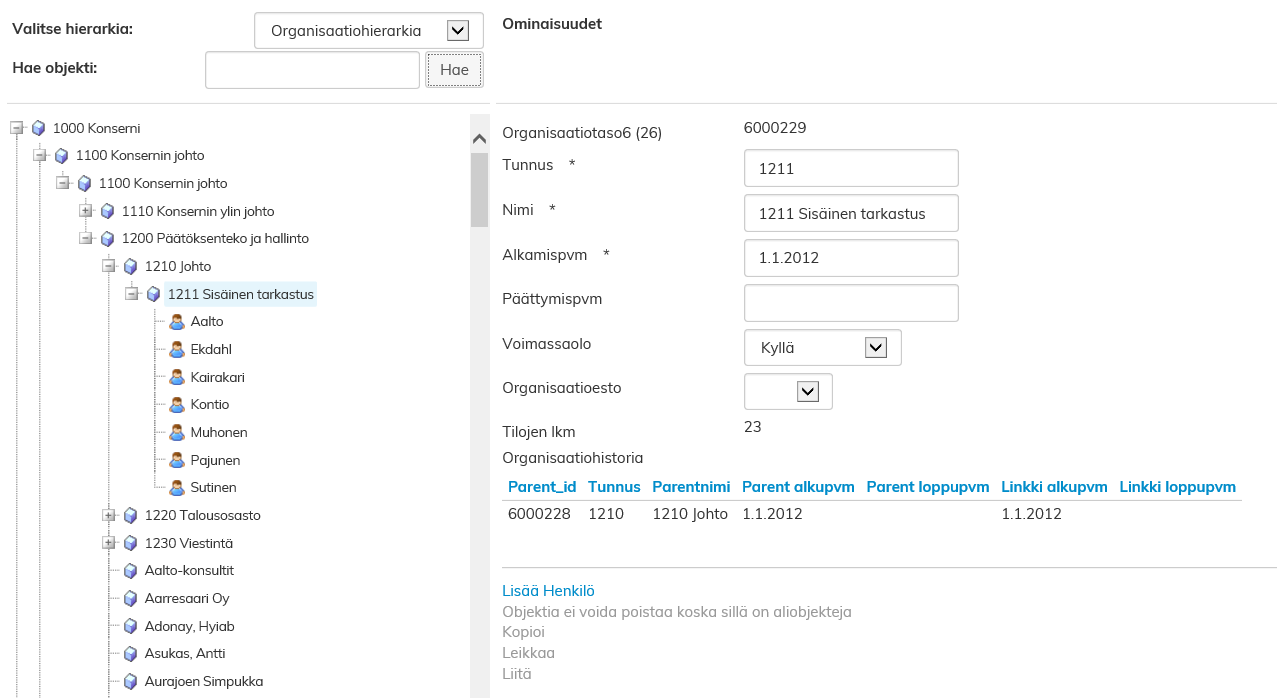
Fyll i personens uppgifter i fälten i fönstret som öppnas och tryck slutligen på Spara.
Redigera personens uppgifter
Hämta uppgifterna för personen som ska redigeras från organisationens nivå 6.
Du kan söka personen på dess efternamn vid punkten Sök objekt eller genom att bläddra i organisationsträdet.
Personens uppgifter visas till höger i fönstret. Redigera önskade uppgifter och välj slutligen Spara.

Radera person från organisationen
Välj personen som ska raderas som aktiv i organisationshierarkin. Du kan söka personen på dess efternamn.
Sök objektet med denna funktion eller genom att bläddra i organisationsträdet.
Personens uppgifter visas till höger i fönstret. Välj Radera objektet och dess länkar till lokaler under uppgifterna.
| Obs! |
|---|
| Genom att radera personen i administrationen av objekt, raderar du personen helt från Optimaze. Om du vill avsluta personen endast från en viss lokal, gör det i planritningen |
Adding new employees to organization
Select Organization hierarchy, and different levels of organization hierarchy will open up. Go to organization level 6.
A blue text Add employee appears in the bottom of the page.
...
Fill out the person's information in the window that opens. Once you are ready, click Save.
Changing employee properties
Search for the employee from organization level 6. You can search for the person by last name in Search for object field or by browsing the organization tree.
Current employee information will open up on the right side of the window. Change the desired information and when you have finished, select Save.
Deleting an employee from an organization
Select the person you want to delete from the organization hierarchy. You can search for the person by last name with the Search for object function or by browsing the organization tree.
Current employee information will open up on the right side of the window. Below the employee information, select Remove object and its space links.
By removing a person in object management, you remove the person entirely from Optimaze.
If you want to delete the employee only from a certain space, you can do it via the floor plan| . |