Du kan granska rapporter både i Lokal-vyn och Eko-vyn. I Lokal-vyn kan du granska rapporter i anslutning till lokaler och hyresadministration samt i Eko-vyn rapporter i anslutning till ekonomikörningar och miljöutsläppskalkyler.
Behörigheterna fastställer vilka rapporter som varje användare eller användargrupp kan granska.
Rapporter kan du skapa i huvudmenyn under punkt Rapporter och under den finns fyra valmöjligheter.
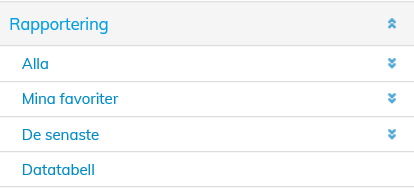
Under menyn Alla finns alla de rapporter som är tillgängliga för dig.
Mina favoriter ger en lista på de rapporter som du fastställt som dina favoriter och De senaste ger en lista på de fem (5) senaste rapporterna.
Om datatabellerna ges information nedan i kapitlet Data.
| Tips |
|---|
En rapport som du ofta använder kan du fastställa som din favorit i förhandsvyn genom att klicka på knappen Lägg till i favoriter. |
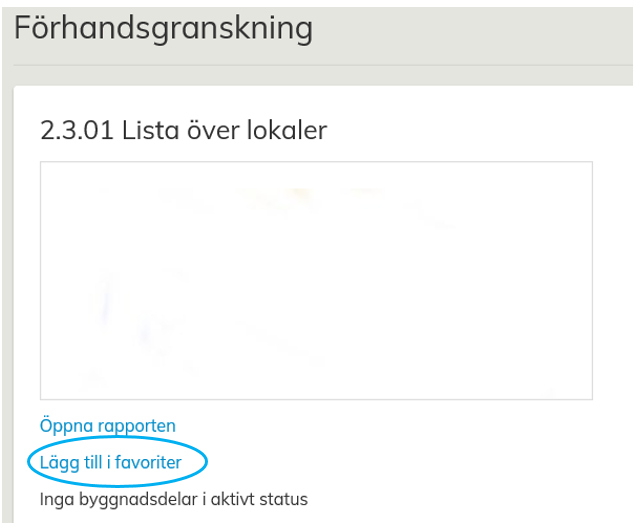
Då du klickar på respektive rubrik öppnar sig under den rapporter som gäller det aktuella ämnesområdet, t.ex. 2.1. Under rubriken Omfattning finns rapporterna 2.1.01 Kalkyl och andra rapporter i anslutning till omfattningen.
Då du klickar på rapportens namn, öppnar sig i arbetsfönstret uppgifter om den aktuella rapporten. Klicka på texten
Du kan öppna en enskild rapport genom att klicka på knappen Öppna rapporten.
Innan rapporten öppnar sig frågar programmet av dig i vilken form du vill skriva ut rapporten. Du kan välja mellan rapporter i PDF- eller Excel-form.
Efter det att du i rullgardinsmenyn valt önskad form, klicka på knappen Skapa rapport. Om du har filtrerat uppgifter på rapporten, visas i denna vy en uppgift om detta.
| Tip |
|---|
Grön text, om filtreringen fungerar på denna rapport Röd text, om den filtrering som du önskar inte kan genomföras på den valda rapporten. |
Närmare uppgifter om avgränsning av uppgifter på rapporten ser du under punkt Filtrering.
Reports can be viewed both in Space view and in Eco view. In the Space view, you can find reports related to spaces and lease management, while in the Eco view, the reports are related to finance processing and environmental emission accounting.
The access rights determine, which reports each user or user group is allowed to view.
You can create reports from the main menu under Reporting. There, you can find four options:
...
You can find all available reports under the All menu.
My favorites will list the reports that you have marked as favorites, while Recent shows you the last five (5) reports created.
More detailed information on data grids can be found below in section Data grids.
...
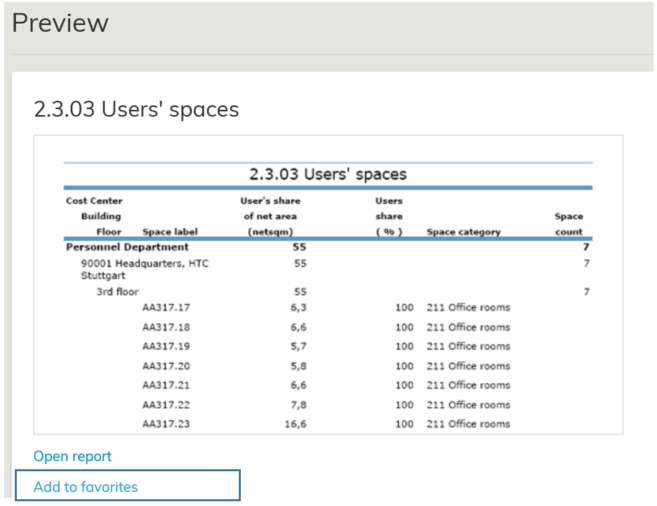
You can mark regularly used reports as favorites by clicking the
Add to favorites button on the report preview.
When you click each of the headers, the reports relating to the topic, such as 2.1, will open below it. Reports, such as 2.1.01 Area calculation and other reports relating to the area, are found under the Area header.
When you click the name of the report, details on the report will be displayed in the workspace. You can open a single report by clicking the Open report button.
Before the report opens, the software asks, in which format you wish to print the report. You can select PDF or Excel reports.
When you have selected the preferred format from the pull-down menu, click Create report button.
If you have filters active for the report, you will get a notification in this view.
...
The text is green, if you have active filters for this report.
The text is red, if the requested filter could not be applied for the selected report.
For more information on filtering data on the report, see section