
...
- Open http://portal.azure.com
- Log in with your credentials
- Locate the environment that you want to access and (Usually PROD)
- Click the FacilityTaskExchangeApi

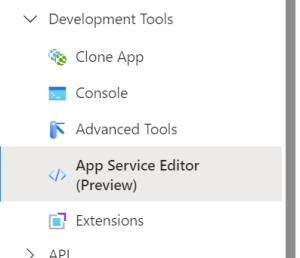
- In the left most menu pane, scroll down untill you reach the menu named DevelopmentTools, open it and click the sub-menu named App Service Editor
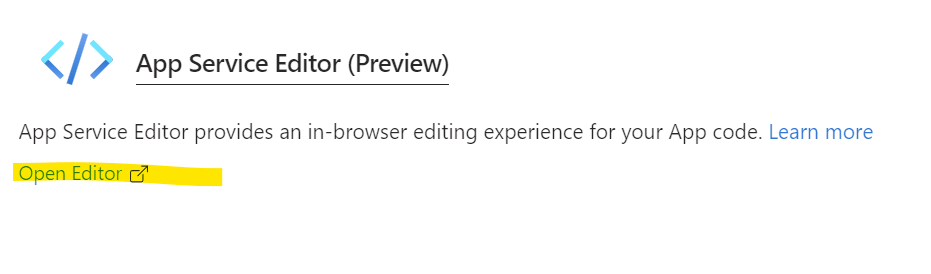
- In the window to the right click the link named Open Editor
- In the window that opens select the file ypou want to view
Ip Whitelisting
For a client machine to connect to, and communicate with teh service, the sending machine public ip adress should be added to the whiletist, otherwise it will be rejected.
To add a new Ip adress to the service whitelist follow this procedure:
- Open http://portal.azure.com
- Log in with your credentials
- Locate the environment that you want to access and (Usually PROD)
- Click the FacilityTaskExchangeApi
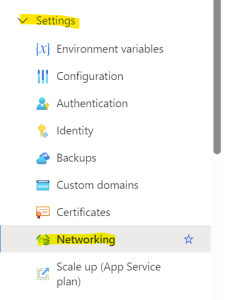
- In the left most panel, locate and expand the menu item named Settings then click the sub-menu item Networking
- In the opened view, click the link shown in the picture:
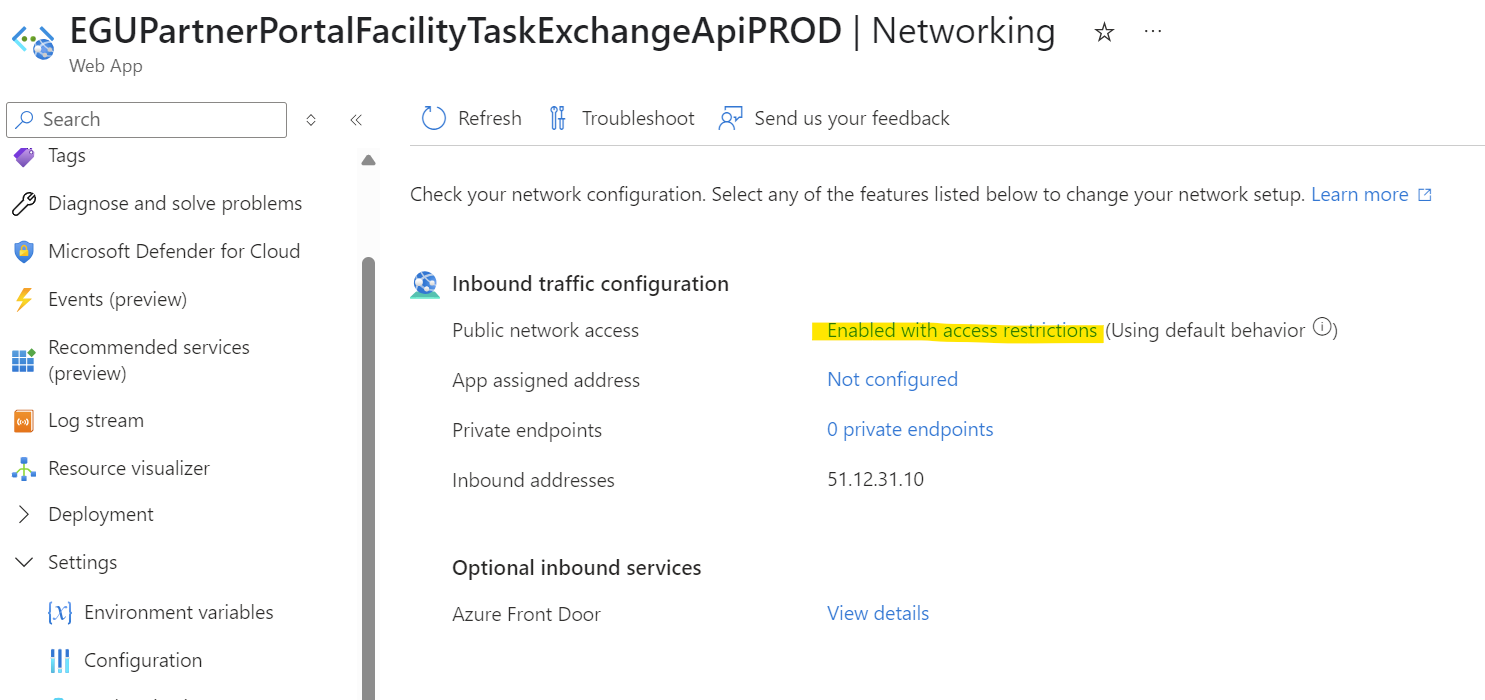
- Scroll to the bottom and check if an element matching your machine is in the list.
- If present
- Click the element of your machine
- In the panel that appears, change the ip adress in the field named IP Address Block
- Click Update Rule
- If not:
- Click Add
- Fill out the fields in the panel that apears to the right
(ALWAYS FILL IN A NAME THAT MAKES SENCE SINCE MAINTAINING WILL BE IMPOSSIBLE IF YOU DONT - PLEASE FOLLOW THE ONES ALLREADY MADE) - Click Add rule
- If present
- Scroll to the top of the main page
- Click SAVE
A restart should not be nessesary but it never killed anyone to do so.
Services in the hosted environments
...