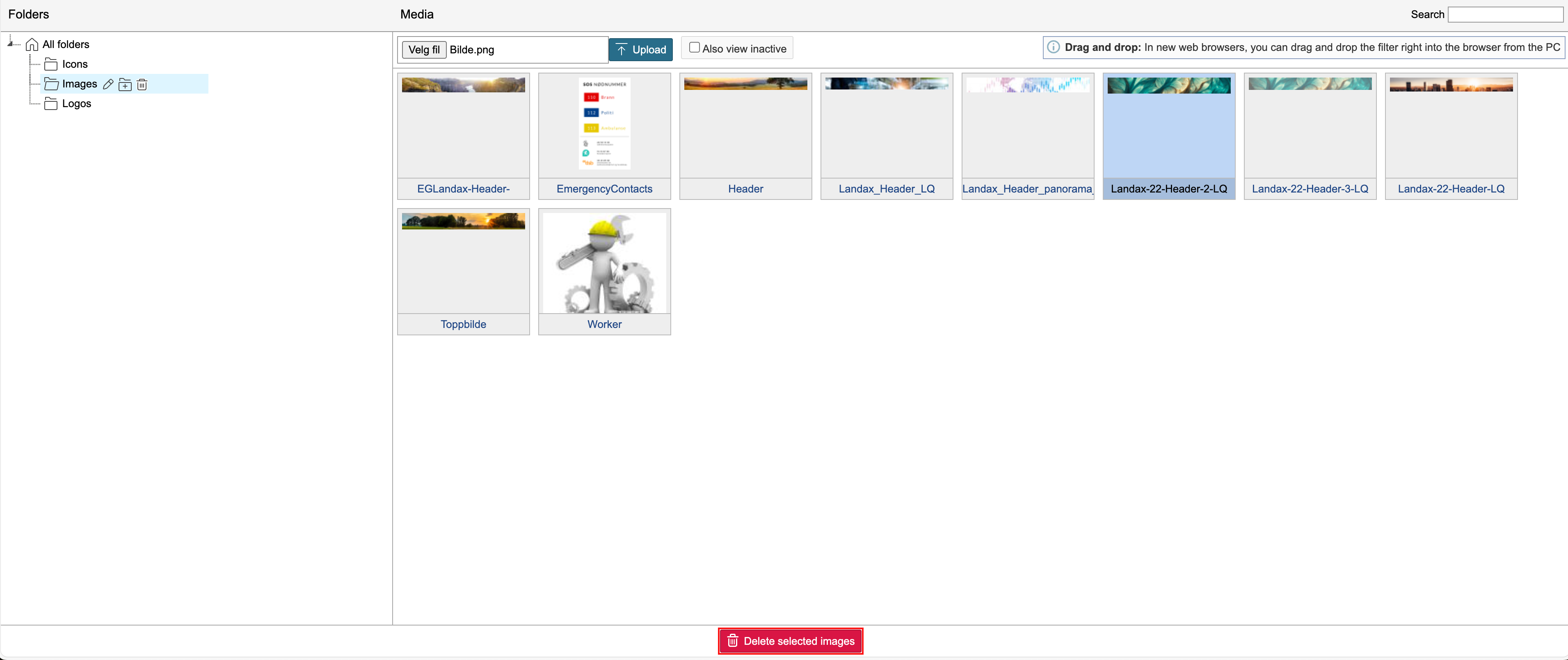
To add or remove pictures in the media library, go to the control panel and click Media library in the middle column.
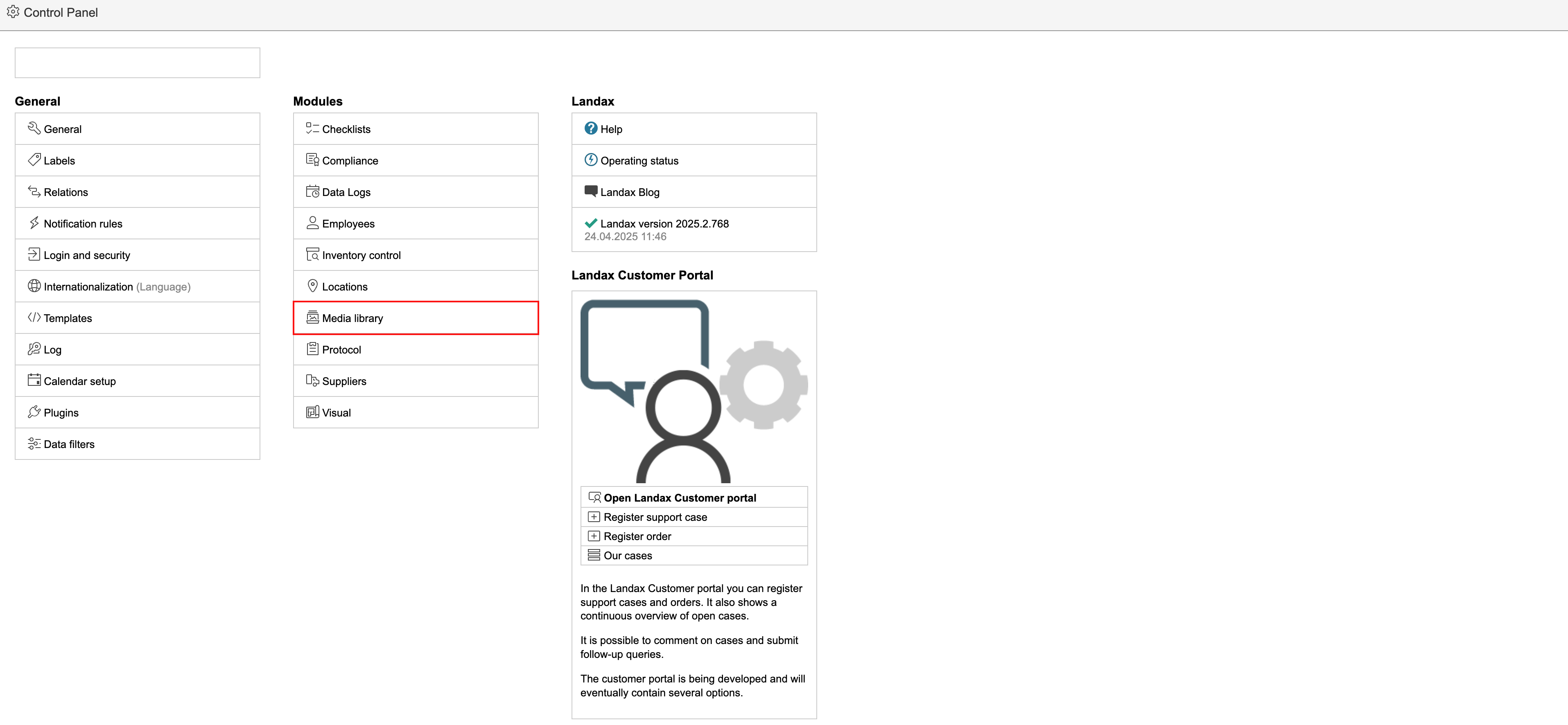
Folders
Create new
To create a new foldersfolder at root level, click All folders followed by 
 .
.


Edit existing
To make changes to existing folders, select the folder to be changed by clicking it. To edit the name of the folder, click 
 . To delete a folder, click
 . To create a subfolder, click .
...
Upload file
1. To add or remove pictures in the media library, go to the control panel and click Media library in the Modules column.

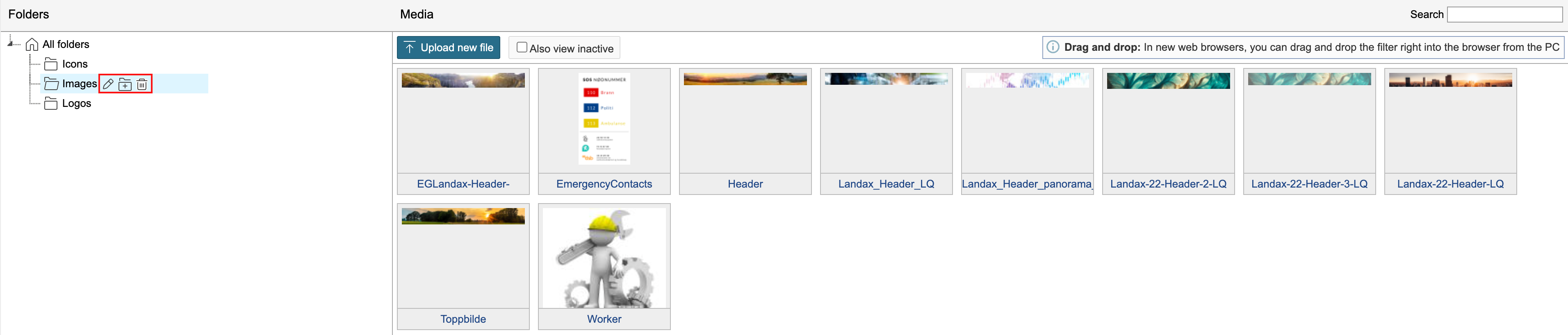
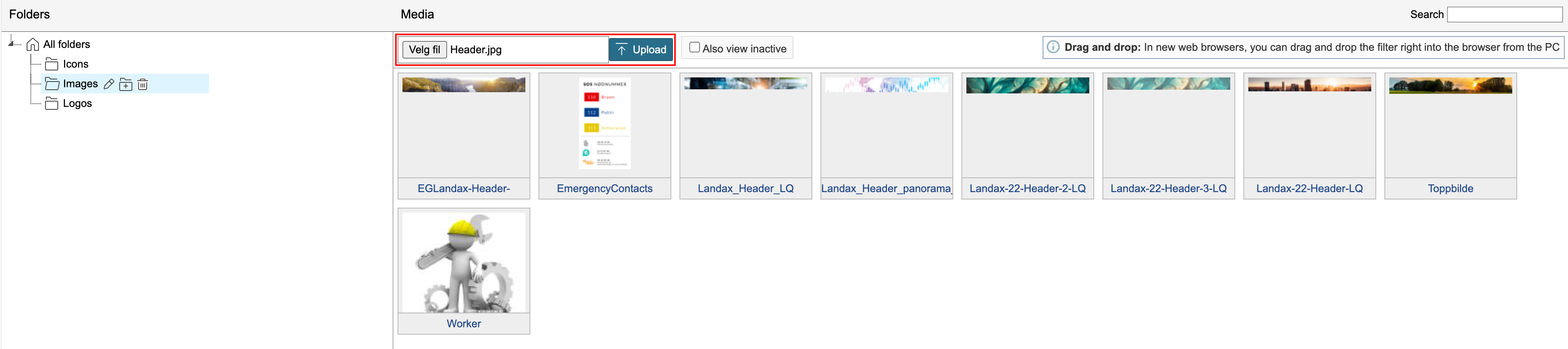
2. Click the folder where you will be uploading a file and click Upload new file.

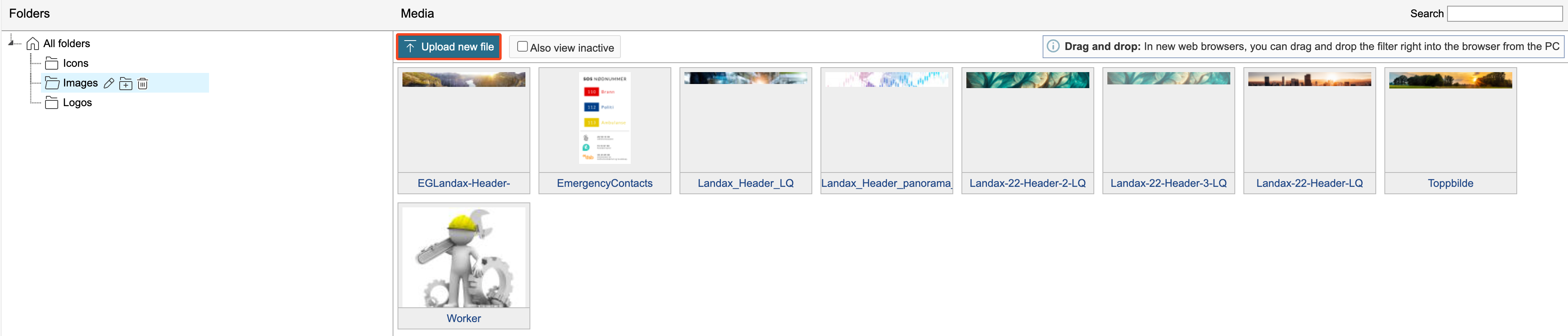
32. You can add Select a file by clicking Upload new file or using the Drag and dropmethod.to upload and click Upload.
Drag and drop
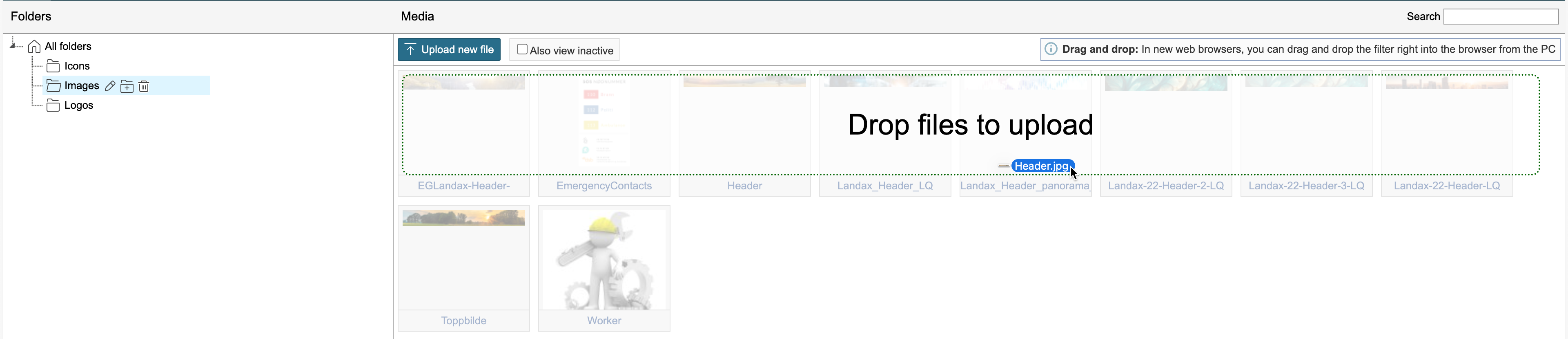
You can also use drag-and-drop to upload new files. Open the folder you want to upload an image to, drag the file from a folder on your computer, and drop it where it says 'Drop files to upload'.

Delete a file
To delete a file, select the file in the list by clicking on it and then click Delete selected imageimages at the bottom of the page.