
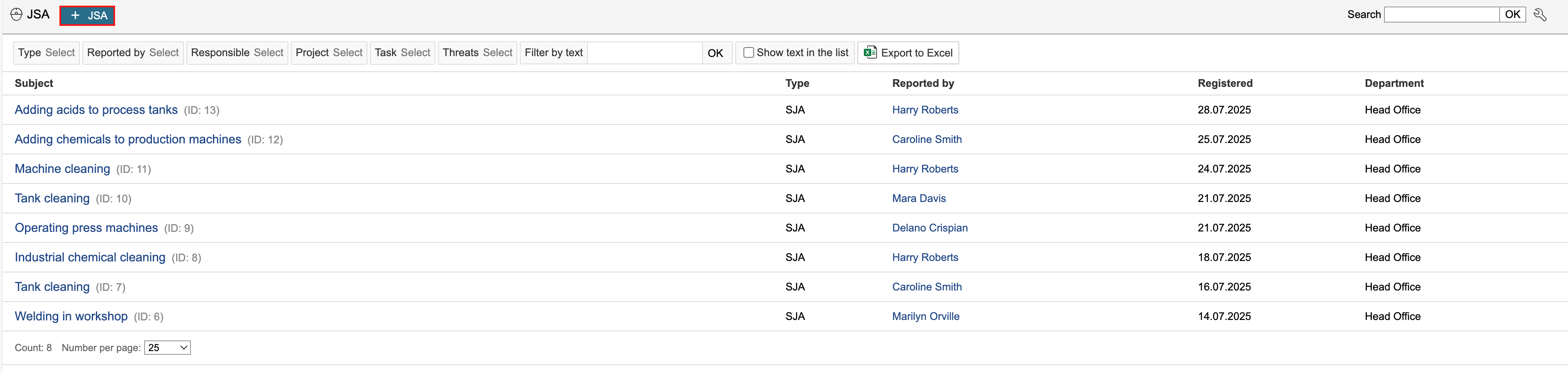
1. Go to the JSA module and click  + SJA.

| Info |
|---|
Info: If there are templates for the JSA, you will be given the option to create a JSA based on a template or a new, blank JSA. |
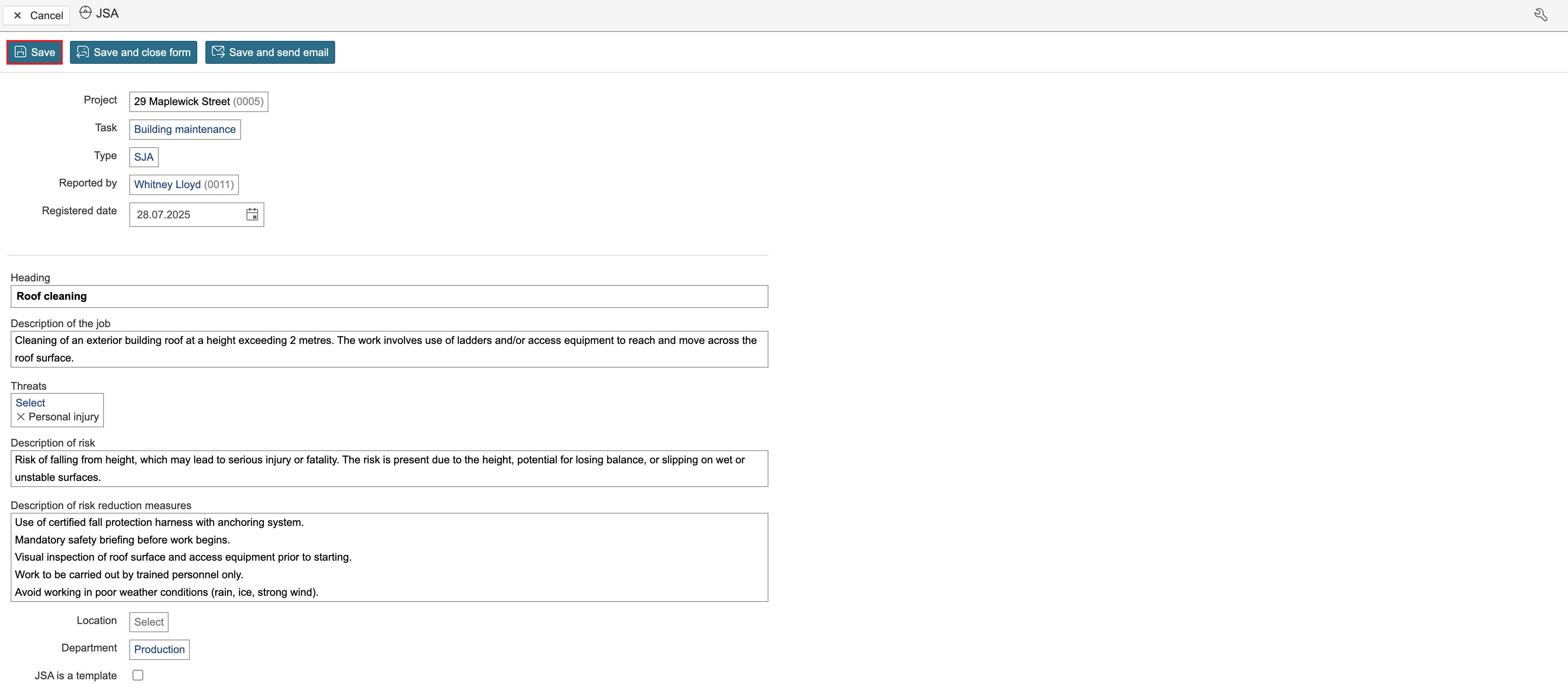
2. Enter the JSA details 2. Complete the fields and click Save. To create a template, check JSA is a template.

| Info |
|---|
Info: The static data options such as Types and Threats are configured by going to the control panel and selecting JSA. Which fields are to be visible is changed by enabling configuration mode. 'Types' and 'Threats' are basic data. They are configured on the JSA’s page in the control panel. Activate configuration mode to edit the form. |
JSA template: Templates in the SJA module can be used to predefine parts of the information in a JSA. When an JSA is created from a template, the template is duplicated, and the content can then be adjusted and completed as needed.
3. Participants and documents can be added to the record after 3. It is possible to add participants and documents to the record when the JSA is saved.


| Tip |
|---|
Tip:It is possible to duplicate a You can duplicate an existing JSA by clicking clicking 'Duplicate JSA JSA' in the top right corner. A copy will be generated, which can then be modified independently. |
Participants and signing
Participants can be added to the JSA and requested to sign it. The signature serves as confirmation that involved parties have reviewed and understood the contents.