| Info |
|---|
You must have Space management role in EG Optimaze to add, edit and delete capacity objects in floor plans. |
Capacity objects represent work desks, rooms or spaces in the workplace. You need to add capacity objects before installing Occupancy sensors.
Table of Contents
Adding new capacity objects
- Log in to EG Optimaze
- Navigate to EG Optimaze Space application
- Select a floor plan
...
You must first add floor plans before you can add capacity objects to a floor plan.
Instructions
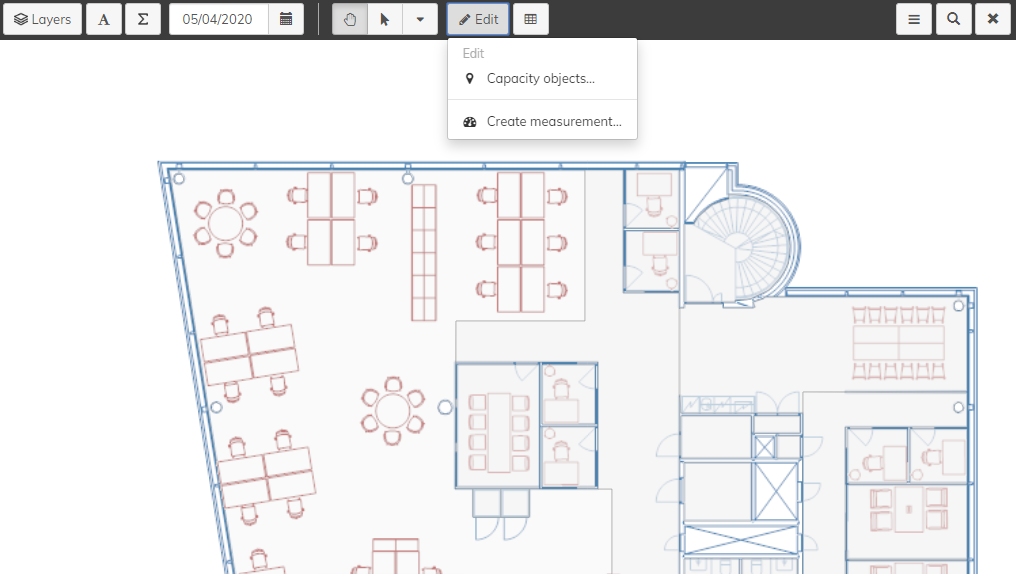
- Click Edit and click Capacity objects...
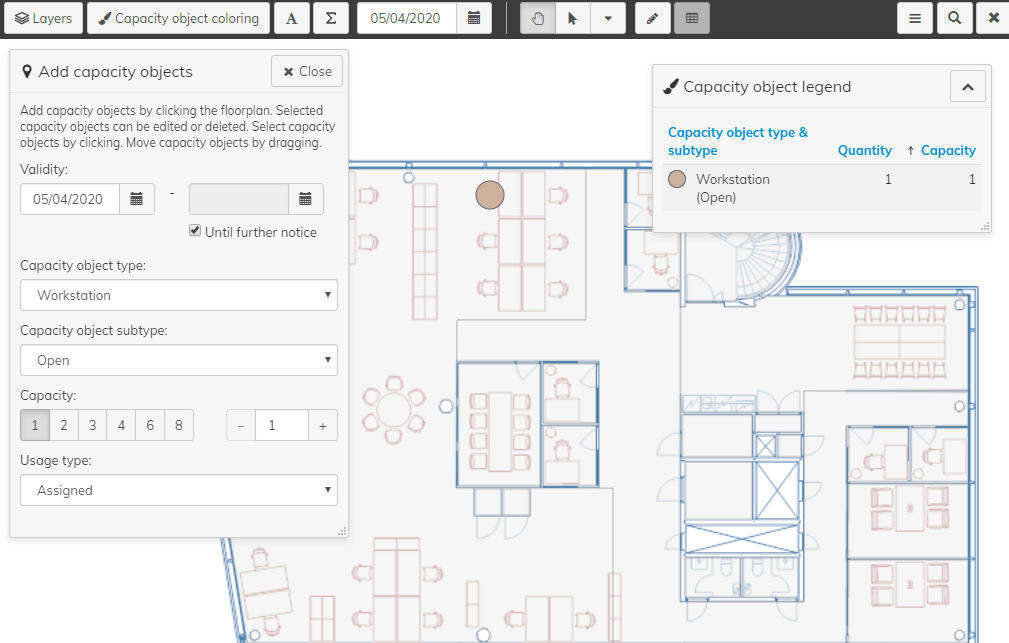
- Select settings for the capacity object type, its subtype and capacity
- Start adding capacity objects to the floor plan
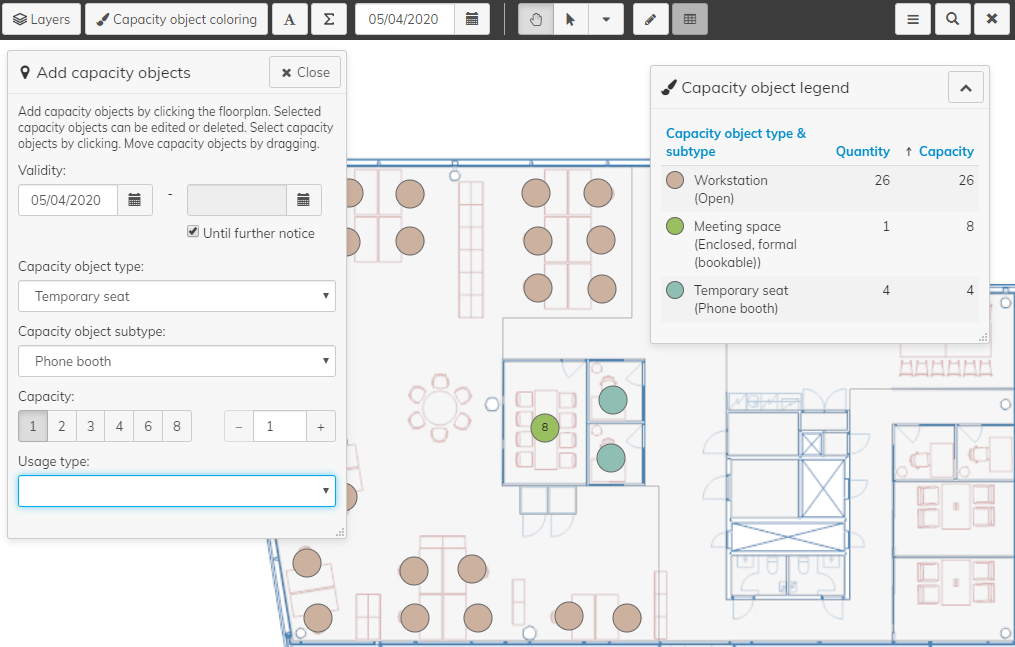
- The capacity objects are automatically saved to the floor plan
- Continue adding objects until you are ready
Editing capacity objects
- Log in to EG Optimaze
- Navigate to EG Optimaze Space application
- Select a floor plan
- Click Edit and click Capacity objects...
- Select one or multiple capacity objects from the floor plan
- Make any changes to the capacity object
- Click update 1 capacity object / update X capacity objects
- X is the number of capacity objects you have selected
Deleting capacity objects
- Log in to EG Optimaze
- Navigate to EG Optimaze Space application
- Select a floor plan
- Click Edit and click Capacity objects...
- Select one or multiple capacity objects from the floor plan
- Click Delete 1 capacity object / Delete X capacity objects
- X is the number of capacity objects you have selected
Click End or Delete
End means that a capacity object will keep its history in the floor plan
Delete means that a capacity object will delete all of its history
Notice. Deleting capacity objects will also delete any sensors attached to the objects
| Info |
|---|
Changes done to capacity objects in EG Optimaze might appear a few minutes later in EG Worksense. If the changes are not seen see instructions here |
...
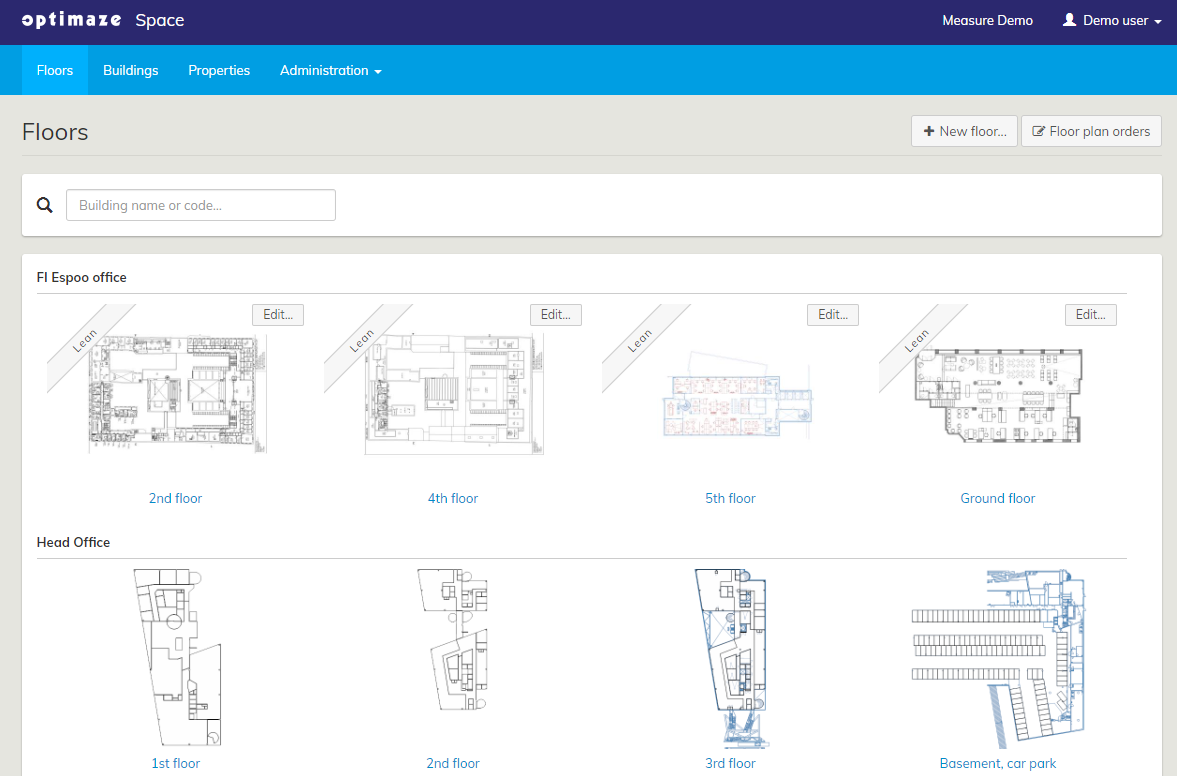
4. Click ‘Edit' and ‘Capacity Objects…’ on the top navigation bar
5. Select capacity object type, subtype, capacity and usage type and click floor plan with your mouse on the position, where you would like the object
Edit capacity object types if you cannot find a capacity object type or subtype that you need
6. The capacity objects are automatically saved to the floor plan
7. Continue adding capacity objects until you are ready
8. Next you can install occupancy sensors to the capacity objects with the Eg Inventory app, check instructions here
...