...
Open Rental premises → Rental areas. The view shows all rental areas, or the ones selected with filters.
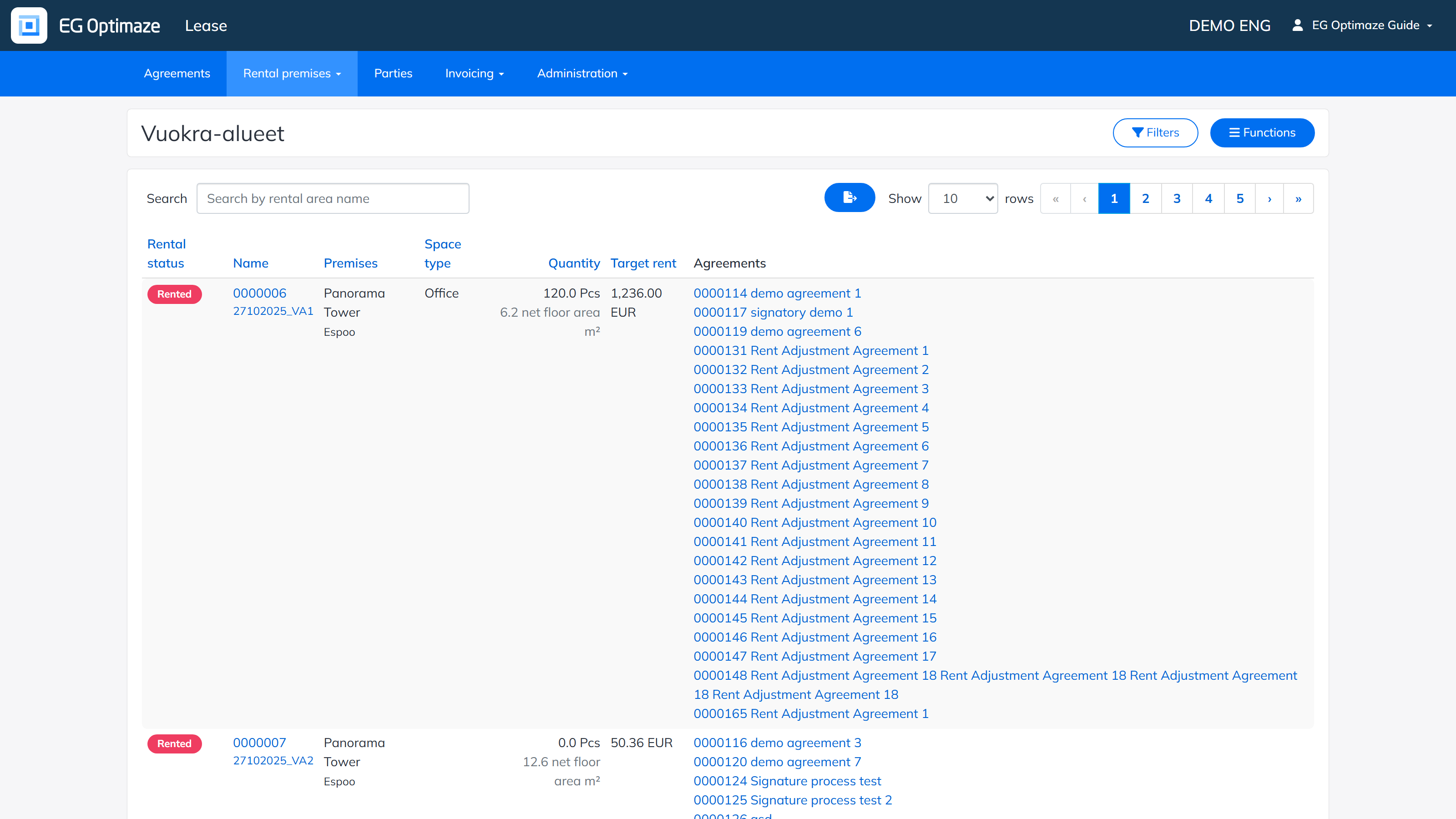
The columns of the list
By default, the list shows these columns:
- Rental status — whether the rental area is available, not rentable, in own use or rented.
- Name — the name given to the rental area. Clicking the name opens the single rental area for closer viewing.
- Premises — the building where the area is located.
- Space type — what kind of space it is, for example an office. Space types are maintained in the Administration section.
- Quantity — the quantity and unit entered for the rental area. The column also shows the surface area of the space link defined with the floor plan browser, if the rental area has been connected to spaces.
- Target rent — an optional target rent set for the rental area.
- Agreements — the rental agreements connected to the premise.
The gear icon button next to the search field opens the column configuration panel, where any of the following columns can also be shown instead:
- Rental area type — the rental area type selected for the rental area.
- Property type — the property type of the building where the rental area is located.
- Rental area utilities — the utilities selected for the rental area.
- Residence types — the residence type(s) selected for the rental area.
- Purpose of use — whether the rental area is used for outrent or inrent.
- Rentability — the rentability set for the rental area: rentable, not rentable or in own use. This is the underlying setting behind the calculated Rental status column above.
- Owner — the party entered as the owner of the rental area.
Note! Which of the columns above are shown by default, and which additional columns are available to choose from, can vary by organization. Additional columns can be configured by the Optimaze service desk team.Note! The displayed columns can also be changed per customer. The administrator of your own organization can tell you the exact content and purpose of the other columns.
Sorting, filtering and Excel download
The rental areas can be sorted by column by clicking the column header. The Filters button opens the filtering panel, where one or more of the following can be combined:
- Rental status — shows only rental areas with the selected status (available, not rentable, in own use or rented).
- Purpose of use — shows only rental areas used for outrent, or only those used for inrent.
- Name — shows the rental area with the selected name.
- Premises — shows only rental areas located in the selected building.
- Cost center — shows only rental areas linked to the selected cost center.
- Rental area type — shows only rental areas of the selected rental area type.
- Space type — shows only rental areas of the selected space type.
The Show ended checkbox also includes rental areas whose rental period has already ended; these are hidden by default can be filtered by rental status, purpose of use, name, premises, cost center, rental area type and space type, using one or more conditions. A single filter is removed by clicking it, and all filters at once with the clear-all option.
...