Moving and zooming the floor plan
When the
 Pan tool is active, drag the floor plan with the mouse. You can also use the arrow keys on your keyboard.
When the
 Select tool is active, you can temporarily switch to the Pan tool by pressing and holding the space bar.
Zoom with the mouse wheel or with the

 + and − buttons in the lower right corner.
Rotating the floor plan
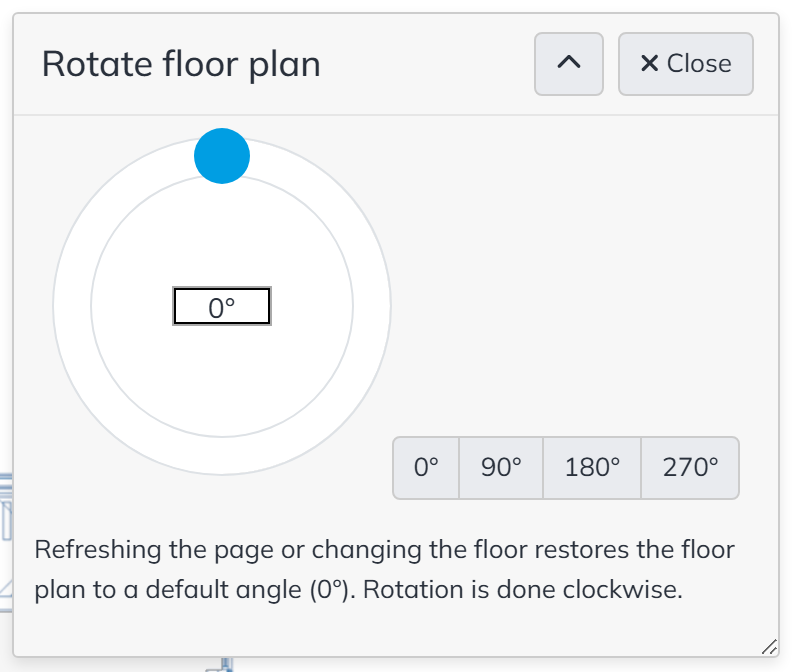
Select  Other tools > Rotate floor plan. The floor plan is rotated clockwise with one-degree accuracy (0–359 degrees). Refreshing the browser view resets the floor plan to the default angle (0).
Selecting spaces
When the Select tool is active, you can select spaces by clicking them one at a time, or by dragging over a larger area. Selected spaces are highlighted in red. The number and area of the selected spaces are shown in the legend and the footer.
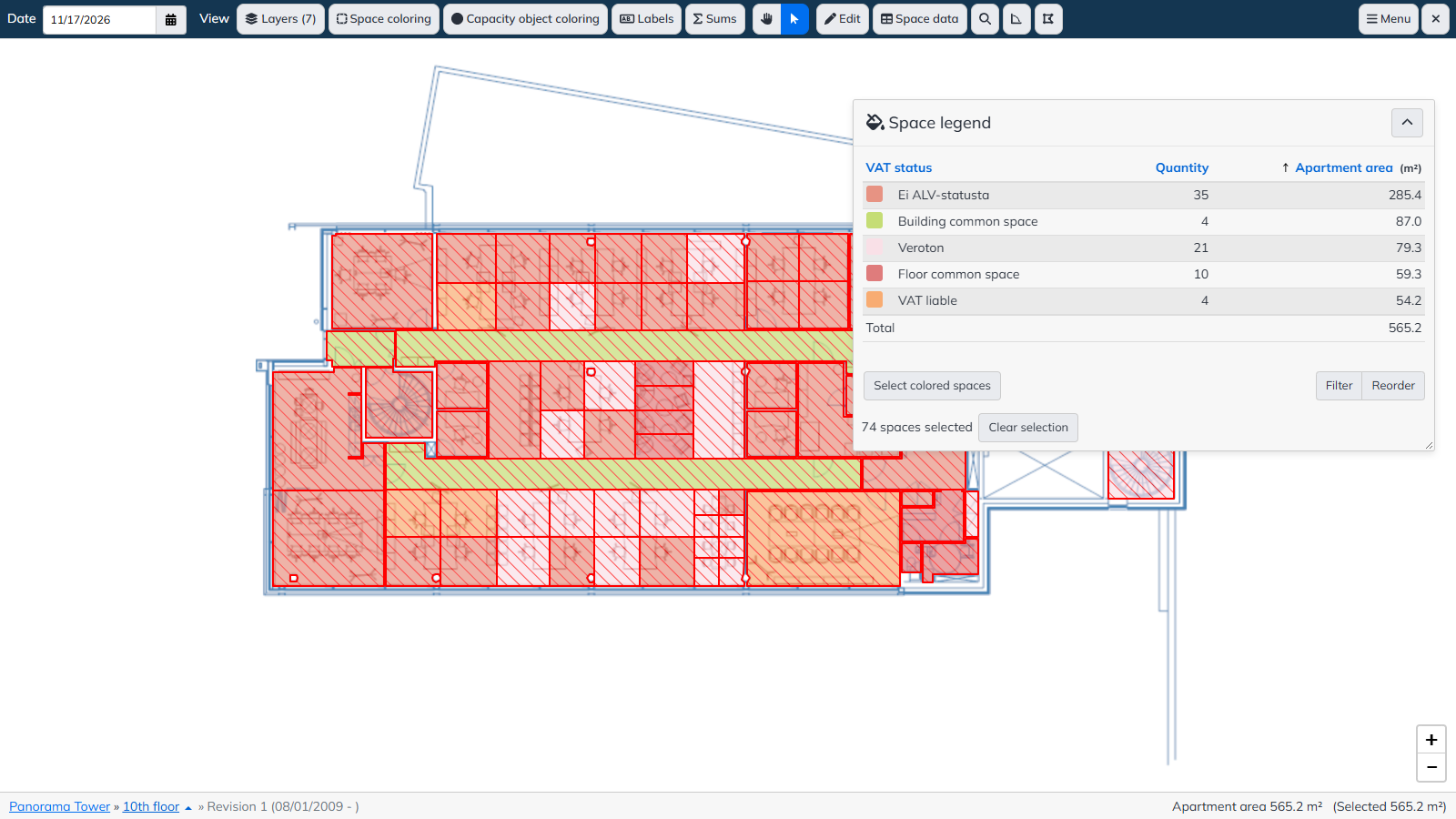
You can clear the selection with the Clear selection button or with the keyboard shortcuts Ctrl + D and Esc.
Searching the floor plan
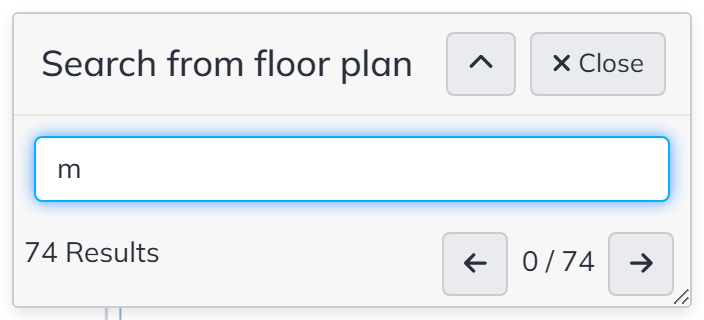
The  Search button (or Ctrl + F) opens the Search from floor plan panel. Type the search text and the panel shows the number of matches and highlights them in the floor plan. Use the arrow buttons to move from one match to another.
The search only covers the layers and labels that are visible in the floor plan. If you want to search for, for example, a room number or name, first select the label that shows that information. Otherwise the search finds nothing (No results).
Switching to another floor
Click the floor name in the footer and select another floor of the same building.
