
It is possible to set up actions when responding to questions. Responses You can configure answers to be used in protocol cases. These answers can have no action when responding, cases can be closed when responding and responses can pave the way for creation of nonconformities. This is set up action, an action that closes the case, or an action that creates a case in the non-conformance module. The answers are configured in the control panel.
Close case
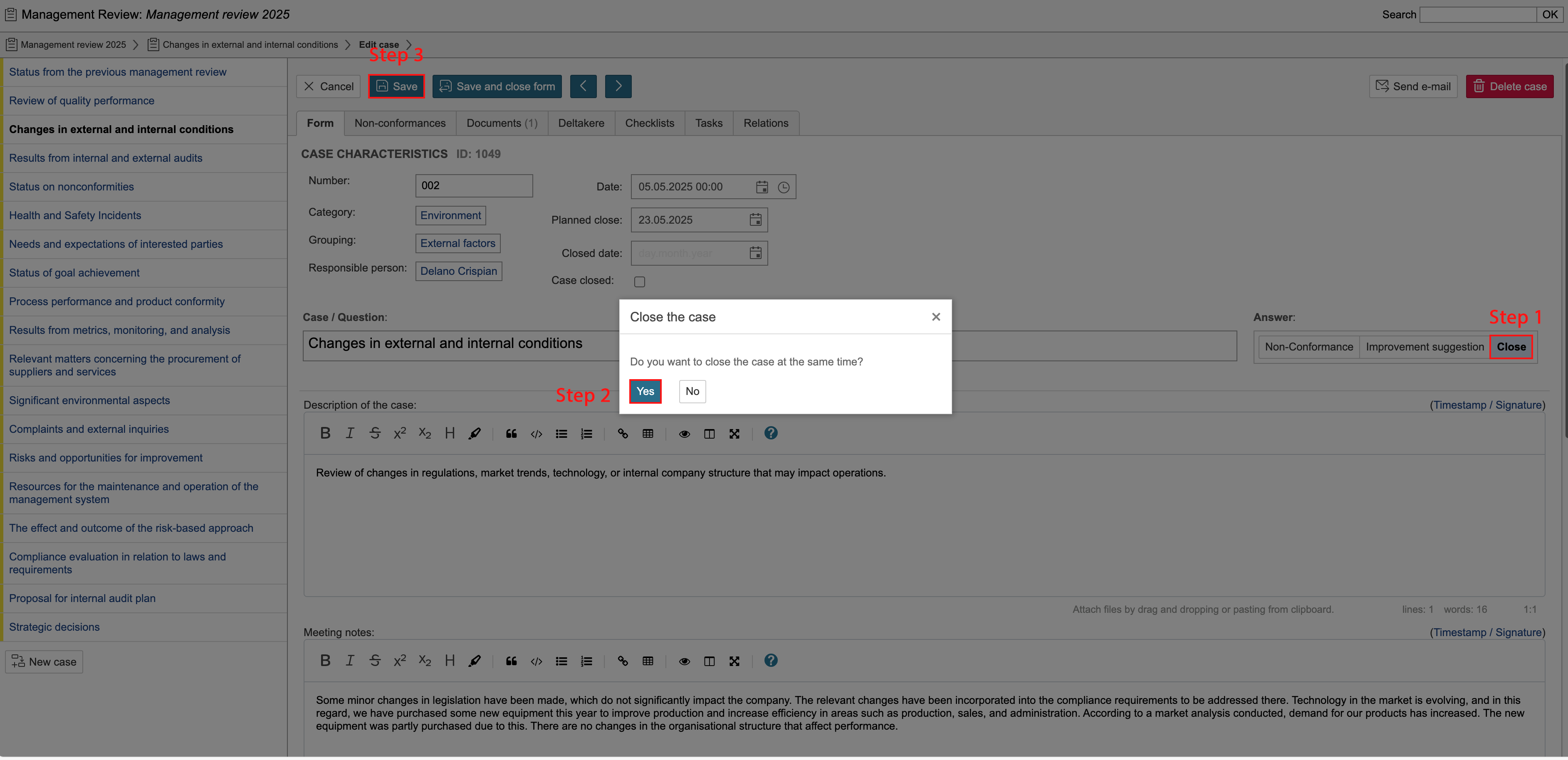
For the OK response option, action Closes the case is selected. Follow steps 1-3 as shown in the screenshot. The closure date is entered and the Case is closed field is checked.

| Info |
|---|
Info: To keep the response to the question in the box but not close the case, click Cancel when you are asked whether you want to close the case at the same time. |
Create a nonconformity
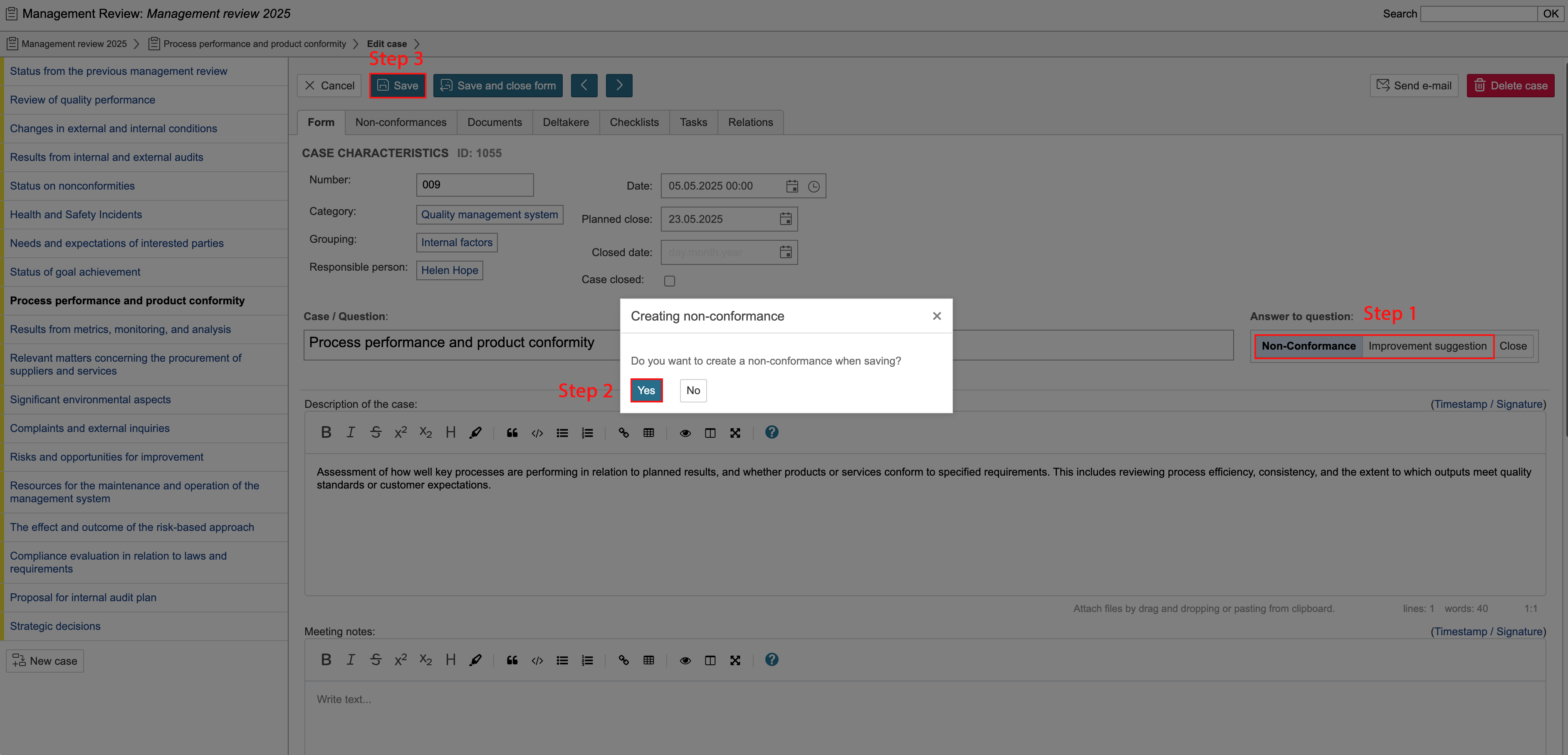
The Not OK response option opens a window containing an option to create a nonconformity when saving. If you click OK when asked whether you want to create a nonconformity, the type selector or a nonconformity form opens. The nonconformity that is created is linked automatically to the case from which it is created and will be found under the Nonconformity module tab.

| Info |
|---|
Info: To keep the response to the question in the box but not create a nonconformity, click Cancel when asked whether you want to create a nonconformity when saving. |
No action
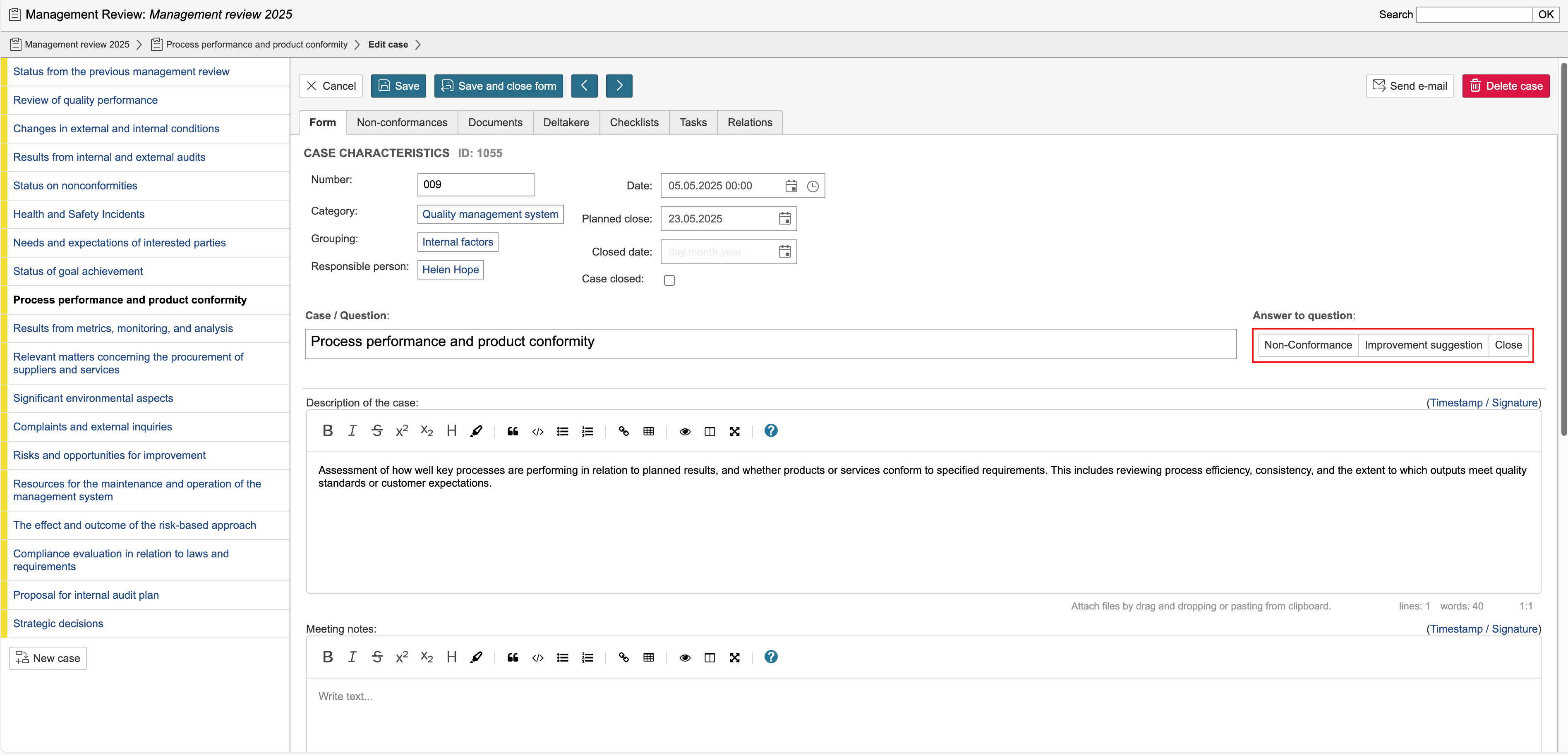
In the example on this page, three alternatives are used: Non-Conformance, Improvement Suggestion, and Close.
Closing a case
If the case has been completed and should be closed, click Close. A confirmation prompt will appear. To close the case, click Yes and then Save. Follow steps 1–3 as illustrated in the screenshot.
Create a non-conformance
If a non-conformance or improvement suggestion is identified or is to be registered during the review of the protocol, you can create a linked non-conformance or improvement case. The case will be linked to the protocol case it was created from. To create a case in the non-conformance module, click Non-Conformance or Improvement Suggestion. When the confirmation prompt appears, select Yes and save the case. Follow steps 1–3 as illustrated in the screenshot. Linked cases can be found under the Non-Conformances tab on the protocol case.
No action
If no action is selected for the answer, no options will appear when you click itYou will not be given any options if no action is selected for the response option.