Med kartgränssnittet i Optimaze-kanalen kan du se fastighetsbeståndet på karta samt satellit- och flygbilder. Byggnadernas placering fastställs på kartan utifrån de adressuppgifter som inmatats i fastighets- och byggnadsregistret.
Kartsökning är en separat sökapp, som visas för kunden endast om kunden har tagit i användning denna tilläggsdel i Optimaze-appen. I kartsökningen kan du granska och administrera byggnader via kartan
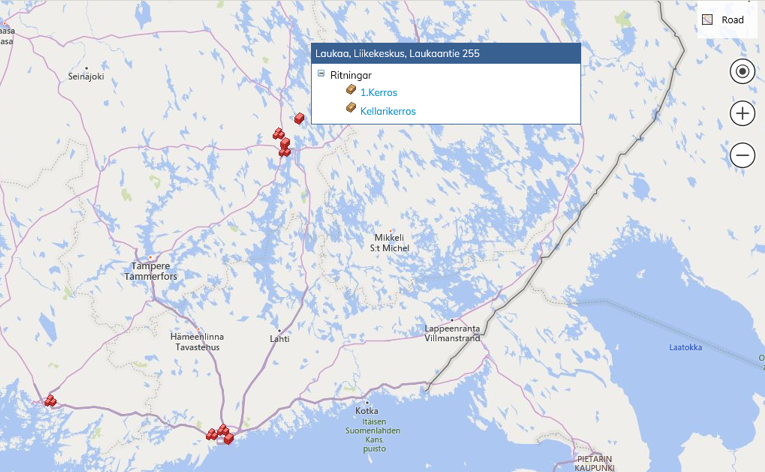
Byggnaderna syns på kartan som röda kuber  .
.
När du för kursorn på kuben, ser du i trädet en ritningslista, från vilken du kan flytta dig direkt antingen till byggnaden eller dess ritningar.
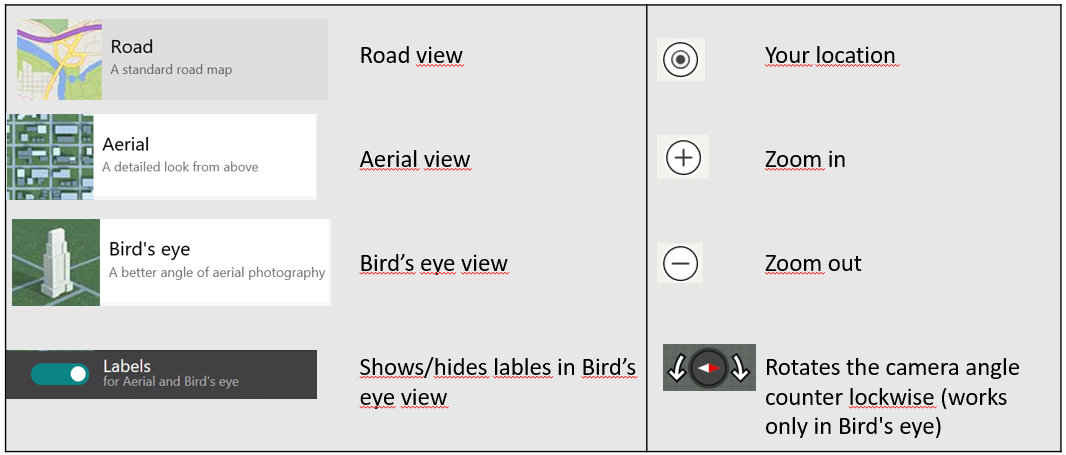
Nedan ser du förklaringar för ikoner i anslutning till kartsökning. De funktioner som är tillgängliga i respektive lokal visas med vit text. Exempelvis vyn Bird’s eye kan inte tas i användning innan kartan har förstorats upp tillräckligt.
Om du förminskar kartan tillräckligt och det i samma stad finns flera fastighetsobjekt, syns de på kartan som en kubgrupp och då får du tillgång till alla de ritningar som hänför sig till dessa byggnader.
På kartan kan du välja olika vyer beroende på situationen. Texten uppe till höger anger vilken vy som för tillfället är aktiv
Road eller vägvy
Vägvyn visar en mer traditionell kartvy med vägar och gator beroende på hur exakt du zoomar in kartan. Labels-funktionen (textning) är inte i användning i vägvyn, eftersom vägarnas namn och nummer ändå visas som standard.
Aerial eller flygbild
Aerial eller flygbild visar det valda fastighetsobjektet direkt från luften fotad, ur satellitvinkel. Till flygbilden kan du välja textning (Labels) och då syns på gator och vissa byggnader deras namn. På exempelbilden nedan är textning vald, vilket anges med en liten triangel under ordet Labels.
Bird’s eye eller fågelperspektivbild
Bird’s eye eller fågelperspektivbild har tagits ur en sådan vinkel och lägre, så att fastighetsobjektet kan granskas på ett identifierbart sätt. I denna vy kan du vända på bilden i olika riktningar och då kan du se fastighetsobjektet från olika sidor
Den karta som syns i arbetsfönstret kan du flytta tre på olika sätt:
- Med tangentbordets piltangenter kan du flytta kartan till höger och vänster samt upp och ner. Då du håller musens vänstra tangent nedtryckt kan du dessutom flytta kartan i olika riktningar, också diagonalt.
- Med Navigerings-tangenterna i kartmenyn kan du flytta kartan på samma sätt som med musen, utöver i huvudriktningarna också diagonalt.
Kartstorleken kan du ändra på följande sätt:
- Med knapparna + och – kan du förstora och förminska kartan. Genom att i kartmenyn i övre hörnet använda knapparna + och –
- Då du med en rullmus rullar neråt förminskas kartan och genom att rulla uppåt förstoras kartan.
- Kartan kan också förstoras genom att dubbelklicka på bilden
Map search can be used to manage and view buildings using a map (satellite, road or bird’s-eye view). Building floor plans can be accessed from the map. Buildings are located on the map according to contactinformation in the property and building register.
Map Search is a separate search application which a customer can see only, if it has been taken into use as a part of Optimaze.net.
Below you can see explanations for the icons that are used in Map Search. The actions that can be used at that moment are marked with white text. For instance, the bird’s-eye view can’t be used unless the map has been zoomed in enough.
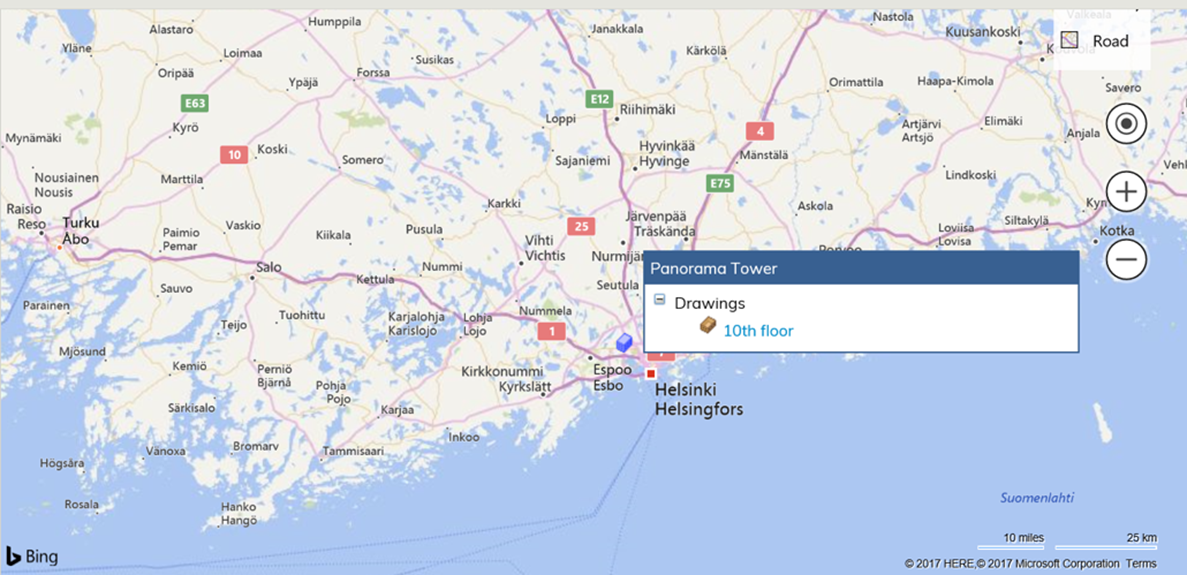
Zoom in on the map so that you can find the correct location, and then drag the building onto the map using the right-hand mouse key. After this, the building is shown on the map as a red block .
When you take the mouse cursor to the red block, you can see a list of drawings and contracts. By clicking the drawing or the name of the contract, you can open the selected drawing or contract data.
If you zoom out enough and there are several buildings in the same town or area, you can see them as a set of blocks on the map and you can access all the buildings’ drawings and contracts.
For each situation, there are different kinds of views to select from. The Little triangle under the view name shows which view is active
Road view
Road view shows you the traditional map view with roads and streets, depending on how you have zoomed in on the map. Labeling is not available in this view, because road and street names are set default.
Aerial view
The Aerial view shows you the selected building or location photographed from above, as a satellite view. If you choose to show labels, the road and street names will be shown on the map. The sample map below has labels on, and you can see a little triangle under Labels showing they are in use.
Bird’s eye view
Bird’s eye view pictures have been taken from a perspective and altitude that the building or location can be recognized from. In this view, you can rotate the picture different ways and see the same building e.g. from the front and from the back
You can move the map in the working window on your desktop in three different ways:
- By using the arrow keys on your keyboard, you can move the map left, right, up or down.
- By using your mouse, you can move the map in all directions.
- By using the Navigation keyboard on the map menu, you can move the map the same way as with your mouse, in all directions.
Map size can be changed as follows:
- By using the + and – keys on your keyboard, you can make the map larger and smaller.
- By using the magnifying glass icons in the map menu; the plus icon makes the map larger and the minus icon makes it smaller.
- By using your mouse roll. When you roll down the map becomes smaller, and when you roll up the map becomes larger.
- You can also double click on the map to enlarge it.