In the Parties section you can view and edit the details of agreement parties, and create and delete parties. Invoices that are not related to agreements can also be created via a party.
The parties list
Open Parties in the navigation bar. The list shows all parties saved for the company.
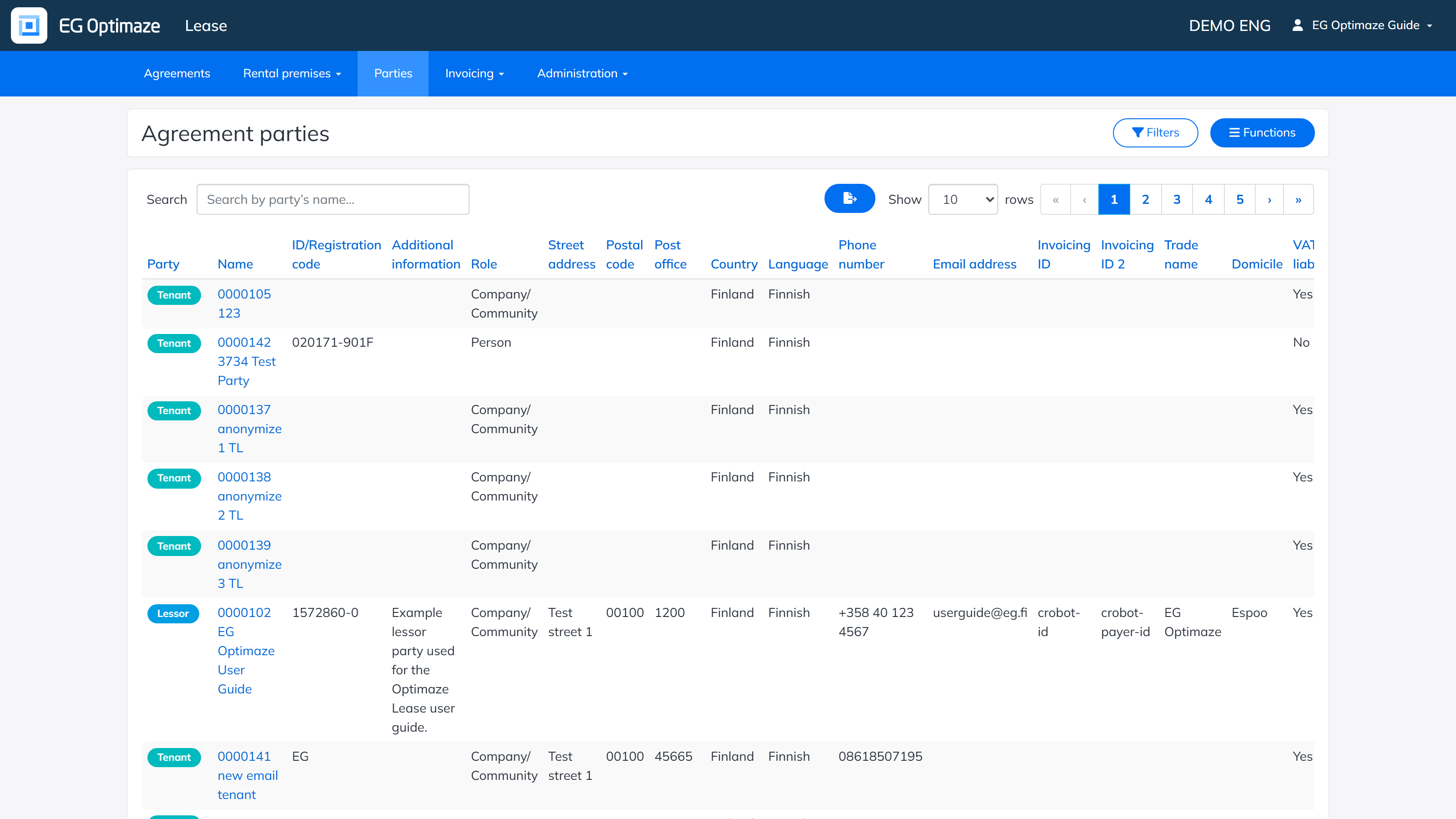
The columns of the list
By default, the list shows a wide set of columns. The gear icon button next to the search field opens the column configuration panel, where you can choose which of them to show:
- Party — whether the party is a Company/Community or a Person.
- Name — the party’s name. Clicking it opens the single party view.
- ID/Registration code — the party’s customer number and business registration code (for example a Finnish Y-tunnus).
- Additional information — a free-text note saved for the party.
- Role — whether the party is a Tenant or a Lessor.
- Street address, Postal code, Post office, Country — the party’s address.
- Language — the language used for the party’s documents and communication.
- Phone number, Email address — the party’s own contact details (not the same as the separate Contact information / Invoicing contact information saved in the single party view).
- Invoicing ID, Invoicing ID 2 — e-invoicing identifiers used to match incoming and outgoing e-invoices to this party.
- Trade name — a business name used in addition to the registered Name, if any.
- Domicile — the party’s registered domicile (municipality).
- VAT liable — whether the party is liable for VAT.
- Party category, Party properties, Party group — company-specific classifications maintained in the Administration section, used for filtering and reporting (for example Corporate tenant, Preferred customer).
Searching and filtering
The view can be narrowed down by searching a party directly by name, or by opening the more detailed filters with the Filters button:
- Party — shows only parties of the selected type (Company/Community or Person).
- Name of party — shows the party with the selected name.
- ID/Registration code — shows the party with the selected registration code.
- Role — shows only tenants, or only lessors.
- Party category — shows only parties of the selected category, for example only Corporate tenants.
- Party properties — shows only parties with the selected property, for example only Preferred customers.
- Party group — shows only parties belonging to the selected group.
Clicking the link in the Name column opens the single party view. New parties are created via the Functions menu.
The pages in this section cover working with a single party:
| Children Display |
|---|