Versions Compared

Key

  • This line was added.
  • This line was removed.
  • Formatting was changed.

Table of Contents

Occupancy sensor devices detect motion indoors.

Installation process

1. Turn on the device
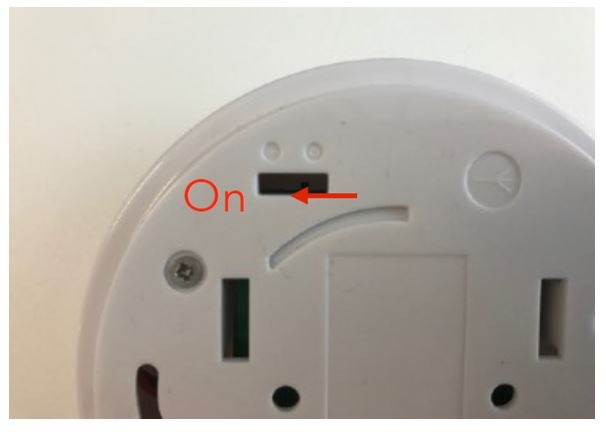
Image Removed

2. Read the device’s QR code with EG Inventory
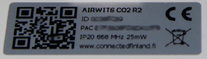
Image Removed

3. Install the device

Image Removed

Info

For the installation you need:

  • The Optimaze Inventory application in your mobile phone

  • Access to Optimaze Portal

  • Tools for the installation e.g.:

    • Ladder

    • Drill

    • Screws

    • Double-sided tape

Connected Detectify

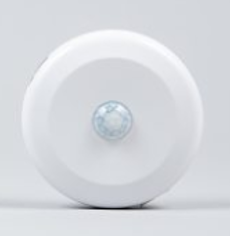
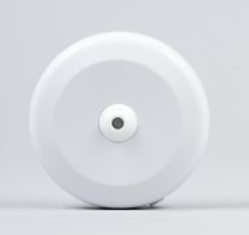
Connected Detectify is a motion detector for indoor purposes, based on a passive infrared technology sensor with a detection area up to 5 meters.

There are two versions available:

  1. a narrow 30 degree measuring beam for workstations

and
  1. a wider one with a measuring beam over 90 degrees for rooms.
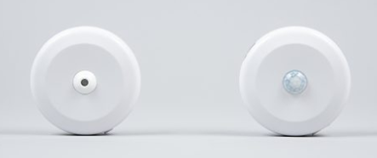
Image Modified


Sensor logic

The device sends 'occupied message' immediately when movement is detected.
Network & Coverage

When the device does not detect movement anymore, the sensor will begin an inactivity detection period. This detection period can be configured. The shortest period is 5 minutes.

The device sends ‘unoccupied message’ after the inactivity detection period is finished and if the sensor has not detected movement within the inactivity detection period.

Recommended inactivity detection period for different types of spaces:

  • Workstation - 15 minutes

  • Meeting room - 10 minutes

  • Phone booth - 5 minutes

Sigfox Network

The devices use Sigfox 0g network, read more about it here.

Check the connectivity of Sigfox network in your location from these websites:

  • Globally
 via via

Installation Guide: Connected Detectify

Info

For the installation you need:

  • The EG Inventory app in your mobile phone

  • User rights and Space management role in EG Optimaze

  • Sensor devices

  • Tools for the installation e.g. ladder, drill, screws/double-sided tape

Installation for workstations

Please refer to the latest installation instruction from the device manufacturer’s website.

1. Use
  1. Use a narrow version for workstations

Image Removed
2. Please note
  1. Turn the power switch on by using a paperclip or a small screwdriver to slide the switch to I position
    Note3.
      1. Note that the switch should slide relatively effortlessly. Do not use excess force to slide the switch!

    Image Removed

      1. Connected Detectify R5 and newer models have also a Sigfox-LoraWan switch. It is preset to Sigfox (SG), do not switch it to LoraWan (LR) if you do not plan to use LoraWan IoT Network.

    1. Scan the QR code or enter the sensor ID manually with EG Inventory app

    4.
    1. Attach a screw plate underneath the table top in the middle approx. 15 cm from the table top front. Use screws or double-sided tape for the attachment.

    5.
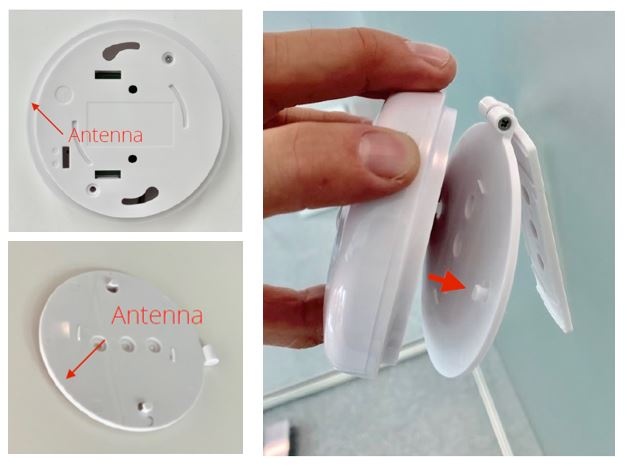
    1. Attach the sensor to the screw plate. The sensor’s antenna is located below the QR code sticker. Always place the sensor so that the antenna is not directly facing metal.
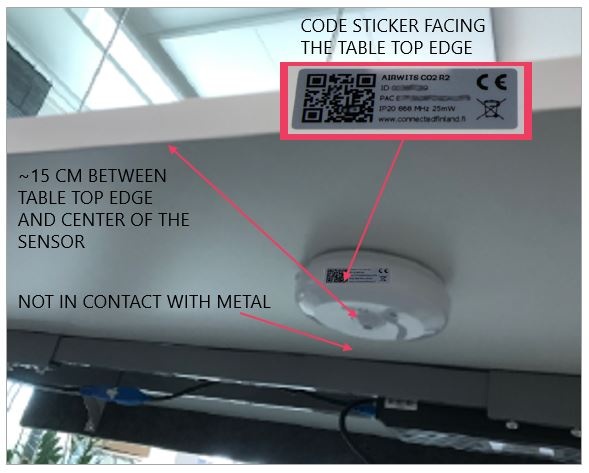
    Image Modified


    Installation for meeting rooms

    1. Use
    1. Use a wide version for meeting rooms
    Image Removed
    2. Please note
    1. Turn the power switch on by using a paperclip or a small screwdriver to slide the switch to I position
      Note3.
        1. Note that the switch should slide relatively effortlessly. Do not use excess force to slide the switch!

      Image Removed

        1. Connected Detectify R5 and newer models have also a Sigfox-LoraWan switch. It is preset to Sigfox (SG), do not switch it to LoraWan (LR) if you do not plan to use LoraWan IoT Network.

      1. Scan the QR code or enter the sensor ID manually with EG Inventory app
      4.
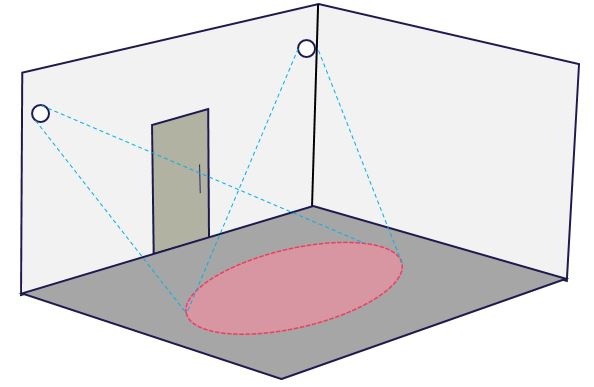
      1. Place the sensor to face towards the area, where the people will most likely be
      Image Removed
      5.
      1. Attach the hinge to the wall and make sure the hinge is pointing to metal support structure (if any)

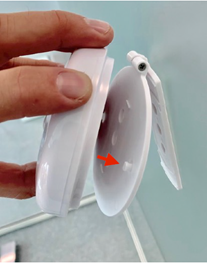
        1. Attach the sensor device to screw plate pins so that the antenna is pointing away from metal and twist gently clockwise until device locks in place

        2. You can adjust the angle of the sensor with the hinge

        3. Finally tighten the hinge screw

      Image Removed

      Info

      Sensor logic

      The device sends 'occupied message' immediately when movement is detected.

      After a person leaves a desk or room, the sensor will begin an inactivity detection period. This detection period can be configured.

      The device sends ‘unoccupied message’ if the sensor does not detect movement within the inactivity detection period.

      Image AddedImage Added