To browse the space data of the selected spaces, select  Space data in the toolbar. Select the spaces in the floor plan first. The example below shows the data of a single space.
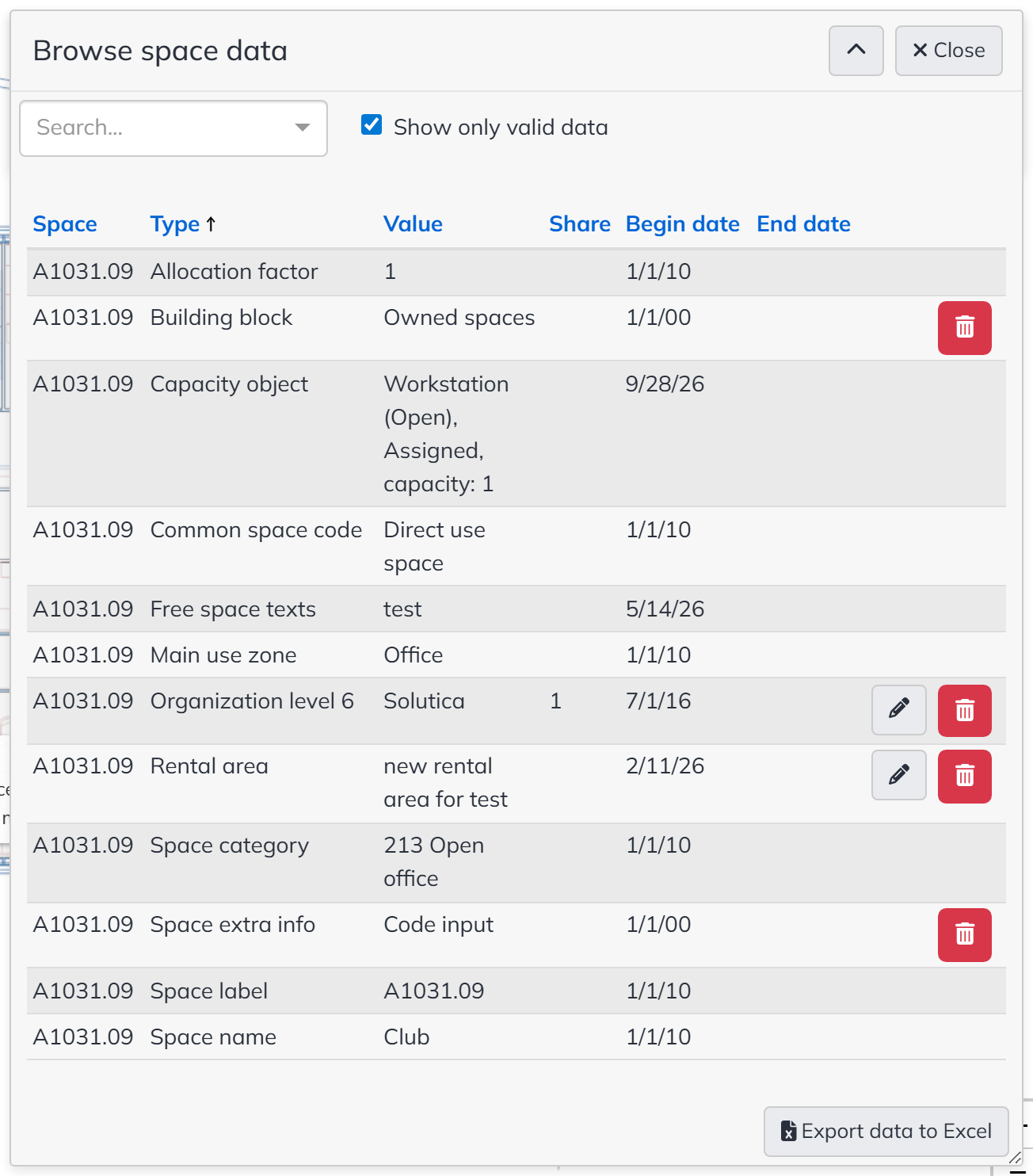
The table in the view has the columns Space, Type, Value, Share, Begin date and End date.
Share is shown for multi-user spaces: it tells how large a share of the space each organization has. Shares are given as parts, not as percentages. See Editing space data.
By default only valid space data is shown. Clear the Show only valid data checkbox if you also want to see data that has not started yet or has already ended.
You can narrow the view by selecting a space data type. By default the data of all types is shown.
Space data types that are defined per customer can be edited and/or deleted with the buttons on the rows. The buttons are shown when you move the mouse over a row and if edit (pencil) and delete (trash can) buttons are at the end of the row, and they are shown only on rows you have the permission to edit.
Space data can be exported to Excel by selecting Export data to Excel at the bottom of the panel. The data shown in the user interface is exported.
The Open space data button in the Edit space data panel opens the space data browsing for that space data type.
Whether some space data (for example space category and extension) is shown and editable depends on your permissions.