...
You can change the space label for only one space at a time, and the label can be at most 50 characters long. If the label is already in use on the same floor, the application asks whether you are sure you want to update the space label.
Multi-user spaces and shares
...
When saving: add to existing or replace existing
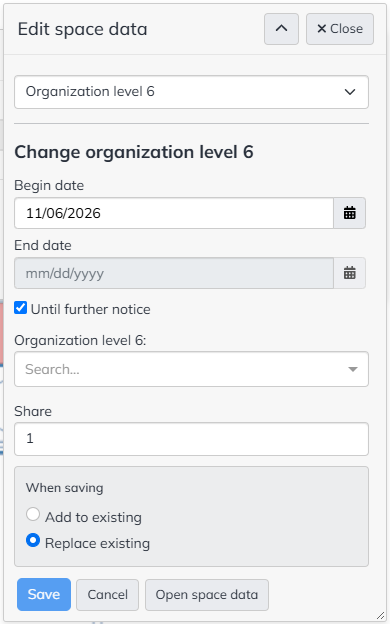
Some data types in the Edit space data panel show a When saving choice: Add to existing or Replace existing. The choice tells Space what to do with the data that the selected spaces already have. It is shown, for example, for Organization level 6 and Space extra info. The default depends on the data type: Organization level 6 opens with Replace existing selected, and Space extra info opens with Add to existing selected.
Organization level 6: add to existing or replace existing
To change the organization of a space, select Organization level 6 in the Select type to edit list. Select the organization, enter the Begin date and End date (or Until further notice) and a Share, and choose what happens when you save.
Replace existing (the default): the organization replaces the organization that the space has now. Use this when a space moves to a single organization.
Add to existing: the organization is placed in the space alongside the organizations that the space already has, so the space has several organizations. Each organization is given a Share. Shares are given as parts, not as percentages.
If the selected spaces already have several organizations and Multi-user space is not Replace existing is selected, the panel shows a warning warns that the data will be overwritten. When you save, the application confirms that asks you want to overwrite the multi-user data in the selected spacesto confirm with Overwrite.
An organization cannot be placed in an outrent area.
Space extra info: add to existing or replace existing
When you edit Space extra info, the When saving choice works per category.
Add to existing (the default): the extra info item you selected is added to the space. A space can have several extra info items at the same time.
Replace existing: only the existing value in the category you selected is replaced. The panel shows a note about this. The space's values in other categories are kept.
Editing space extra info is described step by step on its own page: Floor plan viewer – space extra info.
Editing restrictions
Your organization may have blocked editing space data before a certain date. If the data cannot be edited for the date you have selected, the application tells you from which date editing is possible.
Space extra info
Editing space extra info is described on its own page: Floor plan viewer – space extra info.