| Note |
|---|
| To avoid sensors from appearing or disappearing incorrectly, ensure that there no future revisions of the floor plan before you add or remove sensors. |
Adding
Addoccupancy sensors
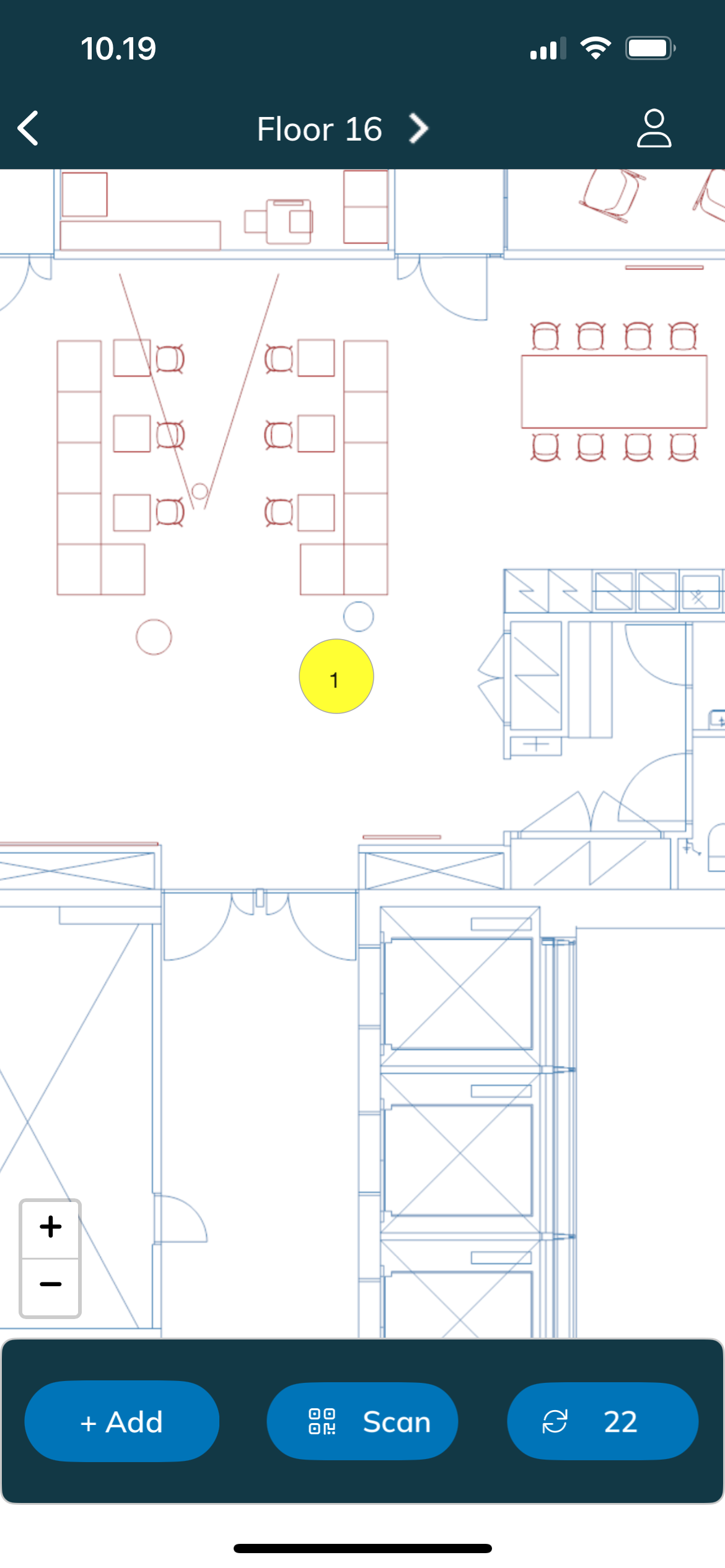
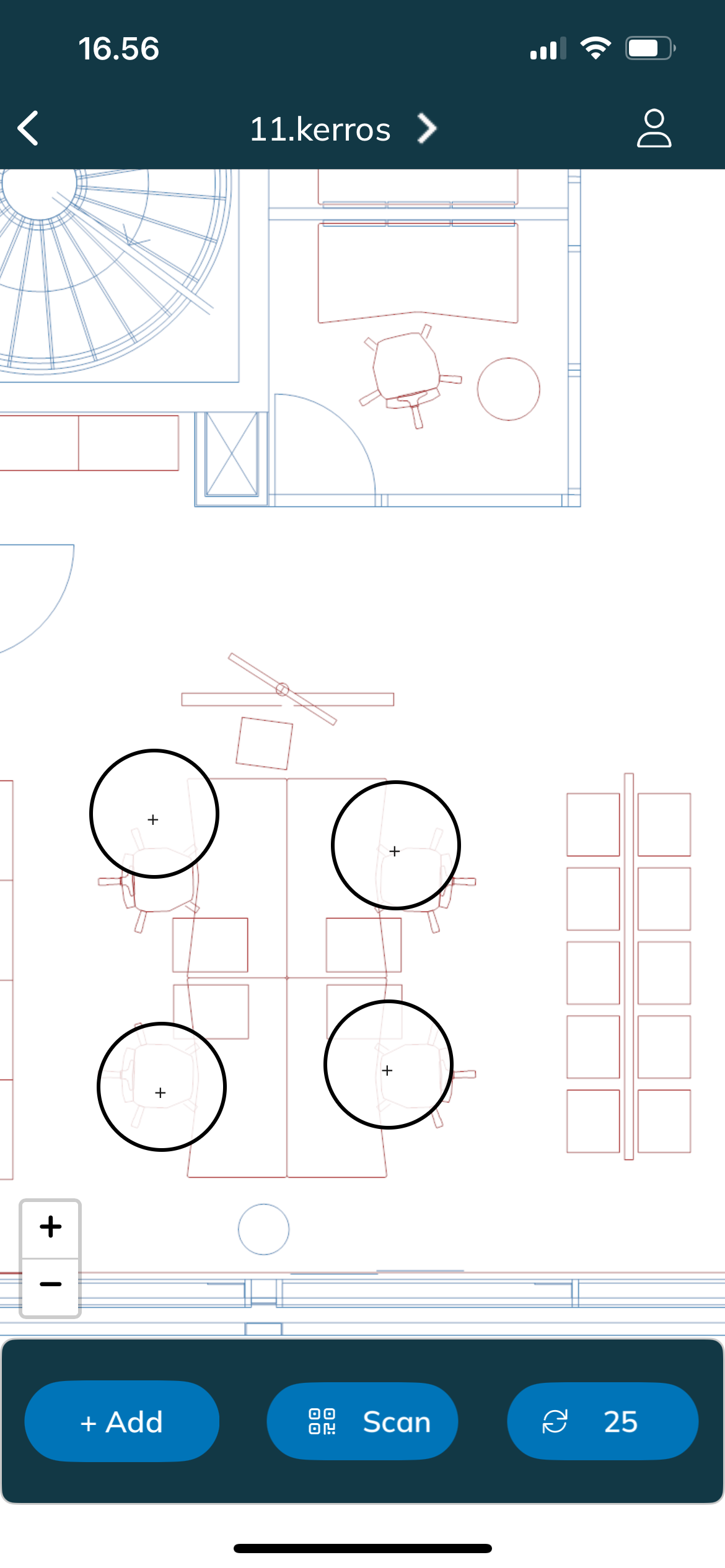
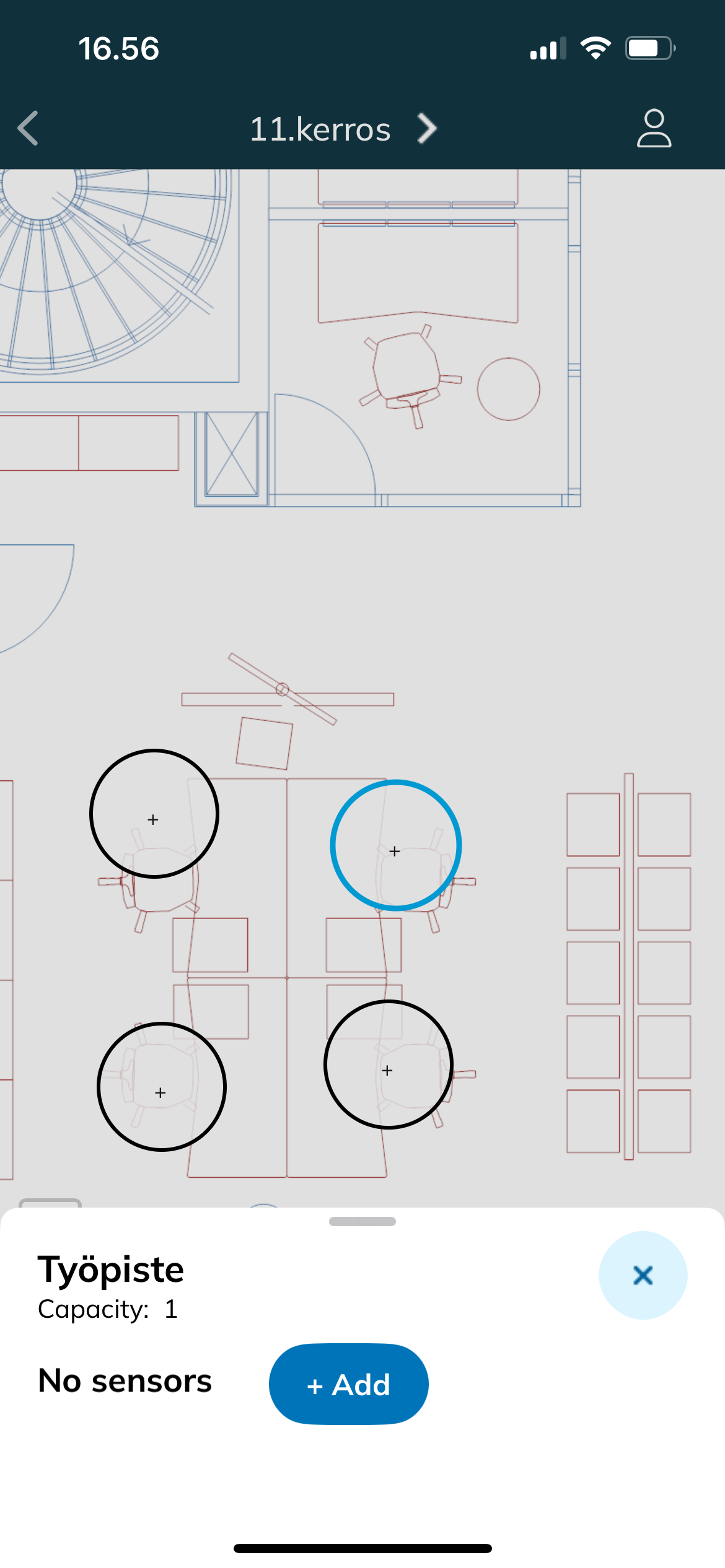
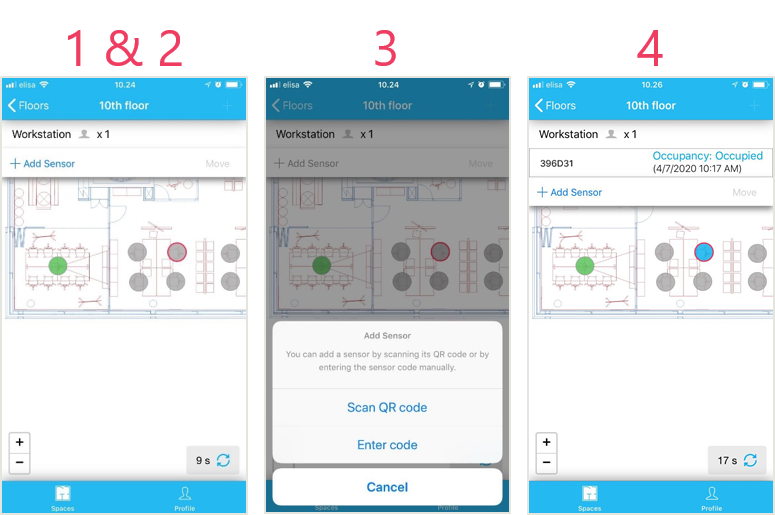
Select Tap a capacity object (grey circle ) to add a sensorwith black border) on the floor plan
- white circles with + icon don't have any sensors yet
Add a new sensor by clicking 'tapping the + Add Sensor' button. button
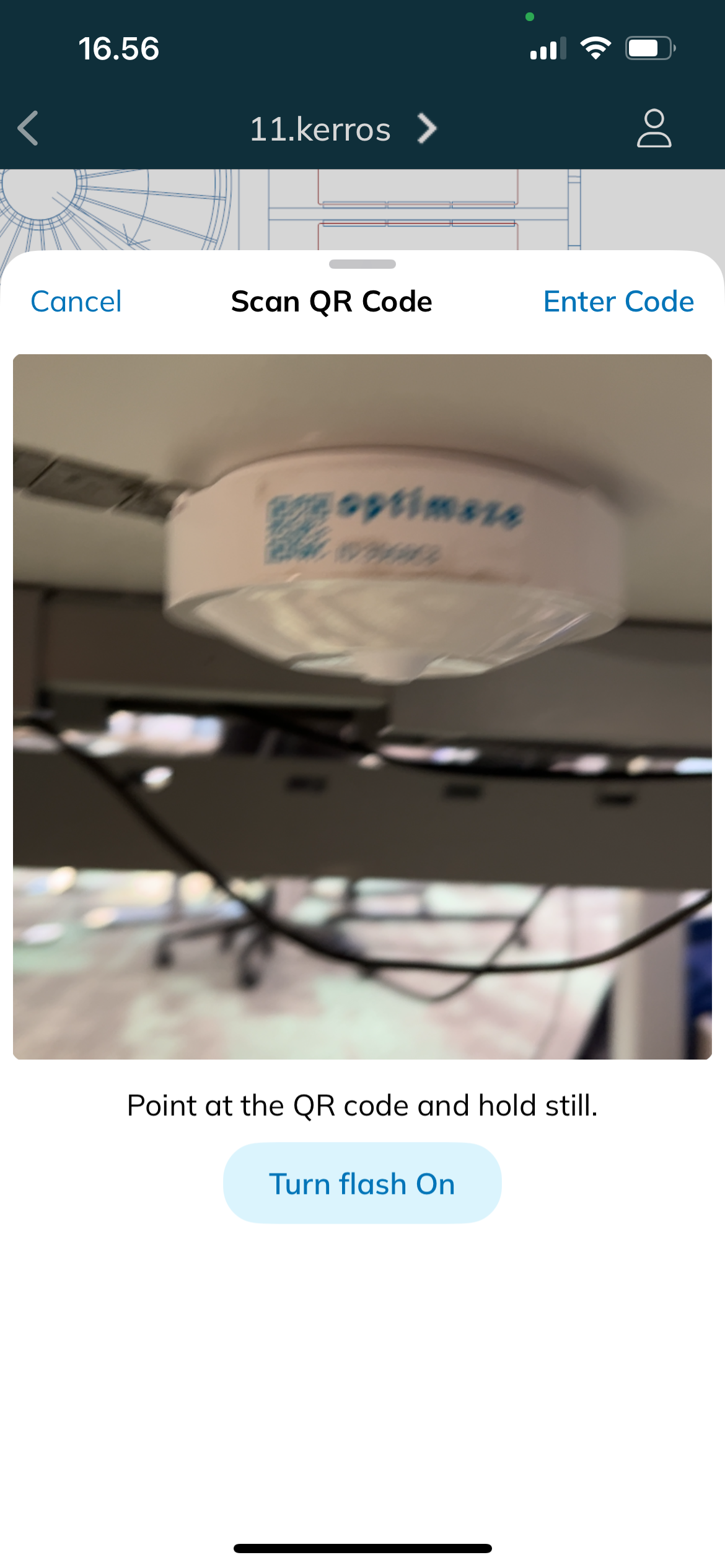
- Point the phone to the sensor's QR code.
- Alternatively, tap Enter code and
Select ‘Scan QR code' or 'Enter code’
If you- enter the code manually
- . The code is case sensitive.
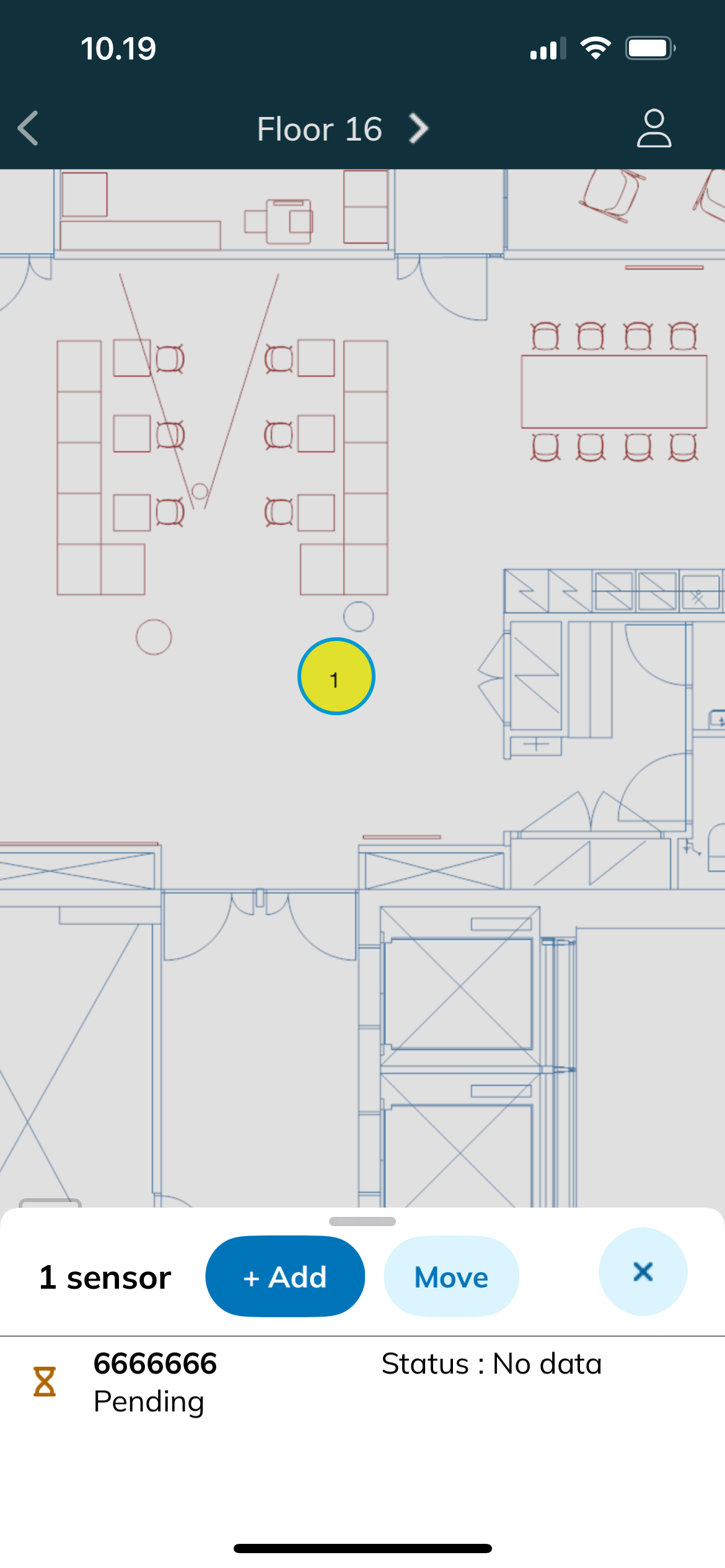
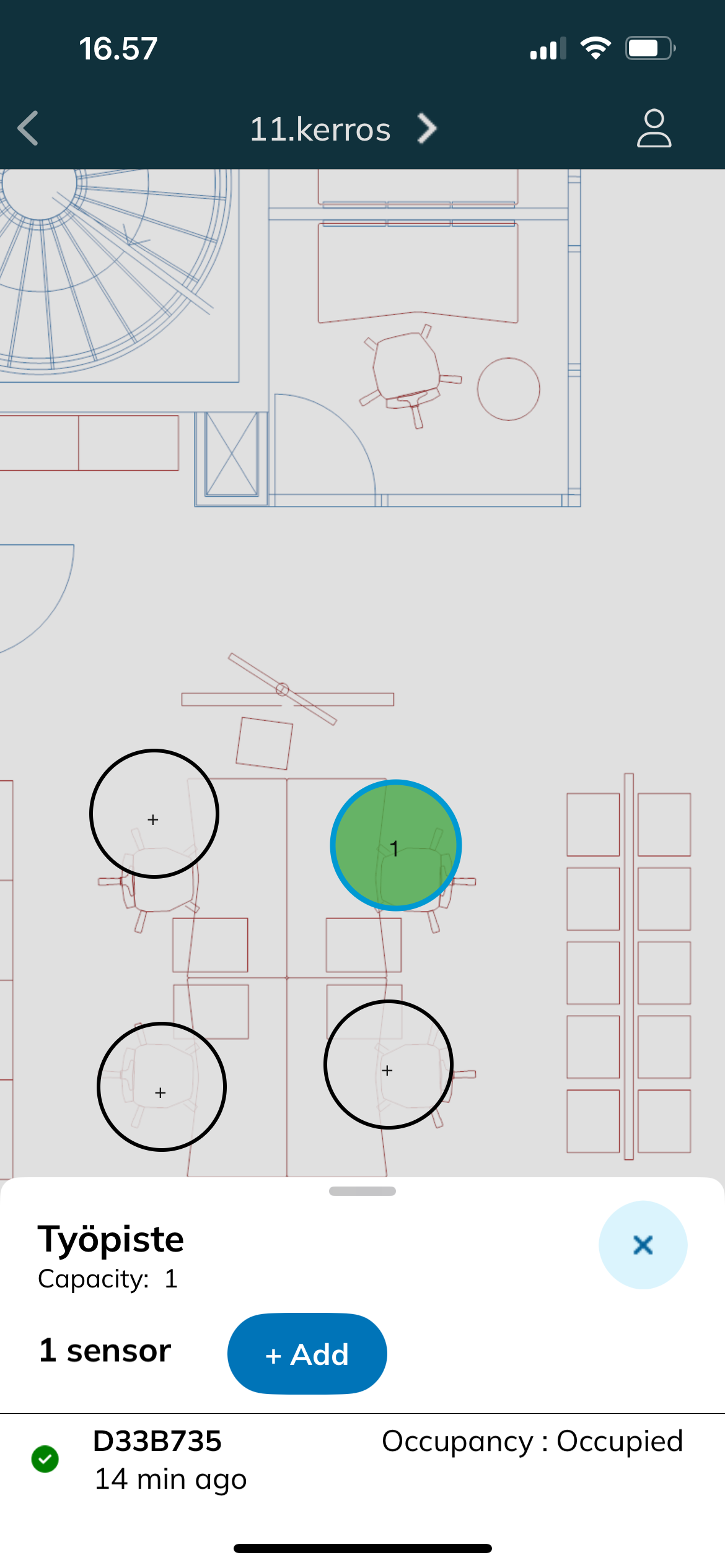
- The sensor appears on the bottom panel
You can add another sensor to the same object or add a sensor to another object by selecting a new object
- The
capacity object is - number on the capacity object shows how many sensors have been added in that location
- You can close a capacity object by tapping outside the bottom panel
The capacity objects are colored based on the
latest received message fromconnectivity status of the sensor:
time stamp: time of the last received message from the sensor
blue = motion detected
green = no motion detected
orange = the system has not received any message from the sensor
yellow: sensor has not sent any data yet
green: sensor has sent data in the past 24 hours
red: last sensor update was more than 24 hours ago, which probably means the device battery is empty
white with + icon:
no sensors have been added to the capacity
- You can add another sensor to the same object or add a sensor to another object by selecting a new
object
Sensor
messagesstatuses are automatically refreshed every 30 seconds or manually by clicking
thethe button
You can close a capacity object by clicking that object or by swiping the selection pane from bottom-up
.
For more details about status information, see Monitor device statuses.
Removing occupancy sensors
Tap
Delete occupancy sensors
Select a capacity object that has a sensor installed
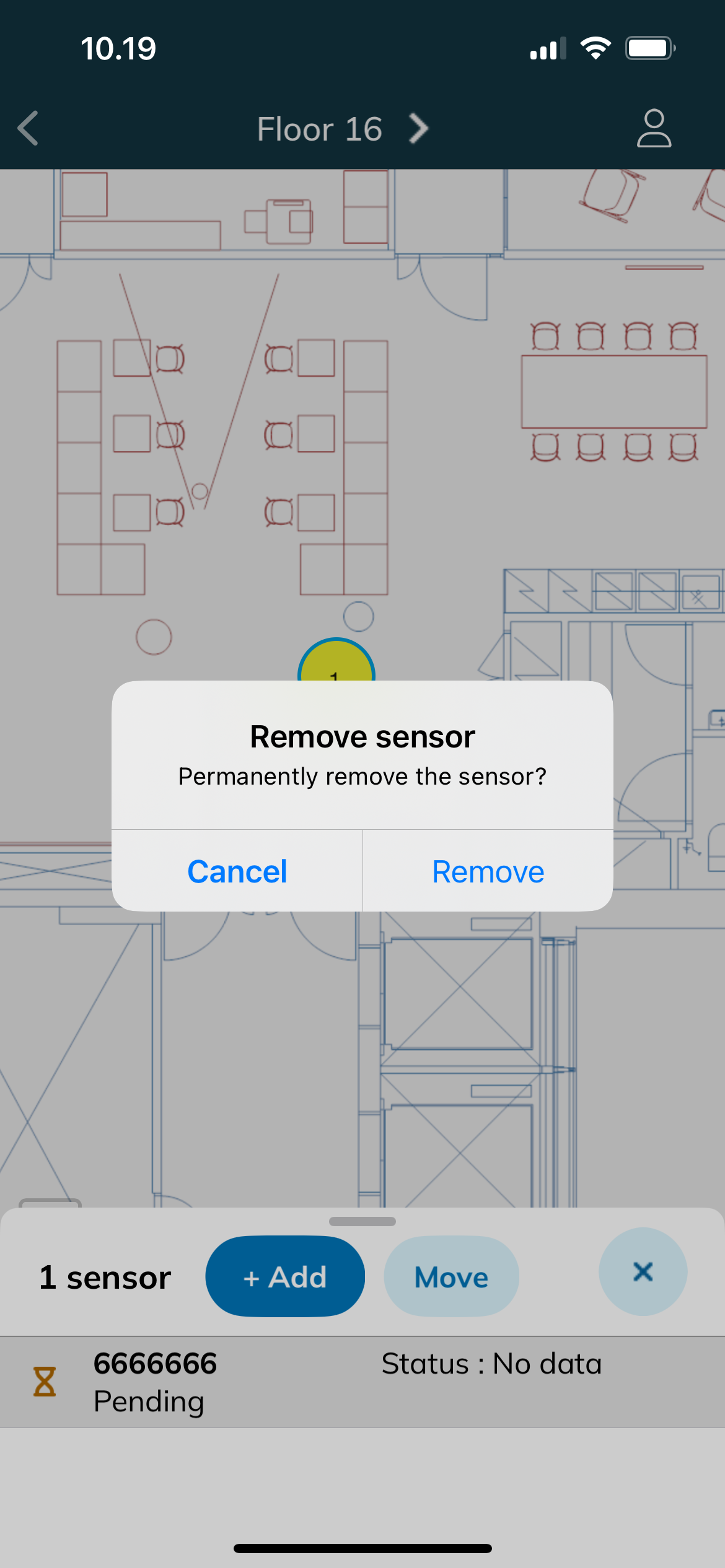
Press the sensor ID a few seconds
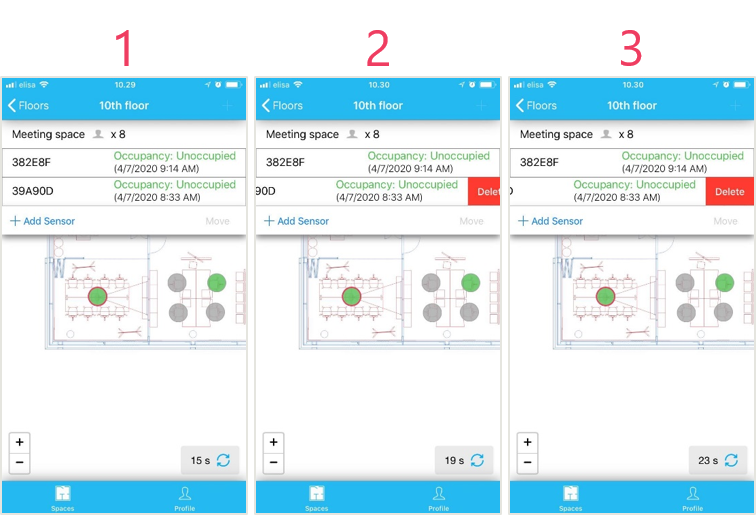
With iPhone you can delete a sensor also by by swiping the sensor ID to the left
Click 'Delete'Tap Remove in the confirmation dialog
If you added a sensor to
a wrongincorrect capacity object by mistake, select a new object and add the sensor to it. The sensor will automatically be
deletedremoved from the previous object.
A
samesensor can only be added to one capacity object at a time.