Adding occupancy sensors
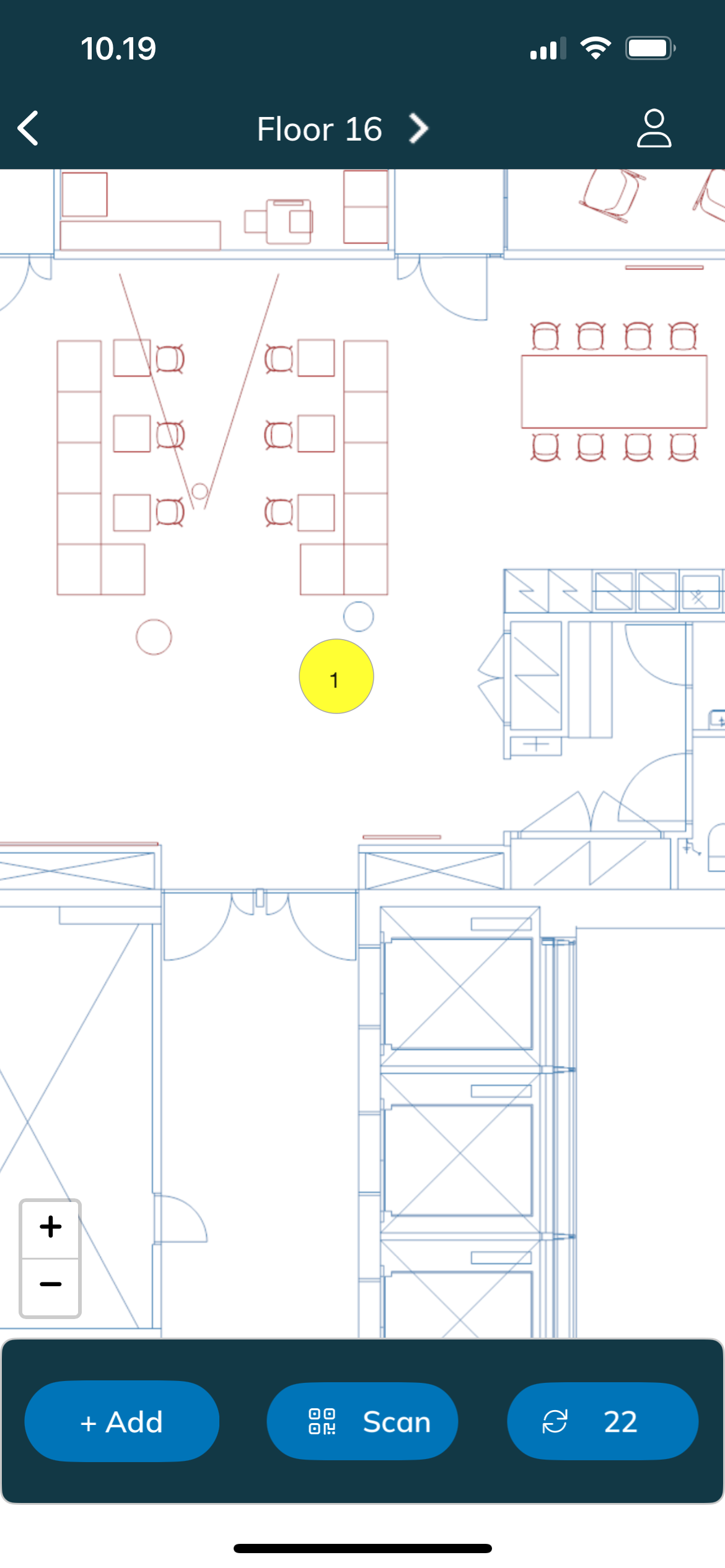
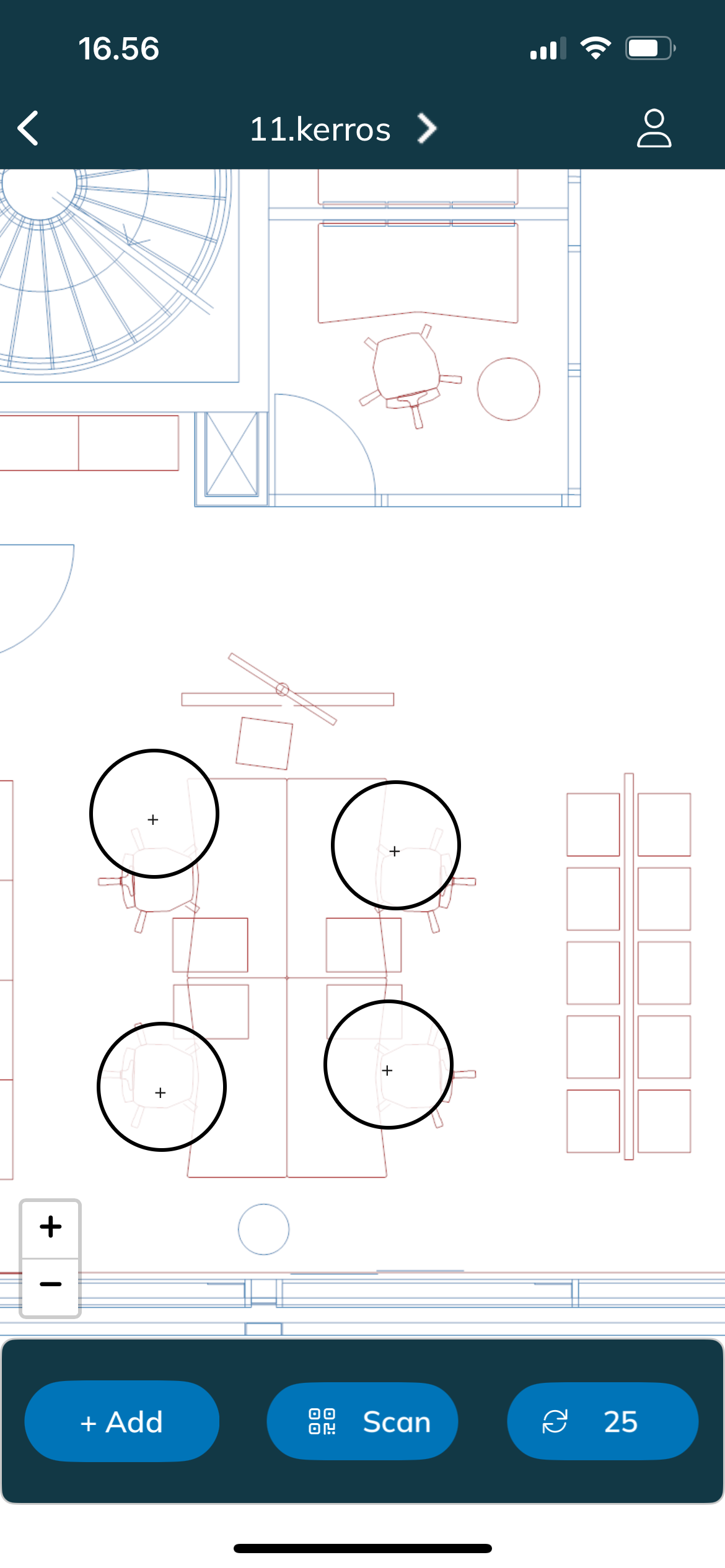
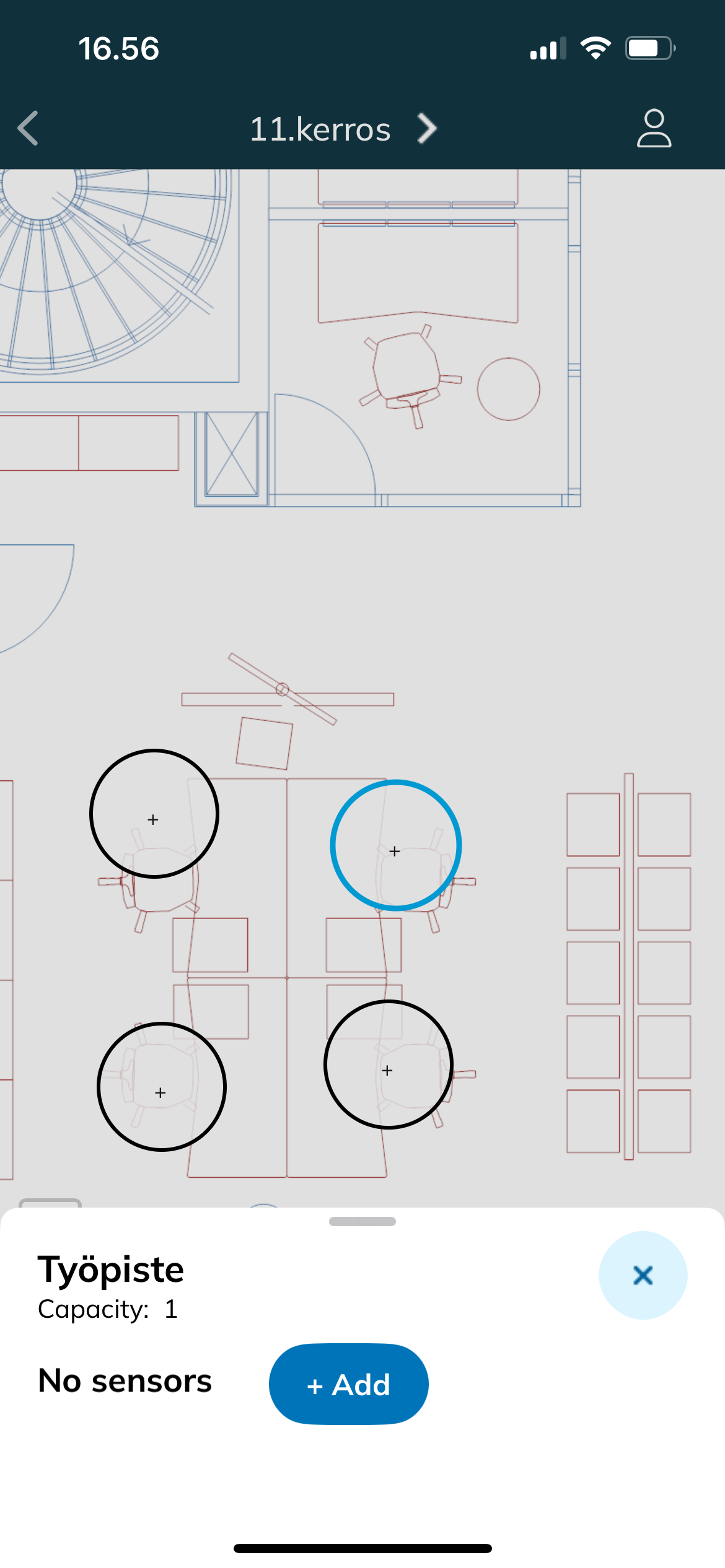
Tap a capacity object (circle with black border) on the floor plan
- white circles with + icon don't have any sensors yet
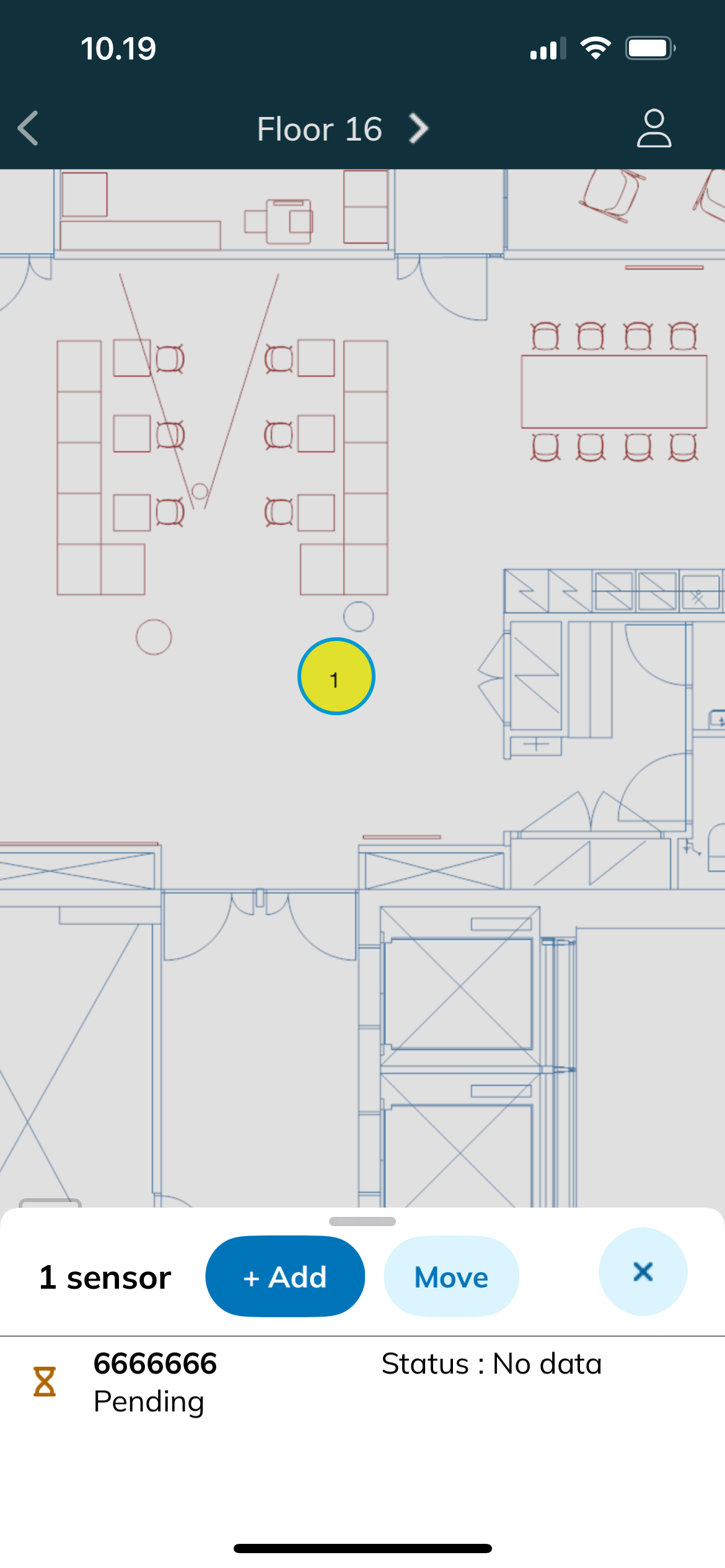
Add a new sensor by tapping the + Add button
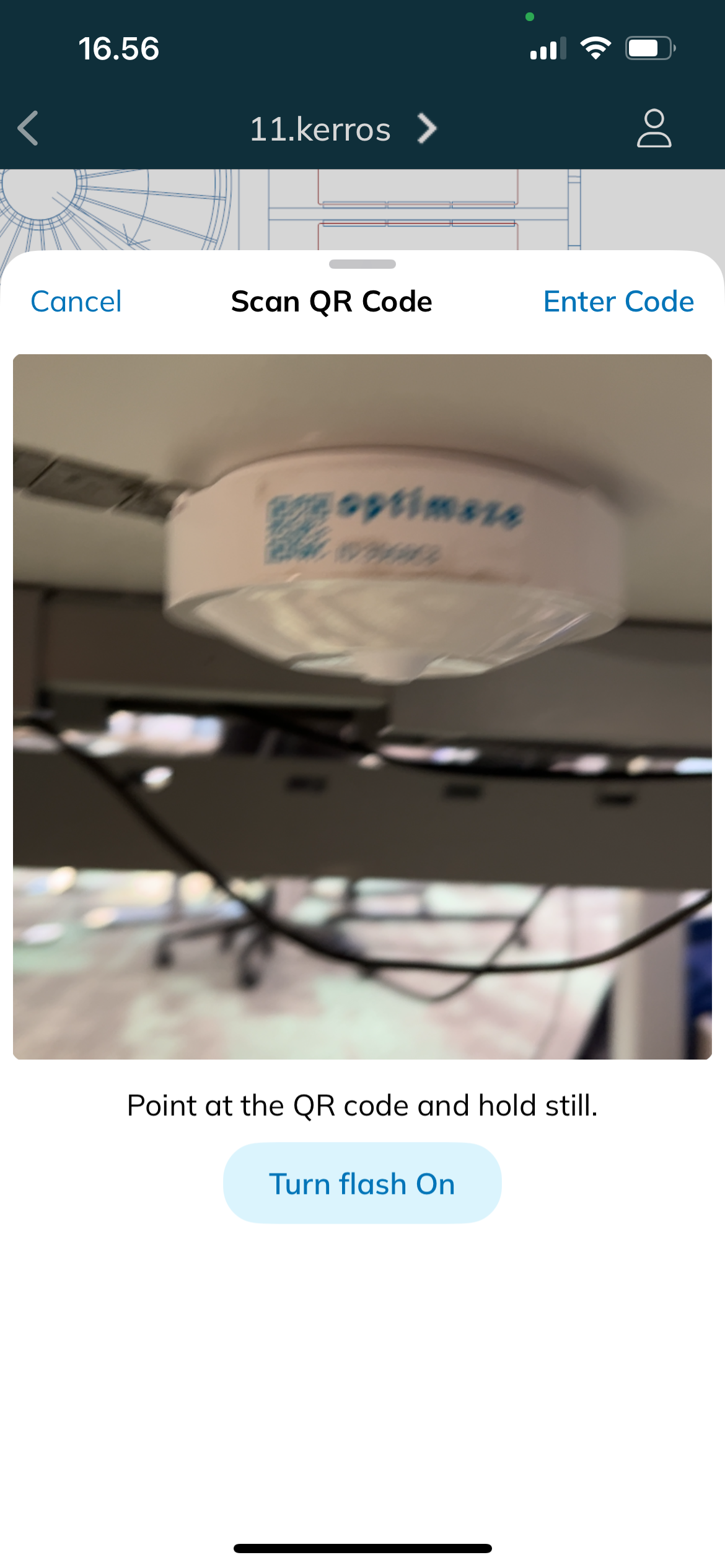
- Point the phone to the sensor's QR code.
- Alternatively, tap Enter code and enter the code manually. The code is case sensitive.
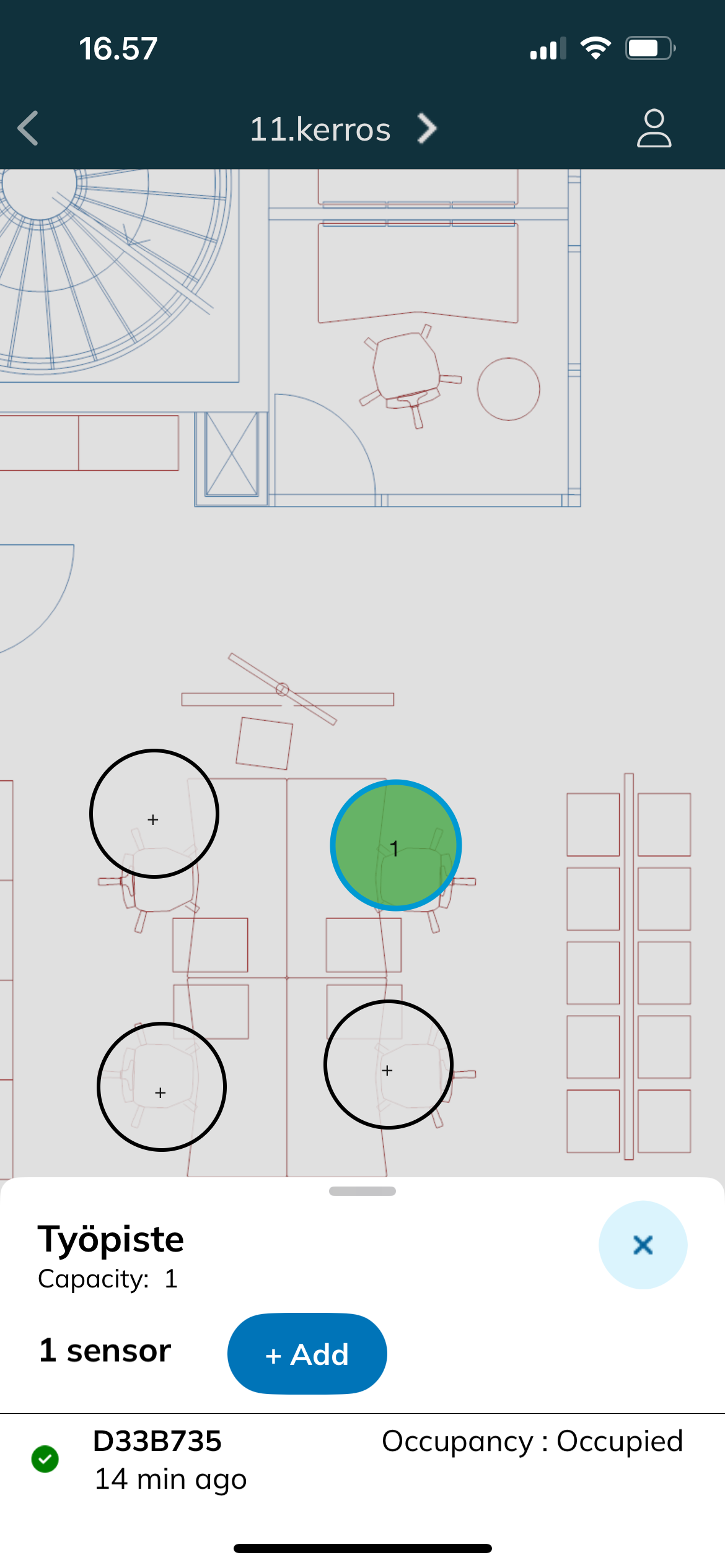
- The sensor appears on the bottom panel
You can add another sensor to the same object or add a sensor to another object by selecting a new object
- The number on the capacity object shows how many sensors have been added in that location
- You can close a capacity object by tapping outside the bottom panel
The capacity objects are colored based on the connectivity status of the sensor:
yellow: sensor has not sent any data yet
green: sensor has sent data in the past 24 hours
red: last sensor update was more than 24 hours ago, which probably means the device battery is empty
white with + icon: no sensors have been added to the capacity object
Sensor statuses are automatically refreshed every 30 seconds or manually by clicking the  button.
For more details about status information, see Monitor device statuses.
Removing occupancy sensors
Tap a capacity object that has a sensor installed
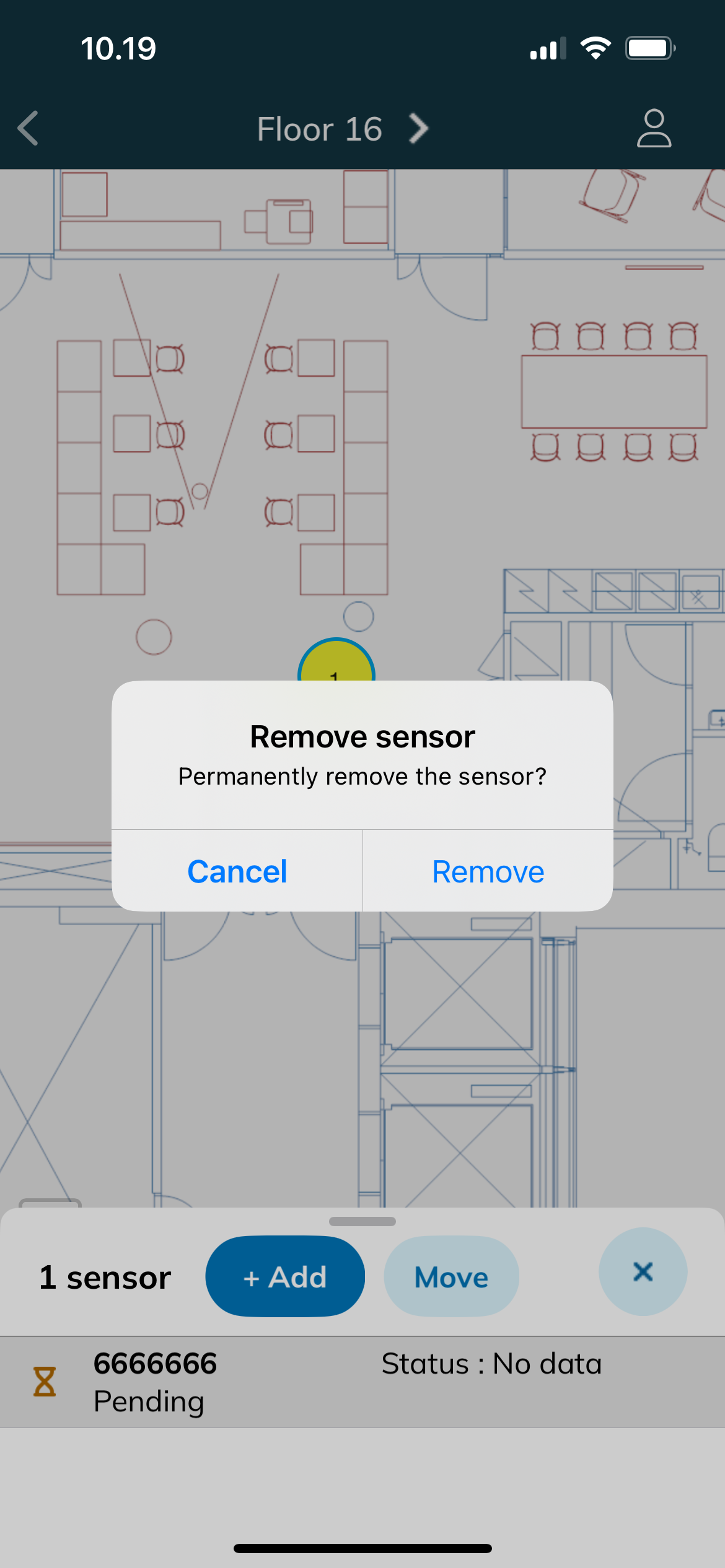
Press the sensor ID a few seconds
Tap Remove in the confirmation dialog
If you added a sensor to incorrect capacity object by mistake, select a new object and add the sensor to it. The sensor will automatically be removed from the previous object.
A sensor can only be added to one capacity object at a time.