
A JSA can be signed in both the web version and the app. In the app, it can be signed either by confirming digitally or by signing on a touchscreen. In the web browser, only digital confirmation is available.
Web
1. To sign a JSA in the web browser, go to the JSA module and click on the JSA to be signed.
...
3. Read the JSA and click Sign if you understand and validate the content.
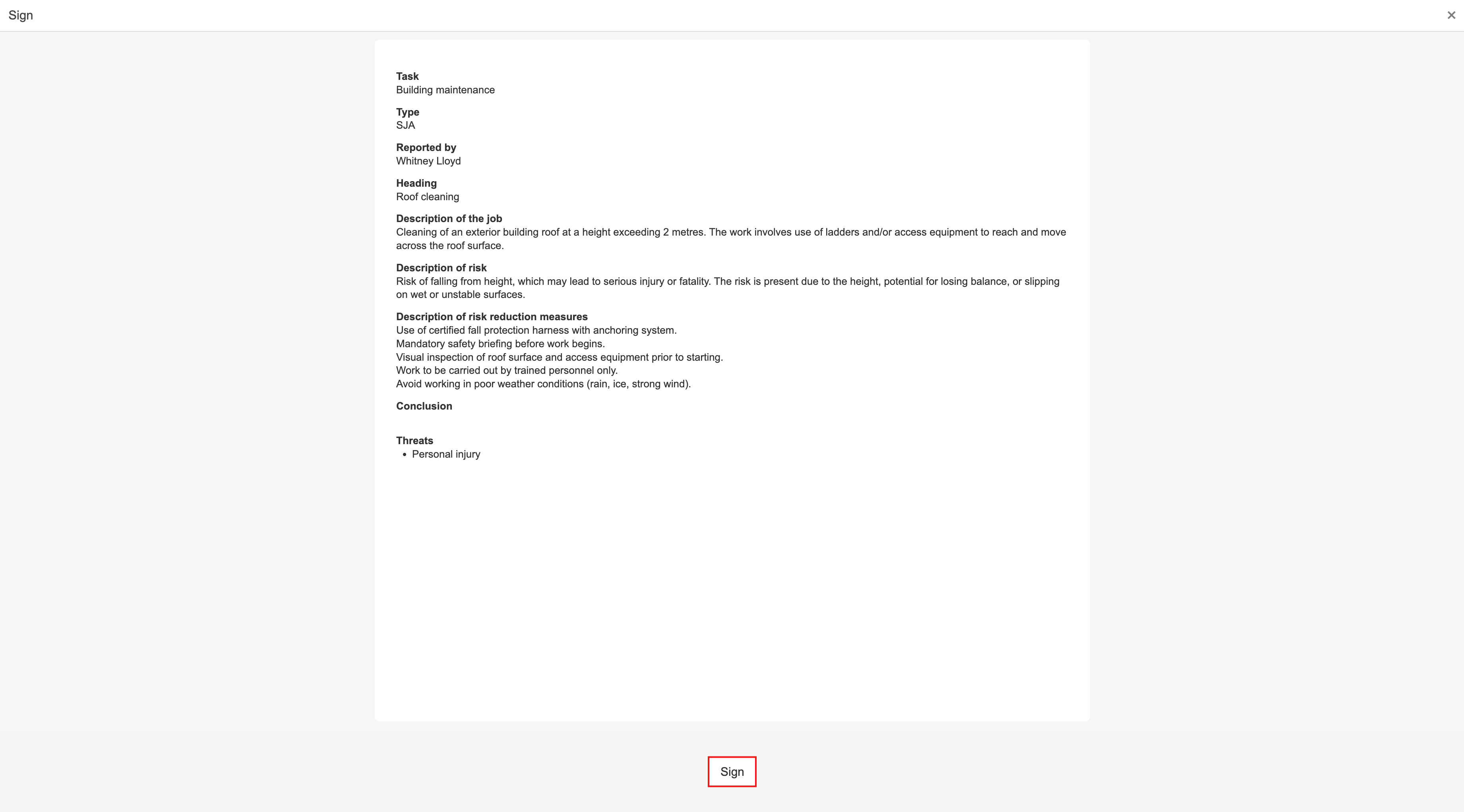
4. A dialog box opens where you can enter a comment and confirm the signature.

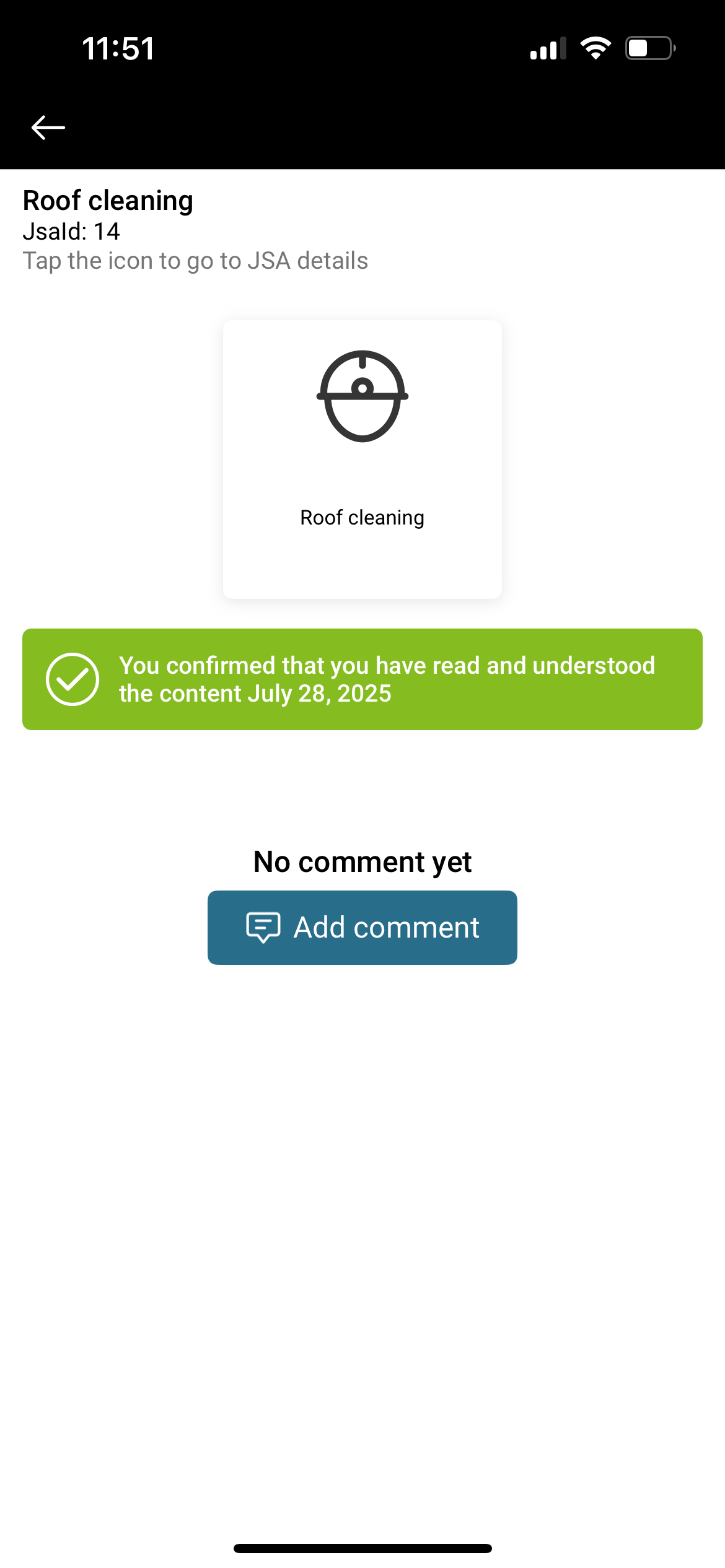
The JSA has been signed.

App
Sign digitally
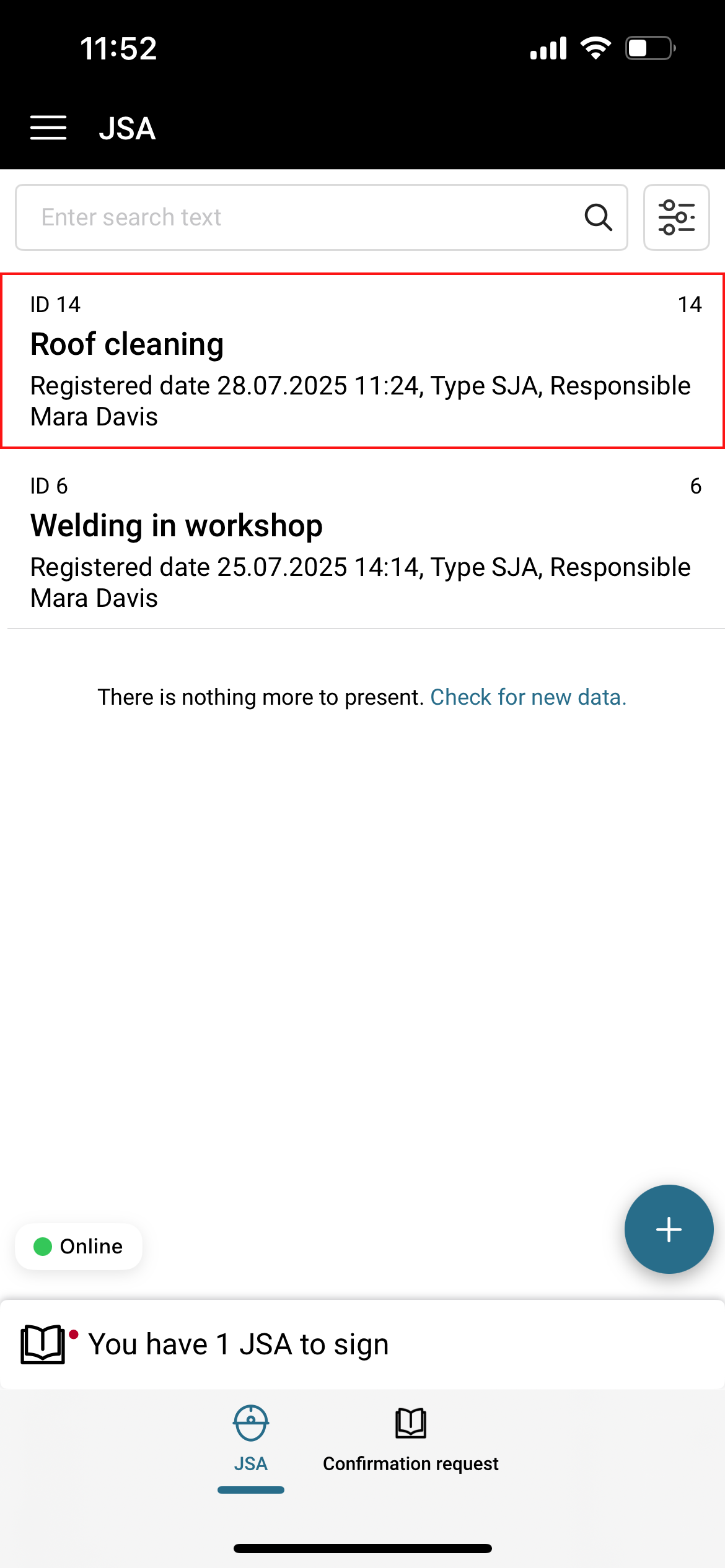
1. Open the app, select JSA from the menu and click tap on the JSA to be signed.
2. When you open the JSA that assigned to you are for signing, the message 'Request for signing for this JSA is waiting' is displayed at the top. Click Tap the button to read and sign it.
...
| Info |
|---|
Info: You can also open the 'Participants' tab at the bottom of the screen and sign the JSA from there. Go to 'Sign with touch' further down the page to view the guide. |
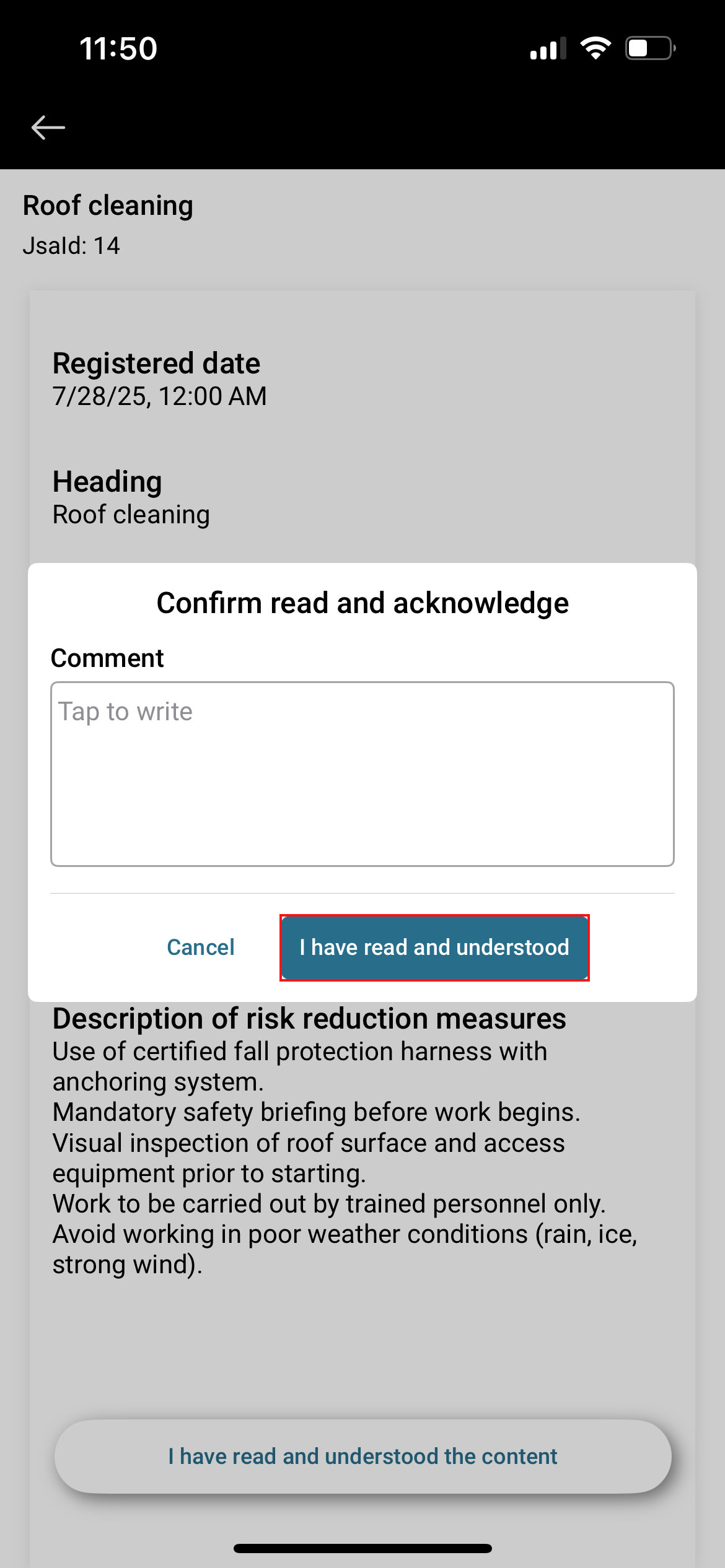
3. Read the JSA and click Sign tap I have read and understood the content if you understand and validate the content.

4. A dialog box opens where you can enter a comment and confirm the signature.
The JSA has been signed.
Sign with touch
1. Open the app, select JSA from the menu and click tap on the JSA to be signed.
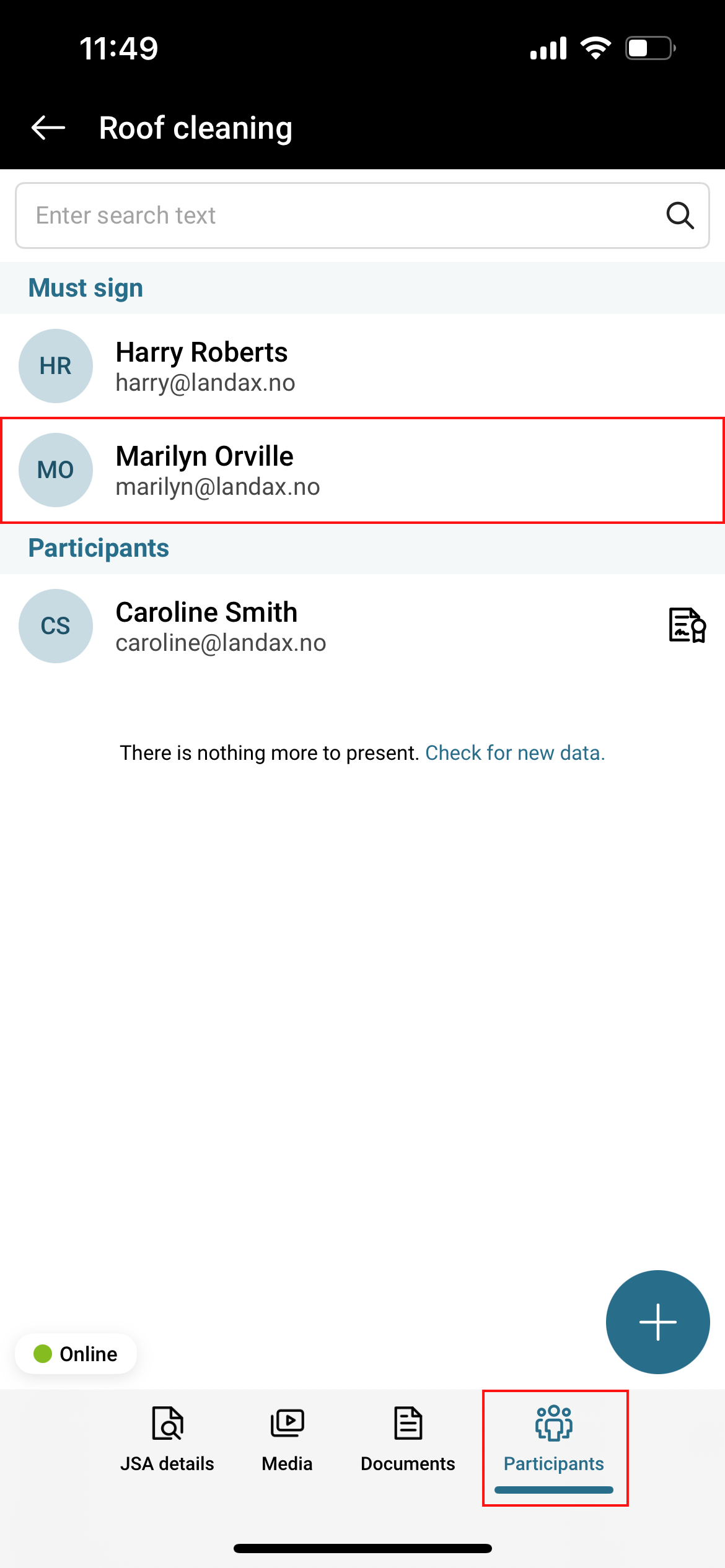
2. Click Tap the Participants tab at the bottom of the screen, and select the participant who is to sign by clicking tapping on their name.
3. To add a signature using touch, click Add signature.
...