
In the supplier module, you can register all the suppliers used by your company. These may be suppliers that deliver directly to the company, or producers that produce on behalf of a supplier. Suppliers can be linked to records in other modules such as nonconformities, tasks, checklists, and projects in order to provide an overview or to generate reports. The module can also be used in connection with initial or annual supplier evaluations. By registering the producers of the suppliers, you can also carry out evaluations of them if required.
A supplier can be a supplier, a producer, or both. A producer produces goods that a supplier sells. An example is the sale of cars. In this case, the producer is the one producing the car, while the car dealership sells the car.
| Info |
|---|
Info: To edit a supplier, go to the supplier overview and click the supplier's name. If the fields in the form are greyed out, you do not have the permissions to edit. |
Create new
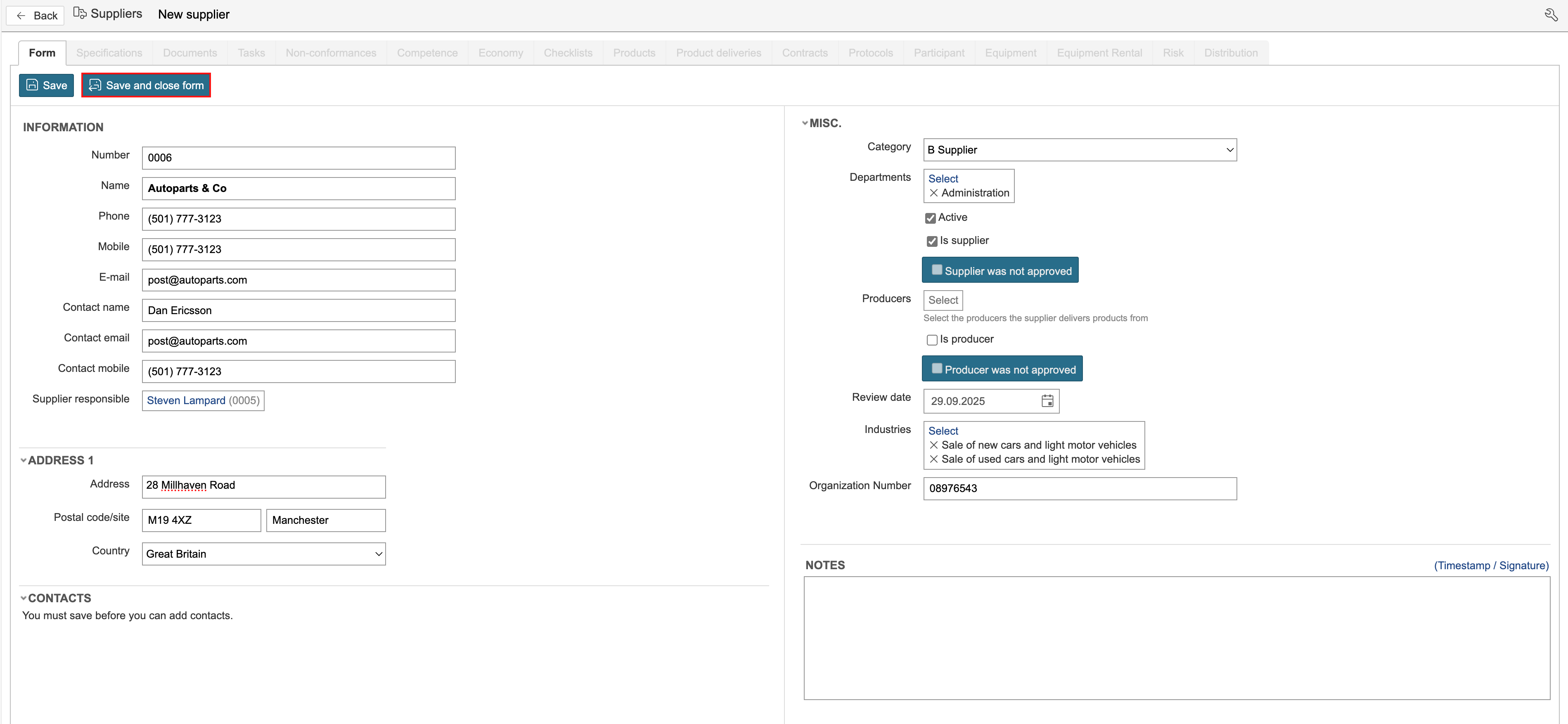
1. Go to the supplier module and click New supplier.
...
2. Complete the fields, select whether it is a supplier, a producer, or both, and click Save or Save and close form.
| Info |
|---|
Info: Some fields in the form may be hidden. To display all available fields, activate the configuration mode. |
Contact persons
Contact persons for the a supplier can be added in two ways: either directly in the supplier form or by linking them to the supplier to contact persons from the contact person register. The contact person register is a separate module. To link the supplier to persons from the contact person module, the supplier must be saved first. New contact persons associated with the supplier can also be created directly from the form. This is done by clicking "Create and connect new contact".
...
Suppliers can be approved in the form. When a supplier is to be approved is determined by each individual company. A supplier can, for example, be approved after the annual supplier evaluation has been completed or through an assessment carried out by a second party.
To approve a supplier, tick click the "Approve supplier" field and click Save. If the supplier it is a producer, click "Approve producer"
...