
In List View, assets are displayed in a flat structure, depending on where you are in the structure when you change to List View. Clicking on the “black” plus button to the left of the asset in the list brings you back to structure view for the asset you are working on.
Export to Excel: Select one or more assets for export to Excel. If none are selected, all of the assets in the selection will be exported. Note that the selection of columns to be exported is also controlled by what the user has activated in their user profile. The Excel sheet also allows you to perform a range of update imports via the import studio.
You can switch from Table View to Structure View using this button.
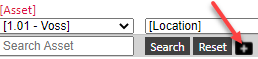
You can also create new assets in Table View. Also note that if you are in Table View, you have direct access to the edit button of the asset in the list.