You must have a ’Global admin’ role in O365 to continue and ‘Administrator permissions’ in Optimaze Worksense.
If you do not have an account with the ‘Global admin’ role you need to contact your organization’s IT department.
Create Connection
Log in to Optimaze Worksense on your web browser
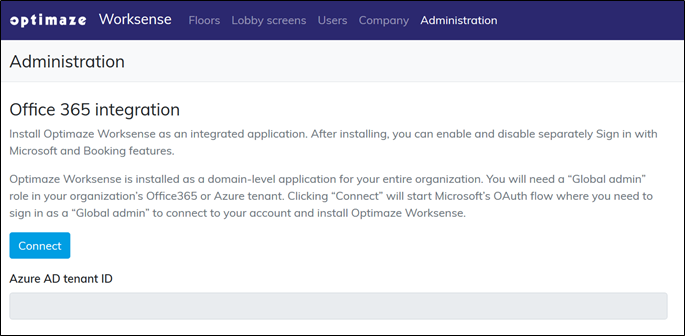
Navigate to the ‘Administration’ tab
If the tab is not visible please contact your organization’s Optimaze Worksense main user or Submit a Support Request to find out who in your organization to contact
Click the ‘Connect’ button under Office 365 integration
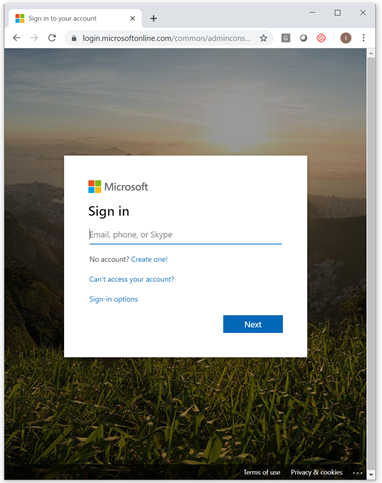
Clicking the ‘Connect’ button starts Microsoft’s Oauth flow to install the app
Enter your ‘Global admin’ account credentials
Common pitfall: If you get “Need admin approval”, it means the account you used is not a ‘Global Admin’ in O365. You need to log in using a different account or have your IT department temporarily change your user permissions in O365.
Optimaze Worksense will ask for permissions to access your organization’s O365 data. Click ‘Accept’ to proceed
Why does Optimaze Worksense need the permissions? For certain features to work Optimaze Worksense requires these permissions. You can see for more details on the “Required Permissions by Worksense” page in the General section in this document, here.
You are good to go! You can check that Optimaze Worksense is visible from your O365 account’s app overview, here
Next you can