
Showing how you easily can add a manual meter by yourself.
There is a high probability that you will find meters within your property that are neither read remotely or enabled for automatic export from utility companies. Creating a manual meter in Mestro Portal is almost the same as creating an automatic one, with only minor differences.
TIP: Did you know that you can create an unlimited amount of manual meters in the portal, free of charge?!
Follow these steps:
Navigate to the property or building where you want to add the meter.
Click "+ New object"
Choose "Meters"
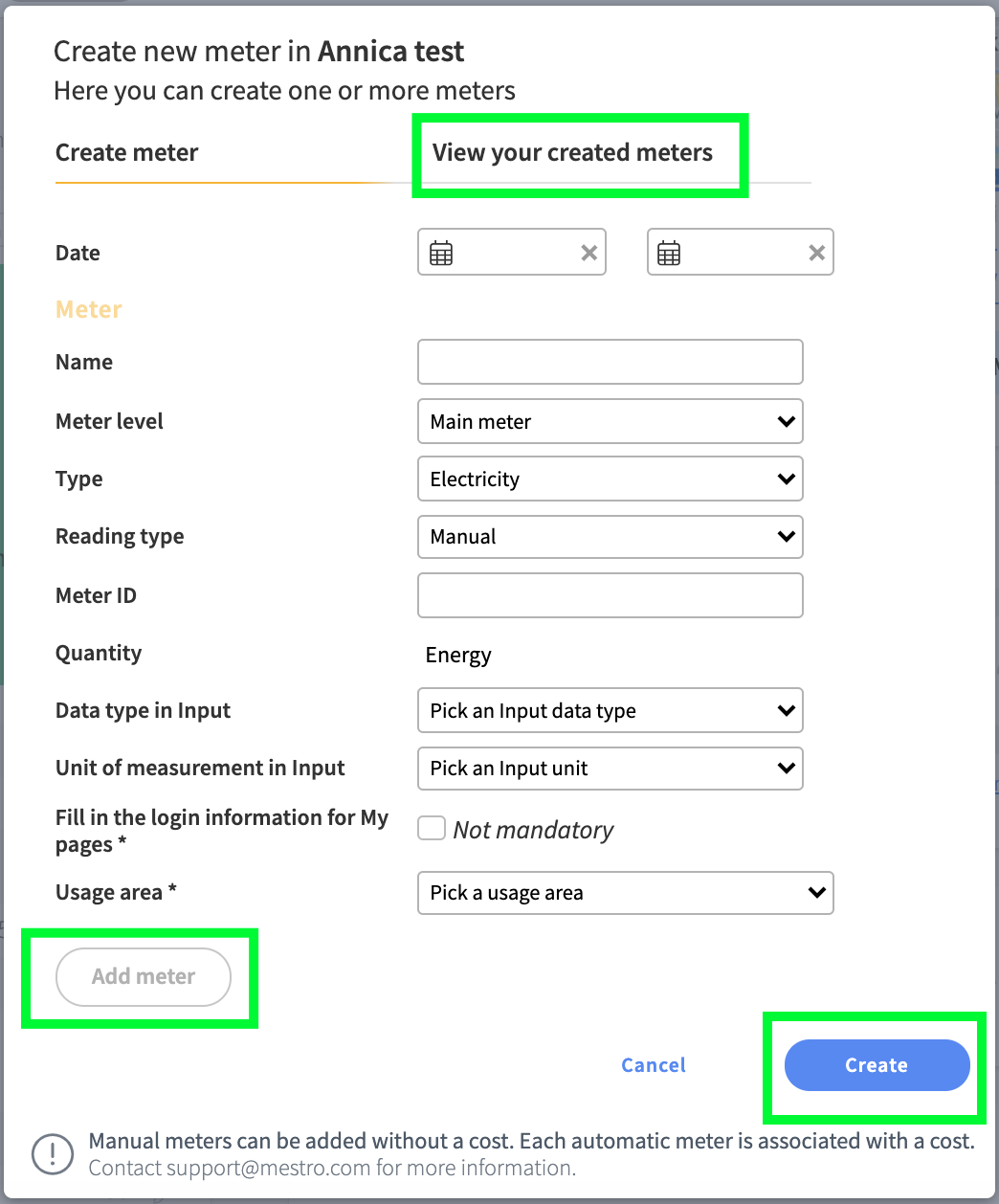
Name the meter
Choose the Meter Level
Choose the Usage type
Specify the reading type to "manual"
Fill out the rest of the information required.
Now click on "add meter". If you want to continue adding more meters, now start with the procedure from step 4 and press "add meter" between each new meter and then press "create". If you are happy with a meter, take the next step below.
Click on "Next"
- Review your soon to be created meters. If you are content, click on "Create"
The meter (s) should now be visible in the tree. If you do not get the meters directly, you probably did not press "add meter" before you pressed create.
Tip! If you are uploading multiple meters at the same time, you can choose to preview before creating them. Then choose to press "View your created meters" at the top right. Then you get a list of all the meters you have set up, and can easily see if you missed someone.
Once created, the meter is ready for you to upload historical data or begin monthly reporting of meter readings, via the portal or Mestro Input.
N.B: Please note that your User Level dictates whether or not you can add or change objects.