
The following updates have proven to cause problems with receipts not appearing in the receipt journal.
December 2025 Windows security update (KB5071546, KB5071544, KB5071543)
Instruction on how to fix this issue is lower in the confluence.
If a customer reports an issue in EGPOS related to:
Receipts are not sent from the local POS to the central environment.
Receipts cannot be parked because they are not transferred to the master register (StoreCentral) for further processing.
Sales data is not transferred centrally, which means that reports are not updated.
End-of-day reports are not submitted.
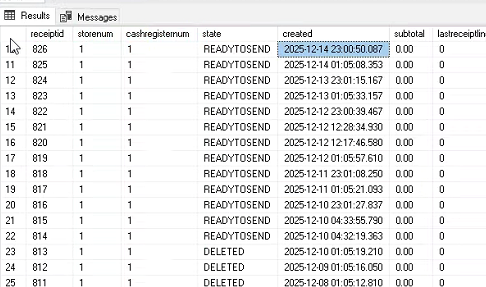
How the issue presents in Lindbak POS Local.dbo.poslog:
The state on the lastest receipts created says READYTOSEND.
How the issue presents in LRSlog:
The LRSlog will say 'Unable to write POSLOG XML to MSMQ' this is an indication that MSMQ is effected by the windows update.
Example SE:
18.12.2025 11.44.09.678 Error 99 Exception occured: 'Unable to write POSLOG XML to MSMQ', System.Messaging.MessageQueueException: 'Det finns inte tillräckligt med resurser för att utföra åtgärden.'
Stack:
vid System.Messaging.MessageQueue.SendInternal(Object obj, MessageQueueTransaction internalTransaction, MessageQueueTransactionType transactionType)
vid System.Messaging.MessageQueue.Send(Object obj, String label, MessageQueueTransaction transaction, MessageQueueTransactionType transactionType)
vid System.Messaging.MessageQueue.Send(Object obj, String label, MessageQueueTransactionType transactionType)
vid Lindbak.Kasse.DataLayer.ServiceAgents.Services.KasseJournalSA.MSMQJournal.SendMessageOnMSMQ(Message message, String label)
vid Lindbak.Kasse.DataLayer.ServiceAgents.Services.KasseJournalSA.MSMQJournal.SaveJournal(String xml, Int64 receiptid, POSLogStatus status, Int32 version, String retailStoreId, String retailStoreIdLocal, Byte[] receiptAsPdf, List`1 signatures)
Example EN:
13.12.2025 00.00.23.669 Error 38 Exception occured: 'Unable to write POSLOG XML to MSMQ', System.Messaging.MessageQueueException: 'Insufficient resources to perform operation.'
Stack:
at System.Messaging.MessageQueue.SendInternal(Object obj, MessageQueueTransaction internalTransaction, MessageQueueTransactionType transactionType)
at System.Messaging.MessageQueue.Send(Object obj, String label, MessageQueueTransaction transaction, MessageQueueTransactionType transactionType)
at System.Messaging.MessageQueue.Send(Object obj, String label, MessageQueueTransactionType transactionType)
at Lindbak.Kasse.DataLayer.ServiceAgents.Services.KasseJournalSA.MSMQJournal.SendMessageOnMSMQ(Message message, String label)
at Lindbak.Kasse.DataLayer.ServiceAgents.Services.KasseJournalSA.MSMQJournal.SaveJournal(String xml, Int64 receiptid, POSLogStatus status, Int32 version, String retailStoreId, String retailStoreIdLocal, Byte[] receiptAsPdf, List`1 signatures, Nullable`1 isSendingPOSLogBatchEnabled)
Important - Pause Windows Updates
Windows Updates must remain paused on all affected registers until a confirmed workaround or fix is in place.
If updates are re-enabled, the issue may return, causing:
Receipts not being sent
Sales data not updating centrally
End-of-day reports failing
Always pause Windows Updates again when the pause period expires if no workaround or fix has been implemented.
This is how you can uninstall the security update from the cash register.
- Pause Windows update
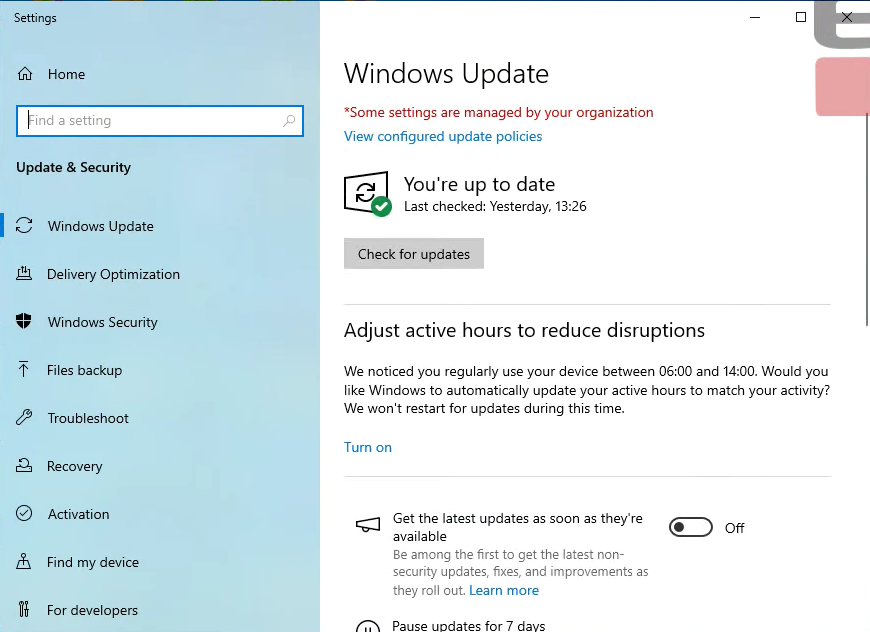
- Open the Windows Update settings by clicking "Start / Settings / Update & Security". You will see the following window.
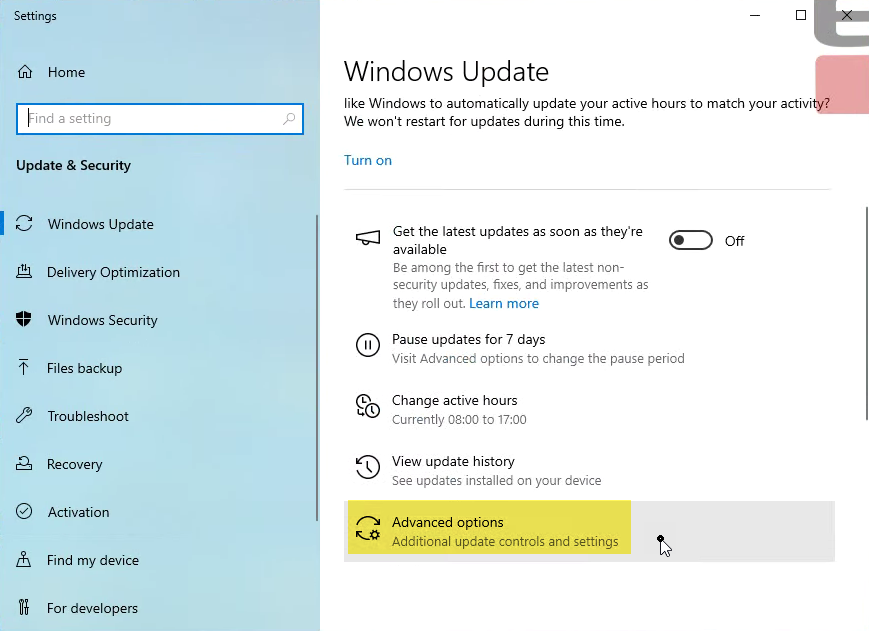
- Scroll down and click the "Advanced options"
- In the "Advanced options" screen, scroll down and select a date in the "Pause until" drop down. Choose a date that is as far in advance as possible, usually 35 days.
Take note of the date because you need to log this in the MI Confluence page.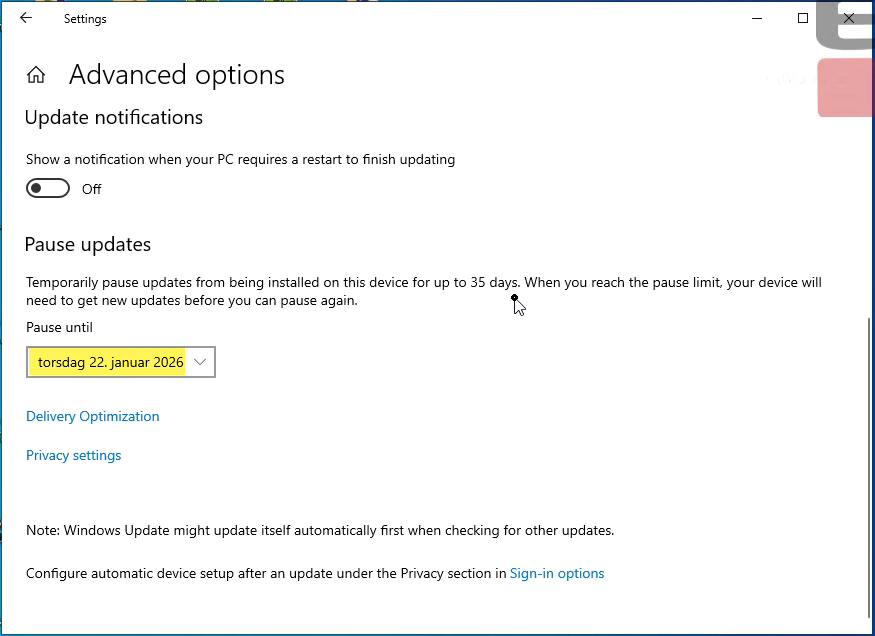
- Close the window. (It automatically saves your setting)
- Open the Windows Update settings by clicking "Start / Settings / Update & Security". You will see the following window.
- Uninstall the Windows update.
- Go to control panel and the following location "Control panel / Programs / Programs and features / Installed Updates".
- Find the correct update described above. In this instance KB5071546.
- Right click it and choose "Uninstall"
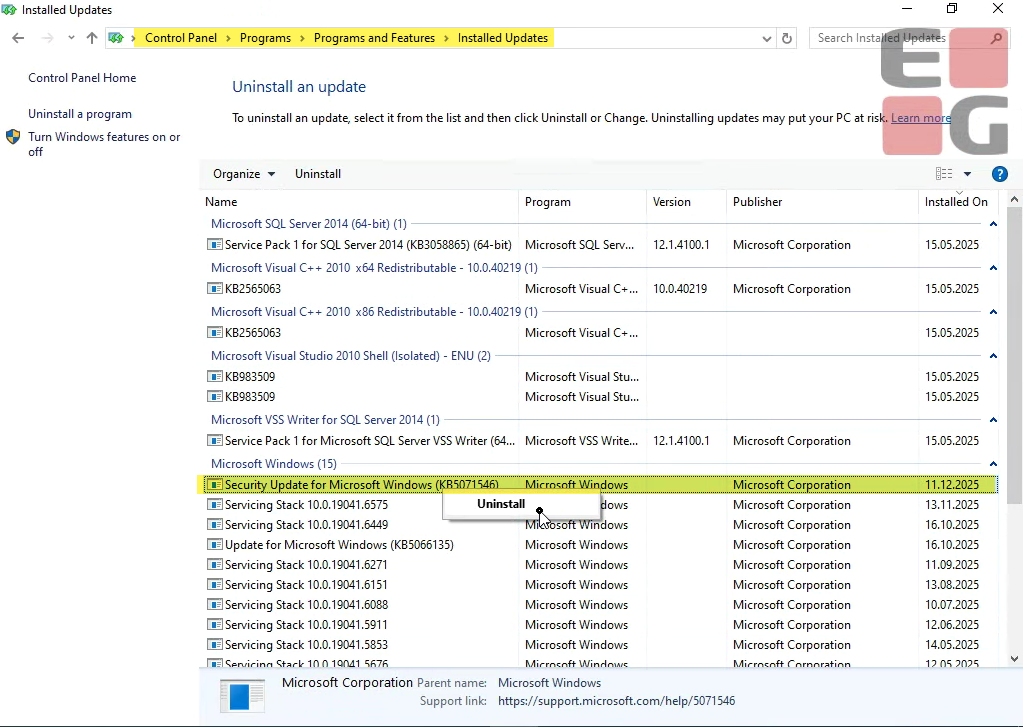
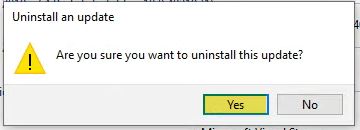
- Confirm by clicking "Yes" here.
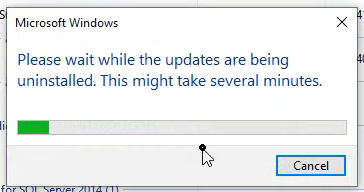
- Wait until the installation is done…
- Confirm restart
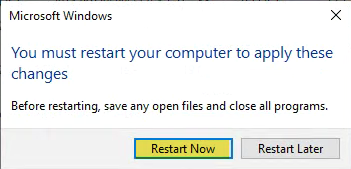
- When reboot is done please check that the Windows update has been uninstalled and that further updates have been paused.
- Start EGPOS.
- The automatic cleanup job running every hour (or every 30 minutes in some cases) will do the processing of the receipts.
It will just take some time before all receipts have been processed.