| You must have Administrator role in EG Worksense to add lobby screens in EG Worksense. Lobby screens may not be available in all EG Worksense packages. |
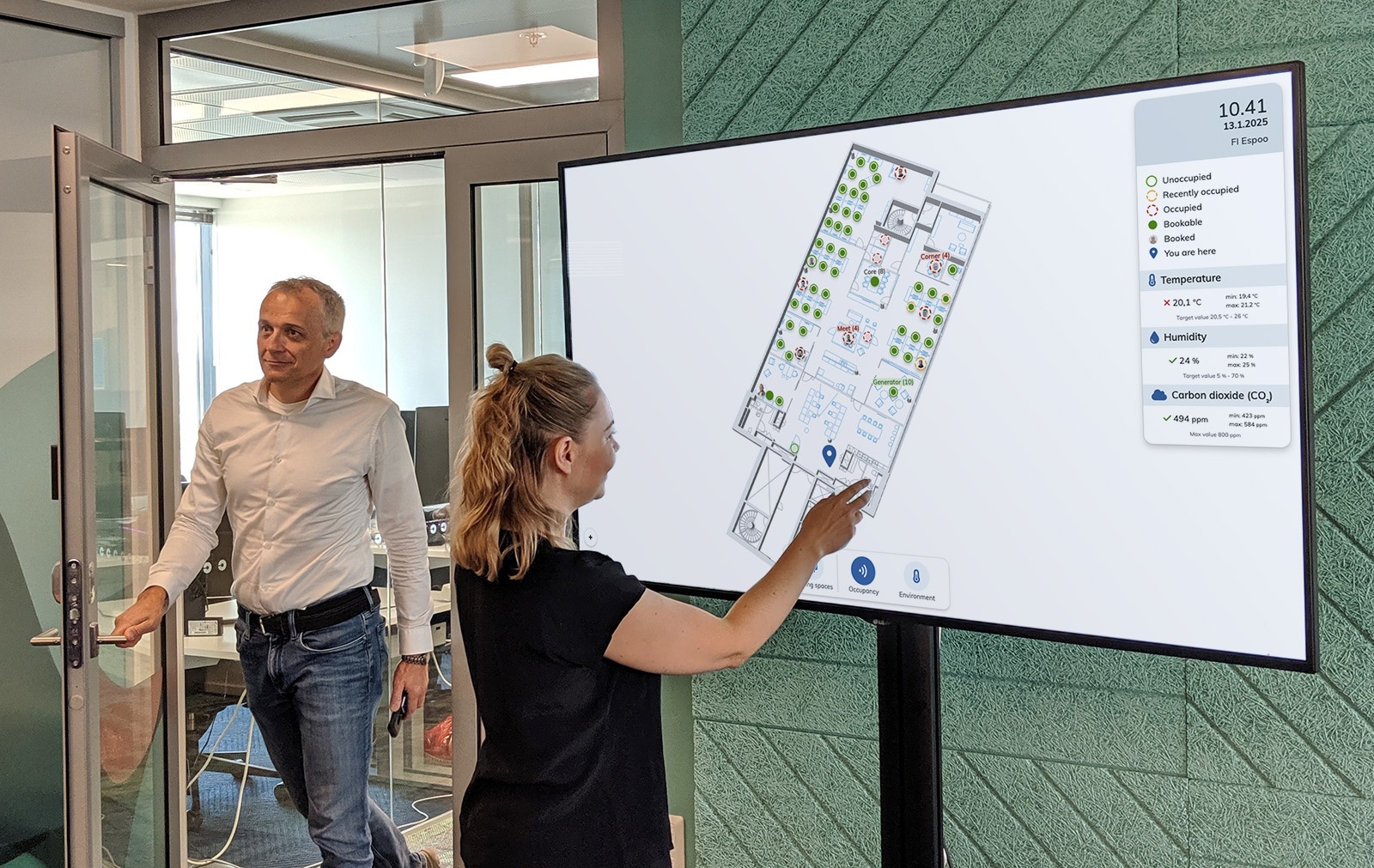
EG Worksense can be configured for lobby screens, also known as interactive kiosk displays. Key benefits include:
- Locating meeting rooms and other spaces on the floor
- Checking the real-time availability of meeting spaces throughout the building
- Instantly booking available meeting rooms
- Finding colleagues who are currently in the building
- Viewing an overview of indoor air quality
For the lobby screen, installation and maintenance are done by the user. EG provides technical requirements for the screens and instructions how to set up EG Worksense to a lobby screen.
How it works
- Set up floor plans & sensors
- Set up EG Worksense on your lobby screen
- Navigate the office & book spaces on your touch lobby screen
System requirements
Devices displaying the lobby screen views need to have enough performance from the CPU and GPU as WebGL is used to display the floor plan. We support the latest Windows operating system and the latest Firefox and Chrome browser versions.
We’ve tested with the following devices that even large floor plans work on a touch screen:
INTEL NUC7i5DNHE
CPU: Intel Core i5 7300U 2.6 GHz Dual-Core
Memory 8GB
GPU: Intel HD Graphics 620
Windows 10
Lenovo ThinkCentre M710q Tiny
CPU: Intel Core i5 7400T 2.4 GHz Quad-Core
Memory 8GB
GPU: Intel HD Graphics 630
Windows 10 Pro
| If you want to show the lobby screen as part of a info display system, the system needs to have the ability to save the cookie. |
You can always test in advance if the lobby screen functionality works on your device. Please contact your EG contact person for help.
Setup
- Login to EG Worksense
- Open the Lobby Screens tab
- Click the Add lobby screen… button
- If you can't find the floor plan you want to create a lobby screen view for, you can add the floor first
- Give the Name to the lobby screen
- We recommend naming based on the physical location of the screen, e.g. ‘4th floor lobby’
- Select the Language, Date and number format and Temperature unit
- Choose what information is shown and if floor switching is allowed
- Select Allow floor switching if you want users to be able to view other floors in the building from the lobby screen view
- Select Show meeting organizers if you want show the organizers of the meeting bookings on the lobby screen. Checkbox is visible only if your organization has the bookings enabled.
- Select
- Click Add to save your lobby screen configuration.
- Click Activate to open the Open lobby screen modal where you will see a link to the lobby screen setup view
- By clicking Activate, the link to the lobby screen view is active for one hour. During the active period, the lobby screen can be opened by anyone who has the link. After that the link cannot be opened anymore and you need to reactivate it by clicking Activate again.
- If the lobby screen link is opened on a web browser during the active period, a cookie is saved that enables the lobby screen to work after the active period.
- After activating the lobby screen, you can open the setup view on the actual lobby screen device by opening the link.
- You can either open the link by typing it on the browser's address bar or by signing in and clicking the link on the modal.
- We recommend opening the lobby screen in the browser's Kiosk mode. Instructions for Google Chrome on Windows can be found in the Open lobby screen modal.
- In the Setup view you can modify the zoom level, position, rotation, pitch, and whether the meeting spaces panel or restaurant panel is open by default
- If you wish to have the meeting spaces or restaurant panel open by default, open them before saving the setup
- Tip: you can later change these by re-activating the lobby screen and opening it and re-adjusting the settings and clicking Save. The lobby screen updates once per hour and your new settings will update
- Click Save once you are ready
Making adjustments to lobby screen
You may want to adjust the floor plan location on your existing lobby screens or show the meeting spaces panel or restaurant panel by default. Follow these steps to make adjustments:
- Navigate to Lobby screens in EG Worksense and click Activate on the lobby screen you want to adjust
- Make the adjustments
- Option 1: Go to the actual lobby screen and click the web browser’s back button. This should take you back to the Setup mode where you can see the blue Save button at the top of the page. If you cannot navigate back you can add: '?setup=true’ to end of the URL in the browser’s address bar.
- Option 2: Open the lobby screen link (blue link) on your PC and make the adjustments. Please note that because of screen size and resolution the floor plans size and location can different significantly between your screen and the actual lobby devices screen. Adjusted settings will update in 1 hour to the actual screen.
- Tip: open the link in private browsing/incognito view if you do not want to get signed out.
- Click Save
Please note that if you want to show the booking organizers, you need to create a new lobby screen and select Show meeting organizers checkbox.
FAQ
How long does it take before a lobby screen returns to the default floor?
The lobby screen will change back to the default floor plan after 1 minute.