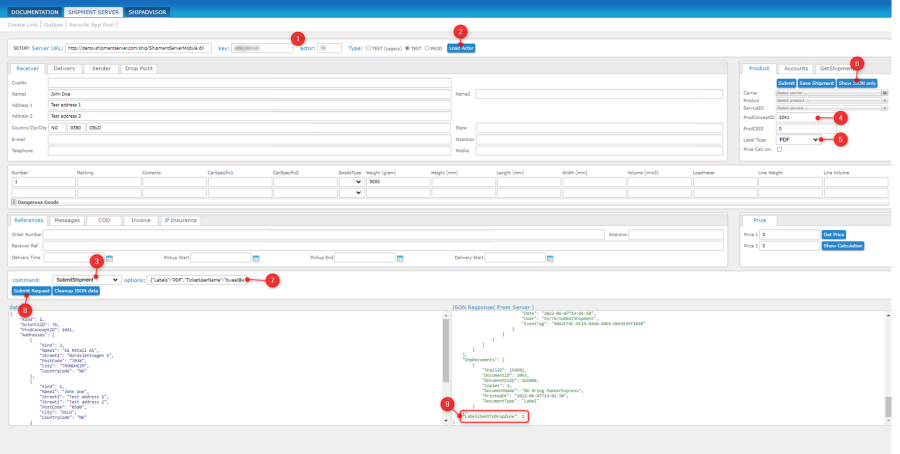
Go to the consignor test bench here: Shipment Server Test Bench (consignorsupport.no)
- Enter key and actor (ask the customer consultant for these credentials)
- Click "Load actor"
- Select command "SubmitShipment"
- Fill out the formular
- Set label type to PDF
- Click "Show JSON only" to modify the example request json
- In the "options" JSON object, add the following: {"Labels":"PDF","TicketUserName":"yyyy","WorkstationID":"XXXX", "DropZoneLabelPrinterKey":"label_printer1"} This will make sure the label is routed to the correct drop zone installation and printer. Replace XXXX with the installation id of your drop zone instance, and enter the same username as configured in drop zone.
- n the "options" JSON object, add the following: {"Labels":"PDF","TicketUserName":"yyyy","WorkstationID":"XXXX"} This will make sure the label is routed to the correct drop zone installation and printer. Replace yyyy with the username you log into drop zone agent with and XXXX with the installation id of your drop zone agent, and enter the same username as configured in drop zone.
- Click "Submit request"
- Look for the LabelIsSentToDropZone field in the response. The PDF file should be outputted to the folder configured in drop zone:

If a preview of the label was presented, or if you see a popup with the text "No preview available", then something probably went wrong and the label was not sent to Drop Zone. If you see "LabelsSentToDropZone": 1 in the response, then the labels was successfully sent to drop zone.