Purpose
The steps that need to be taken into consideration before chaining salons in Hallinta.
Scope
For internal Timma / CuHa use.
Definitions/Acronyms
- Main salon 🏢**:** The main salon of a chain of which registers can be shared with other salons
- 2nd, 3rd etc. salons 🏭**:** These salons are secondary salons chained to the main salon.
Step-by-step guide
- Copying Services
- Copying Products
- Copying Gift cards
- Copying Customers
Services
Services can be copied through Hallinta if the salon wants to copy services from Company A to Company B.
- Step 1: Check that the target company doesn't have any active services. If services are active, remove them manually one by one. Note! New salons always have personal breaks active, so at least these have to be removed.
- Step 2: Copy the Company ID from the salon where you want to have the copied services = target company/end company.
- Step 3: In Hallinta go to the company page which will be the salon where the services are copied.
- Step 4: Go to the Settings page in Hallinta.

Step 5: Paste the copied Company ID to Services (target company ID), and select Copy services.

- Step 6: Before confirming please check that the from and to are correct in the message.
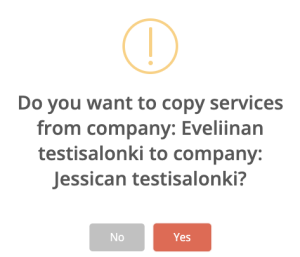
- Step 7: Select Yes.
- Step 8: Services have now been copied to the Pricelist. After this, services must be activated. They can be activated for all Users from the Pricelist, or individually in User Services.
Products
Products can be copied through Hallinta if the salon wants to copy products from Company A to Company B. This means only the product information - the amount of products are not transferred.
- Step 1: Check that there are no created products in the target company.
- Step 2: Copy the Company ID from the salon where you want to have the copied products = target company/end company.
- Step 3: In Hallinta go to the company page which will be the salon where the products are copied from.
- Step 4: Go to the Settings page.

- Step 5: Paste the copied Company ID to Products (target company ID), and select Copy services.
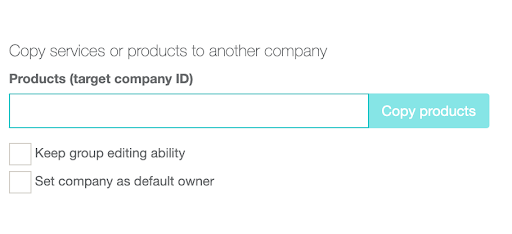
- Step 6: Before confirming check that the from and to are correct in the message.
- Step 7: Select Yes.
- Step 8: Products have now been copied to the Products page in Timma Pro.
You can also set the company as the default owner of the products. This is the usual case but you may want to confirm whether the salon wants to do it or not.
You can also allow the group editing to be possible with the products. This applies to all salons in the chain. Note! The products must have a bar code as well for this to work.
Gift cards
Gift card registers for chains can be combined.
If the salon wants to have separate gift cards this can be done by choosing the “Salon’s own gift card register (current).” This way both salons will have their own gift cards.
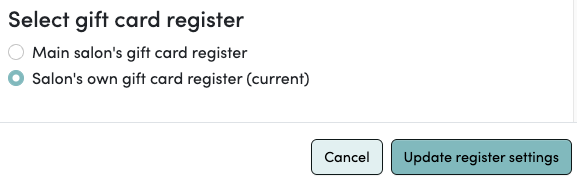
If the salons want to combine their gift card registers this can be done by clicking “Main salon’s gift card register” → “Move to mains salon’s gift card register”. The tool will tell you how many gift cards are currently in the salon’s own gift card register.
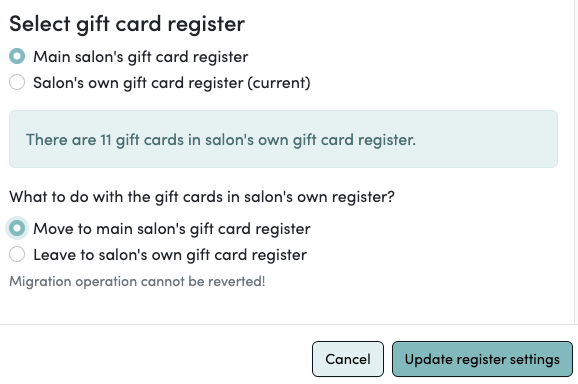
It does not matter which salon is the main salon or secondary salon. The imports can be made either way.
Customers
The customer registers can be combined as well.
If the salon wants to have a combined customer register this can be done by clicking the setting “Main salon’s client register” → “Move to mains salon’s client register”.
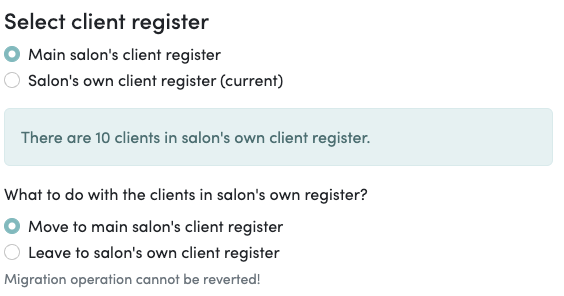
If the salons want to keep their customer registers separate then you can click “Salon’s own client register (current)”.

What else needs to be known about the chains?
- Marketing email/SMS can only be sent from the main salon if the chained salons share a customer register. The secondary salon can only send marketing messages to its (own) customers.
- The settings must be changed and edited from the right account. For example, 2 chained salons have 2 separate Timma accounts so one needs to log in with the correct credentials to make any changes. Although the calendar can be edited by entering the little house icon on the Calendar page.
- We must always give the online booking link to the customers because there is no other way where they can see the link.