Adding indoor air quality sensor
To add an indoor air sensor to any location in a floor plan:
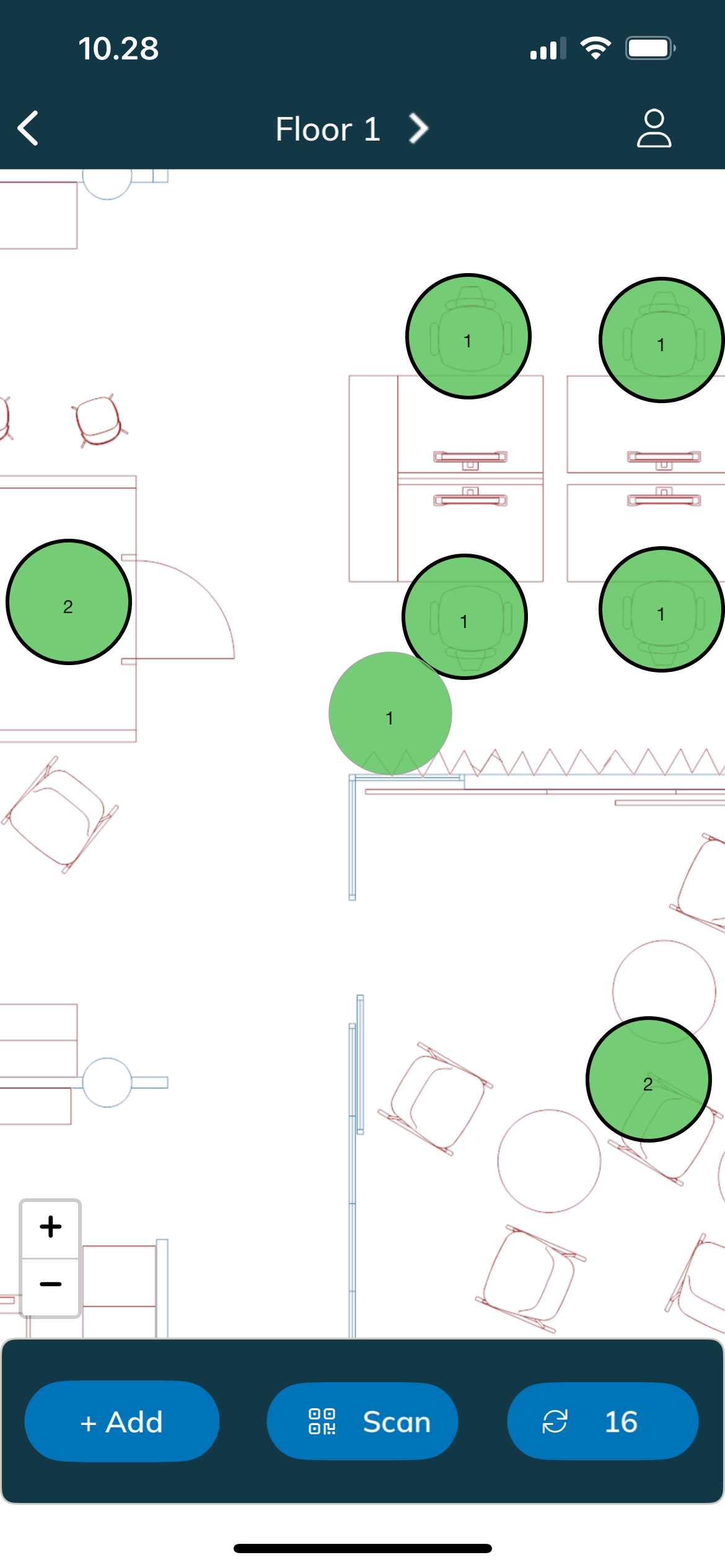
Tap the + Add button on the bottom left corner
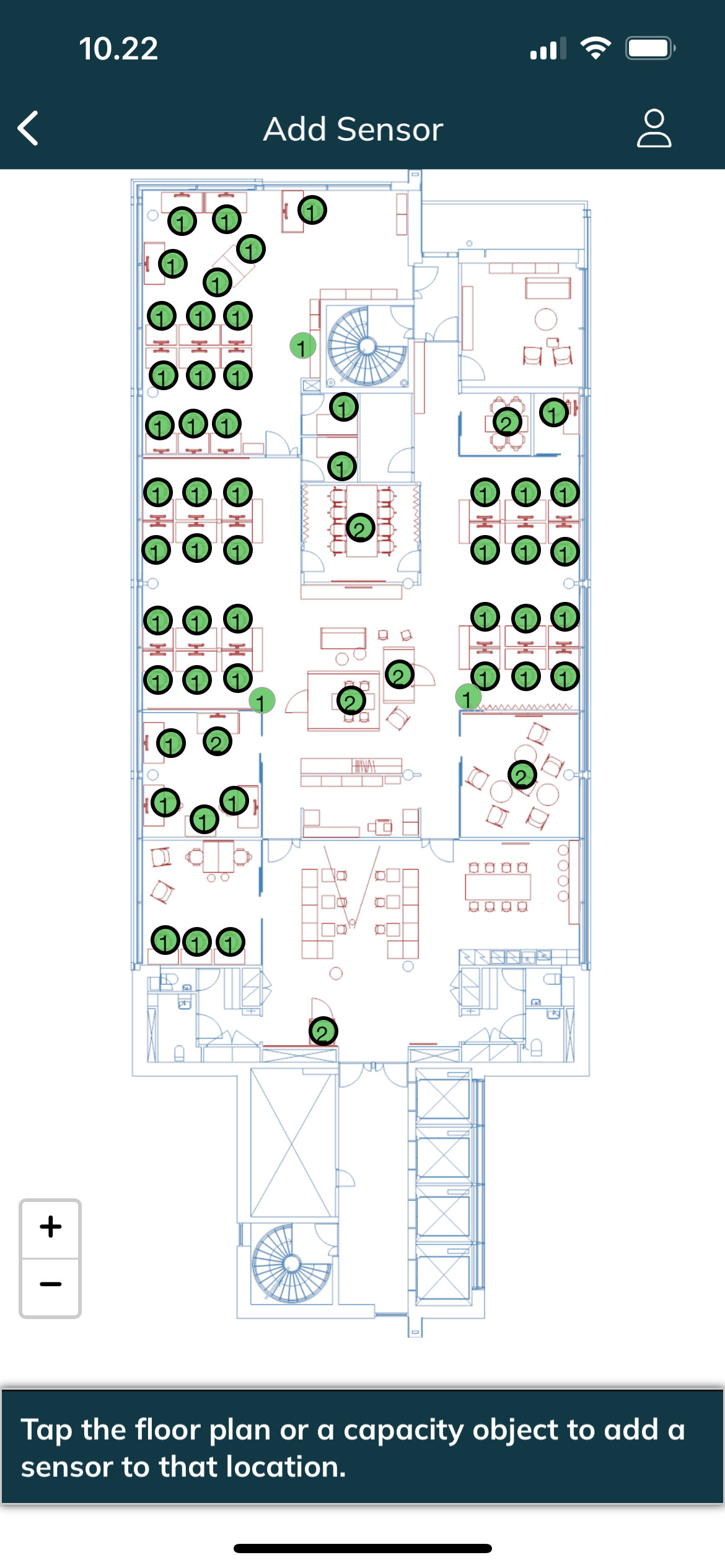
Tap the floor plan where you want to add the sensor
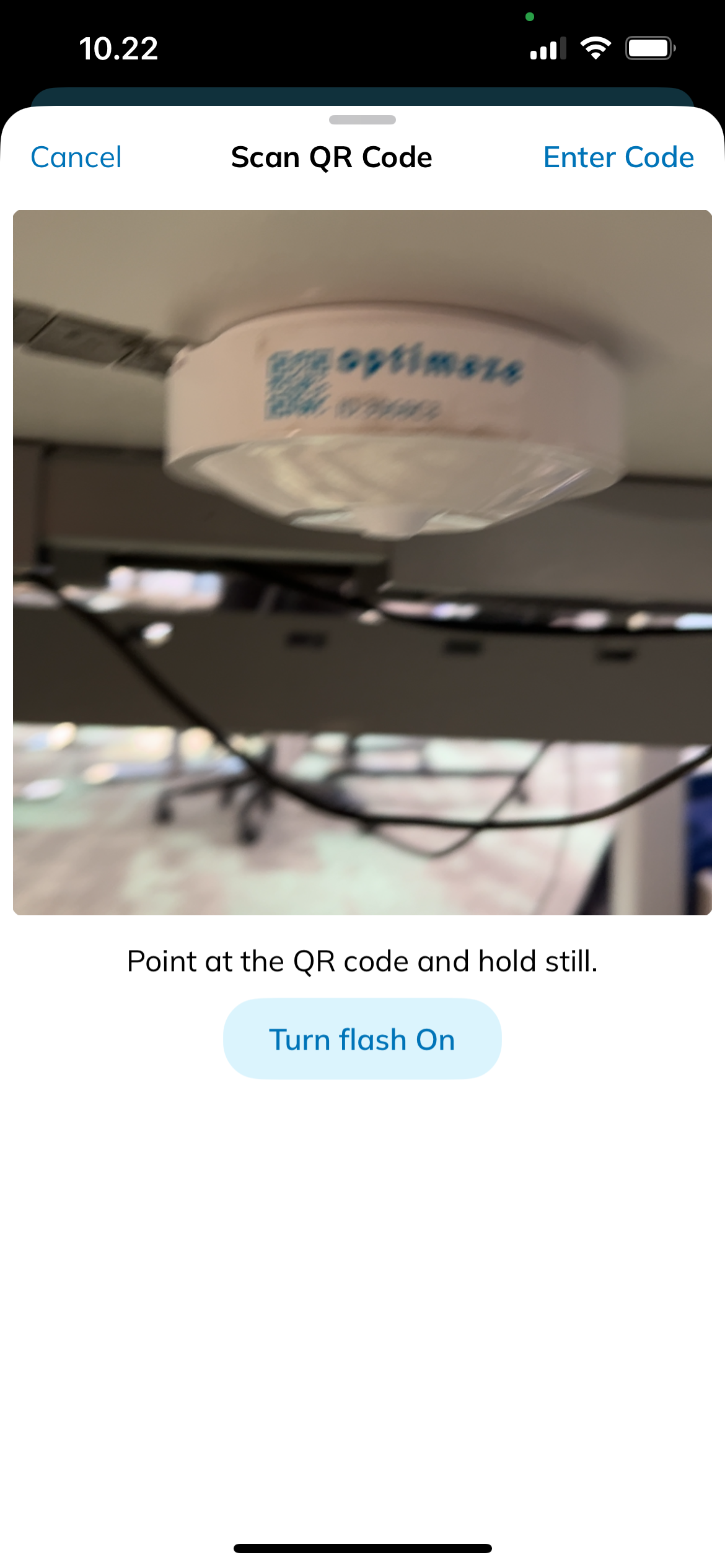
Scan the QR code on the sensor device you want to add. Alternatively, tap Enter code and type the sensor ID manually.
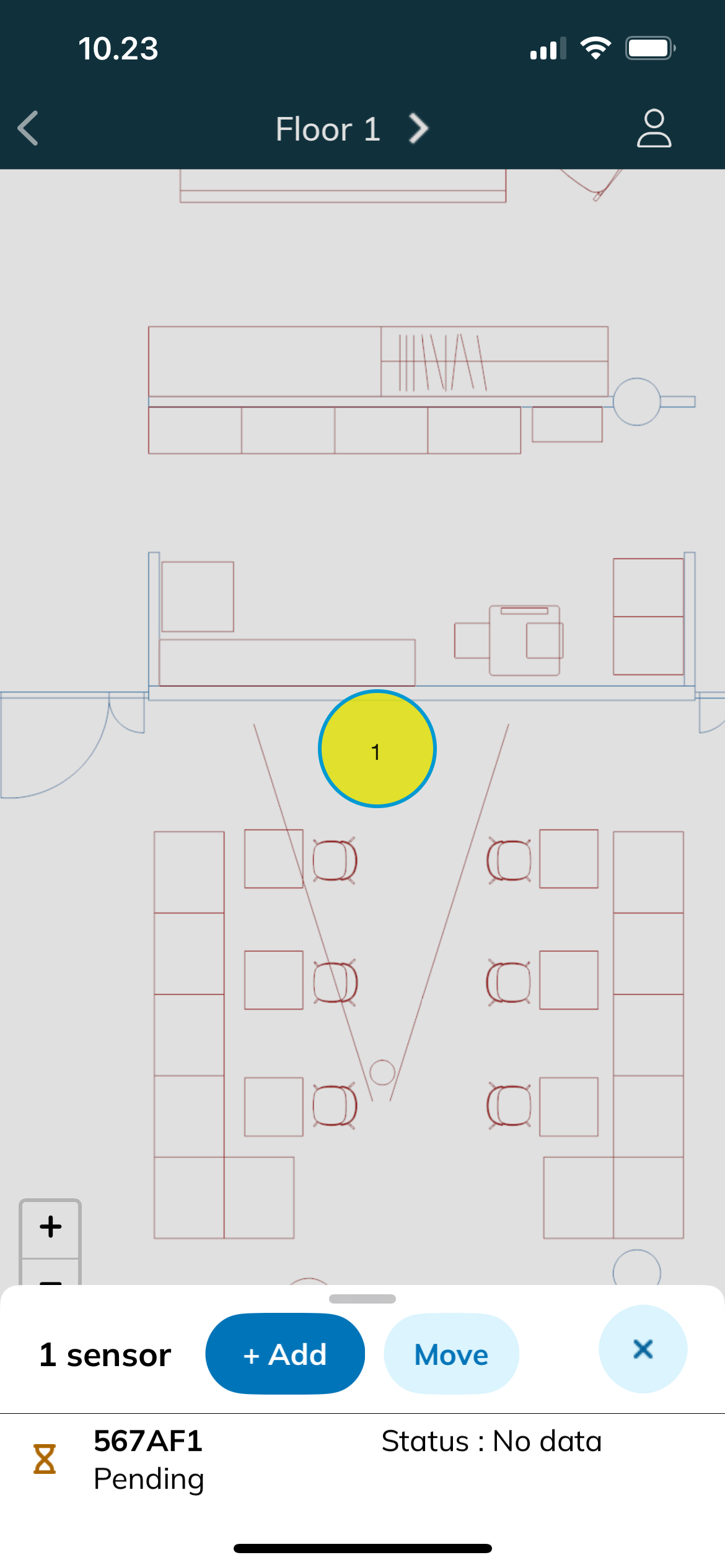
The added sensor will be shown on the floor plan as a circle with a thin border

Moving indoor air quality sensor
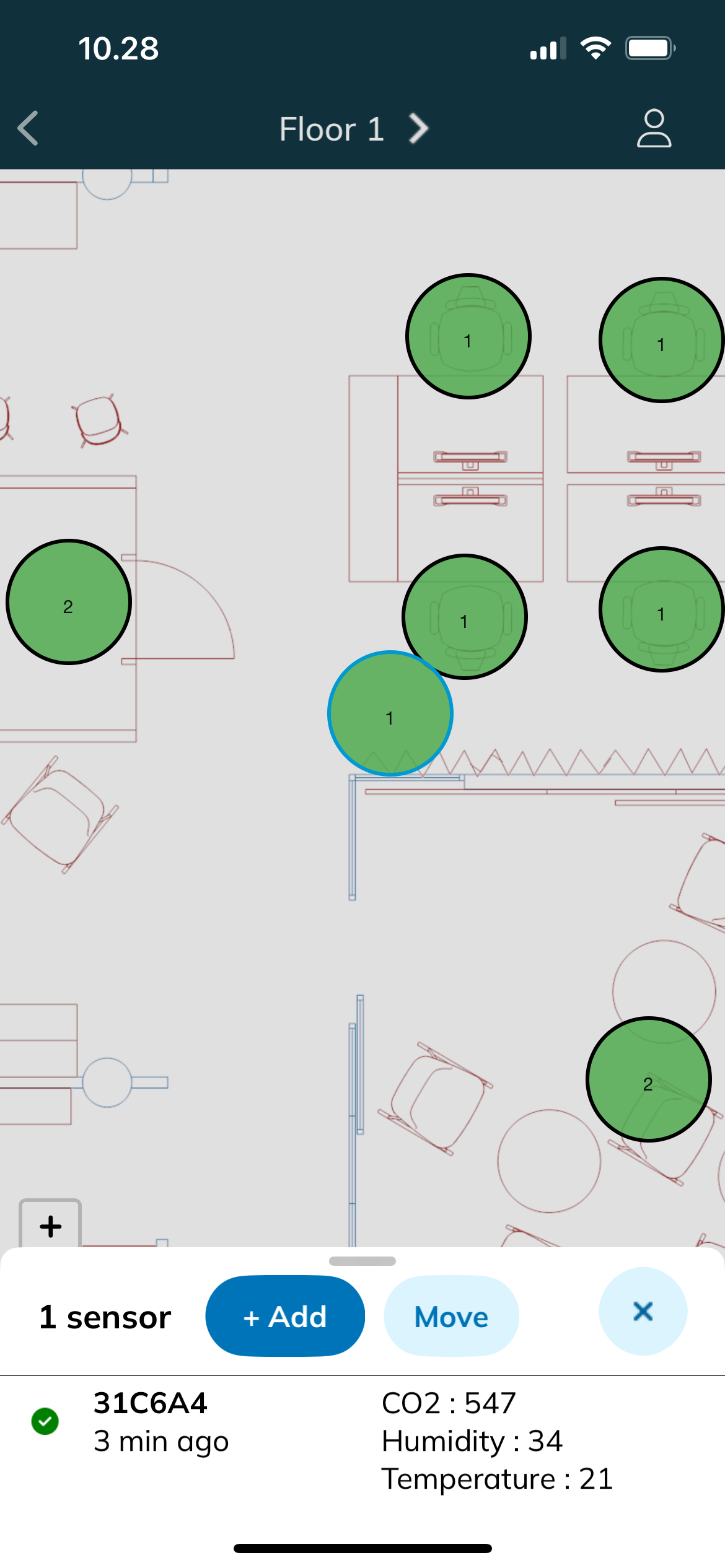
Tap the sensor you want to move on the floor plan.
Tap Move in the selection pane
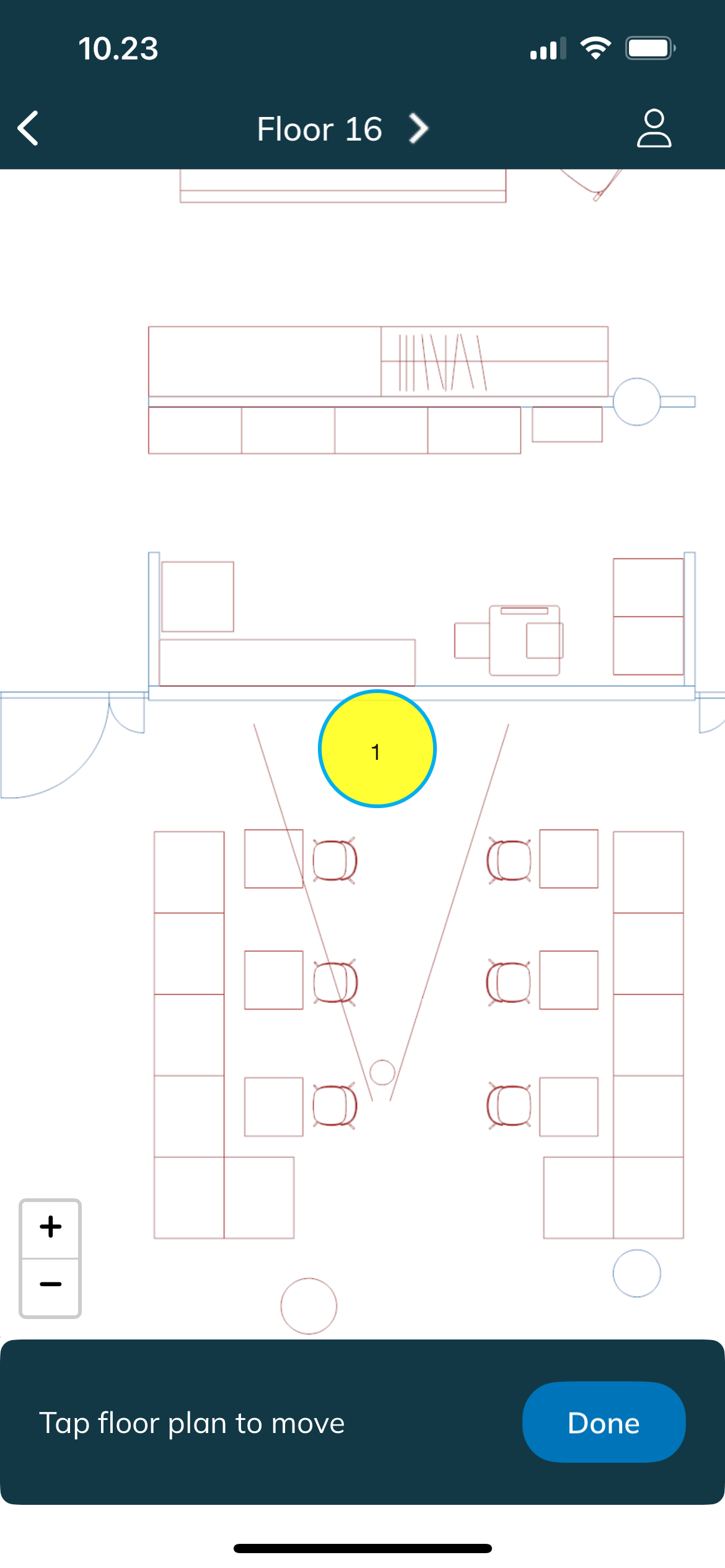
Tap the floor plan where you want to move the sensor to
You can tap the floor plan multiple times
You can zoom the floor plan in and out to find a better location for the sensor
When the sensor is at the wanted location, tap Done
Close the selection pane by tapping outside it
Deleting indoor air quality sensor
Tap the circle where the sensor is on the floor plan
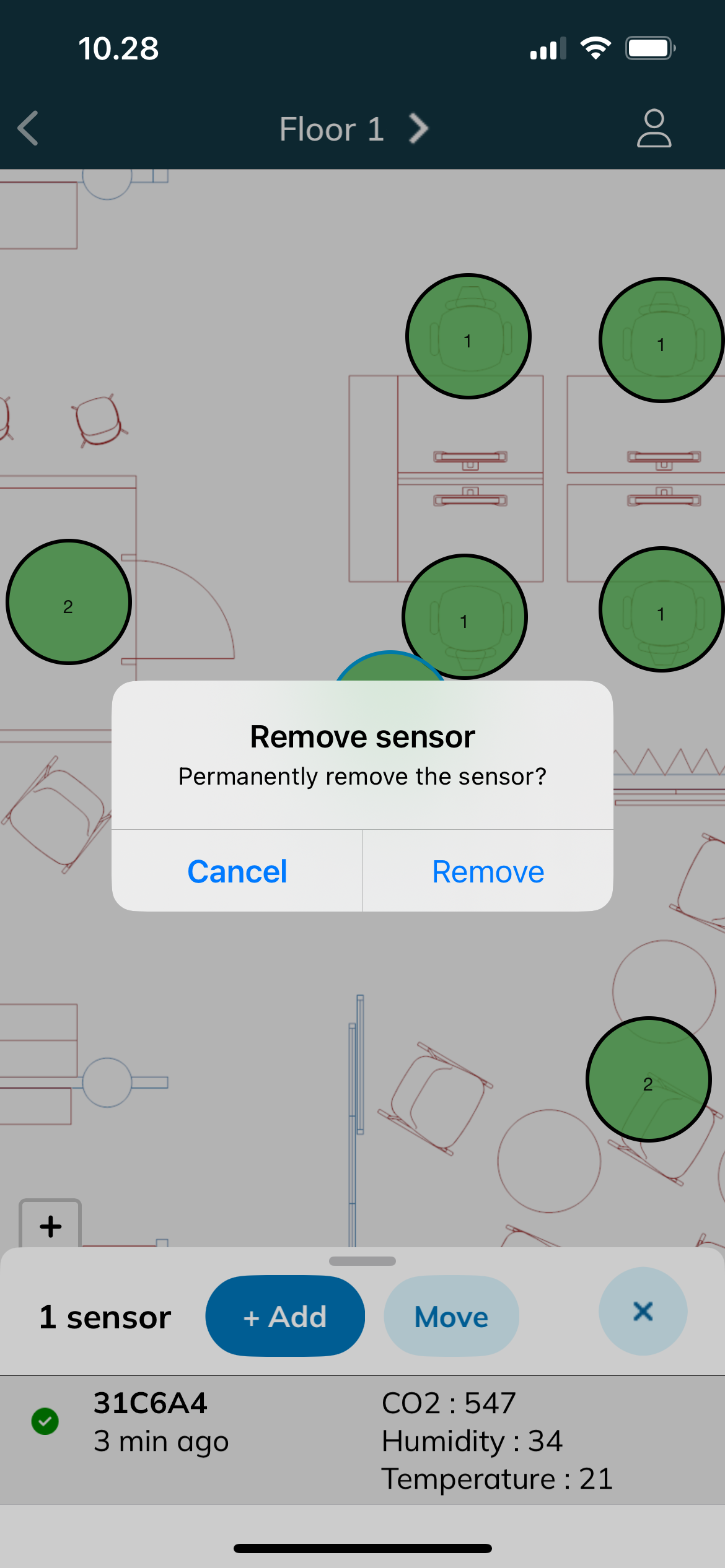
Press the sensor ID a few seconds and tap Remove in the confirmation message
The sensor will be deleted from the floor plan