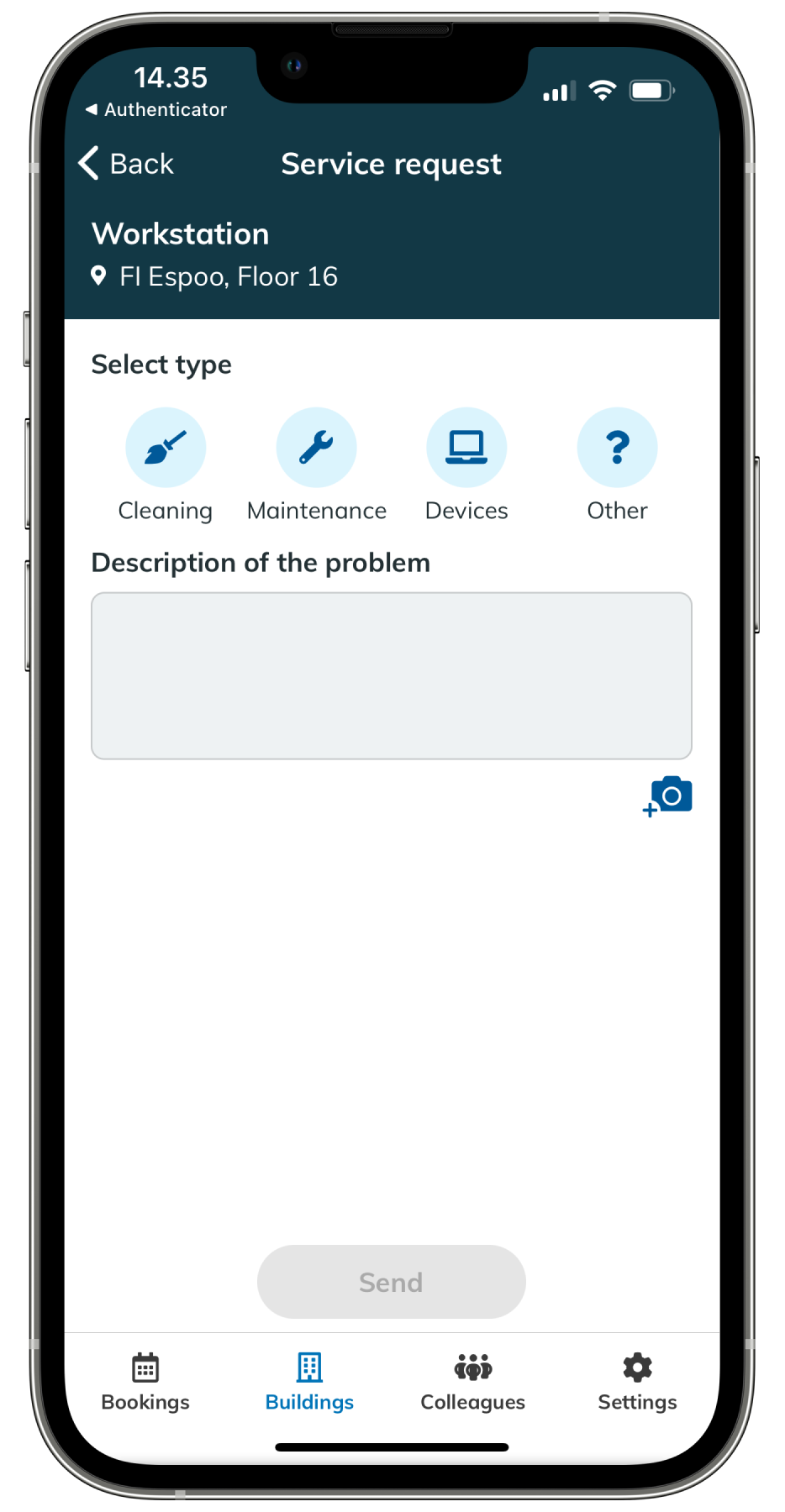
With service requests the employees can report issues or ask for changes at the office from the EG Worksense mobile application. The employees can choose from four types of requests: Cleaning, Maintenance, Devices and Other.
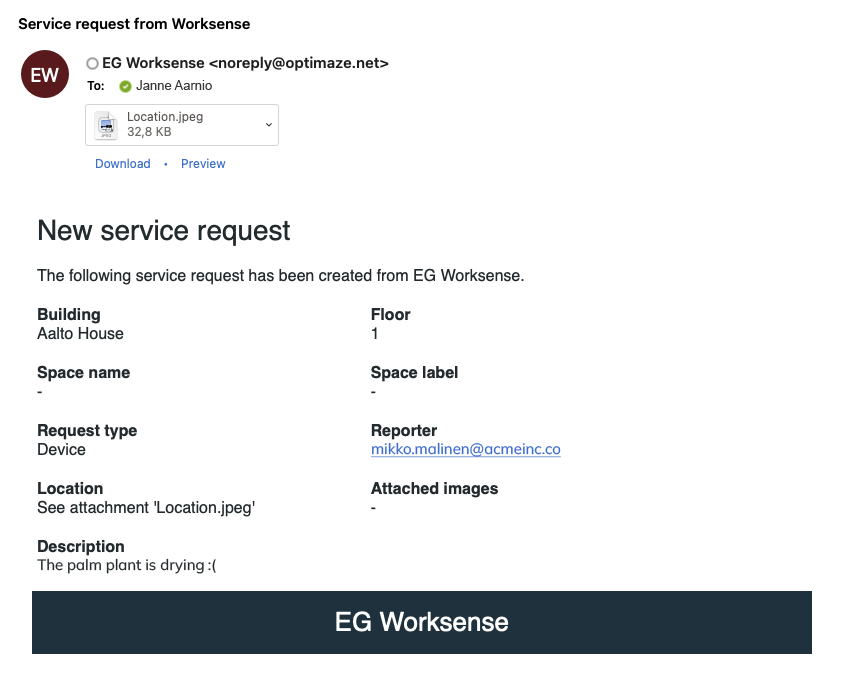
Facility service providers get the request in an email with information such as location, type of request and description. The email recipient can be defined based on the building or type of the request.
Setup
- Log in to EG Worksense
- Click Administration
- If the navigation bar option is not visible, contact your organization’s EG Worksense main user or worksense.support@eg.fi to find out who in your organization to contact.
- Navigate to Service requests page
- Click Enable service requests and add rules how requests should be forwarded. You can set rules by building and by request type. See common configurations below for examples.
- Click Save
- Test that your organization receives the service request emails by creating a service request ticket in the EG Worksense mobile app
You might need to close and restart the mobile app
Common configurations
These most common configuration examples will help you to understand better how to configure the service request feature.
Multiple buildings, same setting for all of them
- Select Enable service requests for all buildings by default
- Enter an email address for all request types or select Use separate email addresses for different service request types to define where request will be forwarded based on their type
Multiple buildings same setting for all of them except one building
- Select Enable service requests for all buildings by default
- Enter an email address for all request types or select Use separate email addresses for different service request types to define where request will be forwarded based on their type
- Add a building specific setting by clicking Create building specific setting and select the building from the dropdown list
- You can either disable service request feature for that building or enable it. If you enable it you can add an email address for all request types or add specific addresses for each request type by selecting Use separate email addresses for different service request types.
Multiple buildings, use the service request feature in only one building
- Do not select Enable service requests for all buildings by default
- Add a building specific setting by clicking Create building specific setting and select the building from the dropdown list
- Select Enable service requests for building
- Add an email address for all request types or add specific addresses for each request type by selecting Use separate email addresses for different service request types
Changing the service request email address
- Log in to EG Worksense
- Click Administration
- Click Service requests
- Change the email address or addresses
- Click Save