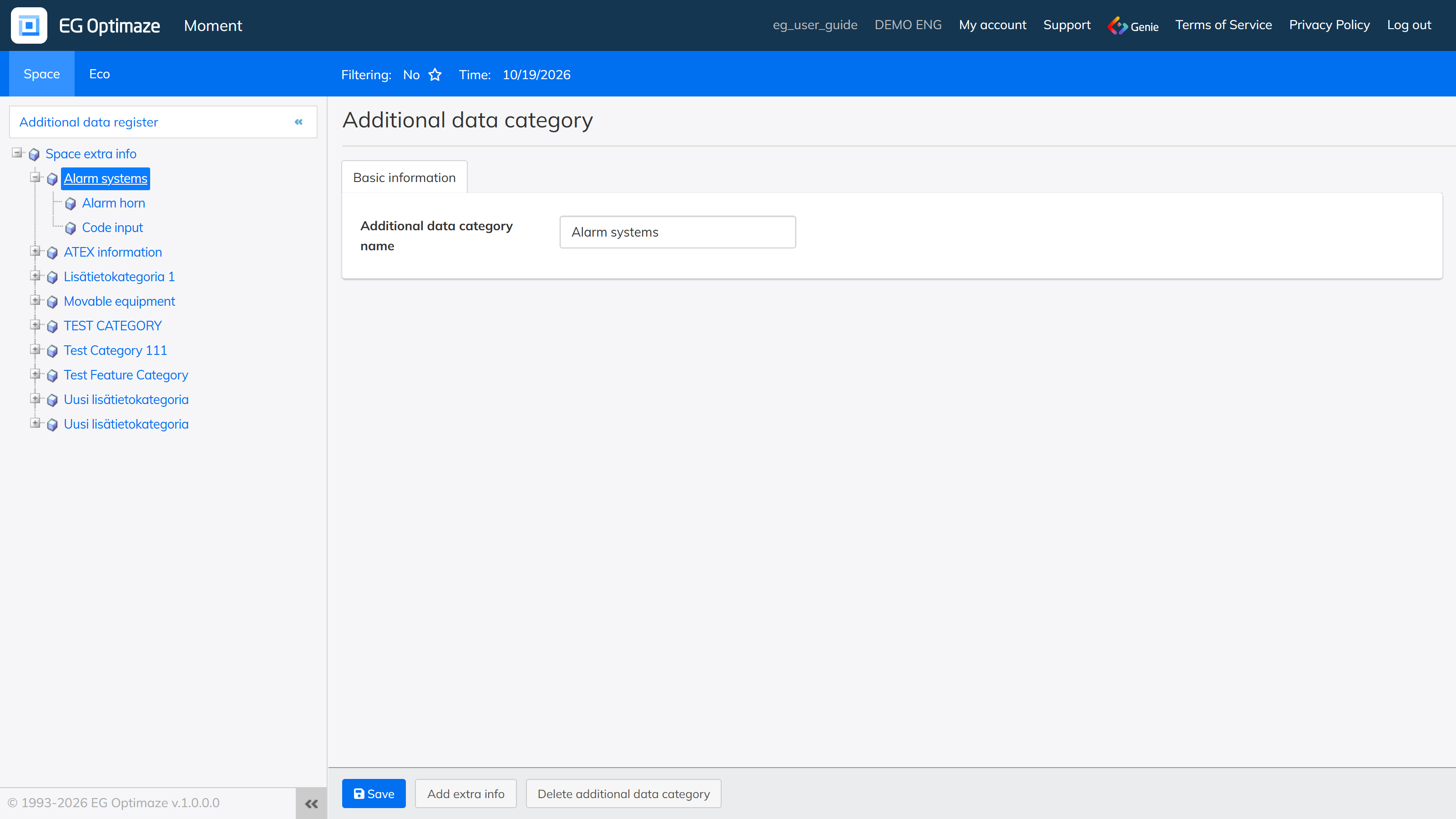
Extra info is customer-specific data that can be stored for spaces and viewed in the floor plan viewer as coloring and labels. In the floor plan viewer, extra info is called Space extra info. Extra info is divided into categories, and each category contains extra info items (e.g. the category Alarm systems with the items Alarm horn and Code input).
Prerequisite: the extra info register in Moment
Extra info is defined in Moment before it can be used in Space. New categories or extra info items cannot be added in Space.
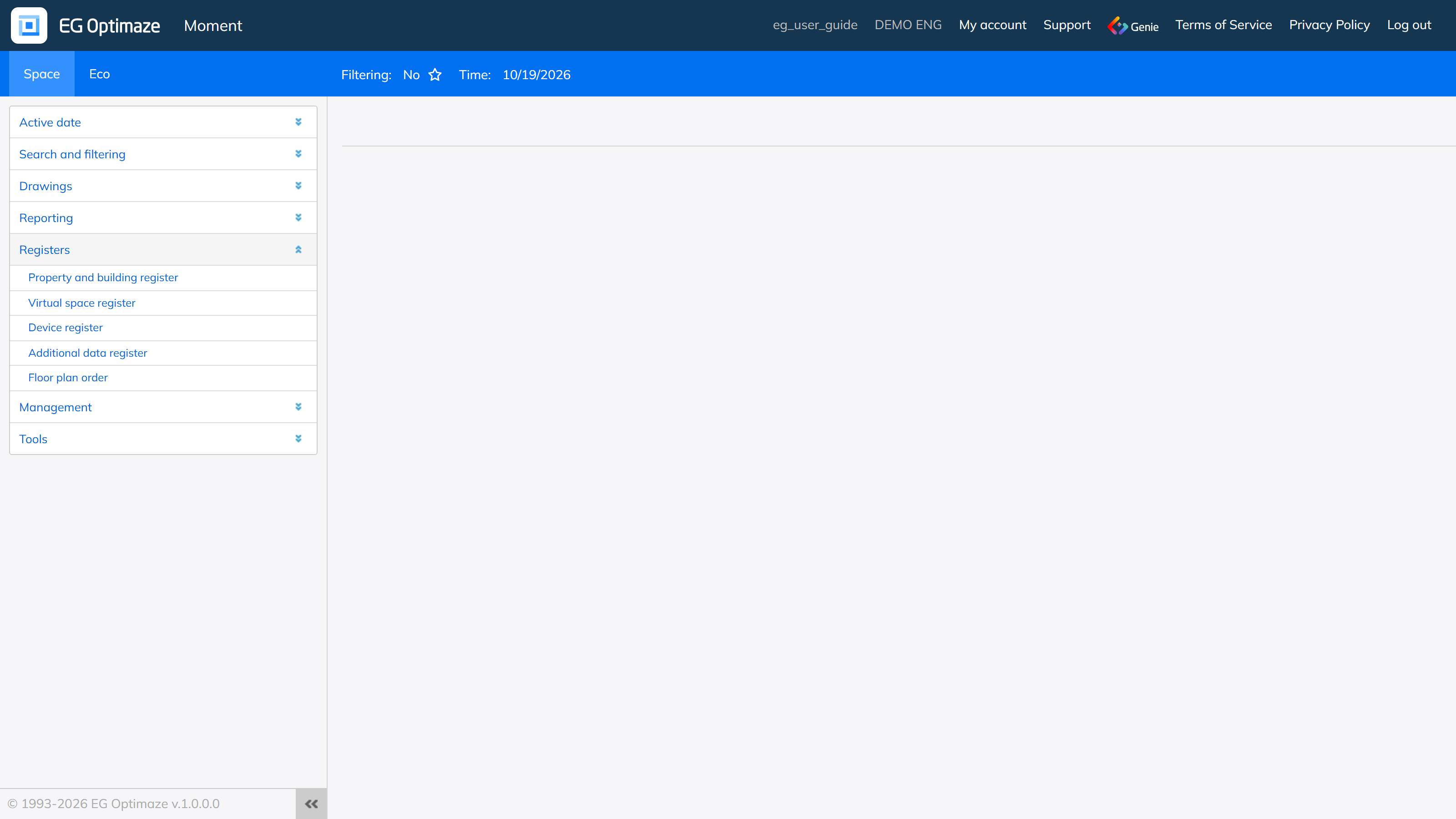
In Moment, open Registers > Additional data register.
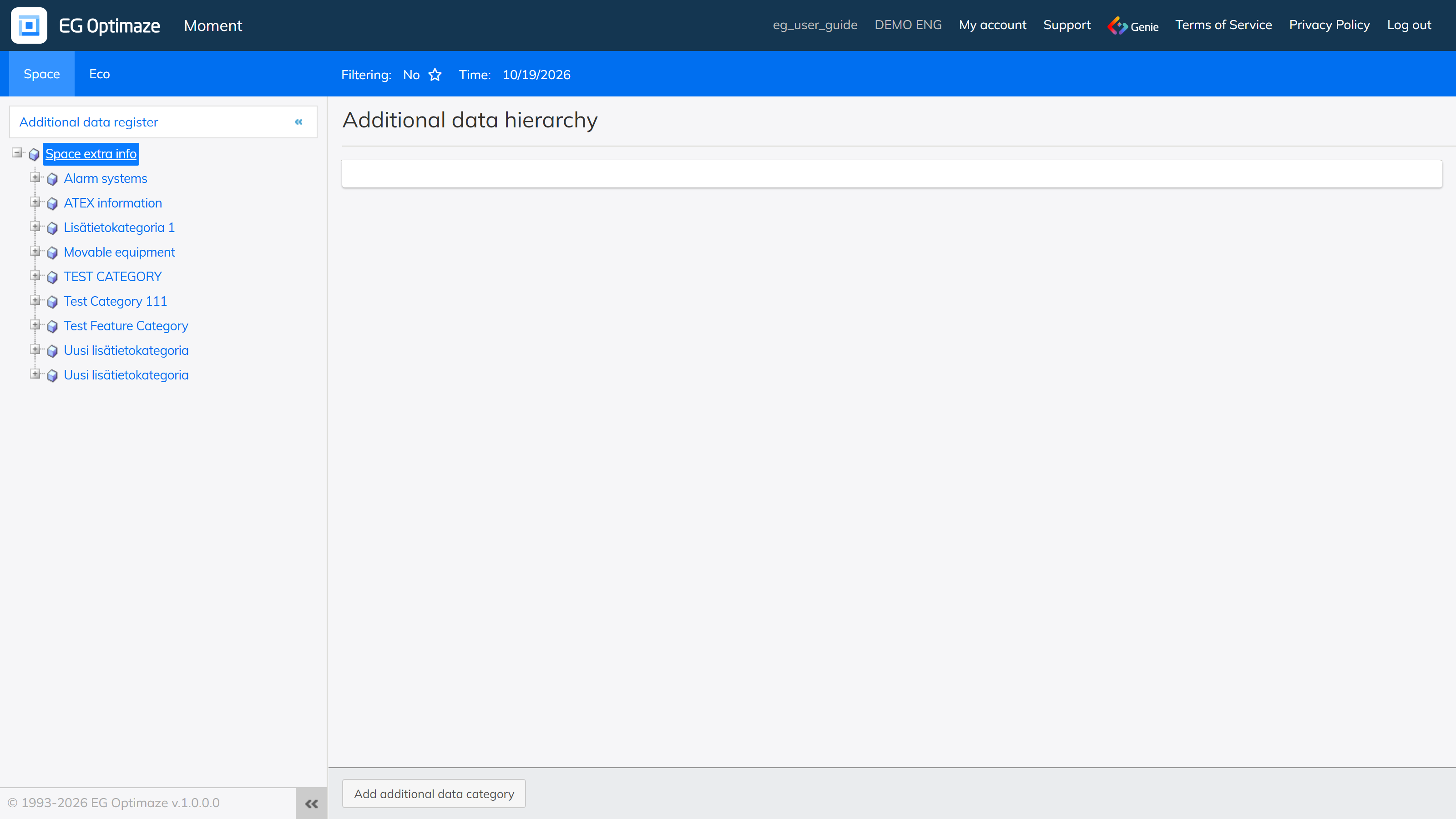
The register tree has the root node Additional data register, below it Space extra info, below that the categories, and below the categories the extra info items.
To add a new category, select Add additional data category in the view of the Space extra info node.
Enter a name for the category in the Additional data category name field and select Save. You can delete a category by selecting Delete additional data category.
To add an extra info item to a category, select Add extra info in the category view. Note: the item is saved immediately with a default name. Give it the correct name right away and select Save. An item can be deleted from its own view.
When the categories and items have been defined, they are shown in the Space floor plan viewer. If Space extra info is not shown in Space, contact your organization's main user or Optimaze support.
Viewing extra info
Coloring
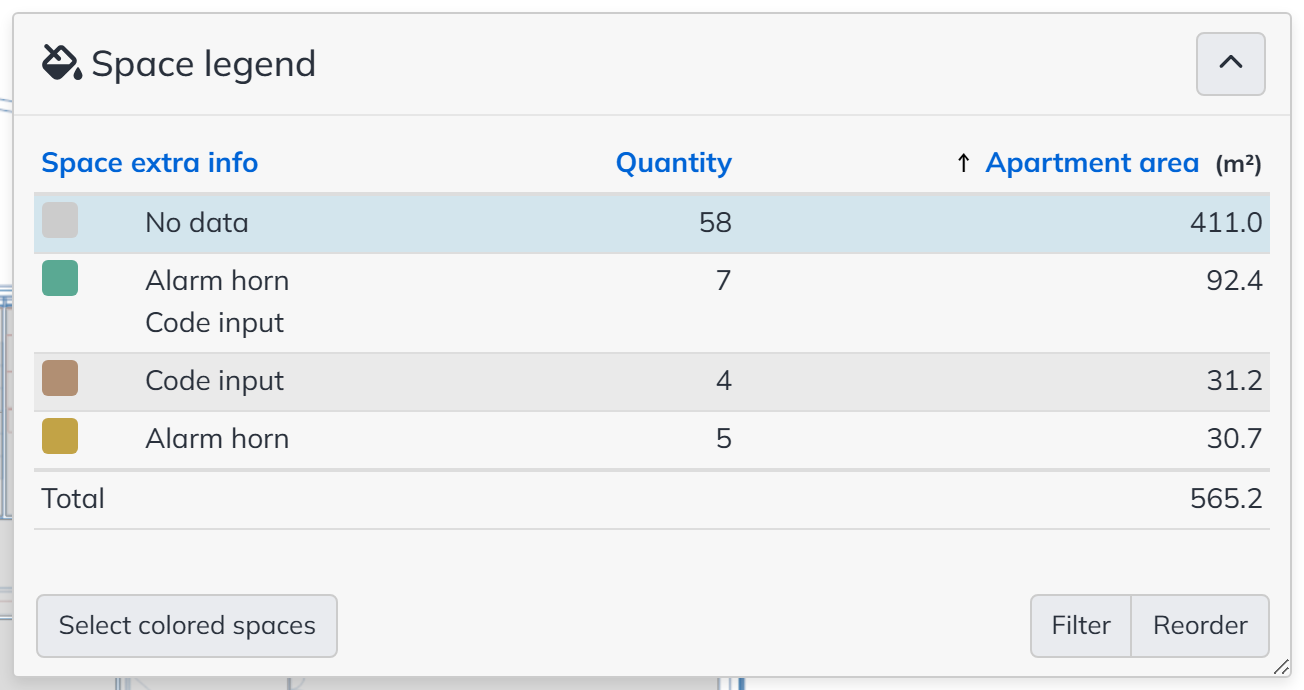
Select Space coloring > Space extra info. The menu expands into a list of categories. Select a category to limit the coloring and the legend to the data of that category only.
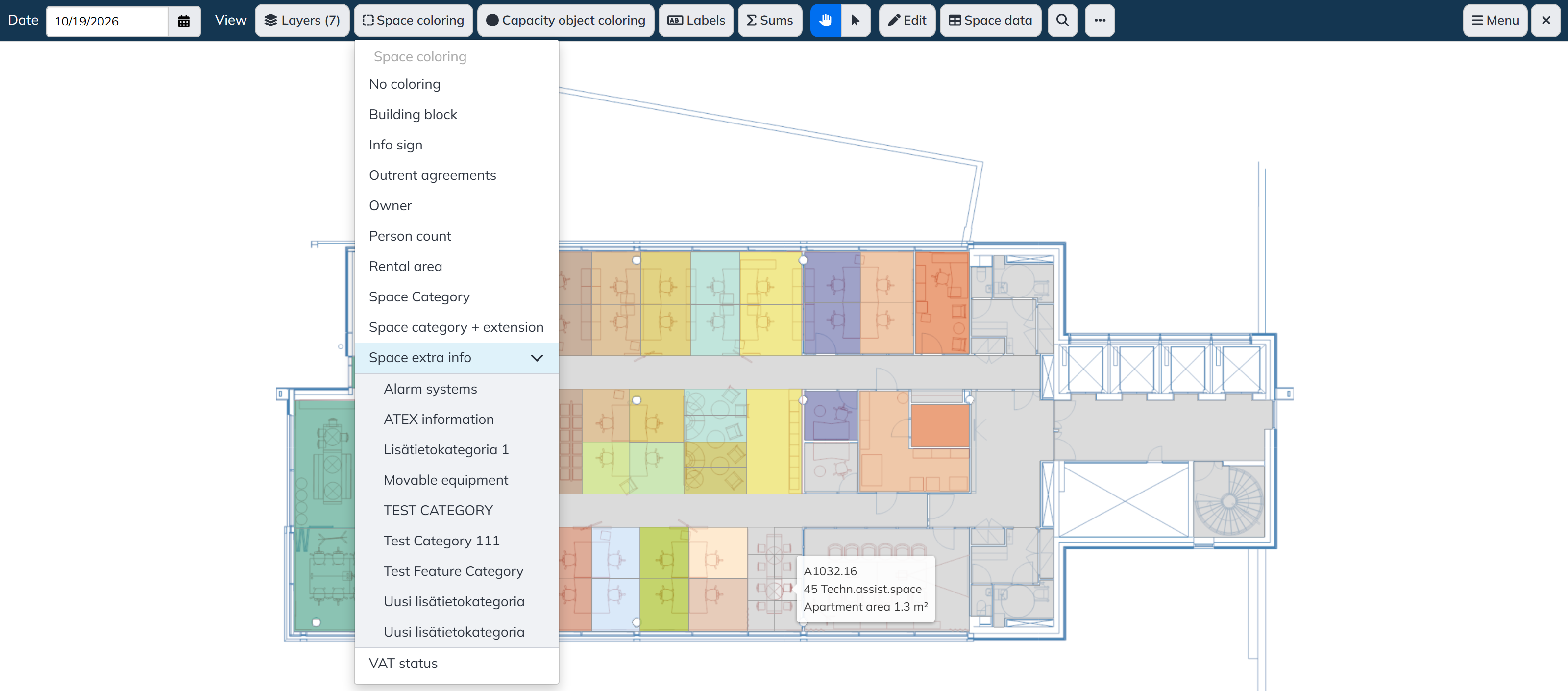
In the legend, each row is a combination of the extra info items on the spaces (e.g. Alarm horn + Code input), and spaces that have no data for the category have the row No data. When you switch to another coloring, the category limitation is removed.
Labels
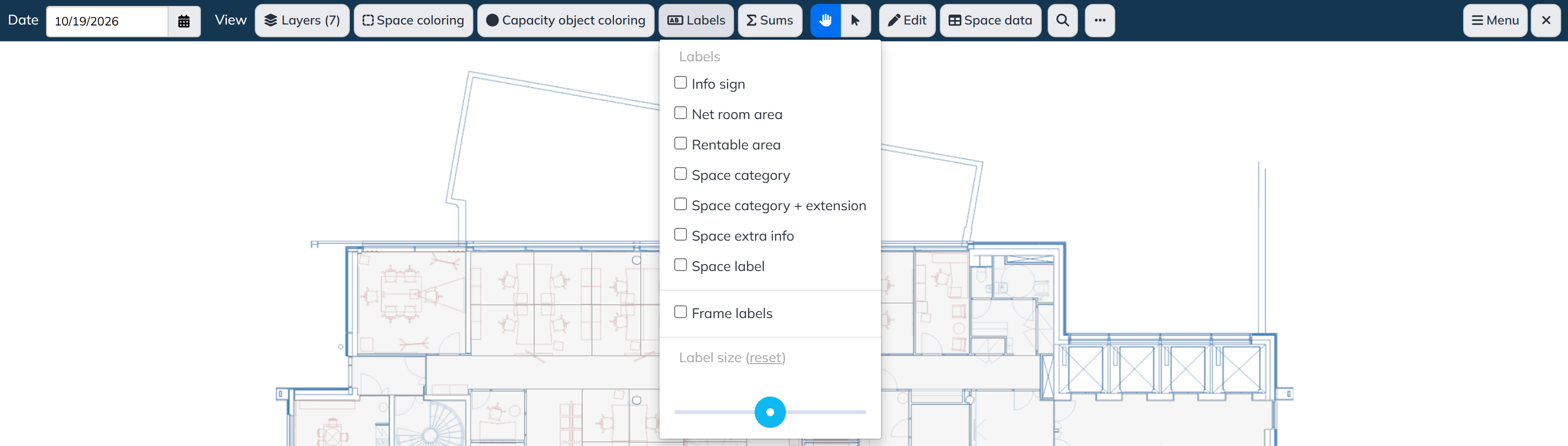
In the Labels menu you can select Space extra info as a label, in which case it is shown on the spaces in the floor plan.
Editing extra info
Select the spaces in the floor plan.
Select Edit > Space data....
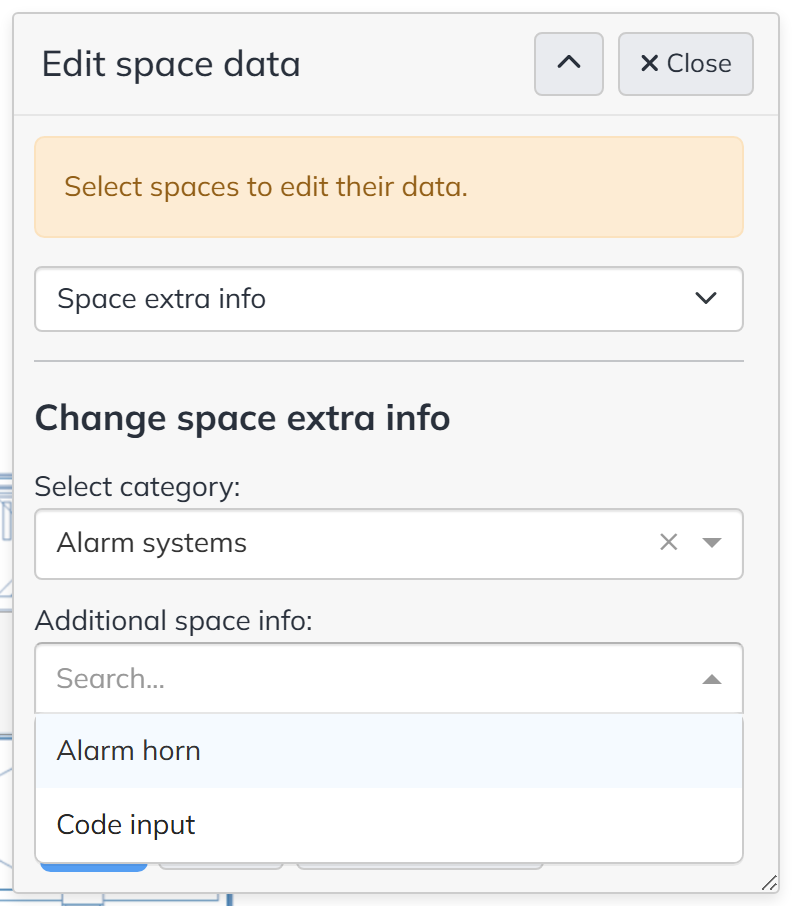
In the Select type to edit list, select Space extra info. The Change space extra info form opens.
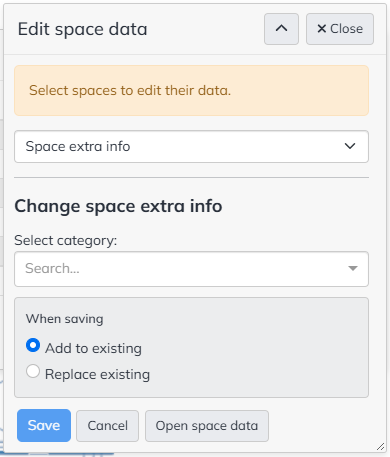
Select Select category. The list is a search field that you can use to find a category.
Select the extra info item you want from the Additional space info list. The list only contains the items of the selected category.
Select Add to existing or Replace existing. Add to existing is selected by default, which means a space can have several extra info items at the same time. Replace existing replaces only the existing value in the category you selected. The space's values in other categories are kept. See Editing space data.
Save. Saving is only possible once spaces have been selected in the floor plan.
The Open space data button opens space data browsing. See Browsing space data.
