Skapa ny hyresgäst
Skapa ny hyresgäst i hyresgästregistret sker via Administration av avtal.
Välj Ut- eller Inhyrning – Administration av avtal i huvudmenyn. I arbetsfönstret öppnas en trädliknande hyresgästförteckning.
Välj den översta nivån i förteckningen, varvid nedan angivna val visas till höger i arbetsfönstret.
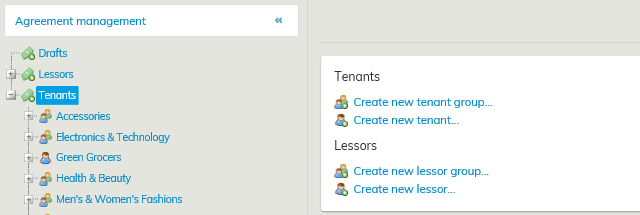
Välj Skapa ny hyresgäst...
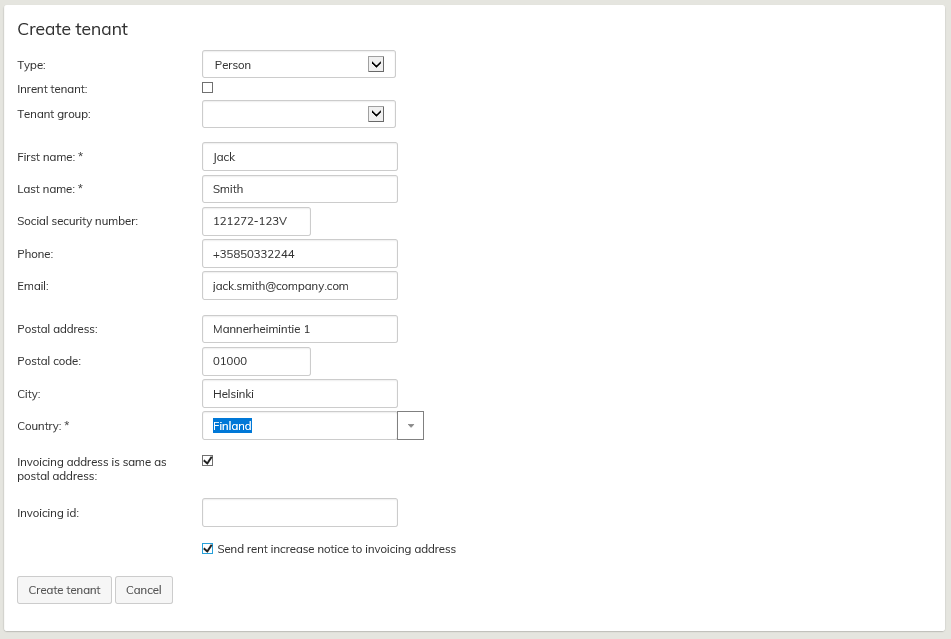
På skrivbordet öppnas en blankett i vilken hyresgästens grundläggande uppgifter uppdateras. Obligatoriska fält är markerade med en asterisk (*), övriga fält är ytterligare information som är valfria att fylla i. Du kan även välja att lämna dem tomma.
Välj person eller företag/förening som hyresgästtyp i rullgardinsmenyn.
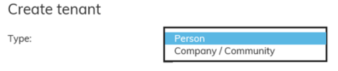
Vilka fält som ska fyllas i ändras efter vilken typ som har valts.
Om du väljer att Faktureringsadress är samma som besöksadress, kopieras hyresgästens adressuppgifter också till Faktureringsuppgifter.
Om hyresgästens adress eller faktureringsadress redigeras, ska uppgifterna uppdateras på båda dessa ställen.
Uppgifter om hyresgästens faktureringsadress kommer till faktureringsmaterialets uppgifter.
I fältet Faktureringskod ska du mata in hyresgästens kod, med vilken man kan koppla hyresgästen via gränssnittet, till exempel i SAP-systemet.
I slutet av blanketten ska man ta ställning till vart man vill skicka hyresjusteringsanmälan. Standardinställningen är att hyresgästens adress skrivs ut på hyreshöjningsbrevet.
Om hyresgästens ärenden till exempel sköts av en god man, som man vill skicka anmälan till, kan du välja Skicka hyresjusteringsanmälan till faktureringsadressen.
Du kan konfigurera en standardfaktureringsadress som skiljer sig från besöksadressen för hyresgästen till exempel i fall där hyresgästen själv inte betalar hyran.
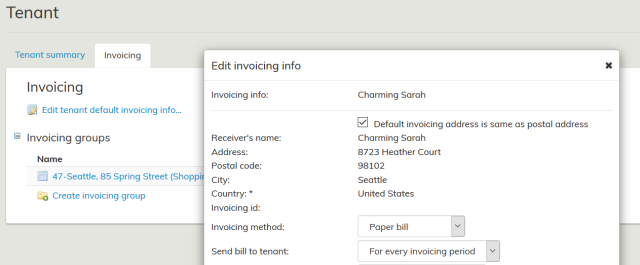
I hyresgästens faktureringsuppgifter väljer du om standardfaktureringsadressen är densamma som besöksadressen som matats in i hyresgästens grundläggande uppgifter.
Standardfaktureringsadressen är som standard densamma som besöksadressen.
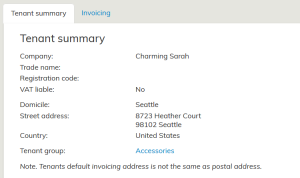
Om användaren raderar standardvalet och fastställer en standardfaktureringsadress som skiljer sig från hyresgästens besöksadress, visas en anmärkning om detta i hyresgästens grundläggande uppgifter.
När du har fyllt i alla nödvändiga fält, välj Skapa hyresgäst.
Hyresgästerna kan grupperas i hyresgästgrupper. En ny hyresgästgrupp skapas i enlighet med anvisningen Skapa hyresgästgrupp.
Redigera hyresgästens uppgifter
När du vill redigera uppgifterna för en befintlig hyresgäst, ska du i huvudmenyn välja Ut- eller Inhyrning och Administration av avtal.
Välj i hyresgästträdet den hyresgäst vars uppgifter du vill redigera, varvid hyresgästens grundläggande uppgifter samt faktureringsuppgifter öppnas i en separat flik i arbetsfönstret.
Välj till höger i arbetsfönstret alternativet Ändra hyresgästens uppgifter...
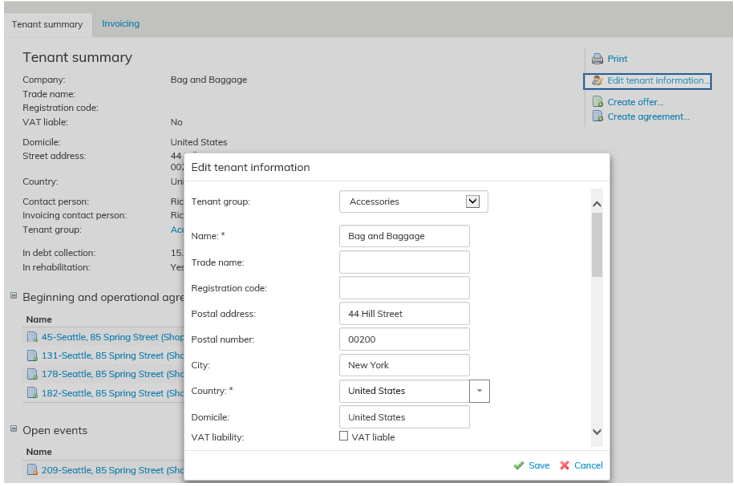
Redigera eller lägg till önskade uppgifter och välj slutligen Spara.
Med knapparna Lägg till kontaktperson och Lägg till kontaktperson för fakturering kan du lägga till kontaktpersoner och kontaktpersoner för fakturering för hyresgästen.
När avtalet skapas kan du välja önskad kontaktperson för varje avtal.
Radera hyresgästens uppgifter
Ur registret över parter kan man endast radera sådana kunder till vilka man inte har skapat avtal, erbjudanden eller andra dokument.
Valet Radera hyresgäst visas längst ned till höger på samlingsblanketten för kunden som ska raderas. När du väljer det här kommandot, frågar programmet ännu om du verkligen vill radera kunden
Creating a new tenant
You can create a new tenant in the tenant register through Agreement management.
Select first Outrent or Inrent from the main menu and then click Agreement management.
A tree-like list of tenants will open up in the workspace.
Select the highest level in the list, and you can see the following options on the right in the workspace
...
Select Create new tenant...
A form for entering the basic tenant information will open up. Mandatory fields are marked with an asterisk (*). Other fields are for additional information that can be added, if requested. You can also leave these blank.
Select the tenant type from the pull-down menu (e.g. Is the tenant a person or a company/community).
Mandatory fields will change according to the type selected. If you check the box Invoicing address is the same as postal address, the tenant’s address information is automatically copied under the invoicing information.
If the tenant’s address or invoicing address changes, new information should be updated in both fields.
The tenant’s invoicing address is included in the invoicing information.
Enter the tenant’s ID in the Invoicing id field for identifying the tenant via an interface in the SAP system, for example.
At the end of the form, you get to choose where the rent review notification will be sent to. As a default, the tenant’s address will be printed on the rent increase letter.
If a representative, for example, is handling the tenant’s affairs and the notification should be sent to that representative, you can choose the option Send the rent review notification to the invoicing address.
...
Information on the tenant can include a default invoicing address that differs from the postal address, such as when the tenant does not personally pay the rent.
In Invoicing, select whether the default invoicing address is the same as the postal address entered in the tenant summary. The default is the same as the postal address, by default.
If the user deletes the default selection and specifies a default invoicing address for the tenant that differs from the postal address, the tenant summary displays a comment on the matter.
When you have filled in the necessary fields, select Create tenant.
Tenants can be grouped by a tenant group. You can create a new tenant group as described under Creating a new tenant group.
Editing tenant information
When you want to edit information for an existing tenant, select Outrent or Inrent from the main menu and click Agreement management. From the tree-like list of tenants, select the tenant whose information you want to edit. The basic information on the tenant, as well as the tenant’s invoicing information, will open up in a separate tab on the workspace.
From the right side of the workspace, select Edit tenant information...
...
Edit or add the desired information and select Save.
You can add contact persons and invoicing contact persons for the tenant with Add contact person and Add invoicing contact person buttons.
While creating the agreement, you can select a contact person for each agreement.
Removing tenant information
You can only remove those customers from the agreement party register, for whom no agreements, offers or other documents are created.
If it is possible to remove a customer, the option Remove tenant will appear on the right in the customer summary page.
When you select this function, you will be asked if you are sure you want to remove the customer.