I systemet kan man mata in en redan fakturerad faktura för att hålla avtalets faktureringsuppgifter och rapporter uppdaterade.
Mata in redan fakturerad faktura i höger kan på avtalets samlingssida.
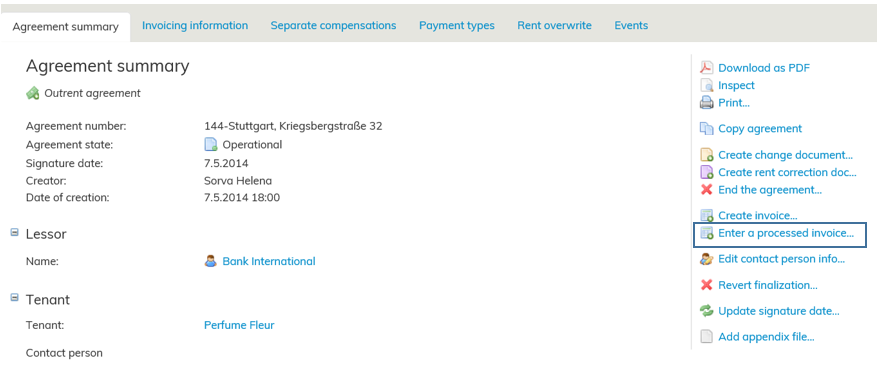
Du matar in uppgifterna för en redan fakturerad faktura till höger på huvudsidan via knappen Mata in redan fakturerad faktura..
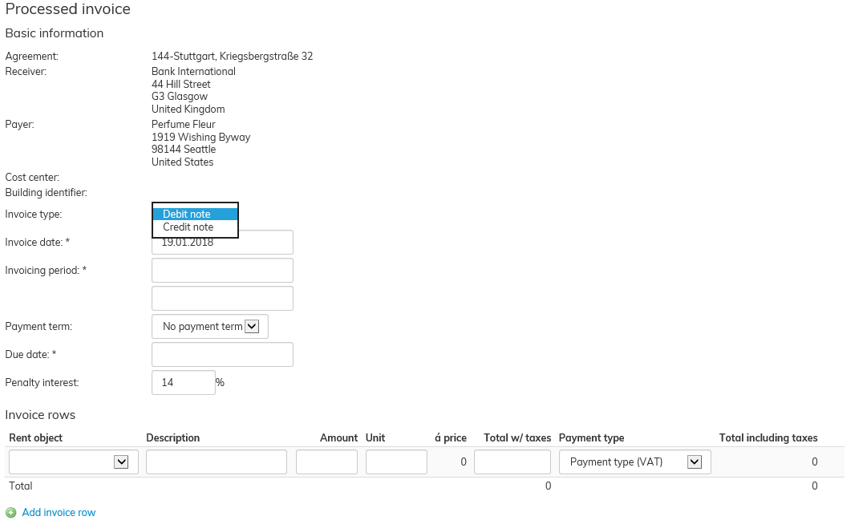
Mata inte de uppgifter som behövs i fakturan:
- Fakturatyp, välj debetfaktura eller kreditfaktura
- Fakturans datum och faktureringsperiod, välj datum i kalendern
- Betalningsvillkor, som kan redigeras i Hyresadministrationen under punkten Betalningsvillkor
- Fakturans förfallodag, välj datum i kalendern. Om ett betalningsvillkor har valts för fakturan, beräknas förfallodagen automatiskt enligt fakturans datum och villkor.
- Mata in fakturans dröjsmålsränta
- Fakturarader, välj hyresobjekt för fakturaraden, ange faktureriingsuppgiftens rubrik, antal, enhet och skattefritt pris. Välj också betalningstyp för fakturaraden. Enligt betalningstypen är fakturaraden antingen skattepliktig eller skattefri. Du kan lägga till flera fakturarader.
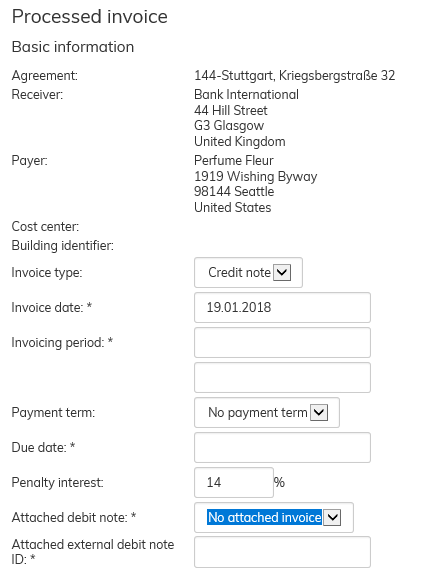
- Om den skapade fakturan är en kreditfaktura kan du välja den debetfaktura som hör till eller ange den tillhörande debetfakturans identifieringskod.
- När du har matat in de nödvändiga uppgifterna väljer du Skapa faktura
- Uppgifterna sparas i avtalets uppgifter, du kan granska den skapade fakturan på fliken Faktureringsuppgifter i avtalet
Kreditfaktura
Med funktionerna Skapa faktura och Mata in redan fakturerad faktura kan man också skapa en kreditfaktura. Då väljer Kreditfaktura i rullgardinsmenyn Fakturatyp.
I kreditfakturan fyller du i fakturauppgifterna på samma sätt som i en vanlig enskild faktura.
När du väljer Kreditfaktura i rullgardinsmenyn, överförs information om att fakturan är en kreditfaktura till fliken Faktureringsmaterial. Du behöver inte sätta ut minustecken separat framför summan.
| Tips |
|---|
Uppgiften Tillhörande debetfaktura är frivillig, här kan du välja Ingen tillhörande debetfaktura. Om du vill att kreditfakturorna för din organisation alltid ska innehålla ett krav på information om tillhörande debetfaktura, kan du kontakta Optimaze-supporten, som definierar denna uppgift som obligatorisk i valideringen av fakturor |
An invoice that has already been processed can be entered into the system to keep invoicing and reporting information for the agreement up to date.
Click Enter a processed invoice on the right-hand side of the agreement summary page.
You can enter information on a processed invoice by clicking Enter a processed invoice... on the right-hand side of the main page.
Enter the required information for the invoice:
1. Invoice type – select debit or credit note.
2. Invoice date and invoicing period – select the dates from the calendar.
3. Payment term (terms are managed in Lease management administration under Payment terms)
4. Due date – select the date from the calendar. If payment term has been selected for the invoice, the due date is automatically calculated based on the invoice date and the term.
5. Enter the penalty interest
6. Invoice rows – select the rent item for which the invoice row is to be allocated, enter a description, amount, unit and total without taxes. Select the payment type for the invoice row. Depending on the payment type, the invoice row will include or exclude tax. Several invoice rows can be added to a single invoice.
7. If the invoice created is a credit note, you can select an attached debit note for it or enter the id of an attached debit note.
8. When the required information is entered, click Create invoice.
9. The invoice is saved in the agreement information. You can view the created invoice on the agreement’s Invoicing information tab.
Credit note
Create invoice and Enter a processed invoice functions can also be used for creating a credit note. In this case, select Credit note from the Invoice type pull-down menu.
Similarly to a regular custom invoice, the invoicing details are added in the credit note.
When you select Credit note from the pull-down menu, you will be notified
in Invoicing information tab that the invoice is a credit note. You do not need to add the minus sign in front of the total.
| Tip |
|---|
Attached debit note data is optional by default. You can also select No attached debit note. If you want to have the information on the debit note mandatory when creating credit notes for your organization, you can contact Optimaze support. They can mark this information to be mandatory when validating invoices. |