Start filling out the lease agreement form by selecting an agreement templateBörja fylla i hyresavtalsblanketten genom att välja avtalsmall.
Agreement template
Your organization might have many agreement templates, which you can download here. Ask your administrator, what template is used in different situations in your organization.
Please note that organization-specific agreement templates might have different headers than the ones described here.
Logo
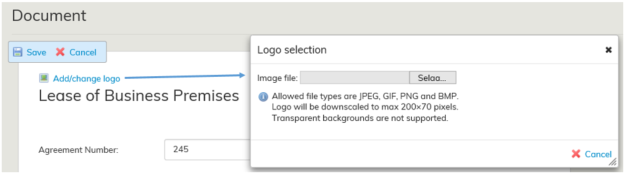
You can add your organization’s logo to the lease agreement. On the left-hand corner of the agreement, you can see the Add/change logo tool. When you click it, a window opens. In this window, you can browse logos in your computer and select the one you want. Allowed file types are listed in the window that opens. This logo selection affects only the agreement that is being created.
Agreement number
Optimaze gives the agreements a running, database-specific number automatically. If you want, you can overwrite the agreement number with another number.
The information in the lease agreement should be saved for the first time by clicking the Save button. When you return to edit the draft agreement, any changes made to the agreement are automatically saved.
If the agreement has already been saved and it is now being edited, all changes are saved automatically. Once you have entered all option information, click Back. If the agreement being edited is a new one, save your changes before closing.
Saving the lease agreement form
The lease agreement form should be saved for the first time by clicking the Save button. Subsequent changes to the agreement are saved automatically.
When you have saved the lease agreement form for the first time, you can edit it with the Edit function on the agreement summary page.
A saved agreement shows in Optimaze as a draft, until it is accepted. Once the agreement is accepted, its status changes to Accepted agreement.
The status of an agreement determines, for example, if the agreement is displayed on reports.
Avtalsmall
Din organisation kan ha tillgång till flera olika avtalsmallar, som du kan ladda här. Fråga systemadministratören vilken avtalsmall som används i olika situationer i din organisation.
Observera att de organisationsspecifika avtalsmallarnas innehåll kan avvika från avtalsrubrikerna som visas här.
Logo
Du kan lägga till din organisations logo på hyresavtalet. Uppe till vänster i avtalet ser du verktyget Lägg till/byt logo. När du klickar på verktyget öppnas ett fönster där du kan bläddra fram önskad logo på sin dator. De tillåtna filtyperna visas i fönstret. Valet av logo påverkar endast detta avtal.
Dokumentnummer
Optimaze tilldelar automatiskt avtalet ett löpande databasspecifikt nummer. Om du vill, kan du ersätta detta avtalsnummer med ett nummer du önskar.
Hyresavtalets uppgifter ska första gången sparas genom att klicka på Spara. Efter detta, när du återvänder för att redigera avtalsutkastet, sparas ändringarna i avtalet automatiskt.
Ändringarna sparas automatiskt om avtalet redan har sparats och det redigeras. När du har matat in optionerna, klicka på Tillbaka. Om det handlar om ett nytt avtal, ska avtalet sparas.
Spara avtalsblanketten
Avtalsblanketten ska sparas första gången via knappen Spara, efter detta sparas avtalsändringarna automatiskt.
När du har sparat avtalsutkastet för första gången kan du redigera det via funktionen Redigera i avtalets samlingsblankett.
Ett sparat avtal har utkaststatus i Optimaze innan det godkänns och efter godkännandet får avtalet statusen Godkänt avtal. Avtalets status påverkar bl.a. om avtalet syns
i rapporter.
I instruktionen Godkänna avtalet förklaras avtalets status närmareFor a detailed description of the status of an agreement, see the instructions under Finalizing agreement.