Reports can be viewed both in Space view and in Eco view. In the Space view, you can find reports related to spaces and lease management, while in the Eco view, the reports are related to finance processing and environmental emission accounting.
The access rights determine, which reports each user or user group is allowed to view.
You can create reports from the main menu under Reporting. There, you can find four options:
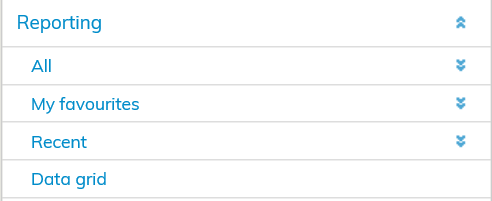
You can find all available reports under the All menu.
My favorites will list the reports that you have marked as favorites, while Recent shows you the last five (5) reports created.
More detailed information on data grids can be found below in section Data grids.
| Tip |
|---|
You can mark regularly used reports as favorites by clicking the Add to favorites button on the report preview. |
When you click each of the headers, the reports relating to the topic, such as 2.1, will open below it. Reports, such as 2.1.01 Area calculation and other reports relating to the area, are found under the Area header.
When you click the name of the report, details on the report will be displayed in the workspace. You can open a single report by clicking the Open report button.
Before the report opens, the software asks, in which format you wish to print the report. You can select PDF or Excel reports.
When you have selected the preferred format from the pull-down menu, click Create report button.
If you have filters active for the report, you will get a notification in this view.
| Tip |
|---|
The text is green, if you have active filters for this report. The text is red, if the requested filter could not be applied for the selected report. |
For more information on filtering data on the report, see section Filtering
Raportteja voi tarkastella sekä Tila-näkymässä että Eko-näkymässä. Tila-näkymässä tarkastellaan tiloihin ja vuokranhallintaan liittyviä raportteja, ja Eko-näkymässä talousajoihin ja ympäristöpäästölaskentaan liittyviä raportteja.
Käyttöoikeudet määrittävät mitä raportteja kukin käyttäjä tai käyttäjäryhmä voi tarkastella.
Raporttien luominen tapahtuu päävalikon kohdasta Raportit, jonka alta löytyy neljä valintamahdollisuutta:
...
Kaikki-valikon alta löytyvät kaikki käytettävissäsi olevat raportit.
Suosikkini listaa suosikeiksi määrittelemäsi raportit ja Viimeisimmät listaa viisi (5) viimeksi luotua raporttia.
Tietotaulukoita käsitellään alempana luvussa Tietotaulukot.
...
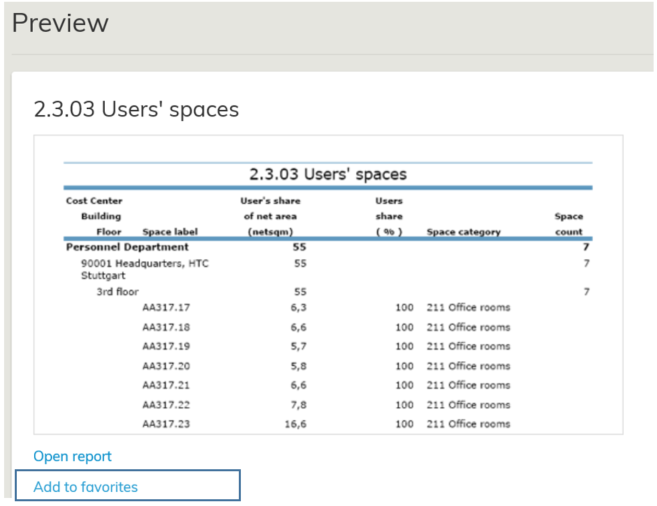
Voit määritellä usein käyttämäsi raportin suosikiksi raportin
esikatselunäkymän Lisää suosikkeihin -painikkeella.
Kun napautat kutakin otsikkoa aukeaa sen alapuolelle kyseistä aihealuetta koskevat raportit, esim. 2.1. Laajuus otsikon alta löytyvät raportit 2.1.01 Laajuuslaskelma ja muut laajuuteen liittyvät rapotit.
Kun napautat raportin nimeä, avautuu työikkunaan tiedot kyseisestä raportista. Napauttamalla tekstiä Yksittäisen raportin avaaminen tapahtuu napauttamalla Avaa raportti -painiketta.
Ennen raportin avautumista ohjelma kysyy vielä sinulta missä muodossa haluat raportin tulostaa. Voit valita PDF tai Excel-muotoiset raportit.
Valittuasi alavetovalikosta haluamasi muodon, paina Luo raportti -painiketta.
Mikäli olet suodattanut tietoa raportille, tulee tähän näkymään siitä tieto.
...
Vihreä teksti, kun suodatus toimii tällä raportilla
Punainen teksti, jos haluamaasi suodatusta ei voida toteuttaa valitulle raportille.
Tarkemmin tietoa raportin tietojen rajaamisesta löydät kohdasta Suodatus.