In the Map Search, you can view the buildings on a map. The map search in Optimaze Moment can be used to view buildings on a map, in a satellite image or in an aerial view.
Buildings are located on the map according to the address information in the property and building register.
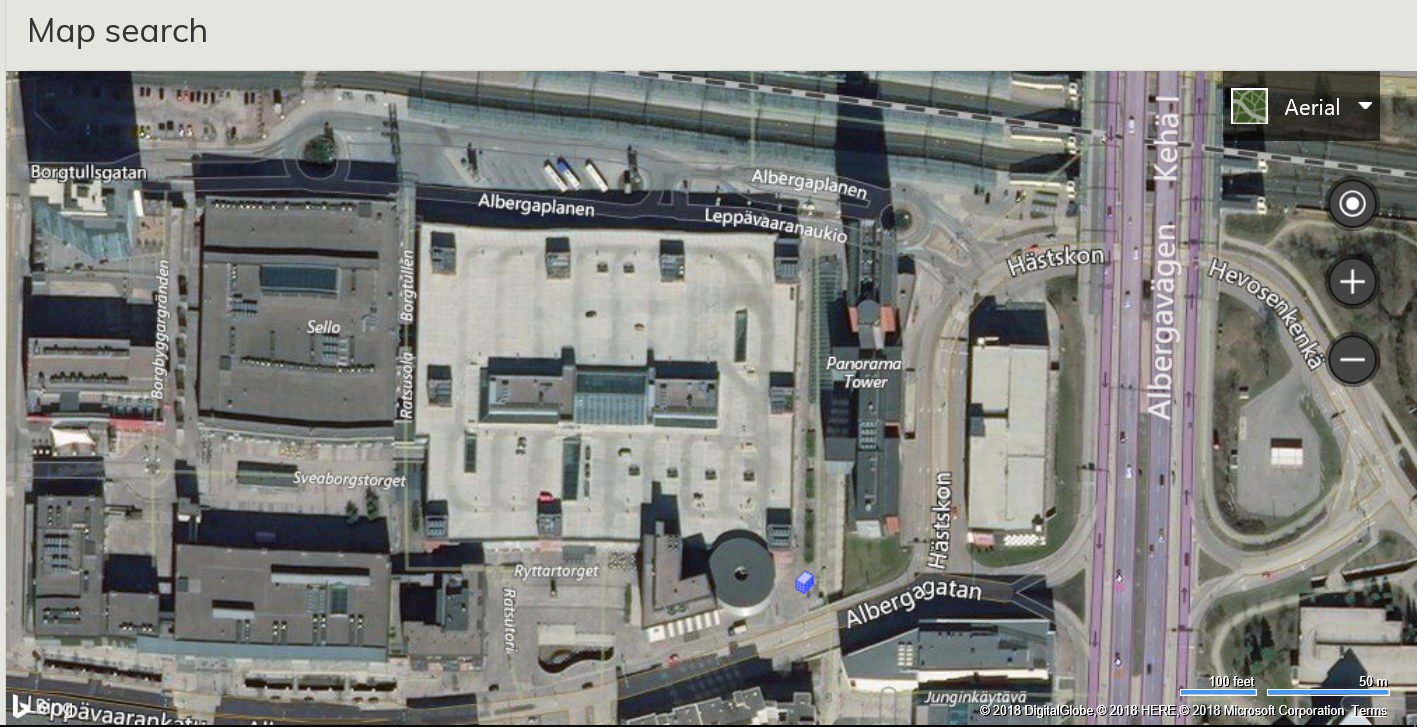
Aerial view in Map Search
Starting the Map Search
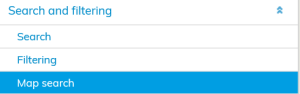
Map Search is a separate search application that is available for the customer only, if it has been enabled in the Optimaze application. In Map Search, it is possible to view and manage buildings on a map. You can start using Map Search by selecting first Search and Filtering and then Map Search from the main menu.
NOTE! IE 8.0 will check whether you want to view only content that is delivered securely. Select
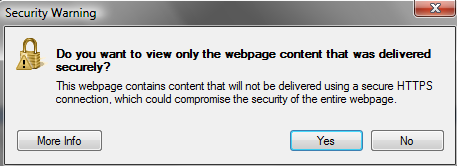
This is because Map Search is not using a secured connection. Some browsers do not check for this at all, and in some browsers the question is different.
It is important to answer so that using unsecured connection is allowed.
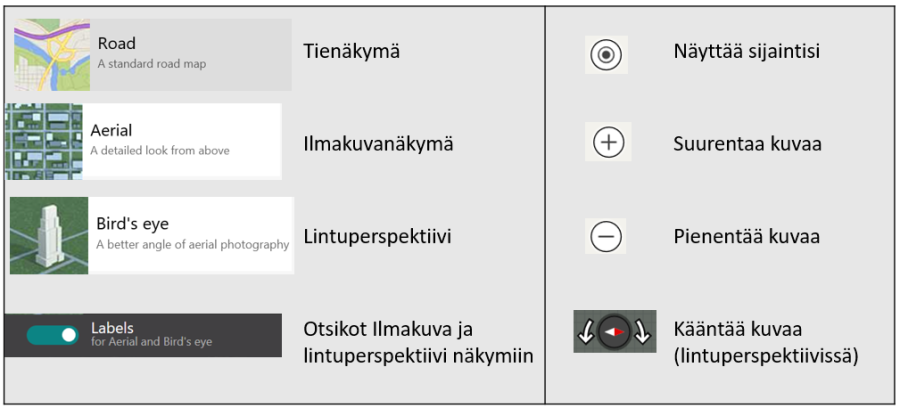
Map Search Icons
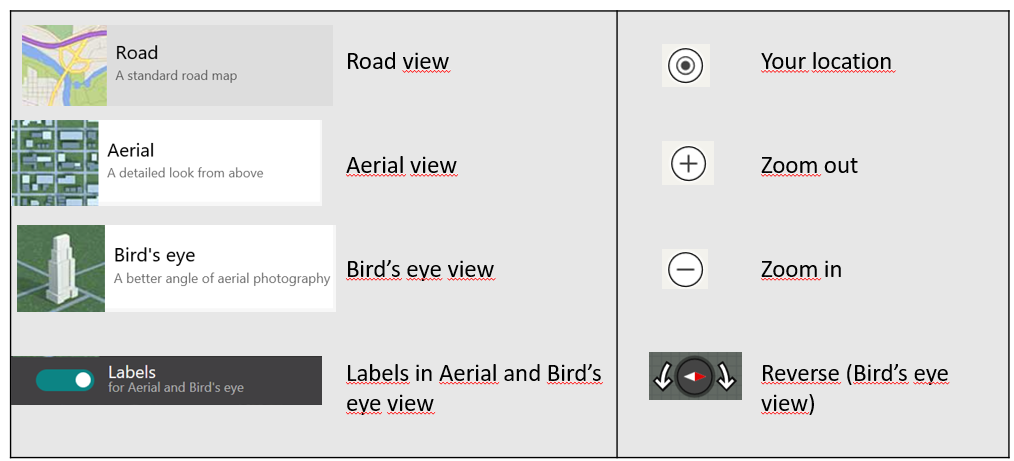
Below you can see explanations for the icons that are used in Map Search.
The actions that can be used at that moment are marked with white text. For instance, the Bird’s-eye view cannot be used unless the map has been zoomed in enough.
Map Search and registers
You can access the Map Search directly from the property and building register by selecting the last tab, Map, from the Building register.

Building register tabs
The selected building appears on the map at its correct address. If the building is not placed on the map yet, the map application will notify you that the address data is not available, and ask you to place the building in its correct address
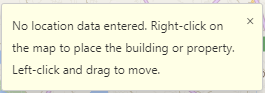
Zoom in on the map so that you can find the correct location, and then drag the building onto the map using the right mouse button.
After this, the building is shown on the map as a red block 
When you hover the cursor over the red block, you can see a list of drawings and agreements in the tree structure. By clicking the drawing or the name of the agreement, you can open the drawings or lease agreements relating to the building.
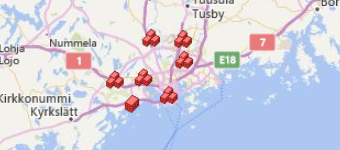
If you zoom out enough and there are several buildings in the same town or area, you can see them as a set of blocks  on the map. In this case, you can access all of the buildings’ drawings and lease agreements.
Views
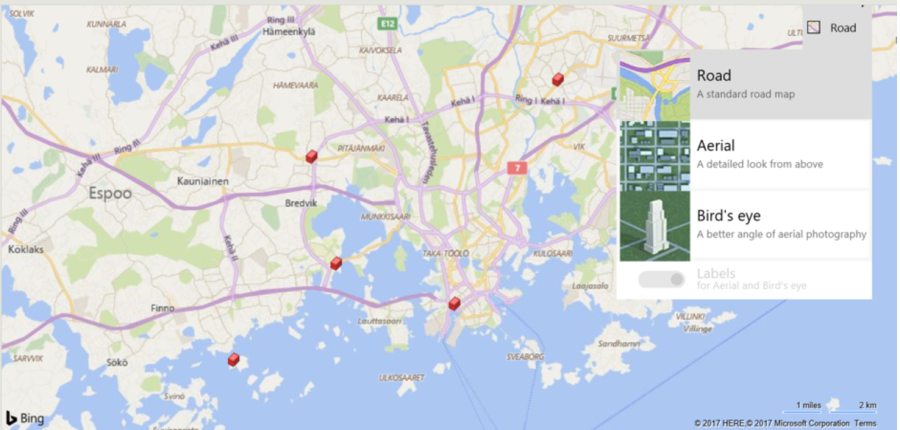
For each situation, there are different kinds of views to select from. The logo and the text on the upper right corner show the currently active view.
By clicking the triangle, you can open a pull-down menu for changing views.
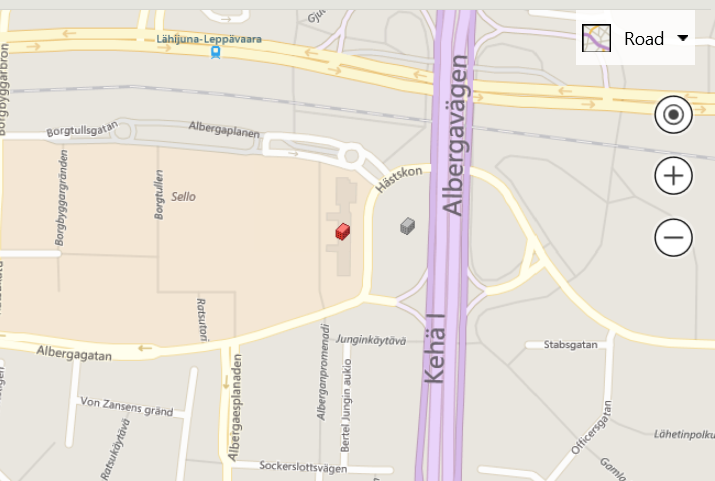
The Road view shows the traditional map view with roads and streets, depending on how you have zoomed in on the map. Labeling is not available in this view, because road and street names and numbers are set to be displayed by default.
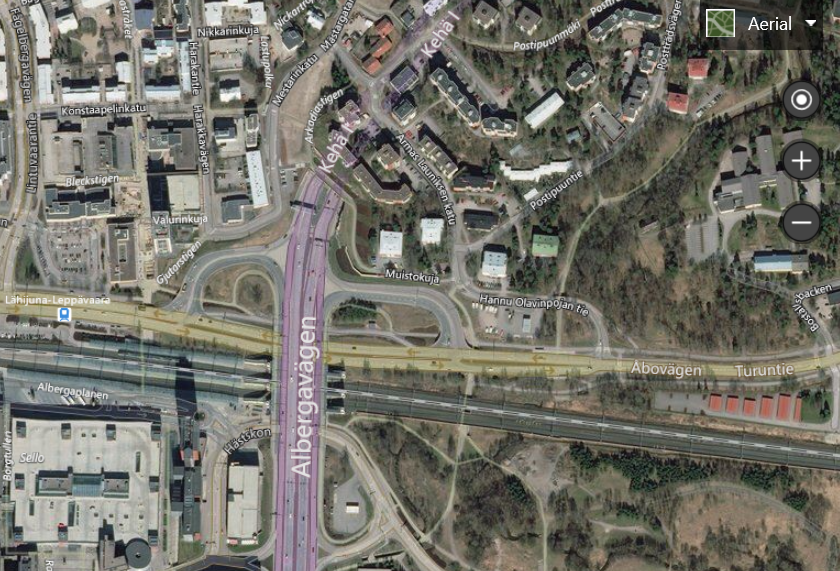
The Aerial view shows the selected building or location photographed from above, as a satellite view. If you choose to show labels, the road and street names, as well as the names of certain buildings, will be shown on the map. The example map below has labels on, and you can see a little triangle under Labels showing they are in use.
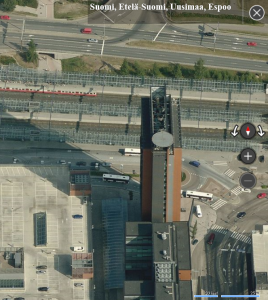
Bird’s-eye view images have been taken from a perspective and a lower altitude, so that the building or location can be recognized. In this view, you can rotate the image in different directions and see the same building, for example, from the front and from the back 
Moving the map and changing its size
You can move the map in the workspace on your desktop in three different ways:
- By using the arrow keys on your keyboard, you can move the map left, right, up or down.
- By using your mouse, you can move the map in all directions.
- By using the Navigation keyboard on the map menu, you can move the map the same way as with your mouse, in all directions.
Map size can be changed as follows:
- By using the + and – keys on your keyboard, you can make the map larger and smaller.
- You can also use the zooming tools on the map menu.
- When you roll down with the scroll wheel of your mouse, the map becomes smaller, and when you roll up, the map becomes larger.
- You can also double click on the map to enlarge it
Karttahaussa on mahdollisuus tarkastella rakennuksia kartan avulla. Optimaze Momentin karttaliittymä mahdollistaa kiinteistökannan tarkastelun kartalla, satelliitti- ja ilmakuvissa.
Rakennusten sijainti määrittyy kartalle perustuen kiinteistö- ja rakennusrekisteriin syötettyjen osoitetietojen perusteella.
...
Karttahaun käynnistäminen
Karttahaku on erillinen hakusovellus, joka näkyy asiakkaalla ainoastaan, mikäli hän on ottanut kyseisen lisäosan käyttöönsä Optimaze-sovelluksessa. Karttahaussa voit tarkastella ja hallita rakennuksia kartan avulla
Aloita karttahaun käyttäminen päävalikon kohdasta Haku ja Suodatus / Karttahaku.
HUOM! I.E 8.0 tarkistaa haluatko katsoa ainoastaan tietoja, jotka ovat suojattuja. Valitse tähän Tämä siksi, että karttasovellus ei tule suojatun yhteyden kautta. Joissakin selaimissa tarkistusta ei välttämättä tule lainkaan ja joissakin kysymys on erilainen. Tärkeintä on vastata niin, että suojaamattoman yhteyden käyttö sallitaan.
Kuva 14 Suojaamattoman yhteyden käyttö
Karttahaun ikoniselitykset
Alla näet selitykset karttahakuun liittyviin ikoneihin. Kussakin tilassa käytettävissä olevat toiminnot näkyvät valkoisella tekstillä. Esimerkiksi Bird's eye -näkymää ei voida ottaa käyttöön ennen kuin karttaa on lähennetty tarpeeksi suureksi.
Karttahaku ja rekisterit
...
Näkymät
Kartalla voit valita erilaisia näkymiä tilanteen mukaan. OIkeassa yläkulmassa näkyvä logo ja teksti osoittavat mikä näkymä on aktiivisena.  Klikkaamalla kolmiota, saat näkvyiin alavetovalikon, jossa voit vaihtaa näkymää.
Road eli tienäkymä
Tienäkymä näyttää perinteisen karttanäkymän, jossa näkyy tiet ja kadut sen mukaan kuin tarkaksi kartta on zoomattu. Labels-toiminto (tekstitys) ei ole käytössä tienäkymässä, koska teiden nimet ja numerot näkyvät oletuksena muutenkin.
Aerial eli ilmakuva
Aerial eli ilmakuva näyttää valitun kohteen suoraan ilmasta kuvattuna, satelliittinäkökulmasta. Ilmakuvaan voit valita tekstityksen (Labels), jolloin teiden ja tiettyjen rakennusten päällä näkyy niiden nimi. Alla olevassa esimerkkikuvassa tekstitys on päällä, josta merkkinä pieni kolmio Labels-sanan alla.
Bird's eye eli lintuperspektiivikuva
Bird's eye eli lintuperspektiivikuva on otettu sellaisesta kulmasta ja alempaa, että kohdetta voidaan tarkastella tunnistettavalla tavalla. Tässä näkymässä on mahdollista kääntää kuvaa eri suuntaan, jolloin kohdetta voidaan tarkastella eri puolilta
Kartan liikuttaminen ja koon muuttaminen
...
- .