...
The Optimaze Space floor plan browser integrates with Lease rental management: rental areas and car parks premises can be created and edited and connected to the spaces of floor plans, agreements can be created directly from the floor plan, and the rental situation can be viewed as colorings.
The Lease functions are found in the floor plan browser’s Edit menu: Rental areas…, Car parks… and Create agreement… Space data…, Edit rental premises… and Create agreement(Lease)… The items shown depend on your user rights in Lease.
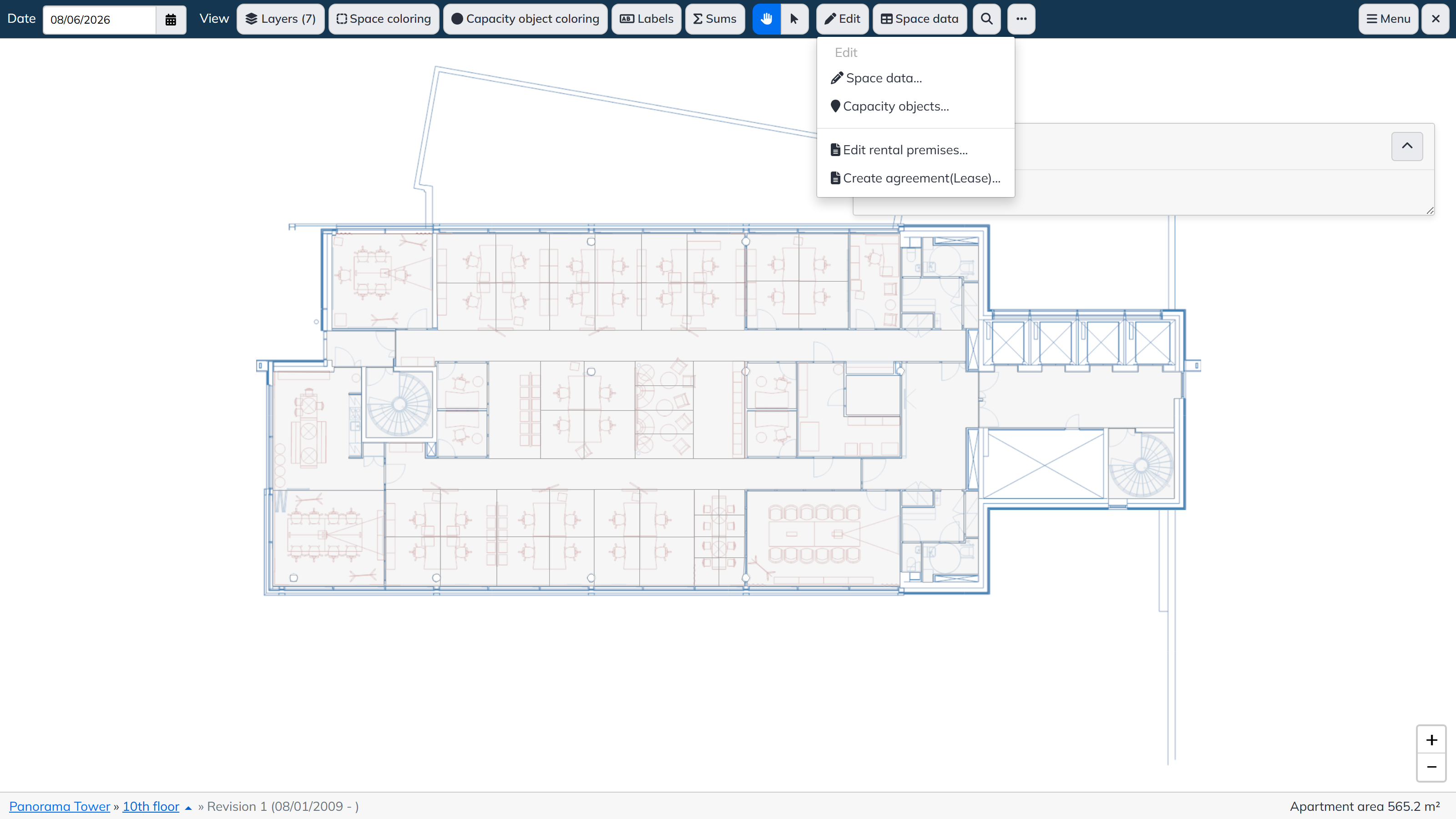
Creating an agreement in the floor plan browser
Select Edit → Create agreement…agreement(Lease)… The Create agreement panel lists all the rental areas and car parks that have spaces and parking areas in the selected floor.
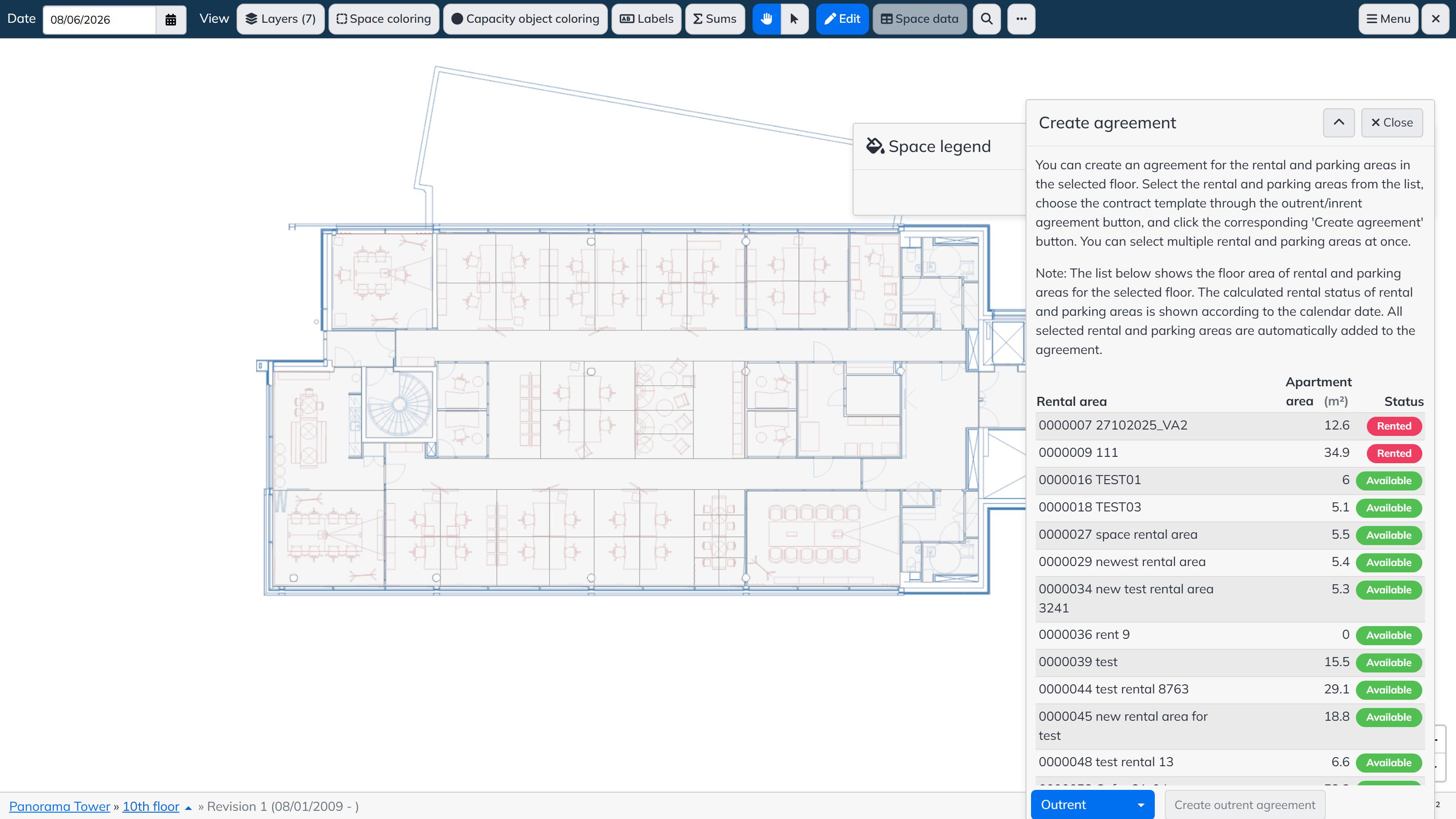
The list also shows as informative details the apartment area (shown floor area of the rental and parking areas for the selected floor only) , and the their calculated rental status of each rental area or car park with respect according to the selected calendar date; the rental status is determined with the same logic as on the Lease side. Note that a rental area may have spaces in several floors: the list shows the total rentable area of the rental area, and all spaces linked to the selected rental area and parking areas are automatically added to the agreement.
To start creating create the agreement:
- Select one or more rental and parking areas or car parks from the list.. You can select multiple at once.
- Choose the contract template through the Outrent / Inrent agreement button. The buttons Click Create agreement and select the agreement template. The outrent and inrent templates are shown according to your user outrent and inrent rights in Lease, so it is possible that only one of the options them is available.
- Click the corresponding Create agreement button. You are directed to the agreement creation view on the Lease side. The , with the selected rental and parking areas and car parks are filled in on the agreement in advance; the other details have the same defaults as if the creation had been started directly in Lease.
- Review the agreement on the Lease side and complete it as needed.
- Save the agreement. Note! The agreement must be saved for a draft agreement to be created. If the agreement is not saved on the Lease side, the creation started from the floor plan browser is also interrupted and the details are discarded.
Creating and editing rental premises
Select Edit → Edit rental premises… The panel has two tabs: New rental premise and Edit rental premise.
...
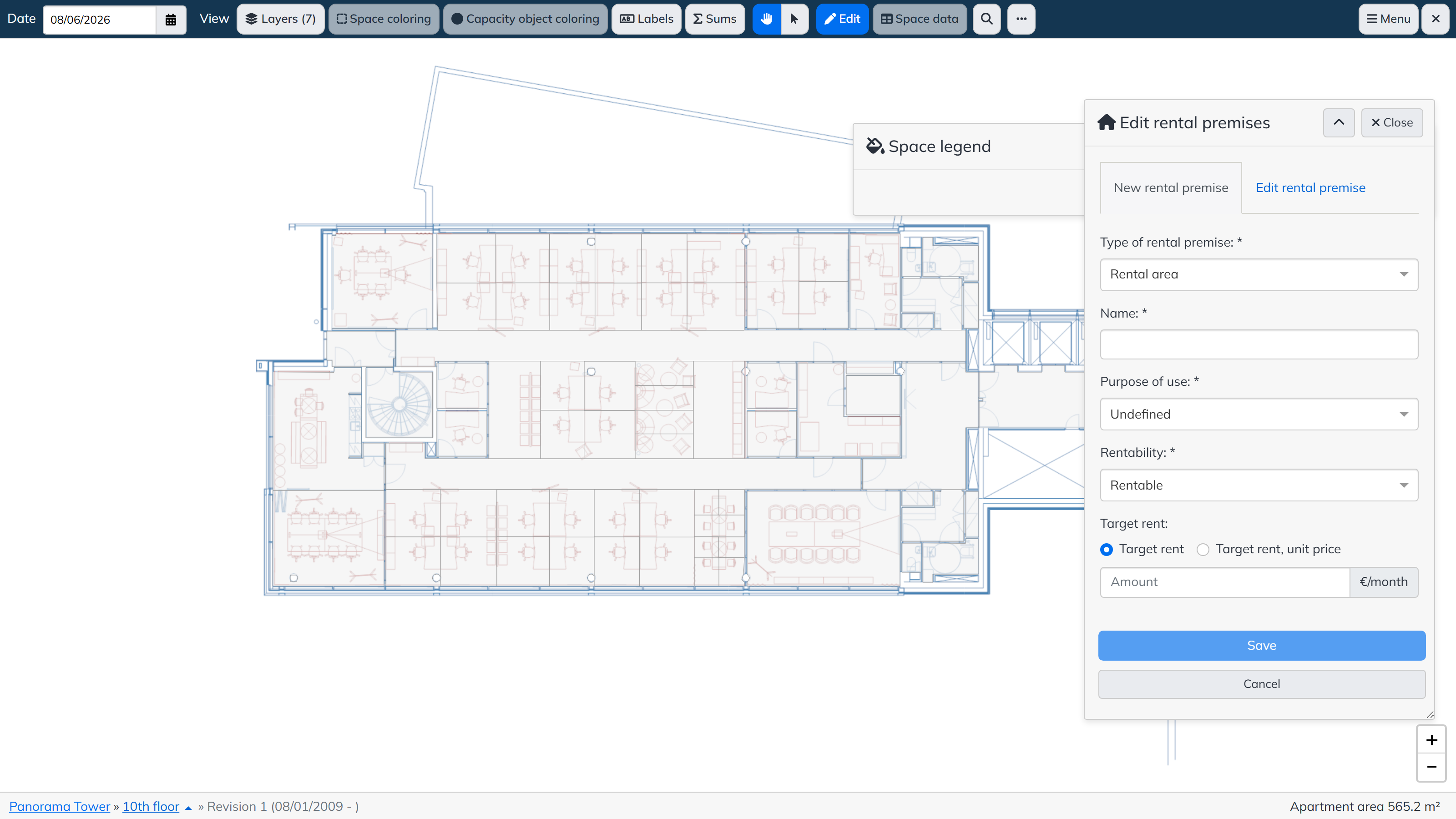
A new rental premise is created by entering the Type of rental premise (for example rental area), Name, Purpose of use, Rentability and optionally a Target rent (as a total amount or a unit price), and saving. On the Edit rental premise tab the same details of an existing premise can be changed.
Rental areas in spaces
Rental areas and car parks are connected to spaces with Edit → Rental areas… or Edit → Car parks…
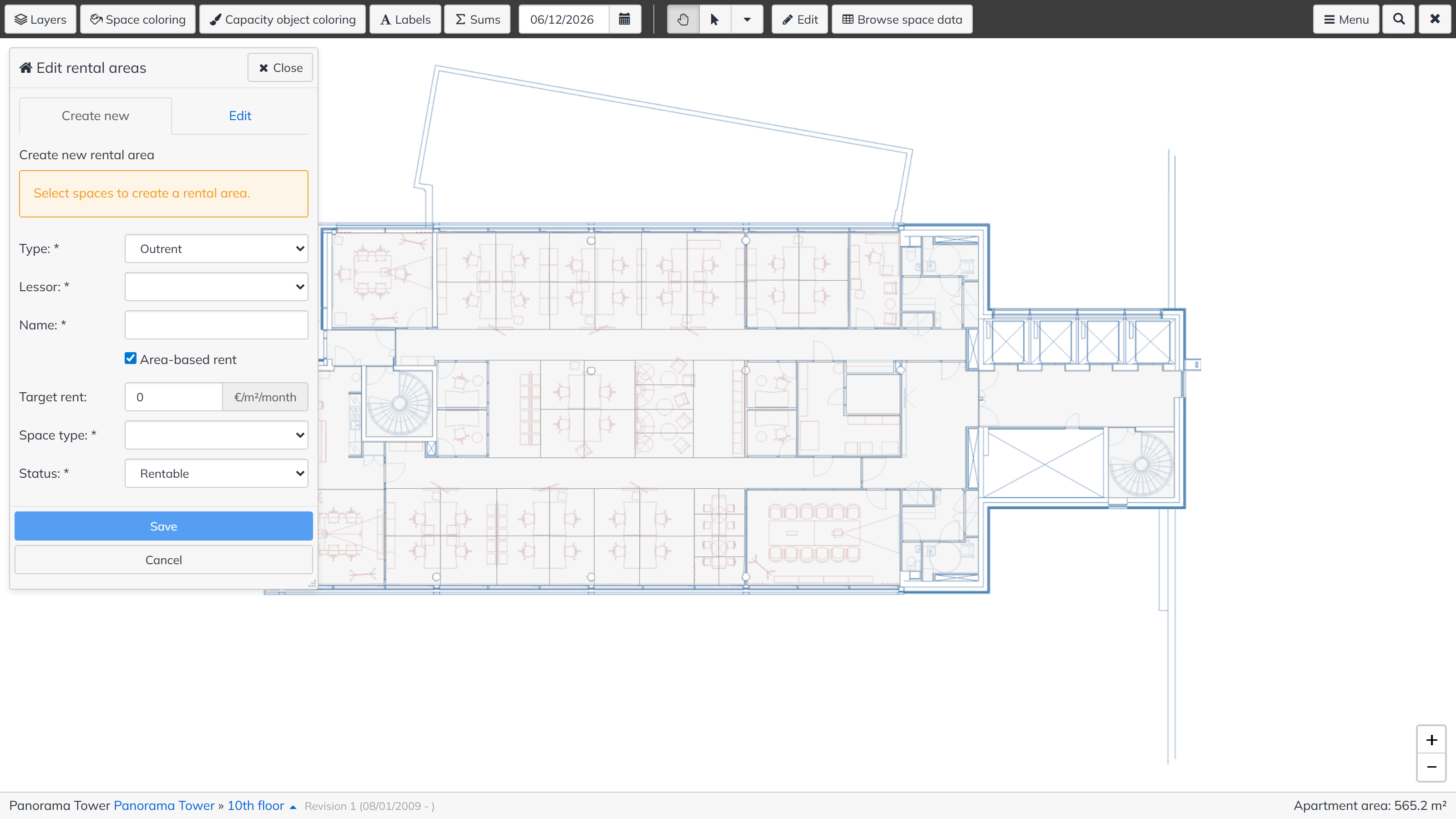
Space data… by selecting Rental area as the type to edit.
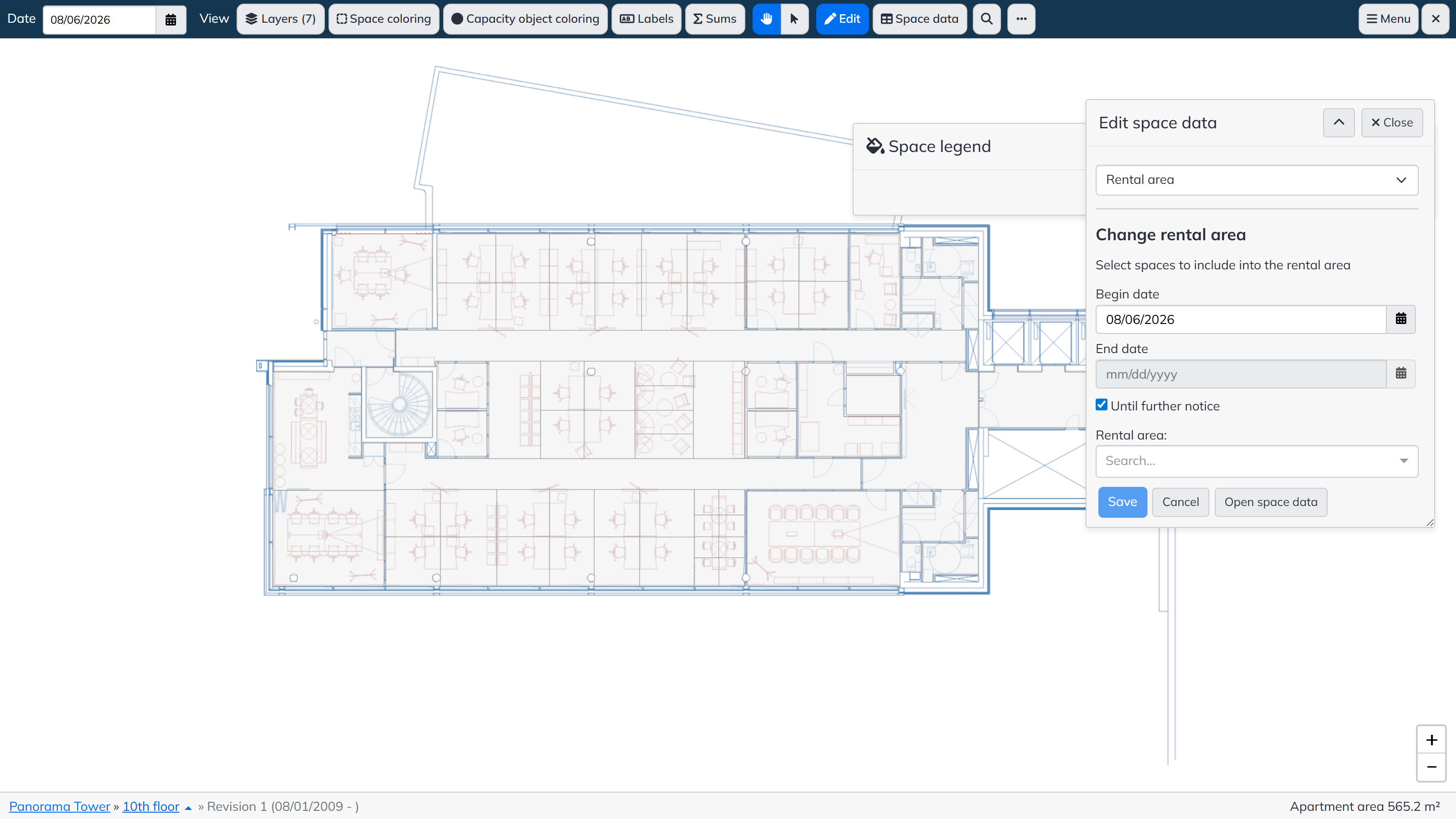
- In the Change rental area form, select the Begin date and the End date — or alternatively tick Until further notice — and search for the rental area created in Lease in the Rental area fieldIn the edit panel, select the start date and the end date (or alternatively until further notice) and the rental area or car park created in Lease.
- Select the spaces in the floor plan that you want to connect to include in the rental area or car park.
- Save. A space link is stored for the rental area or car park for the selected date range. You can view the stored space link via the rental area or car park coloringscoloring.
The space link can be edited in the same way: select the rental area or car park to be edited and the new date range, then select the new spaces. After saving, the program applies the changes to the validity and selected spaces for the defined date range. Note! If the start date of the change is set before the end date of the previous definition, the earlier end date is overwritten, and the end date and selected spaces are stored according to the latest definition.
On the Lease side, rental areas and car parks show the surface area summed through the space link according to the current day.
A new rental area can also be created directly in the edit panel with Create new rental area, by entering the type, lessor, name, rent details, space type and status.
Lease colorings
The floor plan browser’s Space coloring menu contains the Lease colorings, for example:
- Outrent rental areasagreements — colors the spaces by agreement, where the valid space link of the rental or parking area relates to an outrent agreement.
- Rental area — colors the spaces that have a rental area with a valid space link with respect to the selected date. The legend shows the rental status, tenant, validity and rent details of each rental area.
- Inrent rental area — colors the spaces whose valid space link relates to an inrent agreement.
...
- VAT status — colors the spaces by the VAT status of the rental area.
More colorings can be created per customer; they are always agreed with the customer separately.