...
- Select Edit > Capacity objects....
- Define validity of capacity object. By default new capacity objects are valid for now, starting from the date selected in the floor plan viewer.
- Select type and subtype, if applicable.
- Select capacity. Default capacity for new capacity object is one.
- Select usage type, if applicable.
- Select "Can be reserved" if the capacity object is used for booking purpose in Worksense
- You can add an email address to reserved capacity object for room integration purpose
- More detailed information in Worksense guide
- Add the capacity object by clicking in the floor plan.
- Repeat until you have added all capacity objects , editing capacity object details as necessary.
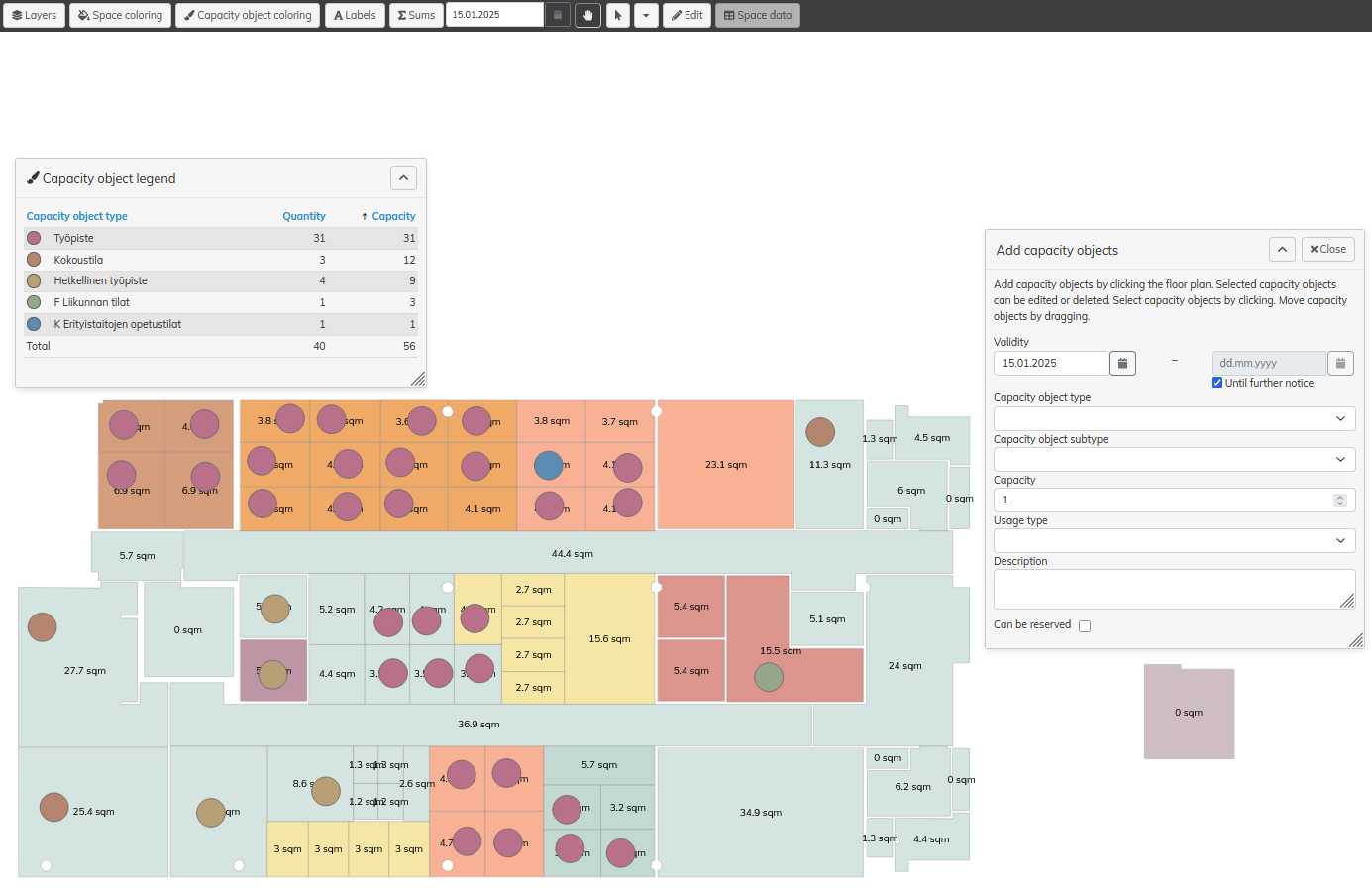
Editing capacity objects (Single capacity object)
- Select Edit > Capacity objects....
- Click to select the capacity object in the floor plan.
- Select the Modification begin date. From this date the modified details are valid
- Edit details for the capacity object or objects:
- Capacity object type
- Capacity object subtype
- Capacity
- Usable capacity
- Usage type
- Description
- Can be reserved
- Email address
- Changes are saved based on the values selected in the fields when update button is pressed
- Alternatively, you can delete the selected capacity objects by selecting Delete selected capacity objects
- When deleting the capacity objects, you must select
- if you want to delete all the capacity objects data, or just end the capacity object starting from selected date.
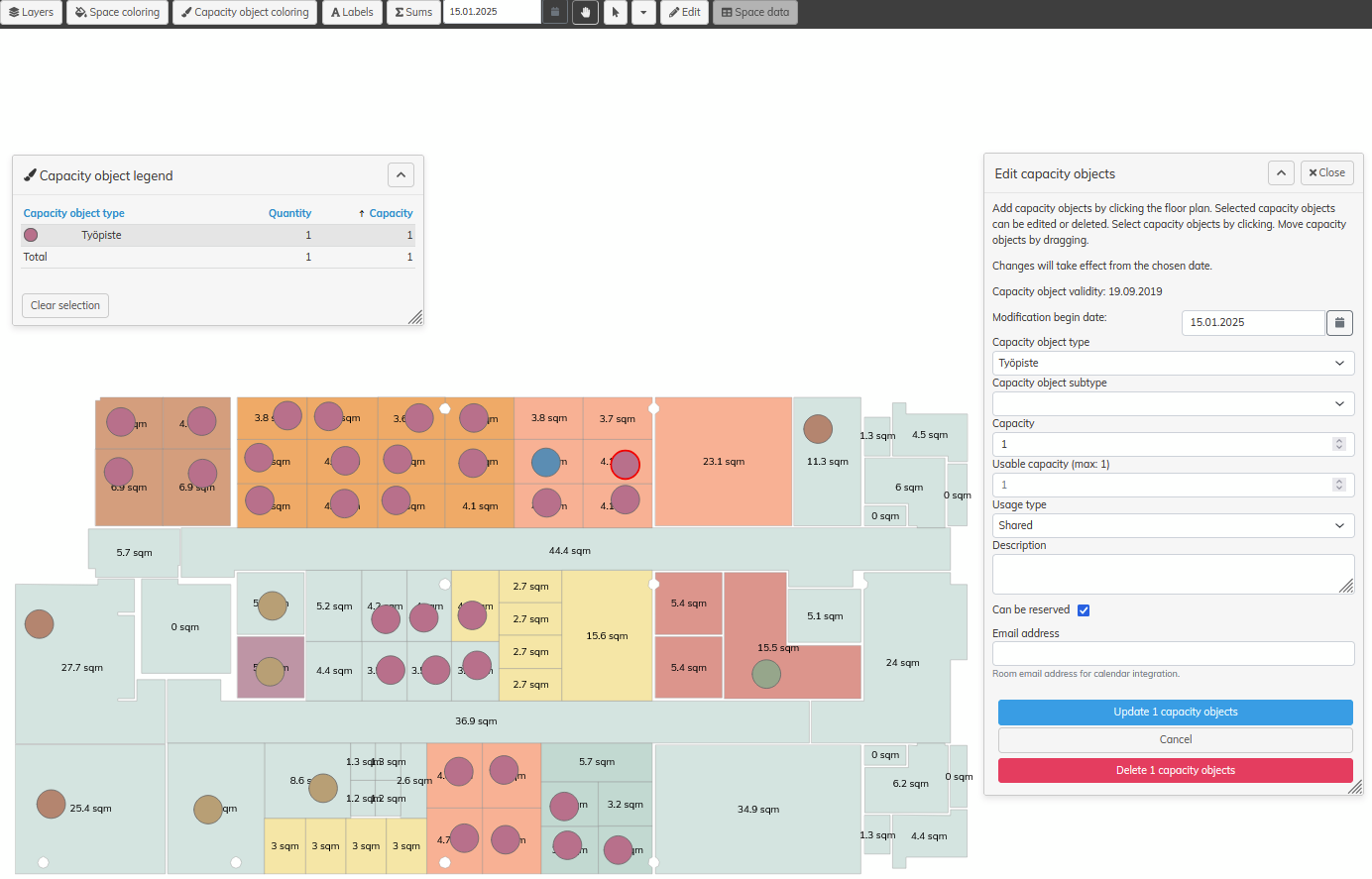
Editing capacity objects (Multiple capacity objects)
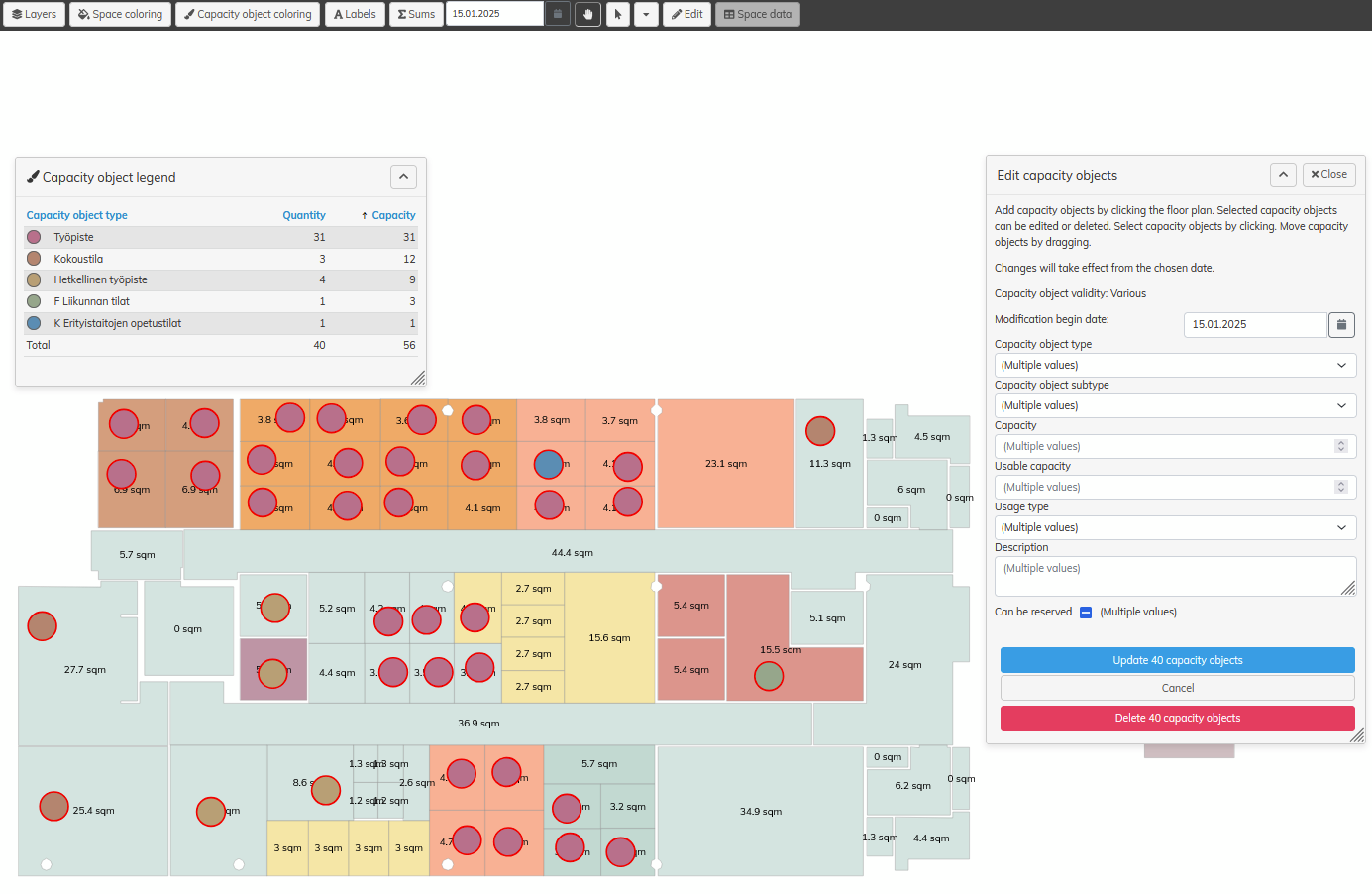
- Select Edit > Capacity objects....
- Click to select the capacity object in the floor plan. Click on a capacity object to select one capacity object at a time, or select 'Select' tool and drag to select all capacity objects in a larger area.
- Select the Modification begin date. From this date the modified details are valid
- Edit details for the capacity object or objects:
- Capacity object type
- Capacity object subtype
- Capacity
- Usable capacity
- Usage type
- Description
- Can be reserved
- Every field will show "(Multiple values)" if the selected capacity objects contain different values
- When saving field values, that have multiple values, no values are saved on any selected capacity object
- "(Multiple values)" selection can be replaced with other value per field, and after that ALL selected capacity objects are saved with that value, when update is pressed
- Email address field can't be updated when multiple capacity objects are selected
- Alternatively, you can delete the selected capacity objects by selecting Delete selected capacity objects
- When deleting the capacity objects, you must select
- if you want to delete all the capacity objects data, or just end the capacity object starting from selected date.
To move a capacity object, drag the object in the floor plan. You can only move one capacity object at a time.
...