With environmental calculation tools, the organization’s carbon footprint can be managed and the business grown with respect to green values.
By using environmental calculation tools in Optimaze, the user can report up-to-date consumption and emission information on a building, an organization and an employee level.
The software also calculates the carbon emissions resulting from the usage of facilities.
- The calculation model has been developed in collaboration with VTT Technical Research Centre of Finland Ltd.
- It complies with the calculation standards specified by GHG Protocol for companies in the service sector
Ympäristölaskennan työkalujen avulla organisaation hiilijalanjälki on hallittavissa ja liiketoimintaa voidaan kasvattaa vihreitä arvoja kunnioittaen.
Optimazen ympäristölaskennan avulla käyttäjä voi raportoida todenmukaiset kulutus- ja päästötiedot rakennus- organisaatio- ja henkilötasolla.
Ohjelman avulla käyttäjälle lasketaan myös toimitilojen käytöstä aiheutuvat hiilidioksidipäästöt.
- Laskentamalli on kehitetty yhteistyössä Valtion Teknillisen Tutkimuslaitoksen (VTT) kanssa
- Noudattaa GHG Protocolin palvelusektorin yritykselle tarkoitettuja laskentastandardeja (http://www.ghgprotocol.org/).
- It complies as such with requirements for carbon emission reporting in corporate social responsibility reports
- set forth, for example, by Global Green Initiative (GRI) Soveltuu sellaisenaan esimerkiksi Global Green Initiativen (GRI) mukaisen yhteiskuntavastuuraportoinnin vaatimuksiin hiilidioksidipäästöjen raportoinnista (https://www.globalreporting.org/)
- Tuloksia voidaan hyödyntää sisäisessä ja ulkoisessa viestinnässä
Ympäristölaskenta
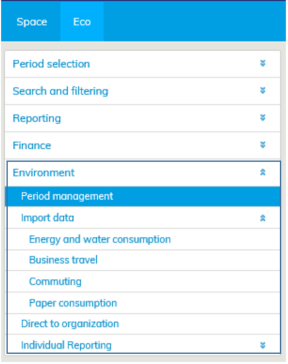
Optimaze ympäristölaskennan toiminnot sijaitsevat Eko-näkymässä Ympäristö -otsikon alla.
Ympäristölaskennan moduuli on kehitetty tuottamaan ymmärrettävät ja läpinäkyvät tiedot organisaation toimitilojen energiankäytöstä sekä työhön liittyvän matkustamisen aiheuttamista ympäristövaikutuksista.
Kodin ja työpaikan välisen matkustamisen tiedot kerätään web-pohjaisen kyselyn avulla. Kyselyä ja sen tuontia Optimazeen hallinnoi Rapal, eikä näitä toimintoja ole käsitelty tässä käyttöoppaassa.
Ympäristövaikutusten raportointi tukee yrityksen vastuujohtamisen käytäntöjä mahdollistaen ajanmukaisen ja todellisen ympäristötiedon seurannan ja jatkuvanparantamisen käytäntöjen omaksumisen. Ympäristölaskennan moduulin kautta käyttäjä pääsee luomaan ja hallinnoimaan ympäristölaskelmia, syöttämään yrityksensä energiankulutus- ja matkustustietoja, kohdentamaan niitä organisaatiolle sekä tarkastelemaan kohdekohtaisia raportteja.
Periodien hallinta
Periodin hallinta – kohdassa hallinnoidaan olemassa olevia ympäristölaskelmia sekä luodaan uusia laskelmia. Mikäli organisaatiolla on olemassa olevia laskelmia, näkyvät ne periodien hallinta - ja periodin valinta näkymissä.
...
- .
- The results can be utilized in both internal and external communications.
Environmental calculation
Managing tools for environmental calculation are found in the Eco view under the Environment header.
Optimaze Environmental Calculation provides easy-to-understand and transparent information on the energy use in organization’s facilities, as well as on the environmental effects of their business travel and commuting.
Commuting data is collected through a web-based survey. EG Finland Oy manages the survey and the import of commuting data to Optimaze. For this reason, these functions are not dealt with in this user guide.
Reporting on environmental impacts supports responsible management practices within an organization. It also ensures that the organization can monitor environmental information in real-time and adopt continuous performance improvement practices.
With the environmental calculation module, the user may manage and create an organization’s environmental calculations, enter energy consumption and traveling data and allocate them to the organization, as well as view site-specific reports.
Period management
In Period management, the user may manage existing environmental calculations and create new ones. If the organization has existing calculations, they are displayed in Period management and Period selection views.

By choosing a calculation, the user may view more specific information on that calculation, such as when the calculations have been carried out and which time period they concern.
Completed calculations need to be locked under Locking. Only after the calculations have been locked, the results can be reported in Channel.
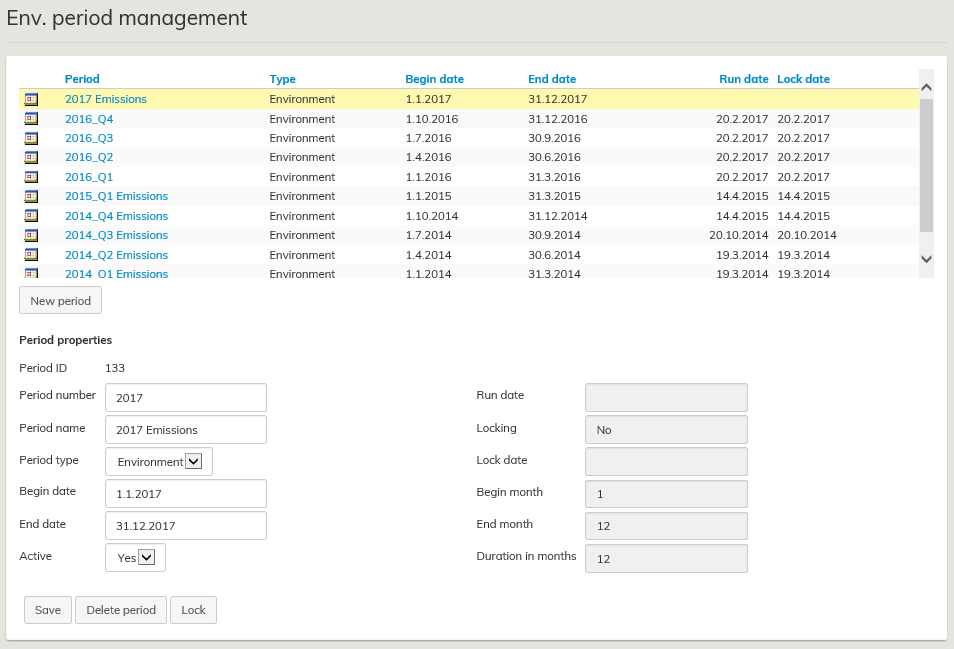
New calculation is started by creating and saving a time period for the calculation.
You can create a new calculation by clicking New period. In the field that opens, the user then enters all necessary information concerning the new time period.
This is done as follows:
Period number: e.g. a year (2017) or a quarter (2017_Q1)
Period name: e.g. 2017_Q1 Emissions
Begin date: date from where data begins
End date: date where data ends; importing calculation data to Optimaze
Importing calculation data to Optimaze
Actual consumption and traveling data is imported to Optimaze with an Excel transfer file using a custom formatted template at Import calculation data. Information on energy and water consumption is transferred with site-specific transfer files, and information on business travel and paper consumption is imported with organization-specific files.
Site-specific data
Site-specific data includes:
- Electricity consumption
- Heating
- Cooling
- Water consumption
Site-specific data is imported to Optimaze with an Excel transfer file using a custom formatted template. The required transfer file is uploaded to the system at Choose transfer file. Successfully uploaded files will show under Imported files.
The summary of all calculated and imported data shows up-to-date information on actual consumption and emissions based on imported files and calculations. Where actual data or expanded data based on actual data is not available, it is replaced with an estimation based on an average consumption and emission figures. If there is no actual consumption data imported to the system, the consumption and emission data shown in the summary is all based on automatically generated values. The quality number on the right indicates the type of data, 4 being actual data and 0 being estimated data.

When importing site-specific data, there are two possible situations where the import is interrupted: Error  and Warning
  .
.
ERROR appears, if the transfer file does not follow the structure of the example file, or if the abbreviations used in the transfer file do not follow those presented in the example file. Also, if the starting and ending dates of the transfer file do not match the time period of the calculation, an error will occur. When an error occurs, the transfer file must be revised to match the example file and imported again. In order to make the revision easier, errors are presented in an error log.
WARNING appears when the target number used in the transfer file cannot be found in Optimaze. If this happens, the consumption data cannot be directed to any site created in the system.
The warning can be ignored by selecting Ignore rows with unknown TargetNumber, after which the system will ask you to reimport the file. When importing the file again, the system will disregard rows with no target.
Organization-specific data
Organization-specific data includes:
- Flights
- Train travel
- Car travel
- Paper consumption
Organization-specific data is imported to Optimaze with a transfer file using a custom formatted template (figure 3). The required transfer file is uploaded to the system at Select transfer file. Successfully uploaded files will show under Imported files. The summary of all imported files shows up-to-date information on kilometers and CO2 emissions based on the imported files. When importing business travel and paper consumption data, the first column of the transfer file must state to which organizational level the information on that row is directed to. When importing business travel data, the organizational level is always either a cost center or a person. When importing paper consumption data, the organizational level is always a cost center. Business travel data collected on a personal level can be linked to the organizational structure either with an email address or a Person ID. Thus, the header of the first column in the transfer file is always one of the following: CostCenter, PersonID or Email.
Organization-specific transfer file
When importing organization-specific data, there are two possible situations where the import is interrupted: Error and Warning .
ERROR appears, if the transfer file does not follow the structure of the example file, or if the abbreviations used in the transfer file do not follow those presented in the example file. Also, if the starting and ending dates of the transfer file do not match the time period of the calculation, an error will occur. When an error occurs, the transfer file must be revised to match the example file and imported again. In order to make the revision easier, errors are presented in an error log.
WARNING appears when the organizational code presented in the transfer file cannot be found in Optimaze, and thus, the consumption data cannot be directed to any organizational level in the system. The warning can be ignored by selecting Ignore rows that have unmatched person or organization, after which the system will ask to reimport the file. When importing the file again, the system will ignore rows with no person/organization.
Direct to organization
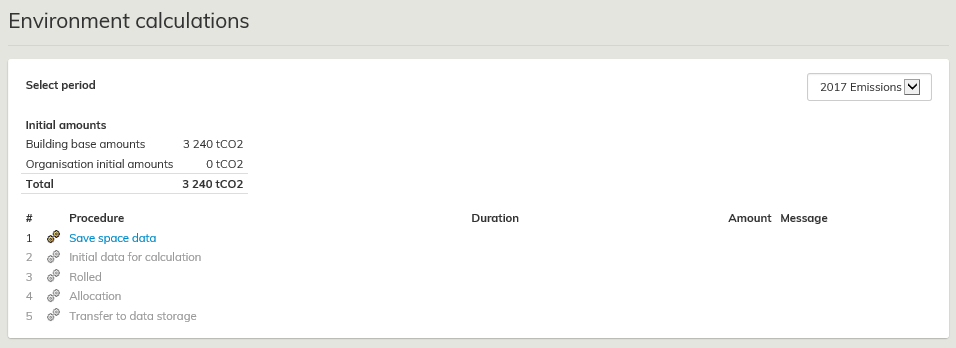
Site-specific consumption and emission data is allocated to spaces and further to the organization using the space. The allocation procedure is done manually at Direct to organization. The user goes through the procedure starting with Save space data and finishing with Energy emissions allocated to space. The user clicks the titles in order, and the system will perform the given task. Depending on the size and complexity of the organization, this may take a few seconds or several minutes. There is a summary box in the top section of the page indicating the organization’s consumption and emission figures
Lähtötietojen siirtäminen Optimazeen
Toteutuneet kulutus – ja matkustustiedot siirretään Optimazeen määrämuotoisilla siirtotiedostoilla (excel) kohdassa Lähtötietojen tuonti. Energian- ja vedenkulutustiedot tuodaan kohdekohtaisilla siirtotiedostoilla ja liikematkatiedot ja paperin kulutus organisaatiokohtaisella siirtotiedostolla.
Kohdekohtaiset lähtötiedot
Kohdekohtaisia lähtötietoja ovat:
- Sähkön kulutus
- Lämmitys
- Jäähdytys
- Veden kulutus
Kohdekohtaiset lähtötiedot siirretään Optimazeen määrämuotoisella excel -siirtotiedostolla. Haluttu siirtotiedosto ladataan järjestelmään kohdasta Valitse siirtotiedosto. Onnistuneesti ladatut tiedostot tulevat näkyviin otsikon Järjestelmään tuodut tiedostot - alle.
Tuotujen ja laskennallisten tietojen yhteenveto näyttää ajantasaisesti järjestelmään tuodut todelliset kulutus- ja päästötiedot sekä järjestelmän luomat laskennalliset kulutus- ja päästötiedot siltä osin kuin niitä ei ole korvattu todellisilla tiedoilla tai niihin pohjautuvilla ns. lavennetuilla tiedoilla. Mikäli järjestelmään ei ole tuotu lainkaan todellisia kulutustietoja, yhteenvedossa esitettävät kulutus- ja päästötiedot ovat kokonaisuudessaan järjestelmän automaattisesti luomia laskennallisia tietoja. Taulukon oikeassa reunassa oleva laatua indikoiva numero kertoo mistä kyseinen tieto on peräisin: 0 = laskennallista, 4 = todellista. 
Kohdetietojen siirrossa voi esiintyä kaksi tilannetta, jotka keskeyttävät siirron: Virhe ja Varoitus .
VIRHE esiintyy, mikäli siirtotiedosto ei noudata esimerkkitiedoston rakennetta tai siirtotiedostossa käytetyt lyhenteet eivät noudata esimerkkitiedossa esitettyjä lyhenteitä. Myös siirtotiedoston alkamis- ja päättymispäivämäärien poikkeaminen laskelman ajanjaksosta johtaa virheeseen. Virheen esiintyessä siirtotiedosto on aina muokattava esimerkkitiedoston vaatimusten mukaiseksi ja tuotava järjestelmään uudestaan. Siirtotiedoston muokkaamisen helpottamiseksi tiedostossa esiintyvät virheet esitetään tuonnin yhteydessä virhelokissa.
VAROITUS esiintyy, mikäli siirtotiedostossa esiintyvää kohdetunnusta (Target Number) ei löydy järjestelmästä, eikä kulutustietoa voida näin ollen kohdentaa millekään järjestelmään luodulle kohteelle. Varoitus voidaan ohittaa valitsemalla Ohita rivit, joille ei löydy kohdetta, jolloin järjestelmä pyytää tuomaan siirtotiedoston uudelleen. Tuotaessa tiedosto uudestaan järjestelmä ohittaa ne siirtotiedoston rivit, joille ei löydy kohdetta.
Organisaatiokohtaiset lähtötiedot
Organisaatiokohtaisia lähtötietoja ovat:
- Liikematkat lentäen
- Liikematkat junalla
- Liikematkat henkilöautolla
- Paperin kulutus
Organisaatiokohtaiset lähtötiedot siirretään Optimazeen määrämuotoisella siirtotiedostolla (kuva 3). Haluttu siirtotiedosto ladataan järjestelmään kohdasta Valitse siirtotiedosto. Onnistuneesti ladatut tiedostot tulevat näkyviin otsikon Järjestelmään tuodut tiedostot – alle. Tuotujen tiedostojen yhteenveto - otsikon alle tulee näkyviin yhteenveto ladattujen tiedostojen kilometrimääristä sekä niiden aiheuttamista hiilidioksidipäästöistä.
Tuotaessa liikematka- ja paperinkulutustietoja organisaatiolle, tulee siirtotiedoston ensimmäisessä sarakkeessa ilmoittaa sen organisaatiotason tunnus, jolle ko. rivin tiedot kohdistetaan. Organisaatiotaso on liikematkojen tapauksessa aina joko kustannuspaikka tai henkilö ja paperin kulutuksen tapauksessa kustannuspaikka. Henkilötasolla kerätyt liikematkatiedot voidaan yhdistää organisaatiorakenteeseen joko sähköpostiosoitteen tai henkilön HR -tunnuksen avulla. Siirtotiedoston ensimmäisen sarakkeen otsikko on näin ollen aina jokin seuraavista: CostCenter (Kustannuspaikka), PersonID (HR –tunnus) tai Email (sähköpostiosoite).
Organisaatiokohtainen siirtotiedosto
Organisaatiotietojen siirrossa voi esiintyä kaksi tilannetta, jotka keskeyttävät siirron: Virhe ja Varoitus .
VIRHE esiintyy, mikäli siirtotiedosto ei noudata esimerkkitiedoston rakennetta tai siirtotiedostossa käytetyt lyhenteet eivät noudata esimerkkitiedossa esitettyjä lyhenteitä. Myös siirtotiedoston alkamis- ja päättymispäivämäärien poikkeaminen laskelman ajanjaksosta johtaa virheeseen. Virheen esiintyessä siirtotiedosto on aina muokattava esimerkkitiedoston vaatimusten mukaiseksi ja tuotava järjestelmään uudestaan. Siirtotiedoston muokkaamisen helpottamiseksi tiedostossa esiintyvät virheet esitetään tuonnin yhteydessä virhelokissa.
VAROITUS esiintyy, mikäli siirtotiedostossa esiintyvää organisaatiotunnusta ei löydy järjestelmästä, eikä kulutustietoa voida näin ollen kohdentaa millekään järjestelmään luodulle organisaatiotasolle. Varoitus voidaan ohittaa valitsemalla Ohita rivit, joille ei löydy henkilöä/organisaatiota, jolloin järjestelmä pyytää tuomaan siirtotiedoston uudelleen. Tuotaessa tiedosto uudestaan järjestelmä ohittaa ne siirtotiedoston rivit, joille ei löydy henkilöä/organisaatiota.
Kohdistus organisaatiolle
Kohdekohtaiset kulutus – ja päästötiedot kohdistetaan tiloille ja edelleen tiloilta niitä käyttävälle organisaatiolle. Kohdistusproseduuri tehdään manuaalisesti kohdassa Kohdistus organisaatiolle. Proseduuri käydään läpi järjestyksessä alkaen Tiladatan tallennus - kohdasta ja päättyen Energianpäästöt tiloille – kohtaan. Kohdat klikataan järjestyksessä läpi jolloin järjestelmä toimittaa otsikon mukaisen toiminnon. Toiminto voi organisaation koosta riippuen kestää muutamista sekunneista minuutteihin. Sivun yläreunassa oleva yhteenvetotaulu näyttää organisaation kulutus- ja päästötiedot.