Selecting the hierarchy
Under Object management, you can view various hierarchies.
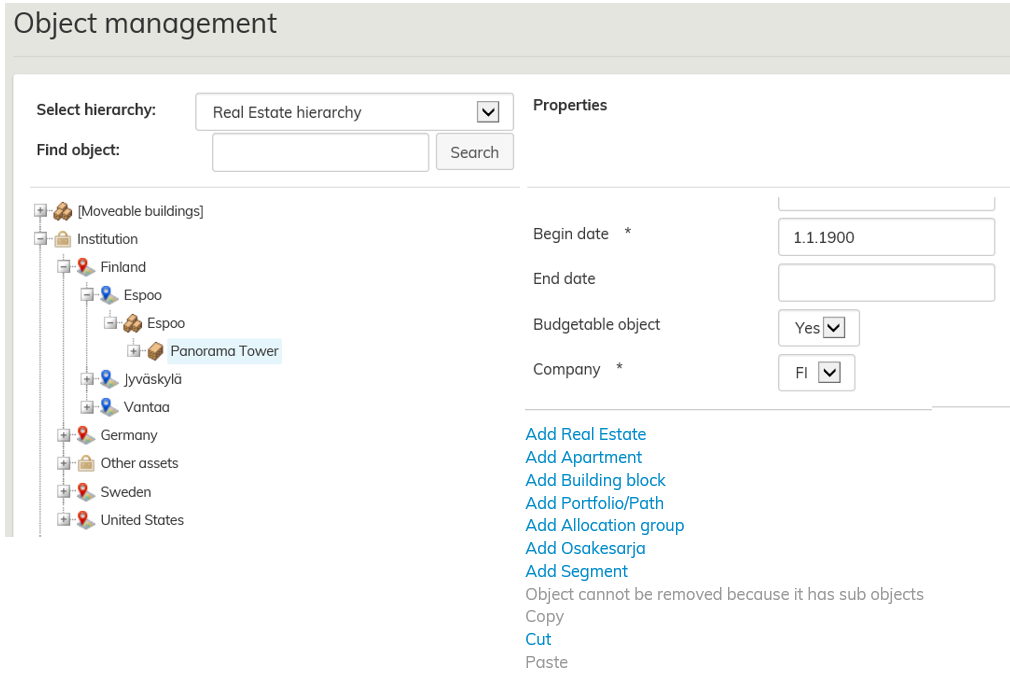
You can browse the hierarchy by typing a word or a part of a word in the Search for object field. You can also browse the hierarchy by expanding the hierarchy tree by clicking on + button. In the right, you can see detailed information on the hierarchy selected.
Under the properties, you can see a list of functions that can be performed for selected object. Active functions are in blue.
| Note! |
|---|
The hierarchies determine how the information is organized in Optimaze, so they have a great effect on reporting. Before editing the information in Object management, discuss the matter with Rapal’s support. |
By using the object management tool, you can create, delete or edit different real estate, organization and space classification hierarchies and modify finance hierarchy.

Start by selecting the hierarchy you want to view or edit under Select hierarchy.
Hierarkian valinta
Objektien hallinnassa voit tarkastella eri hierarkioita.
Voit hakea hierarkiasta kirjoittamalla Hae objekti -kenttään sanan tai sanan osan. Voit myös hakea hierarkiasta avaamalla +-painikkeesta hierarkiapuuta tarkemmalle tasolle. Oikealla kentässä on valitun hierarkian osan tarkemmat tiedot.
...
Hierarkiat määrittävät tiedon järjestymisen Optimazessa ja siten niillä on suuri vaikutus raportointiin.
Ennen kuin muokkaat tietoja Objektien hallinnassa keskustele Rapalin tuen kanssa asiasta.
Objektien hallinnan kautta voit luoda, poistaa ja muokata kohde-, organisaatio- ja tilaluokitushierarkioita sekä tilakustannusnimikkeistöä. Aloita hallinta valitsemalla muokattava tai tarkasteltava hierarkia kohdasta Valitse hierarkia: