...
When the details are complete, click Save. The created rental area then appears on the screen and in the rental areas list.
Ending rental areas
This function requires the Lease main user permission. If Functions does not show End premises, request the permission from Optimaze support.
One or more rental areas are ended via Functions → End premises, either across the whole list or a searched/filtered subset. Tick the checkbox of each rental area to end; Search for premises to be ended narrows the rows shown, and the header checkbox selects everything currently listed.
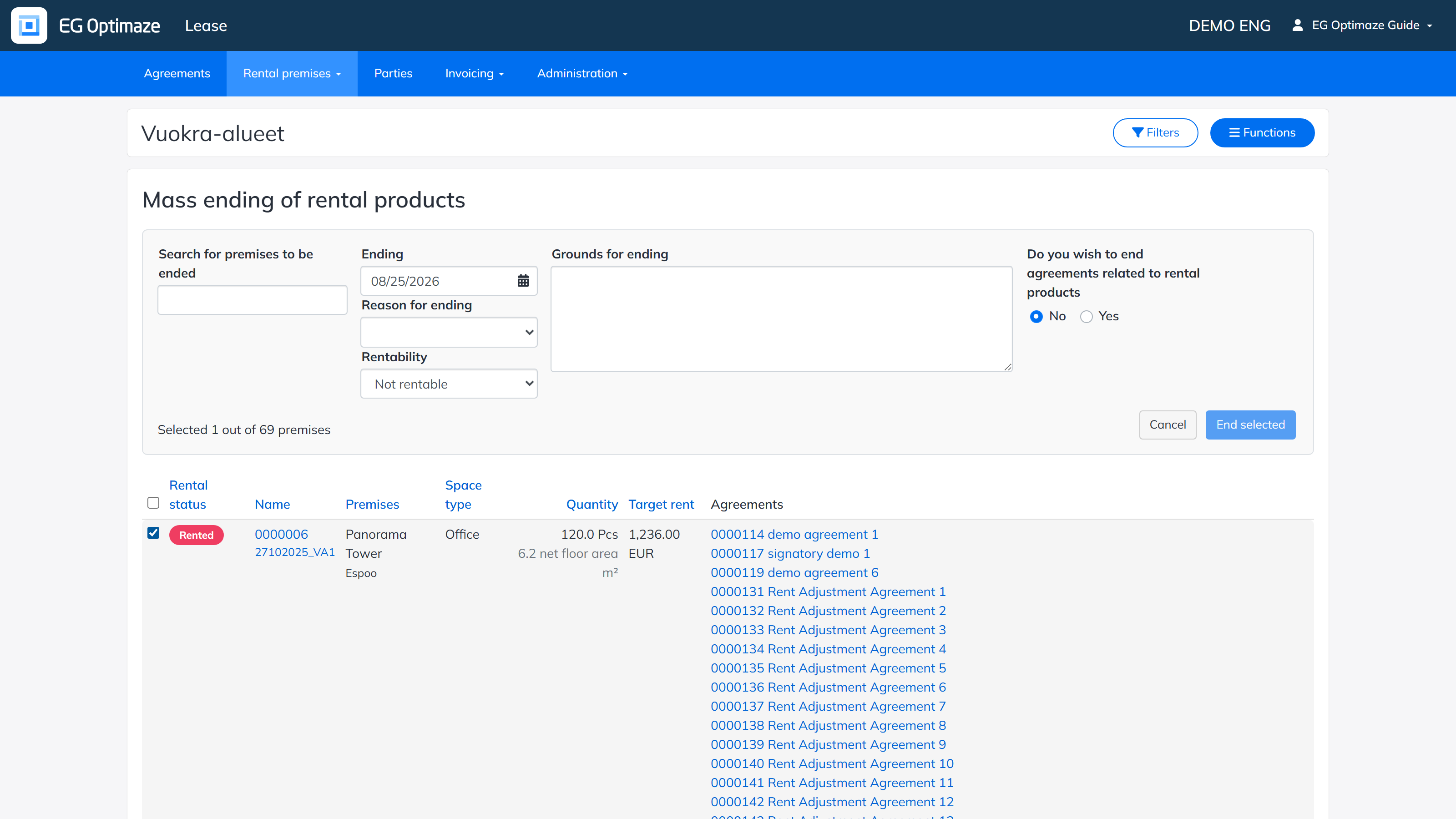
Fill in:
- Ending — the date the rental period ends; defaults to today.
- Reason for ending — for example Sold.
- Rentability — what the ended area’s rentability should become afterwards: rentable, not rentable, in own use, or no changes. Defaults to Not rentable.
- Grounds for ending — a free-text note on why the area is being ended.
- Do you wish to end agreements related to rental products — whether any rental agreement(s) still linked to the selected area(s) should be ended along with it. Defaults to No.
Click End selected to apply.
Important: a rental area can be selected and ended here even while it is still linked to one or more active agreements — the tool does not block that. Leaving the agreements question at its default, “No”, ends only the rental area itself; its agreement(s) are left exactly as they were, so an active agreement can end up still pointing at a rental area whose own rental period has already ended. Answer “Yes” if the linked agreement(s) should be ended in the same action.
Note: if the rental area is connected to spaces via the Space floor plan browser, that space link is ended automatically to the same Ending date as part of this same action — nothing further needs to be done on the space side.