Creating a new lessor
A new lessor for the customer register is created via the agreement register. Select Outrent or Inrent from the main menu and then click Agreement management. A tree-like list of lessors will open up. Select the highest level, i.e. Lessors, from the list, and you can see the following options on the right in the workspace.
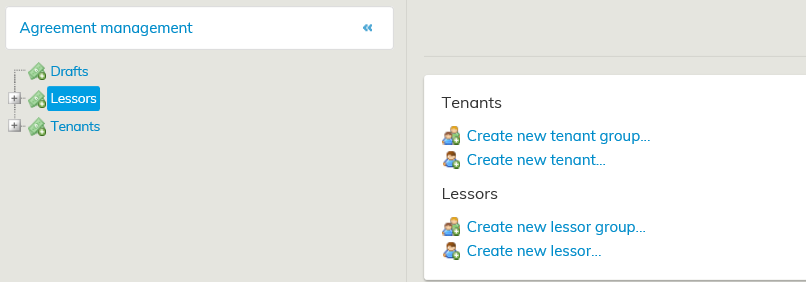
When you select Create new lessor…, a form for updating the lessor’s basic information will open up.
If you are creating an inrent lessor, remember to select the relevant check box.
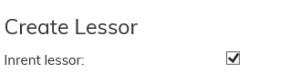
If you are creating an inrent lessor, remember to select the relevant check box.
Fill out the lessor information. Mandatory fields are marked with an asterisk (*).
You can include the lessor in one of the existing lessor groups by selecting the desired lessor group from the pull-down menu.

The lessors are grouped in the tree structure, which makes the agreements easier to find in the Agreement management view.
If you want to create a new lessor group, follow the instructions under Creating a new lessor group.
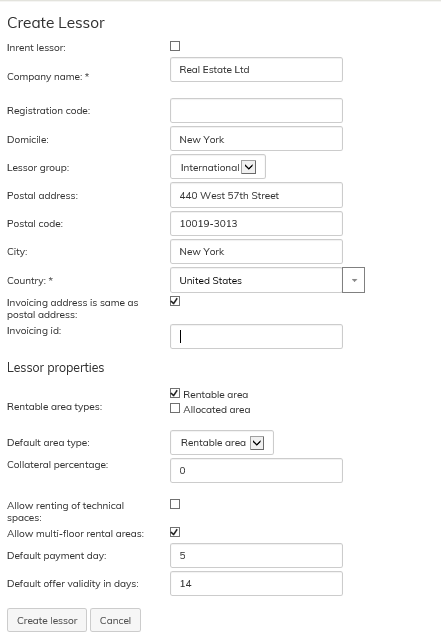
Enter the lessor’s ID in the Invoicing id field for identifying the lessor via an interface in the SAP system, for example.
Under Lessor properties, you can determine, for example, the area used as the rentable area for this lessor’s agreements, and whether the renting of technical spaces or multi-floor rental areas is allowed for this lessor.
When you have filled in all the necessary fields, click on Create lessor.
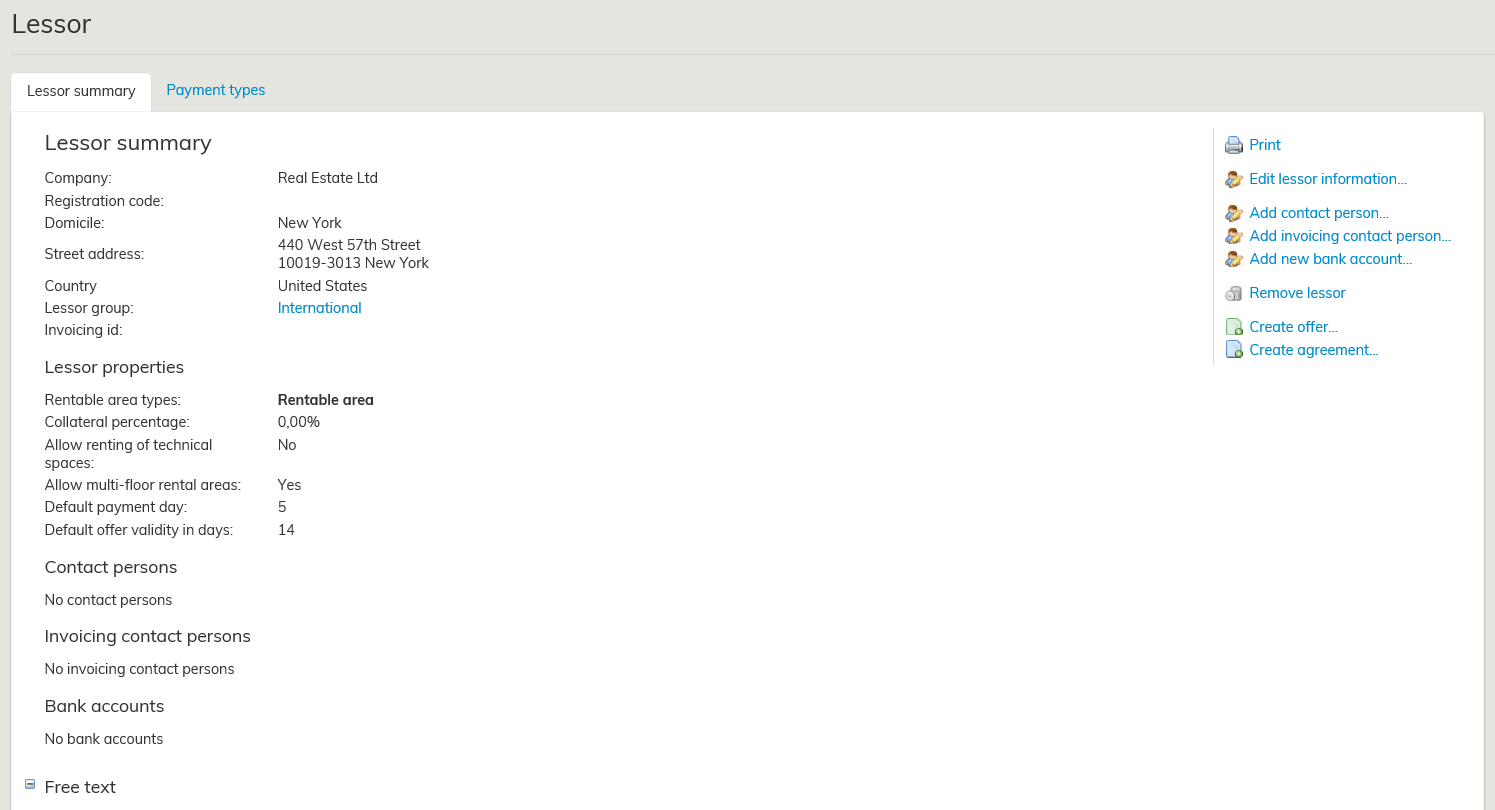
When the lessor information is saved, the summary page looks as follows:
You can also create a lessor while filling out the lease agreement form under Lessor.
Editing lessor information
When you want to edit information for an existing lessor, select Inrent or Outrent from the main menu and click Agreement management.
From the tree-like customer list, select the lessor whose information you want to edit.
The basic information on the lessor will open up in the workspace.
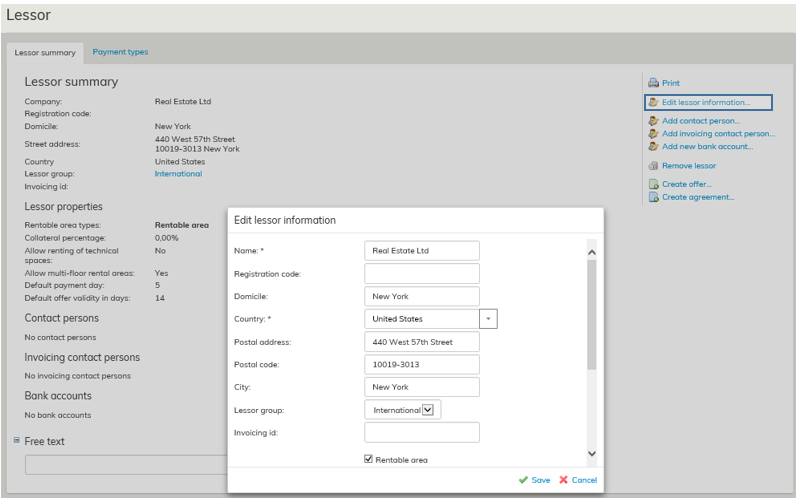
From the right side of the workspace, select Edit lessor information and add the desired information. Once finished, click Save.
Removing lessor information
You can only remove those party from the agreement party register, for whom no agreements, offers or other documents are created.
If it is possible to remove the party, the option Remove lessor  appears on the right of the summary page. When you select this function, you will be asked if you are sure you want to remove the customer
Vuokranantajan luonti
Uuden vuokranantajan luonti asiakasrekisteriin tapahtuu sopimusrekisterin kautta. Valitse päävalikosta Ulos- tai Sisäänvuokraus ja Sopimusten hallinta. Työikkunaan avautuu puumainen vuokranantajaluettelo. Valitse luettelosta ylin taso Vuokranantajat, jolloin työikkunaan avautuu alla näkyvät valinnat.
...
Jos olet luomassa Sisäänvuokrauksen vuokranantajaa, muista valita tämä merkitsemällä .
...
Voit liittää vuokranantajan johonkin olemassa olevaan ryhmään valitsemalla alasvetovalikosta vuokranantajaryhmän.
Vuokranantajat järjestyvät ryhmiin vuokranantajapuussa, tämä helpottaa sopimusten löytymistä Sopimusten hallinta -näkymässä.
Jos haluat luoda vuokranatajaryhmän löydät ohjeen Vuokranantajaryhmän luonti kohdasta.
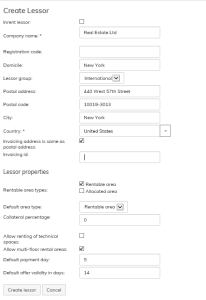
Syötä 'Laskutustunniste' –kenttään vuokranantajan tunniste, jolla voidaan rajapinnan kautta yhdistää vuokranantaja esim. SAP järjestelmässä.
Vuokranantajan ominaisuudet kohdassa voit mm. määritellä mitä pinta-alaa käytetään tämän vuokranantajan sopimuksien vuokrattavana alana ja sallitaanko teknisten tilojen vuokraus tai monikerroksiset vuokra-alueet tällä vuokranantajalla.
...
Vuokranantajan voi luoda myös Vuokrasopimuslomakkeen täyttämisen yhteydessä kohdassa Vuokranantaja.
Vuokranantajan tietojen muokkaaminen
Kun haluat muokata olemassa olevan vuokranantajan tietoja, valitse päävalikosta Sisään- tai ulosvuokraus ja Sopimusten hallinta. Valitse asiakaspuusta se vuokranantaja, jonka tietoja haluat muokata, jolloin työikkunaan avautuu vuokranantajan perustiedot.
Valitse työikkunan oikeasta reunasta Muokkaa vuokranantajan tietoja tai lisää haluamasi tiedot ja valitse lopuksi Tallenna.
Vuokranantajan tietojen poistaminen
Osapuolirekisteristä voidaan poistaa ainoastaan asiakkaita, joille ei ole luotu sopimuksia, tarjouksia tai muita asiakirjoja. Poistettavissa olevan asiakkaan koontilomakkeen oikeaan reunaan tulee valinta  . Kun valitset tämän komennon, ohjelma kysyy vielä, että haluatko varmasti poistaa asiakkaan.