Creating a new tenant
You can create a new tenant in the tenant register through Agreement management.
Select first Outrent or Inrent from the main menu and then click Agreement management.
A tree-like list of tenants will open up in the workspace.
Select the highest level in the list, and you can see the following options on the right in the workspace
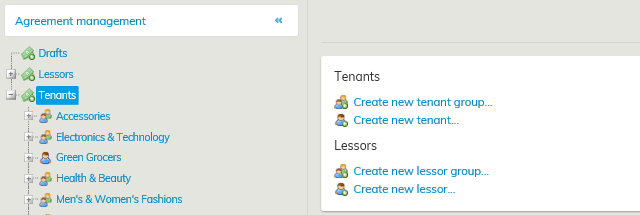
Select Create new tenant...
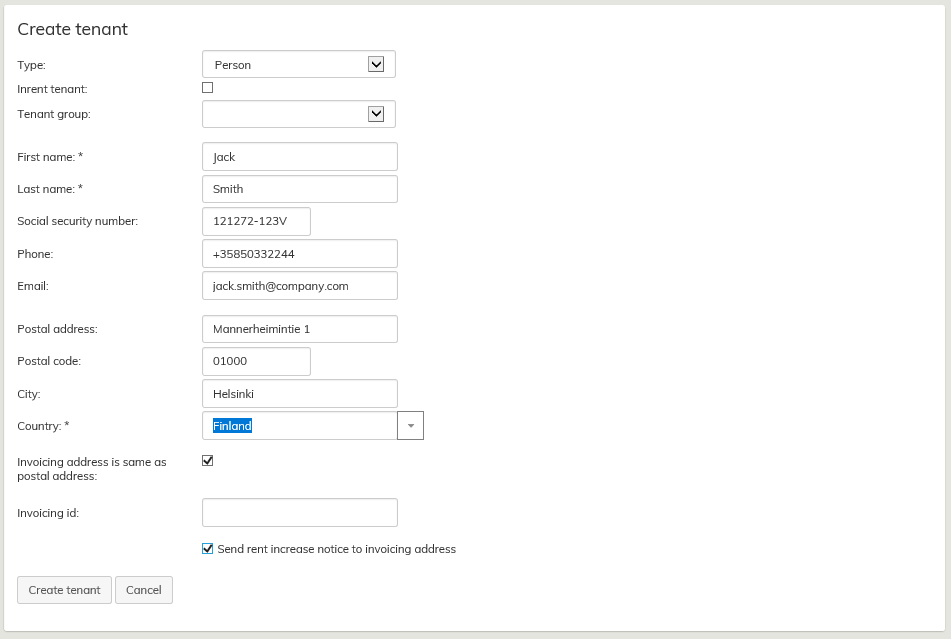
A form for entering the basic tenant information will open up. Mandatory fields are marked with an asterisk (*). Other fields are for additional information that can be added, if requested. You can also leave these blank.
Select the tenant type from the pull-down menu (e.g. Is the tenant a person or a company/community).
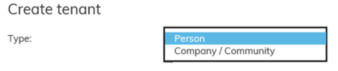
Mandatory fields will change according to the type selected. If you check the box Invoicing address is the same as postal address, the tenant’s address information is automatically copied under the invoicing information.
If the tenant’s address or invoicing address changes, new information should be updated in both fields.
The tenant’s invoicing address is included in the invoicing information.
Enter the tenant’s ID in the Invoicing id field for identifying the tenant via an interface in the SAP system, for example.
At the end of the form, you get to choose where the rent review notification will be sent to. As a default, the tenant’s address will be printed on the rent increase letter.
If a representative, for example, is handling the tenant’s affairs and the notification should be sent to that representative, you can choose the option Send the rent review notification to the invoicing address.
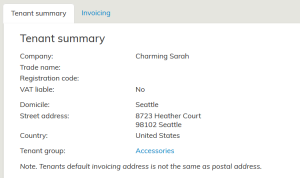
Information on the tenant can include a default invoicing address that differs from the postal address, such as when the tenant does not personally pay the rent.
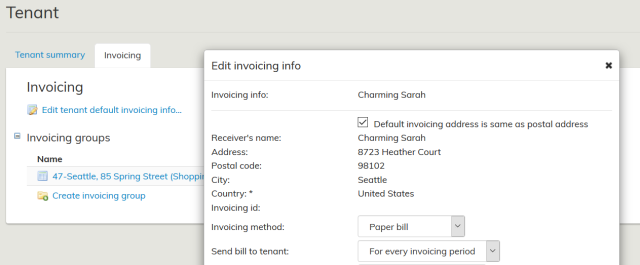
In Invoicing, select whether the default invoicing address is the same as the postal address entered in the tenant summary. The default is the same as the postal address, by default.
If the user deletes the default selection and specifies a default invoicing address for the tenant that differs from the postal address, the tenant summary displays a comment on the matter.
When you have filled in the necessary fields, select Create tenant.
Tenants can be grouped by a tenant group. You can create a new tenant group as described under Creating a new tenant group.
Editing tenant information
When you want to edit information for an existing tenant, select Outrent or Inrent from the main menu and click Agreement management. From the tree-like list of tenants, select the tenant whose information you want to edit. The basic information on the tenant, as well as the tenant’s invoicing information, will open up in a separate tab on the workspace.
From the right side of the workspace, select Edit tenant information...
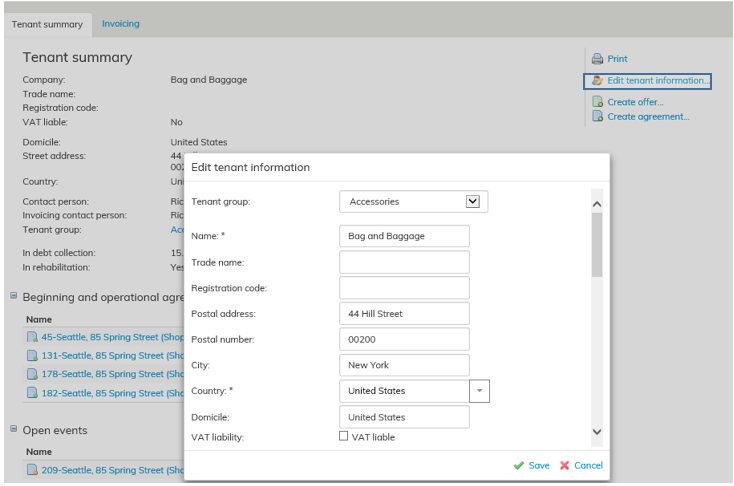
Edit or add the desired information and select Save.
You can add contact persons and invoicing contact persons for the tenant with Add contact person and Add invoicing contact person buttons.
While creating the agreement, you can select a contact person for each agreement.
Removing tenant information
You can only remove those customers from the agreement party register, for whom no agreements, offers or other documents are created.
If it is possible to remove a customer, the option Remove tenant will appear on the right in the customer summary page.
When you select this function, you will be asked if you are sure you want to remove the customer
Uuden vuokralaisen luominen
Uuden vuokralaisen luonti vuokralaisrekisteriin tapahtuu Sopimusten hallinnan kautta.
Valitse päävalikosta Ulos- tai Sisäänvuokraus - Sopimuksien hallinta. Työikkunaan avautuu puumainen vuokralaisluettelo.
Valitse luettelosta ylin taso, jolloin työikkunan oikeaan reunaan ilmestyy alla näkyvät valinnat
...
Työpöydälle avautuu lomake, johon vuokralaisen perustiedot päivitetään. Pakolliset kentät on merkitty tähdellä *, muut kentät ovat lisätitetoja, joita voit halutessasi täyttää. Mutta ne voit jättää myös täyttämättä.
Valitse alasvetovalikosta vuokralaisen tyyppi henkilö tai yritys/yhteisö
Täytettävät kentät muuttuvat valitun tyypin mukaan. Mikäli valitset että Laskutusosoite on sama kuin käyntiosoite kopituu vuokralaisen osoitetiedot myös Laskutustietoihin.
Mikäli vuokralaisen osoitteessa tai laskutusosoitteessa tapahtuu muutos, tulee molempiin kohtiin päivittää uudet tiedot.
Laskutusaineiston tietoihin tulevat vuokralaisen laskutusosoitteen tiedot.
Syötä 'Laskutustunniste' –kenttään vuokralaisen tunniste, jolla voidaan rajapinnan kautta yhdistää vuokralainen esim. SAP järjestelmässä.
Lomakkeen lopussa otetaan kantaa siihen, mihin vuokrantaksitusilmoitus halutaan lähettää. Oletuksena vuokrankorotuskirjeeseen tulostuu vuokralaisen osoite.
...
Vuokralaisia voidaan ryhmitellä vuokralaisryhmittäin. Uusi vuokralaisryhmä luodaan Vuokralaisryhmän luonti ohjeen mukaisesti.
Vuokralaisen tietojen muokkaaminen
Kun haluat muokata olemassa olevan vuokralaisen tietoja, valitse päävalikosta Ulos- tai sisäänvuokraus ja Sopimusten hallinta. Valitse vuokralaispuusta se vuokralainen,
jonka tietoja haluat muokata,jolloin työikkunaan avautuu vuokralaisen perustiedot sekä laskutustiedot omalla välilehdellään.
Valitse työikkunan oikeasta reunasta Muokkaa vuokralaisen tietoja...
...
Muokkaa tai lisää haluamasi tiedot ja valitse lopuksi Tallenna.
Vuokralaiselle voidaan lisätä yhteyshenkilöitä ja laskutusyhteyshenkilöitä Lisää yhteyshenkilö ja Lisää laskutusyhteyshenkilö painikkeilla.
Sopimusta luodessa voidaan kullekin sopimukselle valita haluttu yhteyshenkilö.
Vuokralaisen tietojen poistaminen
Osapuolirekisteristä voidaan poistaa ainoastaan asiakkaita, joille ei ole luotu sopimuksia, tarjouksia tai muita asiakirjoja.
Poistettavissa olevan asiakkaan koontilomakkeen oikeaan reunaan tulee valinta Poista vuokralainen.
Kun valitset tämän komennon, ohjelma kysyy vielä, että haluatko varmasti poistaa asiakkaan.