Versions Compared
Key
- This line was added.
- This line was removed.
- Formatting was changed.
| Info |
|---|
You must have Space management role in EG Optimaze to add, edit and delete capacity objects in floor plans. |
Table of Contents
What are capacity objects
Capacity objects represent
resources such as workstations, meeting rooms and phone booths in the workplace. You need to add capacity objects to
You must first add floor plans before you can add capacity objects to a floor plan.
Instructions
floor plans before installing Occupancy sensors.
The most important aspect of capacity objects is that they define the capacity of a resource, such as how many people can fit in a meeting room. This can be then utilized when booking resources or calculating utilization of spaces.
If changes in capacity objects are not shown in EG Worksense, you can sync building floors.
Adding new capacity objects
- Log in to EG Optimaze
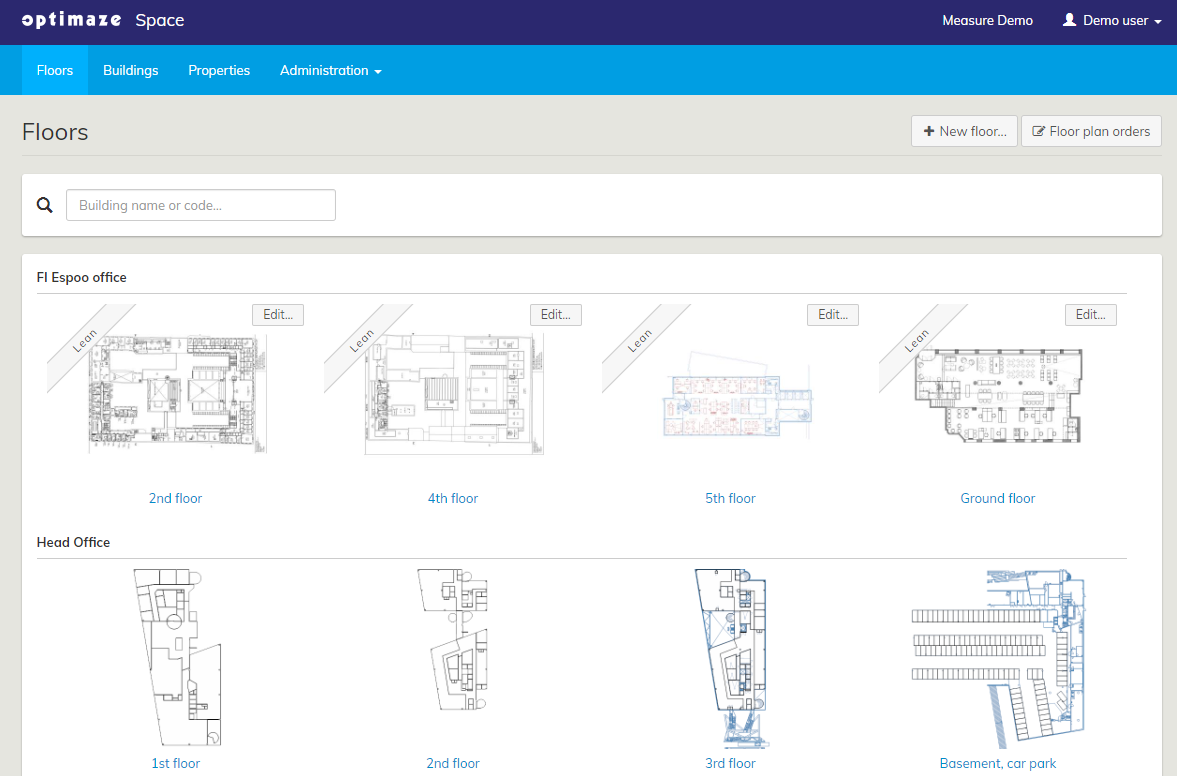
- Navigate to EG Optimaze Space application
- Select a floor plan
- Click Edit and click Capacity objects...
- Select settings for the capacity object type, its subtype and capacity
- Start adding capacity objects to the floor plan
- The capacity objects are automatically saved to the floor plan
- Continue adding objects until you are ready
Editing capacity objects
- Log in to EG Optimaze
- Navigate to EG Optimaze Space application
- Select a floor plan
- Click Edit and click Capacity objects...
- Select one or multiple capacity objects from the floor plan
- Make changes to the capacity object's settings
- Click update 1 capacity object / update X capacity objects
Deleting capacity objects
- Log in to EG Optimaze
- Navigate to EG Optimaze Space application
- Select a floor plan
- Click Edit and click Capacity objects...
- Select one or multiple capacity objects from the floor plan
- Click Delete 1 capacity object / Delete X capacity objects
- Click End or Delete
- End means that a capacity object will keep its history in the floor plan
- Delete means that a capacity object will delete all of its history
- Notice that by deleting a capacity object will also delete any sensors attached to it
Making a capacity object bookable
- Log in to EG Optimaze
- Navigate to EG Optimaze Space application
- Select a floor plan
- Click Edit and click Capacity objects...
- Select one or multiple capacity objects from the floor plan
- Tick the box Can be reserved
- For external bookings, add email address
- For internal bookings e.g. workstations, leave email address empty
- Click update 1 capacity object / update X capacity objects
Adding email address to a capacity object
You need to add email address to one capacity object at a time.
- Log in to EG Optimaze
- Navigate to EG Optimaze Space application
- Select a floor plan
- Click Edit and click Capacity objects...
- Select one capacity object from the floor plan
- Tick the box Can be reserved
- Add email address
- Click update 1 capacity object
Adding out of use capacity object
If you want to show some workstations or rooms as out of use in EG Worksense,you need to set the capacity object's usable capacity to 0.
- Log in to EG Optimaze
- Navigate to EG Optimaze Space application
- Check that Capacity object type has usable capacity has been enabled for the Capacity object main type, instructions here
- Go to Floors tab and select a floor
- Select one or multiple capacity objects
Set usable capacity to 0
- Click update 1 capacity object / update X capacity objects
Best practices on managing out of use capacity objects
When you want to reopen a workstation or room, increase the available capacity to its capacity value.
You can give a date when your modifications will apply to your selected capacity objects.
If you know in advance when workstations are reopened or the available capacity of a meeting rooms returns to normal, you can make these changes in advance.
Usable capacity cannot be larger than the object’s capacity.
Usable capacity cannot be negative.
Usable capacity does not affect installing occupancy sensors to capacity objects with EG Inventory.
No occupancy status or booking information is shown in EG Worksense for ‘Out of use’ capacity objects.
Image Removed4. Click ‘Edit' and ‘Capacity Objects…’ on the top navigation bar
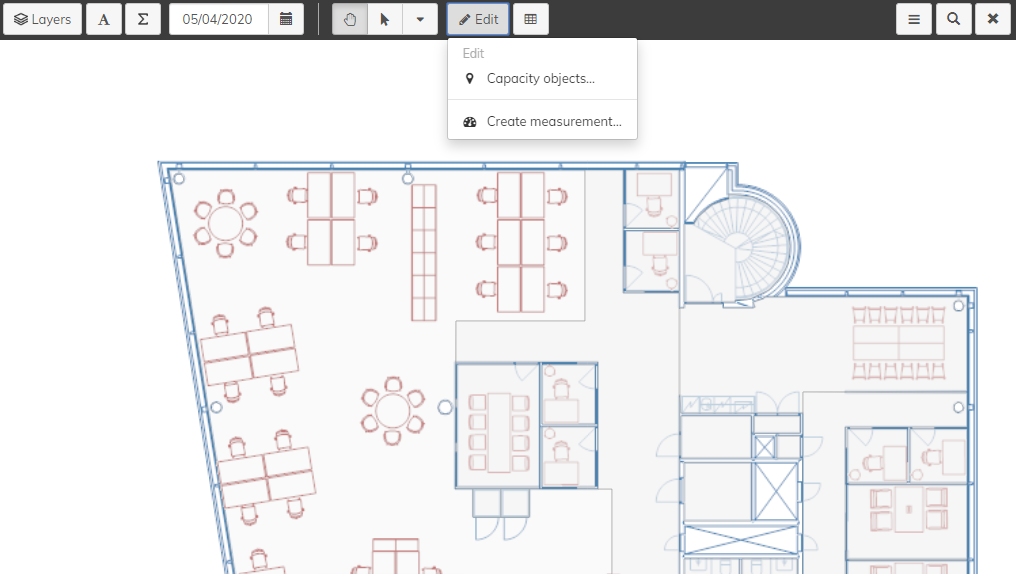
Image Removed
5. Select capacity object type, subtype, capacity and usage type and click floor plan with your mouse on the position, where you would like the object
Edit capacity object types if you cannot find a capacity object type or subtype that you need
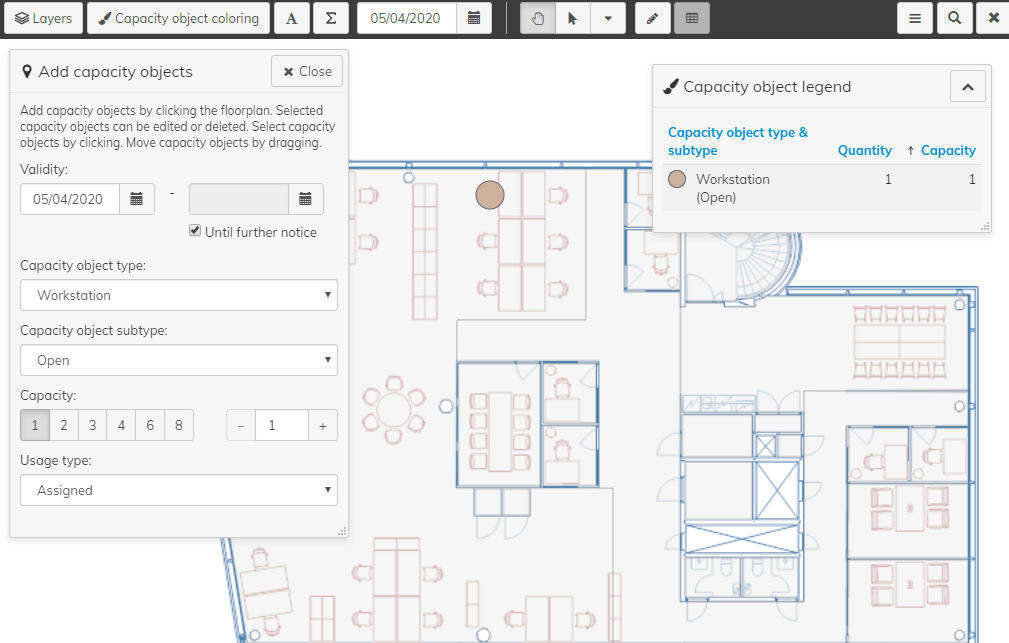
Image Removed
6. The capacity objects are automatically saved to the floor plan
7. Continue adding capacity objects until you are ready
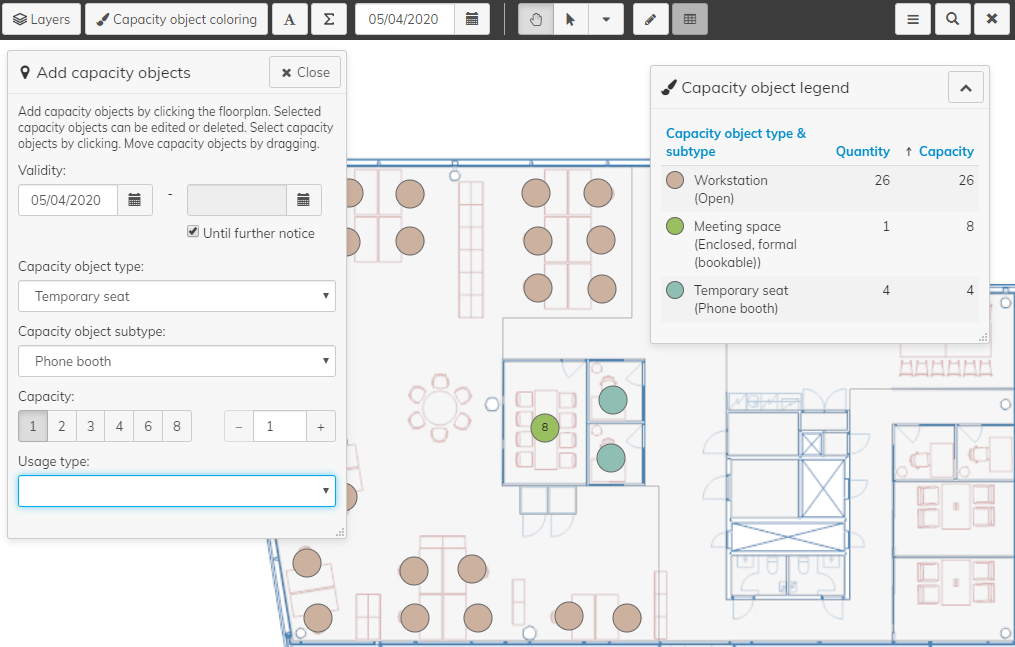
Image Removed
8. Next you can install occupancy sensors to the capacity objects with the Eg Inventory app, check instructions here