Reports can be viewed both in Space view and in Eco view. In the Space view, you can find reports related to spaces and lease management, while in the Eco view, the reports are related to finance processing and environmental emission accounting.
The access rights determine, which reports each user or user group is allowed to view.
You can create reports from the main menu under Reporting. There, you can find four options:
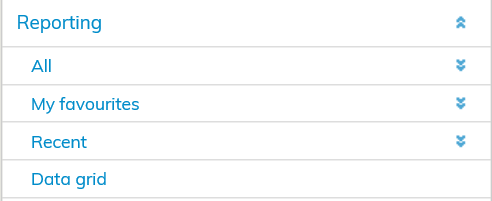
You can find all available reports under the All menu.
My favorites will list the reports that you have marked as favorites, while Recent shows you the last five (5) reports created.
More detailed information on data grids can be found below in section Data grids.
| Tip |
|---|
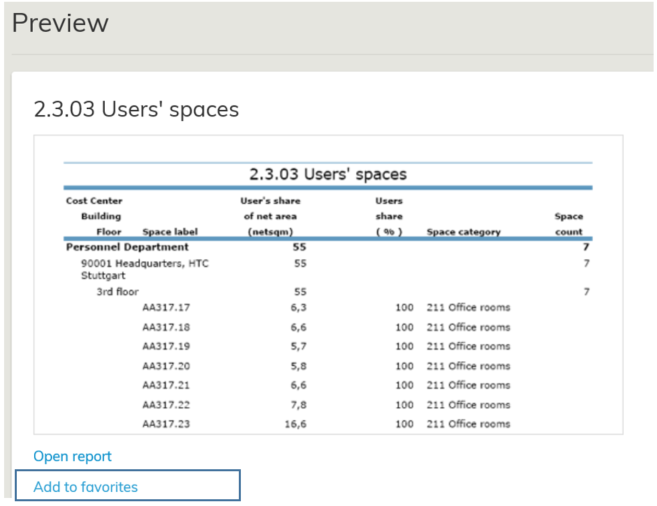
You can mark regularly used reports as favorites by clicking the Add to favorites button on the report preview. |
When you click each of the headers, the reports relating to the topic, such as 2.1, will open below it. Reports, such as 2.1.01 Area calculation and other reports relating to the area, are found under the Area header.
When you click the name of the report, details on the report will be displayed in the workspace. You can open a single report by clicking the Open report button.
Before the report opens, the software asks, in which format you wish to print the report. You can select PDF or Excel reports.
When you have selected the preferred format from the pull-down menu, click Create report button.
If you have filters active for the report, you will get a notification in this view.
| Tip |
|---|
The text is green, if you have active filters for this report. The text is red, if the requested filter could not be applied for the selected report. |
For more information on filtering data on the report, see section
