This Lease management guide is meant for solution that is inside Moment. If you are using Lease -application as your Lease management system, you can find the guide here: Lease user guide
Instructions on lease management covers both inrent and outrent. In general, the inrent and outrent functions work similarly in Optimaze. Creating invoicing information takes place on the outrent side, while the material handled on the inrent side belongs to the invoicing process. In addition, the outrent covers also the preparation of offers, which is not included on the inrent side.
The lease management in Optimaze is used to maintain lease agreements and relating matters.
You can access the lease agreement creation pages via many different views in Optimaze. You can create a lease agreement through Rental area management or Agreement management views. It is also possible to create a lease agreement via the floor plan while creating the rental area.
Creating, editing and ending a lease agreement, as well as the contents of the agreement form, are explained under Agreement management.
The term ‘rental area’, as well as rental area management, are described in detail in the instructions on the Rental area management.
| Tip |
|---|
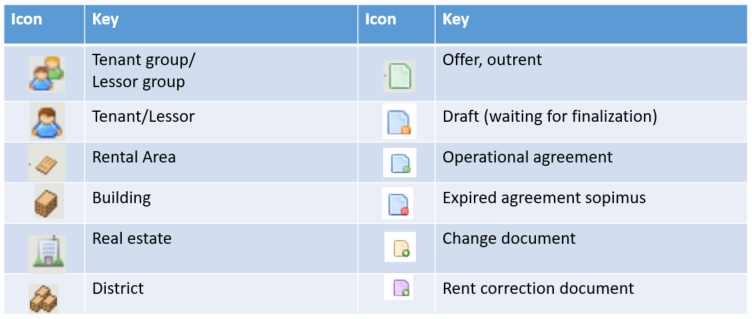
Various icons are used in lease management, and understanding their meaning helps in using the software. The icons used in lease management and their descriptions are listed below |
Lease management icons
Lease management access rights
Various access rights are used in Optimaze lease management, and they determine what kinds of documents each user can create and edit.
If a document cannot be opened or edited, the user might not have the access rights required to complete the action.
Searching for agreements
You can search for existing agreements in the following ways:
Use the Search function in the main menu
You can search for rental areas and documents according to the property, tenant and date, for example.
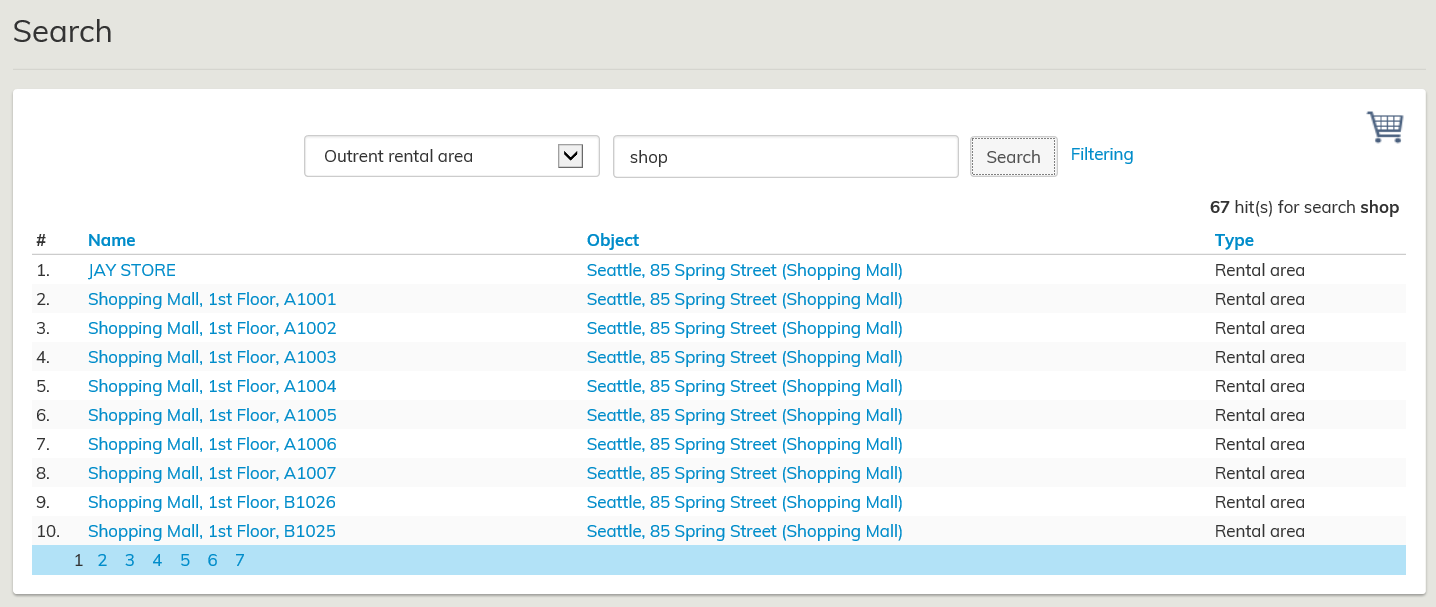
Filtering lets you find information more quickly and more efficiently, with more accurate search results. The selected information to be filtered affects all the data and reporting found in the system. You can find more detailed instructions on using these functions under Search and filtering.
| Tip |
|---|
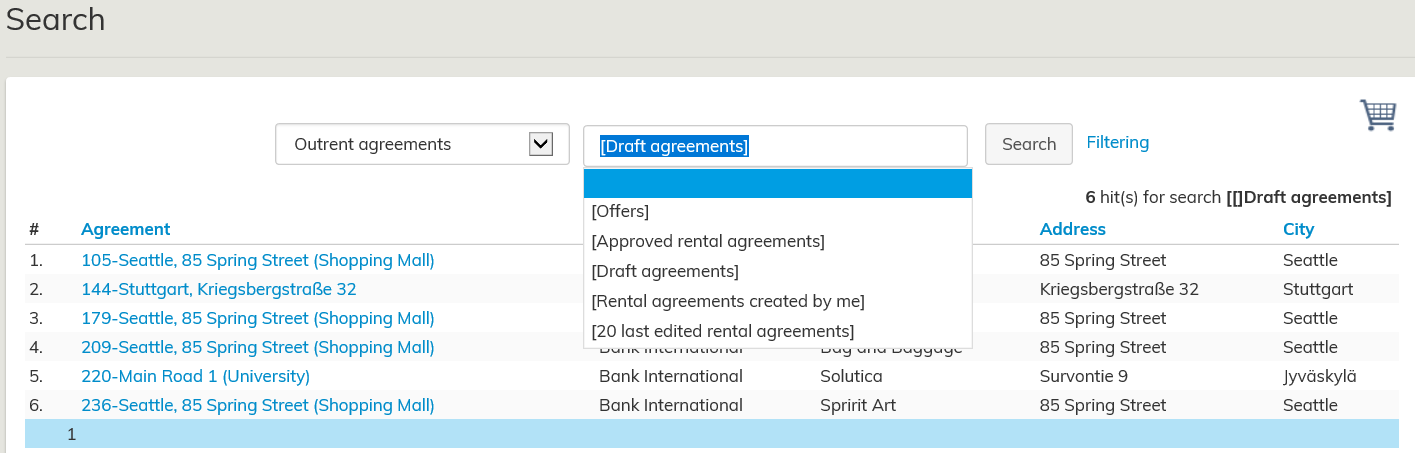
With the Search function, you can also search for draft agreements that include data that is not displayed in any other lease management report.
When you search outrent or inrent agreements, the text Draft agreements appears in the pull-down menu. By clicking it, a list of draft agreements in Optimize opens |
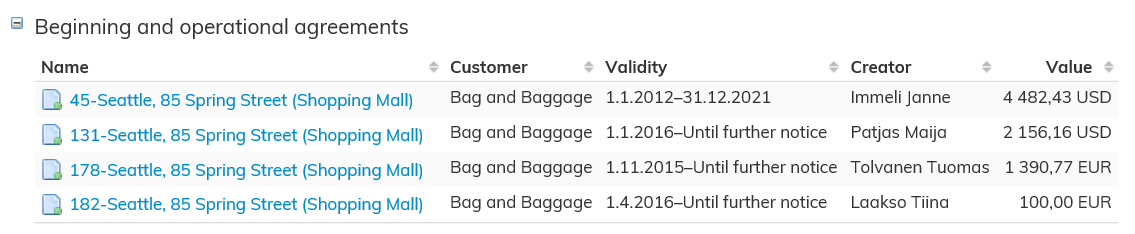
Open the customer summary page from Agreement management
Select the agreement by clicking the blue agreement number with your mouse.
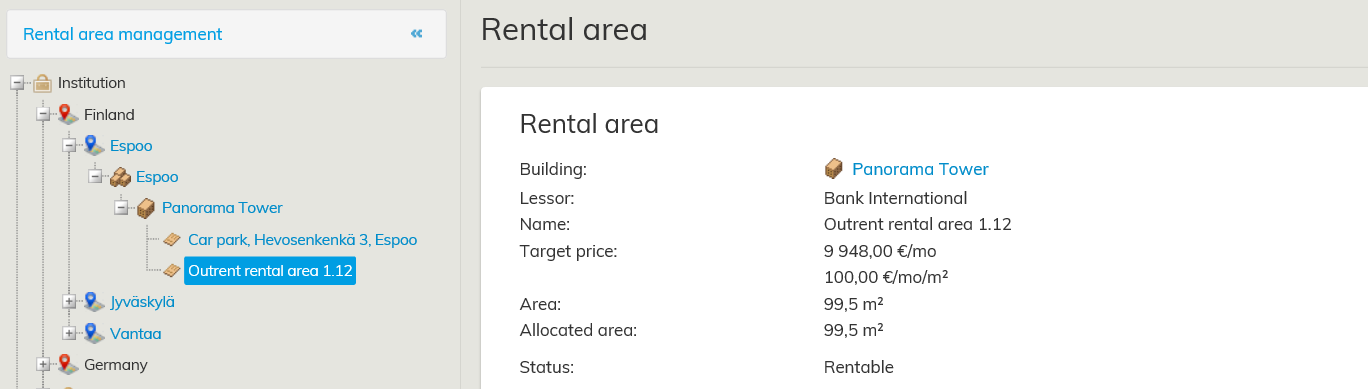
Open the building summary page from Rental area management
Select the agreement by clicking the blue agreement number with your mouse.
You can also view the rental areas with the floor plan browser by using various thematic maps and labels
Instructions on using the floor plan browser can be found under Help in the menu header on the upper right corner of the floor plan.
