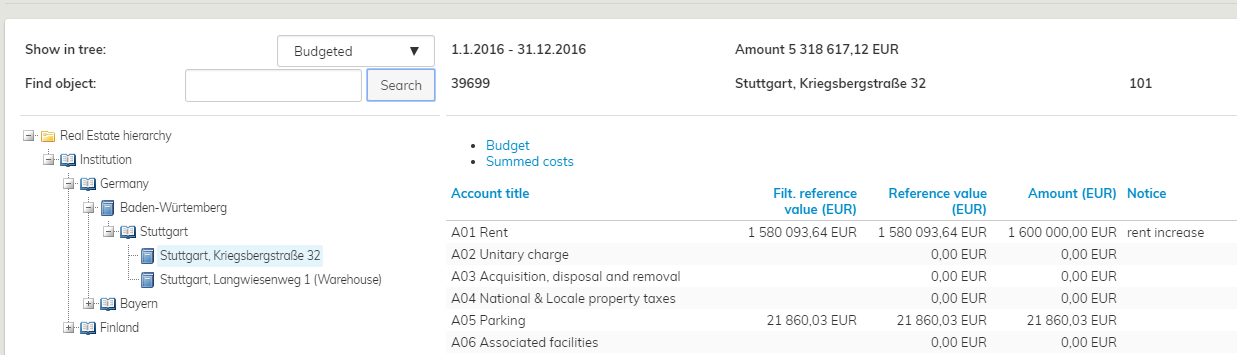
A budget template is a budgeting tool in Optimaze, and it is where the actual budgeting takes place. Rapal’s financial support creates the budget template based on the information the customer wishes to use.
Selecting data for the budget base
First, you should consider what information you wish to use as a basis for creating the budget. In the Optimaze system, it is possible to budget occupancy costs with various source data. In budgeting, it is possible to utilize the budget from a previous year that is processed in the software, or the charging or actual periods information. When using the realization or charging information as a basis, it might be required to use the realization data from one month or more.
It is also possible to import budget data to Optimaze with an Excel file. Information on the site, account and amount in euros must then be included in separate rows. If required, it is possible to open a blank budget template that does not include any costs. In this case, the budget costs must be entered in the budget template from the beginning.
When you have decided which information is used as a basis for the budget, Rapal’s financial support can be requested to create the budget based on the desired information. Send notification to Rapal’s financial support at: tuki@optimaze.net.
Budgeting with the budgeting tool
Rapal’s financial support creates a budget template based on desired information. The budget itself is then edited in the template.
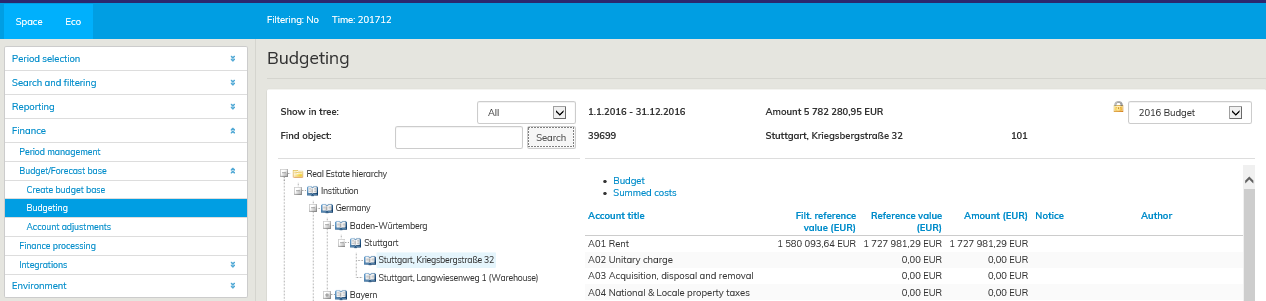
You can find a budget template under Budgeting in the Eco section.
Note! Selecting the period is now on the upper right-hand corner of the budgeting tool. You can check from there what budget template you are editing.
You can only edit an active and open budget template. When the budget period has been run and locked, it can no longer be edited. If you still need to change some of the costs, you can unlock and run the period again. If you do not want to lose the information in the already run version, you should create another period based on the information on the period already run.
Totals and headers in the budgeting tool
The budget template tool always displays the euros in the level selected from the real estate hierarchy on the left. The building costs of Panorama Tower are illustrated below.
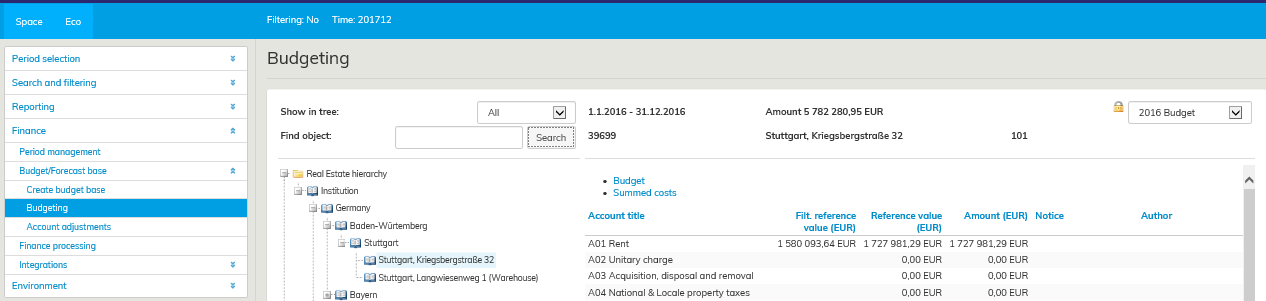
Under Budgeting header, you can see the information of the entire budget. There is also a search function that can be used like all search tools in Optimize. By clicking on Budget or Total costs in blue, you can switch between views. In the Budget view, the budget can be edited, while in Total costs view, you can review the costs allocated to the selected level. The total costs include also other costs added to the particular site from other levels.
In the Budget view, the first header on the left in blue is Account title, which shows what types of costs are shown in the row. The header A01 Rents on top covers all of the costs under this account title.
In the Filtered reference value column, the software shows the costs for the period selected under period selection in the Eco section to facilitate budgeting. If you want to use information of another period as the filtered reference value, select the desired period from Period selection menu in the Eco tab. For example, if you want to compare budgeted costs from this year to the budget from the previous year, you can choose to display the budget from the previous year.
The costs imported as a basis for this budget are shown in the Reference value column. This value does not change when the budget is edited, so you can compare the final budgeted costs in the Balance column with the base information at any time. Before editing, the total value shown in the Balance column is the same as the one in the Reference value column. The total in the Balance column changes as you edit the figures in the budget.
The totals in the Total costs tab are updated according to the changes made to the figures in the Budget tab. If the budgeter enters costs for building blocks, for example, he or she can easily review the total costs of the entire building in the Total costs tab.
If you wish to budget for account titles that are not found from the account map in Optimaze Moment, you need to notify Rapal support about them. They then add the missing account titles in the account hierarchy.
When a site is not valid for the entire budget period
If a site is valid only for a certain time in the budget period, a notification written in red appears in the budgeting view.
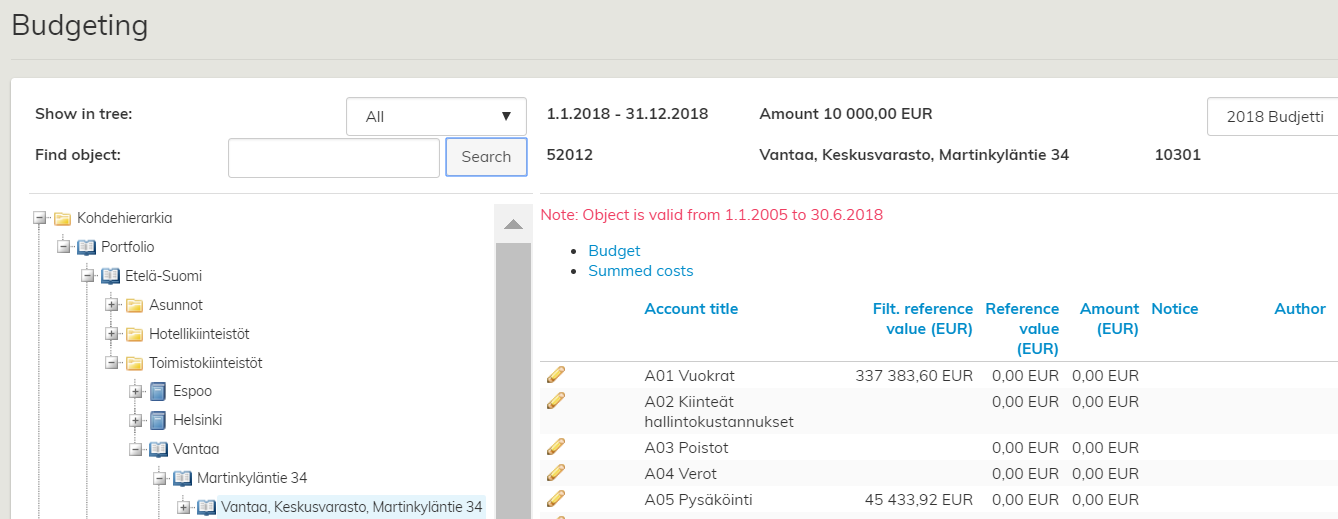
A site that is valid only a part of the year is displayed in red in the budget template.
When entering budgeting figures, you need to take a partial validity of a site into account. The software shows the reference value for the entire year, so the budgeter needs to calculate what proportion belongs to the site according to its validity period.
Entering budgeting figures to the budget template
The figures in the budget are edited with the edit tool. The function is marked with the pen icon. By clicking the edit icon, you can start editing the selected account title row.

Once you have edited the figures and written a notification, select Save  or Cancel
  by using the icons. There is no function for cancelling a change you have already saved, but you can enter the original amount again and save that.
The budget figures are entered as follows:
1. Go to the Eco tab and browse the main menu in the left: Finance – Budget/forecast template – Budgeting
2. Choose the correct budget template from the pull-down menu on the upper right corner. Choose the budget template for 2018, for example.
3. From the real estate hierarchy, choose the site whose costs you wish to edit.
| Tip |
|---|
You can use filtering with budgeting too. If the filtering option is used, the tree-like list shows only those sites selected for the filtering. |
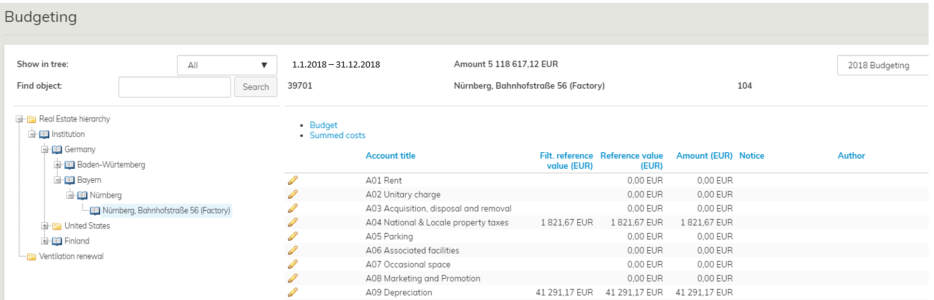
Budgeting view when the real estate hierarchy is filtered for Central Finland.
1. Select the edit icon next to the account title in the Budget tab, in order to access the balance column and edit costs. The budgeter can enter comments in the Notifications column to remind himself/herself of an increase, for example. In the author field, the system adds the name of the person, whose login credentials have been used to access Moment. Also the date of processing is added.
2. When a cost is correct, select Save (icon). As described above, you can edit the costs for both the sites and the organization (these are explained in detail below).

Budgeting view when the real estate hierarchy is filtered for Central Finland.
1. Select the edit icon next to the account title in the Budget tab, in order to access the balance column and edit costs. The budgeter can enter comments in the Notifications column to remind himself/herself of an increase, for example. In the author field, the system adds the name of the person, whose login credentials have been used to access Moment. Also the date of processing is added.
2. When a cost is correct, select Save (icon). As described above, you can edit the costs for both the sites and the organization (these are explained in detail below).

In the illustration above, the rental cost has been modified. Fixed management costs are currently being edited and changes are saved by clicking the icon.
Budgeted costs for a specific organization
Budget costs can be entered for sites, as well as organizations, i.e. the users of spaces.
Organization costs are used, for example, when the costs for an organization’s certain account title should be increased.
Organization-specific costs are shown below site costs.
In the above example, an organization-specific rent of EUR 2,000 has been added in the budget for the accounting unit of Panorama Tower. Note! The organization in question needs to be placed in the particular building!
Thumbnails in the budget template
The budgeting tool in Optimaze includes various thumbnails to help in managing the budgeting process.
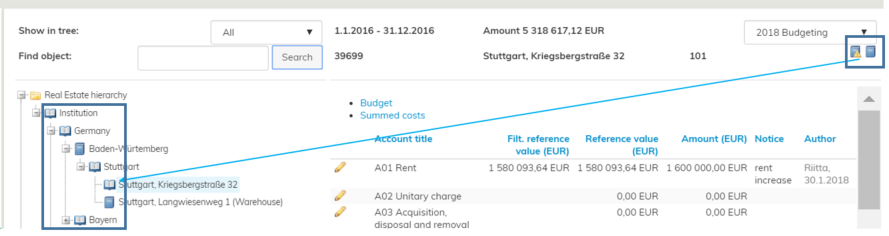
In the budget template, an open book appears in front of the site in the left-hand side of the real estate hierarchy to indicate that the site has not yet been budgeted. Once you have edited the costs for the site and saved the final costs, you can click on the icon on the upper right corner to indicate that the site has been budgeted. Then, the site is marked in the real estate hierarchy with a closed book symbol to indicate that the budgeting for this site has been finalized and you do not need to go back to it later. Also the pen icon next to the site’s name disappears. However, if the costs for the site need to be edited later, you can access the site by clicking the symbol of an open book that has now appeared in the upper right corner.
If the costs of a certain site are unclear and you need to get back to the budgeted costs later, you can mark the site as unclear by clicking on the icon. Once the budgeting is done, you can check the items marked with these symbols and verify that the costs for each budgetable site have been processed. By using these icons, you can go through the budget in several occasions and still be able to check straight away, how well the budget is coming together.
| Tip |
|---|
You can search for sites based on the icons described above by using the Show in tree pull-down menu on the upper part in the budget template.
You can select budgeted or non-budgeted sites, unclear sites or all sites. Now, the tree-like list shows only the filtered sites. |