A rental premise is edited by first opening the premise in the rental areas, car parks, land areas or other rental products view (click its name in the list).
The single premise view
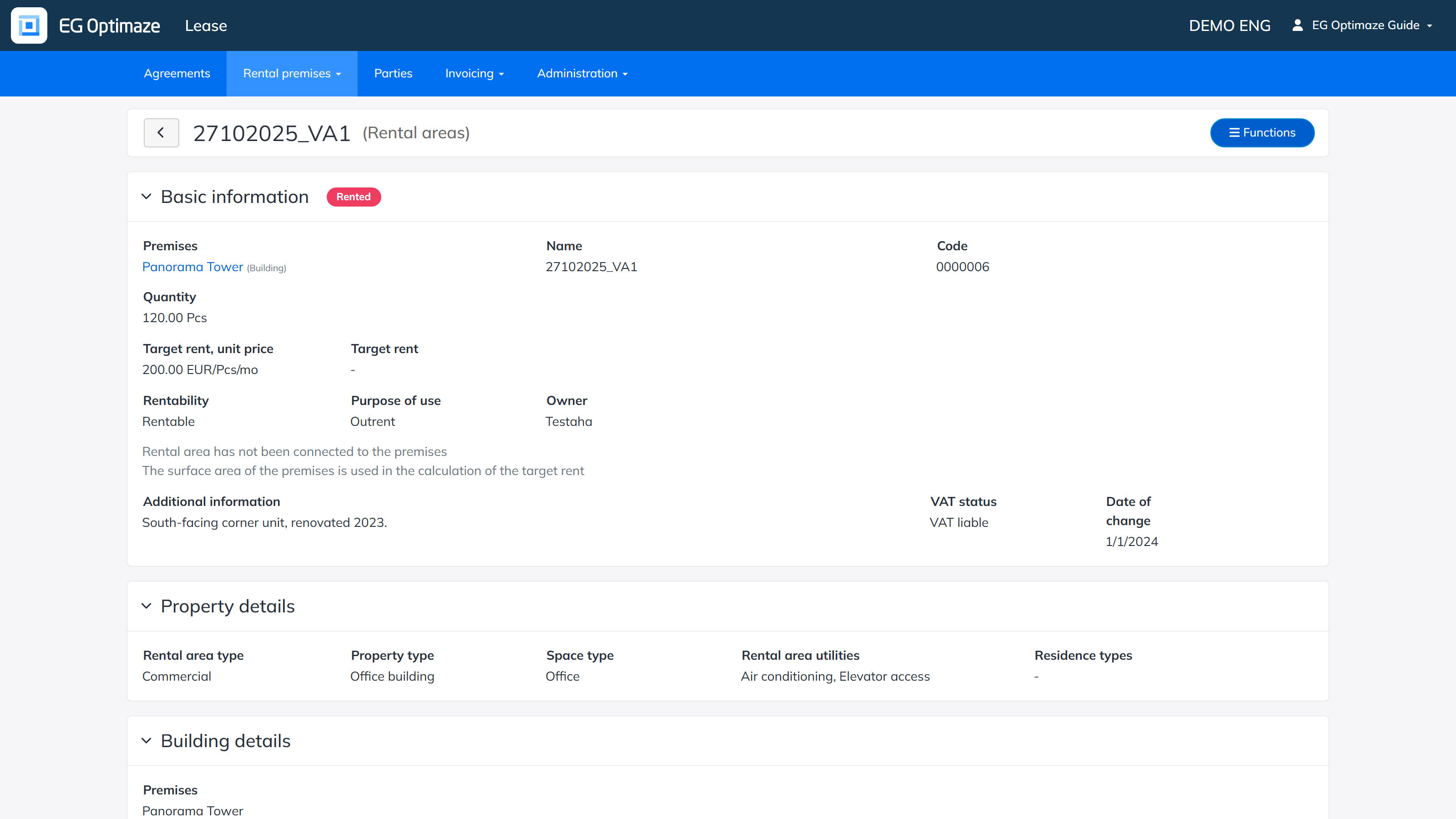
The view is divided into sections:
- Basic information — a status badge showing the rental area’s current rental status, and:
- Premises — the building where the rental area is located, linked to the building’s own view.
- Name and Code — the rental area’s name, and a code assigned automatically when it is created.
- Direct use and Allocated — the two area components that together make up the rental area’s total Quantity.
- Quantity — the total quantity and unit. If the rental area is connected to spaces with the floor plan browser, the connected spaces’ surface area can be used instead, which is noted in the view.
- Target rent, unit price and Target rent — calculated from each other and the quantity, when either one is entered.
- Rentability — whether the rental area is rentable, not rentable or in own use.
- Purpose of use — whether the rental area is used for outrent or inrent.
- Owner — the party entered as the owner of the rental area.
- Additional information — a free-text field.
- VAT status and Date of change — the rental area’s current VAT liability and the date it took effect; further taxation periods can be added via Add taxation information in edit mode.
- Property details — Rental area type, Property type, Space type, Rental area utilities and Residence types. The same fields are also available as columns and filters in the rental areas list (see Rental areas).
- Building details — the Premises (building) and its Floors.
- Agreements — the rental agreements connected to the rental area, with each agreement’s Status, Name of agreement, Validity and Tenant.
Editing and deleting
Open the edit mode via Functions → Edit rental area. Make the needed changes and click Save. The same menu can also be used to create a new premise or to delete an available one.
A rental premise that is connected to a rental agreement cannot be deleted. To delete an available premise, select the delete action and confirm the deletion; the premise is then removed from the list as well.
